

Google Distributed Cloud is a fully managed software and hardware solution that extends Google Cloud infrastructure and services into your data center. Google Distributed Cloud is available in both connected and air-gapped configurations that run on Google-provided hardware. Google Distributed Cloud is also available as a software-only product that runs on your own hardware. Google Distributed Cloud software can be installed on either VMware or bare metal. This guide is for Google Distributed Cloud software that runs directly on your bare metal machines.
Google Distributed Cloud software is based on Google Kubernetes Engine (GKE), with its own Kubernetes package that extends GKE for use in an on-premises environment. With Google Distributed Cloud you can create, manage, and upgrade GKE clusters on your own premises while using Google Cloud features, and deploy and operate containerized applications on your clusters at scale using Google's infrastructure.
Why use Distributed Cloud software only for bare metal?
Running Distributed Cloud software only for bare metal takes advantage of your existing enterprise infrastructure and helps you modernize applications throughout their lifecycle.
Bring your own node
With a software-only installation on bare metal of Google Distributed Cloud, you deploy applications directly on your own hardware infrastructure, which provides the best performance and flexibility. You have direct control over application scale, security, and network latency. You also get the benefits of containerized applications through GKE components.
Improved performance and lowered cost
Google Distributed Cloud manages application deployment and health across your existing corporate data centers for more efficient operation. Also, you can run containers at the edge of the network, so analytic apps can run with full performance.
Using Distributed Cloud software only for bare metal instead of virtual machines gives you the ability to manage application containers on a wide variety of performance-optimized hardware types, like GPUs and SSDs. Running Distributed Cloud software only for bare metal also allows for direct application access to hardware.
Compatible security
Because you control your node environment, you can optimize your network, hardware, and applications to meet your specific requirements. As a result, you can directly control system security, without having to worry about your compatibility with virtual machines and operating systems.
Monitored application deployment
Google Distributed Cloud provides advanced monitoring of the health and performance of your environment. This monitoring capability helps you adjust the scale of applications while maintaining reliability despite fluctuations in workload and network traffic.
You manage monitoring, logging, and analysis of clusters and workloads through the Connect Agent.
Network latency and flexibility
Because you manage your network requirements, your network can be optimized for low latency. This network optimization can be crucial for performance in commercial or finance analytics and other enterprise or network edge applications.
Highly available
Google Distributed Cloud includes support for multiple control plane nodes in a cluster. If a control plane node goes down, you can still administer your environment.
Secure design and control
Your infrastructure security can be customized for your own needs, with minimal connections to outside resources. Most importantly, there is no additional VM complexity when deploying security systems, and you maintain complete OS control when interacting with existing security systems.
Google Distributed Cloud works with lightweight secure connections to Google APIs. You can manage clusters and applications from a central location with Connect and Cloud Monitoring. This centralization also helps keep your deployments running smoothly, and lets Google Cloud Support troubleshoot issues more effectively.
Preflight checks on installation
With Google Distributed Cloud, your clusters run on open source and enterprise Linux systems, and on a minimal hardware infrastructure, which creates flexibility in your environment. It also includes various preflight checks to help ensure successful configurations and installations.
Application deployment and load balancing
Google Distributed Cloud includes Layer 4 and Layer 7 load balancing mechanisms at cluster creation.
Improved etcd reliability
To monitor the size and defragment etcd databases, Google Distributed Cloud
control planes include an etcddefrag Pod. The etcddefrag Pod reclaims
storage from large etcd databases and recovers etcd when disk space is
exceeded.
How it works
Google Distributed Cloud extends Google Kubernetes Engine (GKE) to let you create clusters on your own Linux servers on your own premises. You manage these on-premises clusters in Google Cloud along with regular GKE clusters and clusters in other environments as part of a fleet.
GKE clusters run in Google Cloud where the Kubernetes control plane and network infrastructure are managed by Google Cloud. Because clusters created with Google Distributed Cloud run in your data center, we provide some administration and control plane software in addition to the GKE software. The software that runs in your data center is downloaded as part of the installation and upgrade processes.
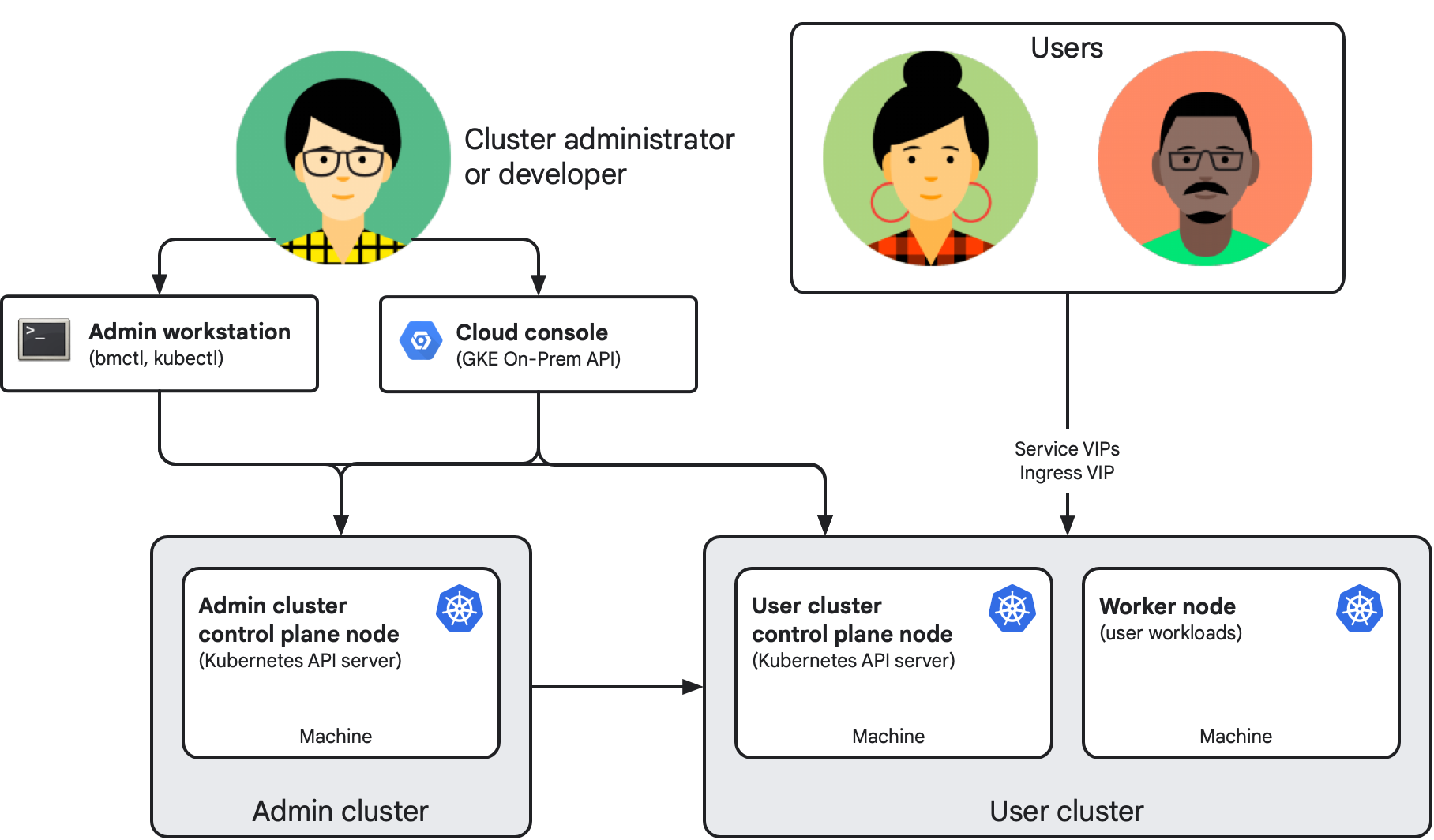
The following diagram shows the simplified result of a completed installation:
Key components
The following components make up a software-only installation on bare metal of Google Distributed Cloud:
The admin cluster consists of one or more control plane nodes. Each node is a physical machine running a supported Linux operating system. The standard deployment consists of an admin cluster that manages the lifecycle of one or more user clusters through Kubernetes Resource Management (KRM). Each node machine in the installation has its own IP address.
A user cluster is where the workloads that implement your applications run, like in GKE on Google Cloud. Each user cluster consists of at least one control plane node and one worker node.
The admin workstation is a separate machine (typically) that includes the tools and cluster artifacts, such as configuration files. Cluster creators and developers use these tools and artifacts to manage their on-premises clusters, with appropriate permissions:
Running
bmctlfrom the admin workstation lets you create and update clusters and perform some other administrative tasks.Running
kubectlfrom the admin workstation lets you interact with your admin and user clusters, including deploying and managing workloads.
The GKE On-Prem API is the Google Cloud-hosted API for cluster lifecycle management. You use the API clients (Google Cloud console, Google Cloud CLI, and Terraform) to create and manage the lifecycle of your on-premises clusters as an alternative to logging into the admin workstation to manage your clusters with the
bmctlCLI.The console also provides a web interface for your Google Cloud project, including on-premises clusters. The console displays key metrics about your clusters to help you monitor cluster health.
Cluster administrators and developers use
kubectlto access cluster control planes through virtual IP addresses (VIPs) specified as part of cluster configuration. Application users and developers use Service and Ingress VIPs to access and expose workloads respectively.
Connecting to the fleet
All user clusters (and optionally admin clusters) are members of a fleet: a logical grouping of Kubernetes clusters. Fleets let your organization uplevel management from individual clusters to entire groups of clusters, and can help your teams adopt similar best practices to those used at Google. You can view and manage fleet clusters together in the Google Cloud console, and use fleet-enabled GKE features to help you manage, govern, and operate your workloads at scale. You can see a complete list of available fleet features for on-premises environments.
Each fleet cluster's connection to Google Cloud is managed by a Connect Agent, which is deployed as part of the Google Distributed Cloud installation process. You can learn more about how this agent works in the Connect Agent overview.
Fleet membership is also used to manage Google Distributed Cloud pricing on bare metal, as described in the next section.
Pricing
On-premises clusters created using Google Distributed Cloud are billed per vCPU. You enable billing by enabling the Anthos API in your Google Cloud project.
For full pricing information, including how to contact sales, see Google Kubernetes Engine pricing.
Versions
To learn about Google Distributed Cloud versions, see Version Support Policy.
This documentation covers all supported versions of Google Distributed Cloud. Where relevant, we also retain limited information for older, unsupported versions in this documentation. Version-specific differences in requirements and behavior are noted in the documentation. Similarly, when a new feature becomes available, the supported version for the feature is documented.
For a list of the supported minor versions and available patches, see Versioning.
Starting with the 1.29 release, we no longer create a numbered directory for the previous minor release documentation. You can find archived documentation for version 1.16 and earlier by adding the minor version number in the following URL:
https://cloud.google.com/anthos/clusters/docs/bare-metal/VERSION/
Replace VERSION with a minor version from 1.6 to 1.16 and copy the URL to the address bar in your browser.
Installing Distributed Cloud software only for bare metal
Because clusters created using Google Distributed Cloud run in your own infrastructure, they're highly configurable. Once you select the deployment model that meets your particular organizational and use case needs, you can choose from a range of supported load balancing modes, IP addressing options, security features, connectivity options, and more. Setting up a cluster involves making decisions before and during installation. This documentation set includes guides to help your team decide on the right features and options for you. To ensure that your installation meets the needs of your organization, consult with your networking and application teams.
Where your data is stored
When you run Distributed Cloud software only for bare metal, your clusters, applications, and business data stay in your data center. By default, Google Distributed Cloud sends Google Cloud information about your clusters, such as their settings, health, and usage, but it doesn't send your application data.
Data that stays in your data center
The following data stays in your data center:
- Containers, Pods, PersistentVolumes, local storage backends, and the data that your applications process.
- The control plane (
kube-apiserver,kube-scheduler, andkube-controller-manager) and theetcddatabase, which stores all of your Kubernetes objects. - Private keys for the certificate authorities (CAs),
including the cluster CA, the
etcdCA, and the front-proxy CA. The admin cluster's user cluster namespace stores user cluster CAs. - Application secrets, OAuth tokens, SSH private keys,
container registry credentials, and service account key files are stored in
etcdor on your administrator workstation. They aren't sent to the GKE On-Prem API, and the default diagnostic snapshot doesn't include cluster credentials. - Your cluster configuration file is stored on your administrator workstation. If a cluster is enrolled in the GKE On-Prem API, some settings are sent. See Data that's sent to Google Cloud for more information.
- Audit logs are written to disk only if you turn off Cloud Audit Logs on the control plane nodes.
- If you set up a service account for diagnostic snapshot uploads, the file is uploaded to Cloud Storage. You can choose whether to share a snapshot with Cloud Customer Care.
Data that's sent to Google Cloud
The following table shows what's sent, how it's used and stored, and whether you can turn it off:
| Data | What's sent | Use and storage | Default |
|---|---|---|---|
| Connection and fleet registration ( gkehub.googleapis.com,
gkeconnect.googleapis.com) |
|
Manage clusters from the Google Cloud console, the connect gateway, and fleet with Connect Agent. | Required |
| Cluster settings and status ( gkeonprem.googleapis.com) |
|
Lets you manage clusters with the Google Cloud console, the
Google Cloud CLI, or Terraform. Stored by the GKE On-Prem API in the region set
in gkeOnPremAPI.location, which defaults to
clusterOperations.location. |
On in version 1.16 and later, if the GKE On-Prem API is
enabled in your Google Cloud project. To turn it off, set
gkeOnPremAPI.enabled to false. |
| Billing usage ( anthos.googleapis.com) |
vCPU capacity, node count, and license entitlement status. | Used for metering, billing, and license checks. | Required. Billing records are buffered during an outage and sent later. |
| System health data ( logging.googleapis.com, monitoring.googleapis.com,
opsconfigmonitoring.googleapis.com) |
|
Used for Cloud Monitoring, Google Cloud console status views, and
Customer Care troubleshooting. Stored in the Google Cloud project
set in clusterOperations.projectID. Metrics are stored in the
region set in clusterOperations.location, and logs follow your
Log Router settings. |
On for system logs and metrics, which full
Customer Care support and SLA coverage require. Off
for application logs and metrics, unless you set
enableCloudLoggingForApplications or
enableGMPForApplications to true in the
Stackdriver resource. |
| Audit logs ( anthosaudit.googleapis.com) |
Admin Activity audit logs (audit-proxy): who changed what
through the kube-apiserver, and when. Entries include the time,
cluster, host or VM, user or service account, RBAC role, operation, and
result. Read requests aren't recorded. |
Stored in Cloud Audit Logs in your Google Cloud project, in the
_Required bucket, and kept for 400 days. |
On. To turn it off, set
clusterOperations.disableCloudAuditLogging to true.
Audit logs are then kept only on the control plane nodes' disks. |
What's next
To get started with Google Distributed Cloud, see the following guides:
- Create demo Google Distributed Cloud admin and user clusters on Compute Engine VMs
- Plan for a basic installation on your hardware
- Create basic clusters on your hardware