

Update an application template and redeploy
Updating an application template in Application Design Center lets you add or modify components and review the generated Terraform on Google Cloud code before you redeploy. In this quickstart, you complete the following steps:
- Update the three-tier web application template using the design canvas or natural language prompts in Gemini Cloud Assist.
- Connect a Memorystore for Redis component for data caching.
- Redeploy the application to verify your changes.
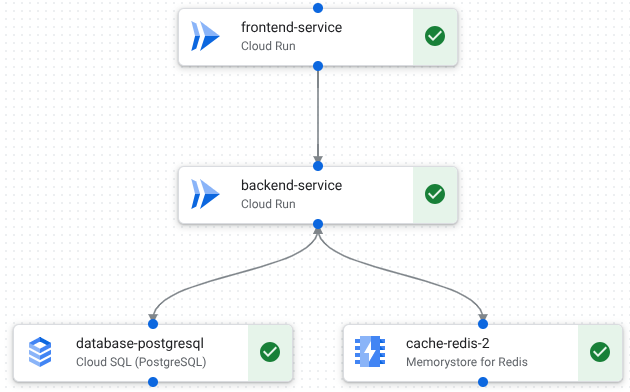
The following image shows the updated template in the design canvas:
Before you begin
Complete the Create and verify a template quickstart.
Add a component to the template
Use the App Design Center design canvas or Gemini Cloud Assist to modify your template.
Design canvas
In the Google Cloud console, go to the Templates page.
Click the quickstart-three-tier-web-app template.
In the design canvas, from the cloud-run-2 component, click Add and select Memorystore for Redis.
Gemini Cloud Assist
In the Google Cloud console, go to the Templates page.
Click the quickstart-three-tier-web-app template.
In the Google Cloud console toolbar, click spark Open or close Gemini Cloud Assist chat.
The Cloud Assist panel opens.
In Gemini Cloud Assist chat, enter the following prompt:
Update this template to include a backend cache.In the design canvas, review the updated design and click Accept suggestion.
Your template now contains four components. Lines are displayed between components to represent connections.
Update the application draft
From the design canvas, click Configure an app.
Click Quickstart three-tier test.
Click Save.
The application draft is updated with the new template.
Configure the new component
In the design canvas, click memorystore-1 and do the following in the Configuration area:
From the Project ID list, select the deployment project you created in Create and verify a template.
From the Zone list, select
us-central1-a.In the Name field, enter
cache-redis.Click Save.
Green check marks are displayed in each component to convey that you have specified the required parameters. The application draft is ready to be redeployed to the TEST environment for verification.
Redeploy the application
Click Deploy.
In the Select a service account area, do the following:
Click Create a new service account.
Click Proceed.
To review the Terraform plan for your application, do the following:
Click Preview. A Terraform plan is generated after a few minutes.
Review the Terraform plan for your application.
Click Copy and close.
Paste the copied Terraform in a document.
Click Deploy.
The application is deployed after a few minutes and resources are created in your project. The following details are displayed:
- A link to App Hub, where you can view deployed resource details, including links to monitoring dashboards.
- Links to Cloud Build logs, which you can use to troubleshoot deployment errors.
- Outputs like service URIs are displayed, which you can use to interact with deployed resources.
Clean up
To avoid incurring charges to your Google Cloud account for the resources used on this page, follow these steps.
Delete the deployed application
From the navigation menu, click Applications.
From the table, click Quickstart three-tier web app.
Click Actions and select Delete Application.
In the Delete field, enter
Quickstart three-tier web app.Click Delete.
The application is deleted, including the following:
- The application details are removed from Application Design Center.
- The underlying App Hub application is deleted.
- The underlying resources are deleted.
Optional: Delete the project
To delete the deployment project you created in the Create and verify a template quickstart, do the following:
- In the Google Cloud console, go to the Manage resources page.
- In the project list, select the project that you want to delete, and then click Delete.
- At the prompt, type the project ID, and then click Shut down.
What's next
- Review core concepts and benefits with the App Design Center overview.
- Learn how to duplicate and customize a Google-provided template in Quickstart: Customize and deploy a Google template.
- Define your own configurations by designing application templates.