

Set a run-as service account
This page details the steps for each integration that requires a run-as service account but doesn't currently have one, as part of preparing for the authorization changes.
Set the service account
- Create or select a service account, and grant it the roles required by the
integration's tasks. To determine the necessary roles, review the roles currently held
by your project's Application Integration service agent (
service-PROJECT_NUMBER@gcp-sa-integrations.iam.gserviceaccount.com), and assign only the permissions that this specific integration requires. - Grant the Service Account User role on the run-as service account to any user or entity that requires access, including automation and trigger service accounts.
- Open the integration in the integration editor, and then click
Integration settings in the
editor toolbar.

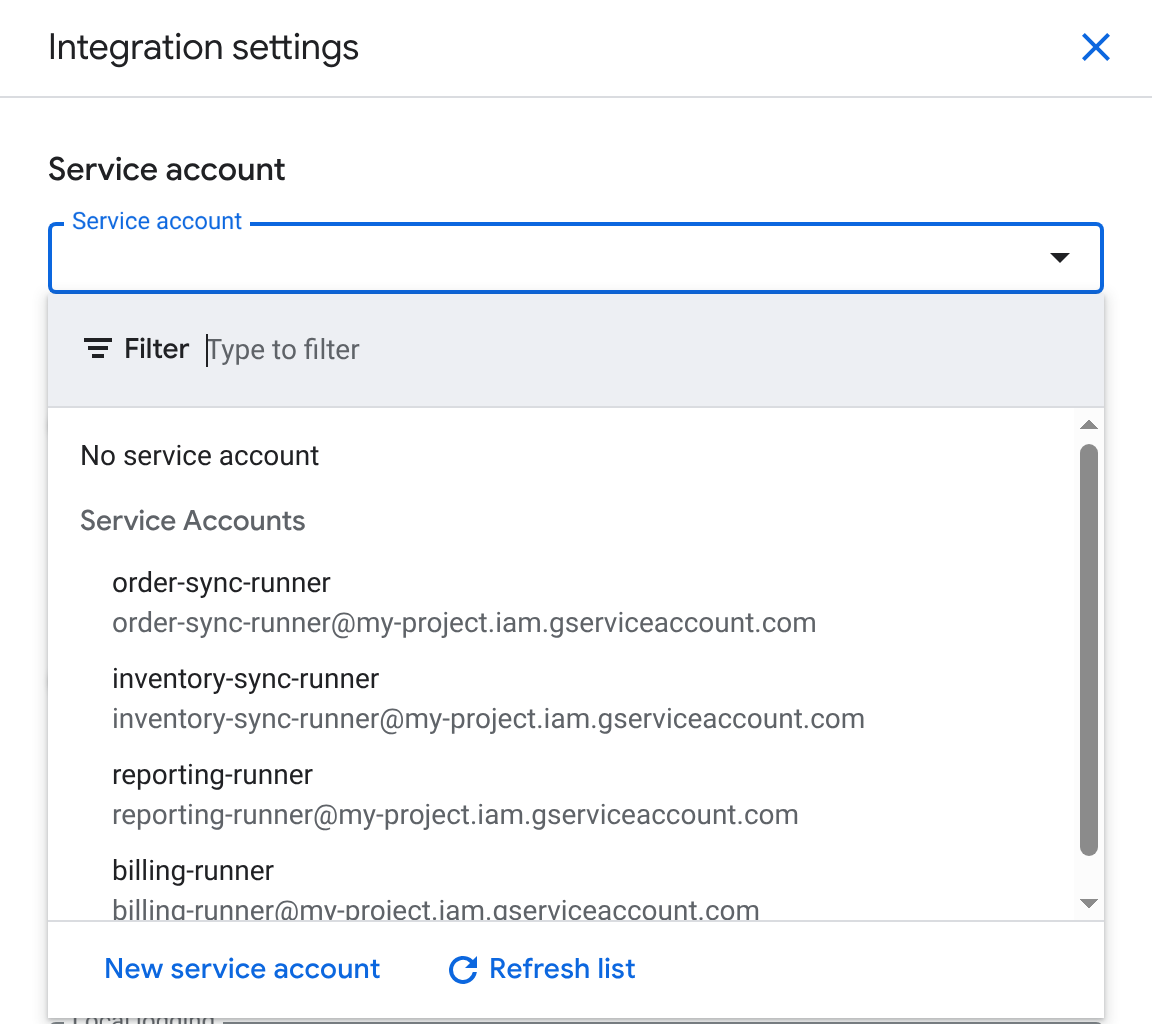
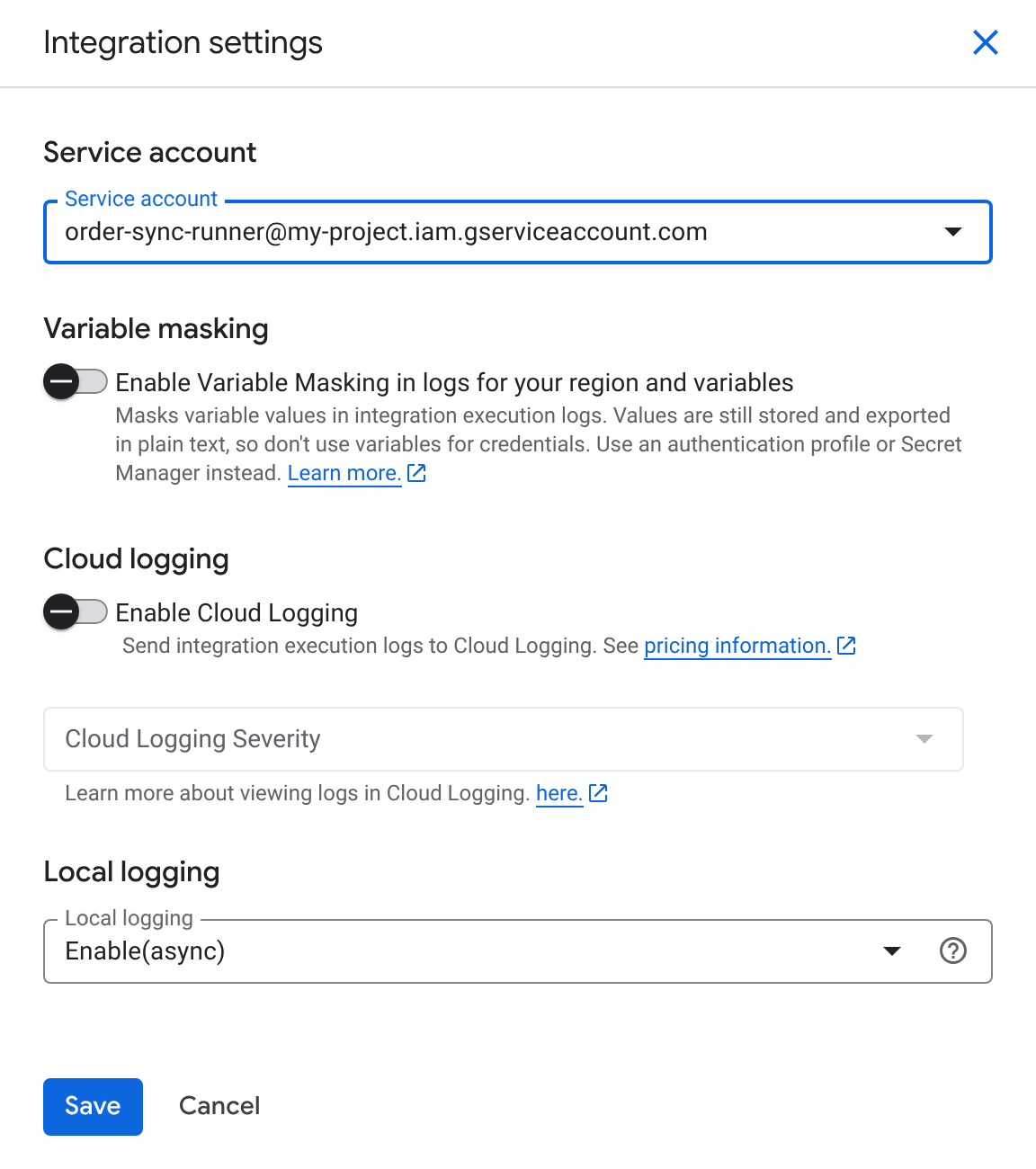
- In the Integration settings pane, click the Service account drop-down
list, and select the service account. If the service account does not exist yet, click
New service account to create it.
- Click Save.
- Click Publish. The new run-as service account takes effect for all future executions of this published version. For more information, see Test and publish integrations.
Use one service account per integration
Google Cloud recommends using a dedicated, minimally scoped service account for each integration rather than a single broadly privileged account shared across multiple integrations. This approach provides the following benefits:
- Limits the security and operational impact to a single integration.
- Clearly identifies each integration in your audit logs by the name of its service account.
For more information, see Best practices for working with service accounts.
What's next
- If publishing or an execution fails after making this change, see Troubleshoot authorization errors.