

This guide walks you through the initial setup to connect your Contact Center AI Platform and MS Dynamics platforms.
Once integrated, your agents can log into Contact Center AI Platform and accept calls and chats directly within their Dynamics dashboard. As interactions happen, Dynamics automatically creates and logs new customers and cases, keeping all your interaction data searchable and reportable in one place.
Prerequisites
Before starting this integration, make sure you have the following:
- Administrator access to your MS Dynamics environment with privileges to import connectors in Solutions Management.
- Access to the Microsoft Azure Portal (for Microsoft Entra ID app registration using Azure services).
- Access to the Power Apps interface.
- Access to the Contact Center AI Platform Admin Portal.
- The UJET Connector zip file — The latest managed package
UJETConnector_1_2_0_0_managed-dynamics.zip - A sufficient time window for agent adapter downtime during installation (approximately 10 minutes).
This page assumes you have already identified your environment, or set up a new environment for this portal space.
The connector installed to Microsoft Dynamics allows agents to take calls and chats directly within a Dynamics dashboard.
Microsoft Dynamics integration checklist
The following checklist outlines the steps involved in setting up your Microsoft Dynamics integration.
Install the CCAI Platform solution into your environment.
Configure the CCAI Platform solution
IFrameUrl.Check domain based controls.
Create New Azure app registration
Add a platform configuration.
Configure API permissions
Create new certificates and secrets.
Set up application users for this environment
Set values in the administrator portal to connect to your Microsoft Dynamics instance.
Proceed to optional steps.
Install or update the Connector
The Contact Center AI Platform-managed package contains the connector. The connector installed to Microsoft Dynamics enables agents to take calls and chats directly in a Microsoft Dynamics dashboard.
Two ways to access Solutions Management: Depending on your Dynamics UI, you can reach Solutions through either of these paths:
Legacy UI: In MS Dynamics, go to Service > Solutions.
Modern Power Apps UI: Use the top-right cogwheel to navigate to Advanced Settings, click the caret next to Settings to open the drop-down, then select Solutions.
Both paths lead to the same Solutions Management list. Use whichever is available in your environment.
Navigate to Solutions using one of the paths described.
Click Import. A side panel (Add a Solution) will appear.
Click Browse and select the Connector zip file (
UJETConnector_1_2_0_0_managed-dynamics.zip).Click Import. The details of the connector package should now appear. If the details appear correctly, proceed to the next step. If not, recheck that the correct file was selected.
Click Next. Follow the on-screen steps to finish importing. No specific options are required for upgrading the Connector.
Once finished, refresh the agent page to confirm the updated connector is displayed.
Locate the Connector entry in the Solutions list and confirm it is installed correctly. This can be verified from the UJET Connector Settings Manager (see the next section).
Result: The connector is installed and ready for use.
Configure the Connector URL
Package 1.2.0.0 introduces a configuration manager application into the Contact Center AI Platform solution. After installing package v1_2_0_0, the new application is accessible to the integrator system builder.
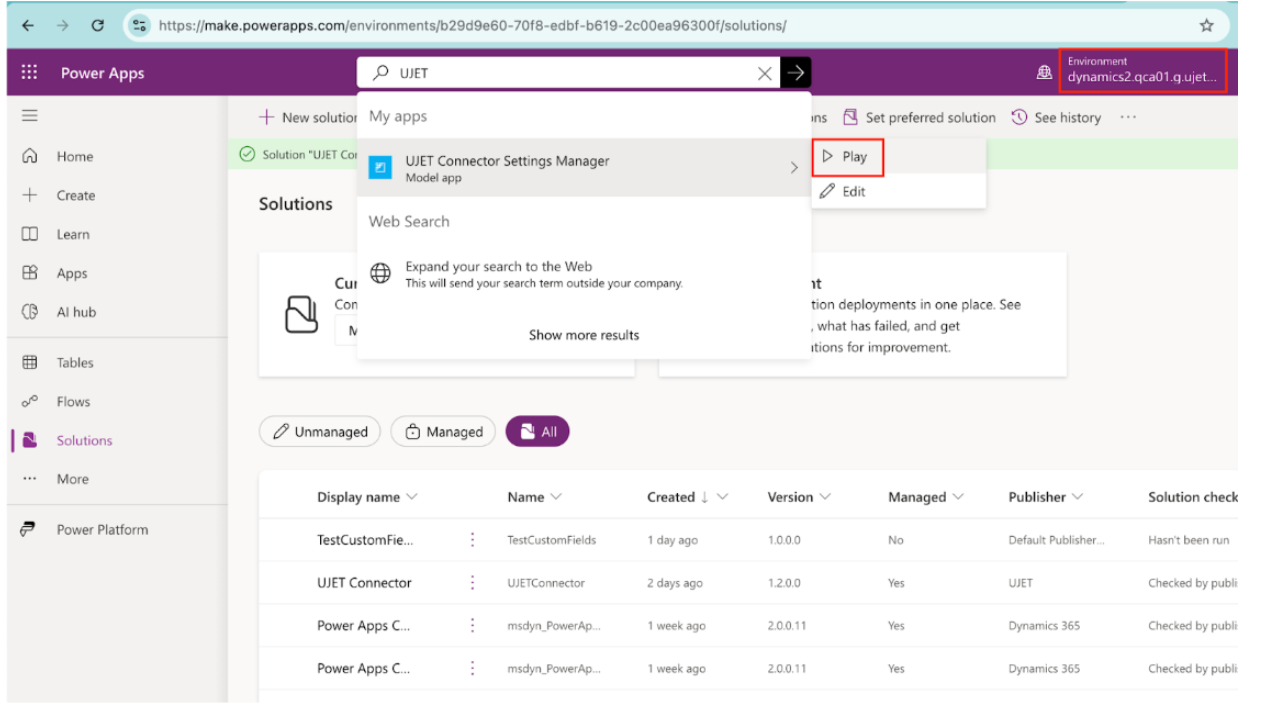
In the search bar, find the UJET Connector Settings Manager, and then click Play. This will open the application and display the UJET Connector Settings table, which houses the configuration for the iframed adapter.
For new installations, a new entry needs to be added to the settings table. Click New to add a new
IFrameUrlsetting.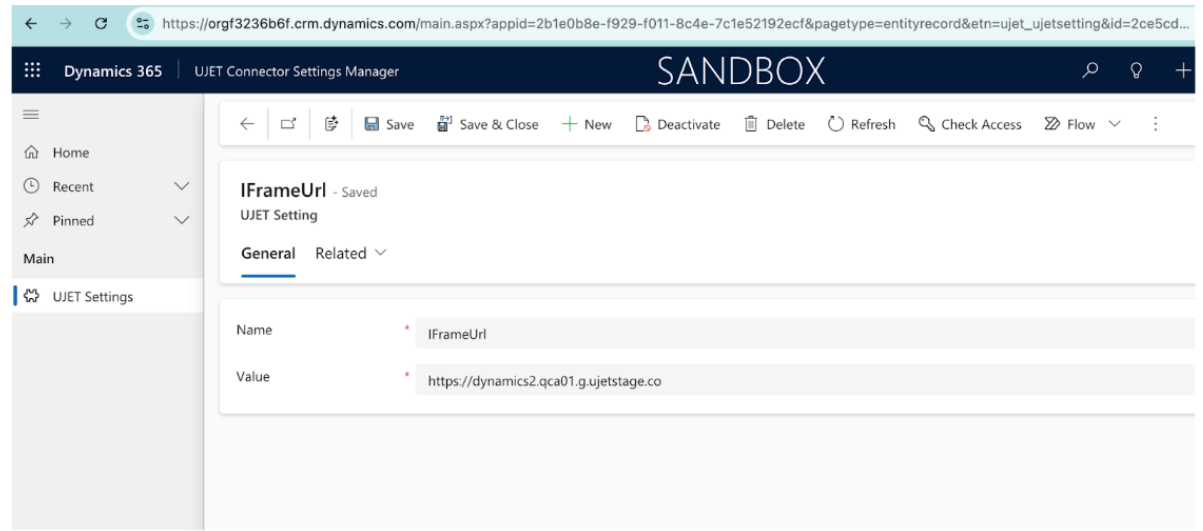
A new page opens to add an IFrameUrl. There are two fields present: Name and Value. Use the next sample values to help with configuration.
Name:
IFrameUrlValue: https://INSTANCE_SUBDOMAIN.ENVIRONMENT_DOMAIN
For example:
https://mycompany.us.ccaiplatform.com- wheremycompanyis your instance subdomain andus.ccaiplatform.comis your environment domain.Click Save. A new entry appears in your Settings table. The
IFrameUrlconfiguration is now complete.
Add domain-based access control for the agent adapter
Domain-based access control maintains security while also allowing you to define and control which domains can display the agent adapter.
Add your domains in developer settings
To add domains in developer settings, follow these steps:
Go to Developer Settings > Agent Adapter - Domain Based Access Control.
Enter each domain on a new line. The format is
*.domain—for example,*.mycompany.com.
Specify a domain
The format for specifying a domain for an instance can be any valid domain name, and it can include a wildcard (*) to match an arbitrary number of subdomains. The wildcard must be placed at the beginning of the domain, and it matches any subdomains.
Additionally, the user has the option to specify a protocol and a port using the
syntax <protocol>://<domain>:<port>.
- The port may be a wildcard, but the protocol cannot be a wildcard.
- If a protocol is specified, it matches only that protocol and all other
protocols won't be able to display the adapter. For example,
https://some.example.domain.comwon't matchhttp://some.example.domain.comormail://some.example.domain.com.
CRM-specific domains
Use the following domain naming conventions when entering your CRM domain.
Each CRM's embedded UI loads from specific domains. For example, the Dynamics
agent adapter loads from *.crm.dynamics.com. You must allowlist all the
domains your CRM uses, as listed in the following table:
| CRM | Required domains |
|---|---|
| Salesforce |
|
| Zendesk |
|
| Microsoft Dynamics | *.crm.dynamics.com |
| Kustomer | *.kustomerapp.com |
Azure app registration (OAuth client)
This section describes how to create an Azure app registration for Microsoft Dynamics.
Create a new application registration in Azure
In the Microsoft Azure Portal, go to Azure services > App registrations.
Select New application registration. The Register an application page appears.
Fill in the required fields:
In the Name field, enter the URL of your CCAI Platform environment without the
https://. For example—yourcompany.domain.co.For the Supported account types section, click Accounts in the Organizational Directory Only.
Click Register. The application is now registered.
Authentication settings
This section describes how to configure authentication settings in the Microsoft Azure portal
Add a platform configuration
To add a platform configuration in the Microsoft Azure portal, follow these steps:
After creating the registered App, go to Authentication and enter your callback URL in the Redirect URI field — for example,
https://yourcompany.domain.co/v1/dynamics/oauth_callback.Click the checkbox for ID tokens.
Create new certificates and secrets
To create new certificates and secrets in the Microsoft Azure portal, follow these steps:
Go to Certificates & secrets to create a new key in the Add a client secret panel. Then, in the Description field:
Enter a description such as API KEY.
In the Expires section, click the longest available time period allowed by your security team.
Note: This has to be regenerated after the expired time has been reached.
Click Add. Copy the secret value immediately — you won't be able to view it again after leaving this page.
Add API permissions
To add API permissions in the Microsoft Azure portal, follow these steps:
Go to Manage > API permissions and click Add a permission.
Click Dynamics CRM.
Select Delegated permissions.
Check the box for user_impersonation and select Add permissions.
Back in API permissions, select Add a permission again.
Select Microsoft Graph.
Select Application permissions.
Add the following Application permissions: Application.ReadWrite.All, Directory.Read.All, and User.Read.All. Select Add permissions.
Back in API permissions, select Add a permission once more.
Select Microsoft Graph, then select Delegated permissions.
Add User.Read (if it is not already present). Select Add permissions.
Back in the API permissions overview, click Grant admin consent for [your organization name] and confirm in the dialog. Verify the Status column shows Granted for [your organization name] for all of the following permissions:
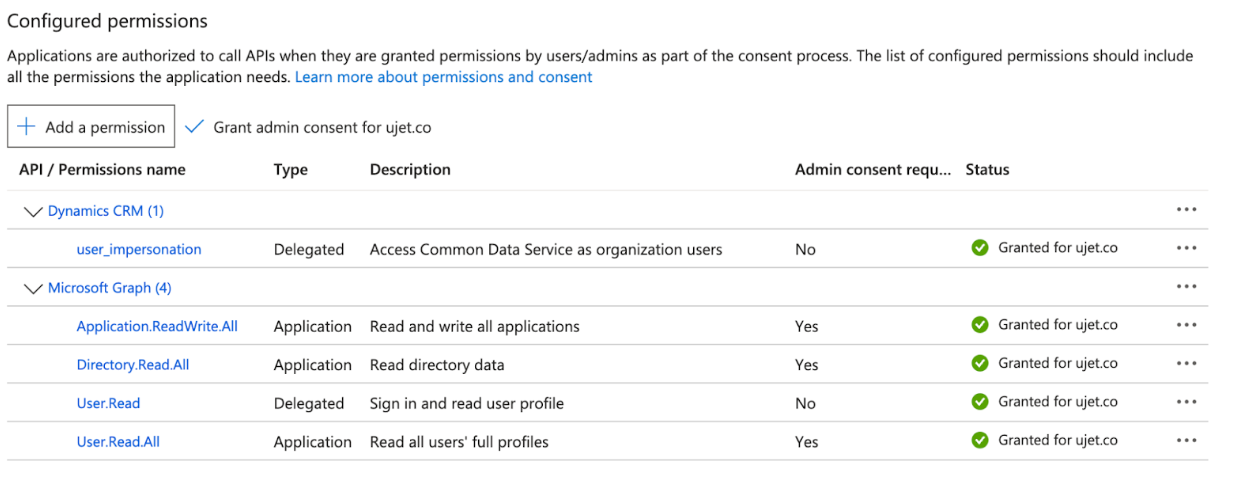
| API | Permission | Type |
| Dynamics CRM | user_impersonation
|
Delegated |
| Microsoft Graph | Application.ReadWrite.All
|
Application |
| Microsoft Graph | Directory.Read.All
|
Application |
| Microsoft Graph | User.Read
|
Delegated |
| Microsoft Graph | User.Read.All
|
Application |
Set up application users for your environment
To set up application users for your environment in Microsoft Dynamics, follow these steps:
Choose your environment and click Settings.

Click Application Users.
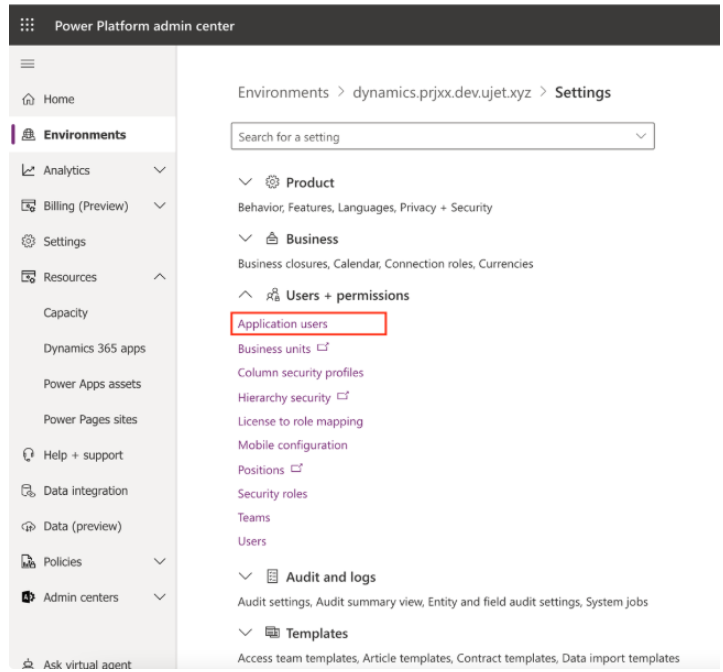
Click Setup app user.
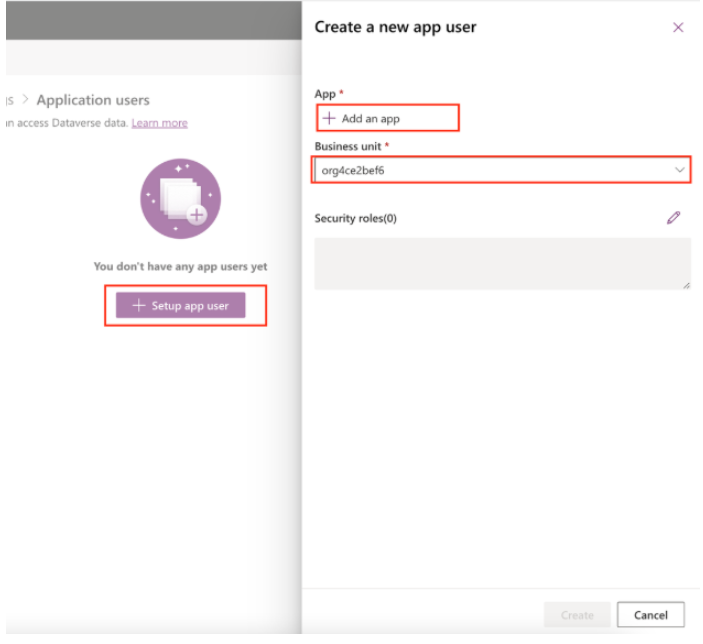
In the App field, choose an existing app and click Add.
Click the Business Unit field, and then click a business unit.
Add the following security roles:
Service Reader
Service Writer
Click Create.
Input your values in the CCAI Platform portal
Go to Settings > Developer Settings.
Scroll to CRM > Agent Platform.
Select MS Dynamics and enter the values for the following:
Field Value Where to find it Active Directory Application ID Application (Client) ID In the Microsoft Azure Portal, go to App registrations > your app > Overview. Update Active Directory Application Key Password Client secret value Created in the preceding Certificates & secrets step. Must be copied immediately after creation. Active Directory tenant Directory (Tenant) ID In the Microsoft Azure Portal, go to App registrations > your app > Overview. (Note: "Active Directory" in this label refers to what Microsoft now calls Microsoft Entra ID.) Dynamics domain URL of your Microsoft Dynamics environment Found on the environment overview page in Power Platform administration center 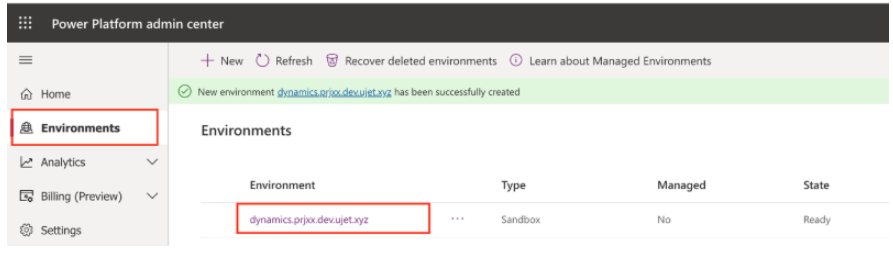
Select Save.
Test custom field mapping
This section uses MyCustomField as a walkthrough example for adding and mapping
a custom field.
Create a new custom field in a solution component
To set up custom field mapping, follow these steps in Microsoft Dynamics.
Create a new custom field in a solution component:
Go to Sales > Settings > Solutions.
At the top of the All Solutions page, click New.
Enter TestCustomFields as the Display Name.
Click Save and Close.
Click your existing solution component
Go to Components > Entities > Add Existing.
Click the Contact solution component.
Click OK to view the Contact solution component details. The solution component System Form dialog appears.
Click the entity assets that you want to include in the solution.
Include entity metadata.
Add All Assets.
For this example, click Include entity metadata.

Click Finish.
Go to Components > Entities > Contact > Fields.
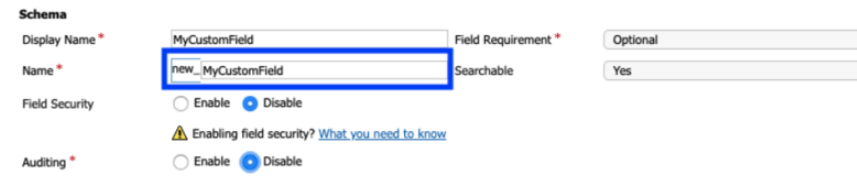
Click New.
A new field name populates in the Name field. Copy the field name for later use:
Click Save and Close.
Edit form to display the custom field
The following example focuses on the contact solution component that was previously configured.
To edit the form to display the custom field, follow these steps in Microsoft Dynamics:
Open a contact and click Form.
Open the Field Explorer and filter by Custom Fields.
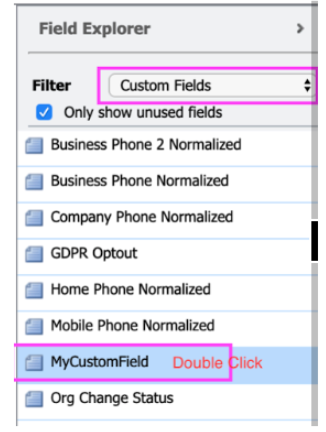
Double-click MyCustomField.
Click Save, and then click Publish to add the new field to the form.
Refresh the browser to check that the form displays in the contact screen.
Confirm that MyCustomField is in the form.
Enter the identified value in the MyCustomField field.
Click Save.
Set up custom field mapping in the Contact Center AI Platform portal
To set up custom field mapping in the Contact Center AI Platform portal, follow these steps:
In the CCAI Platform portal, click Settings > Developer Settings. If you don't see the Settings menu, click Menu.
Go to Custom Field Mapping and click the box.
Under CRM field to use in lookup, click the custom field created earlier (new_mycustomfield).
Populate the account and customer fields in a custom case form
The default action within Microsoft Dynamics is to fill in the customer information exclusively when a case is created. Updating this setting allows the contact field to be populated with the customer information from a case at the same time.
In the CCAI Platform portal, click Settings > Developer Settings. If you don't see the Settings menu, click Menu.
Go to CRM > Account Lookup.
Click Contact under Object Type.
Select the Use Custom Parameter Matching checkbox.
Once checked, a table with the fields Contact Field Key and Case Field Key will appear, along with options to add, edit or delete as required. Switching between object types clears the table unless the fields are saved.
This lets the Contact field on the case object, and the Customer field with the Account associated with the Contact (if there is one), to be updated simultaneously.
The CRM ticket updates when the checkbox Use Custom Parameter Matching is checked and Parameters Configuration is valid, otherwise it will revert to default logic to update the CRM. If all parameters are configured correctly they will all update. If any parameters are configured incorrectly, only the correctly configured parameters will update.
Test USER segment DAP
To test a DAP, follow these steps:
In the CCAI Platform portal, click Settings > Queue. If you don't see the Settings menu, click Menu.
Choose your preferred Social Channel
In the Settings panel, go to Access point and click the edit icon beside the access point to update.
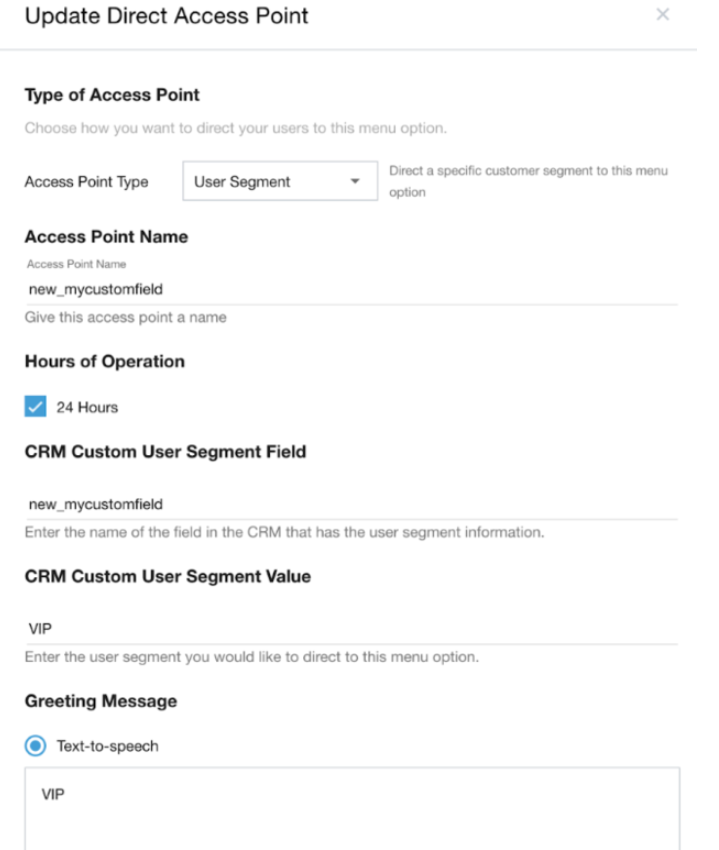
In the CRM Custom User Segment Field, enter the name of the field in the CRM that contains the user segment information —for example,
new_mycustomfield.Select Update.
Troubleshooting
This section describes common issues and their resolutions.
Agent adapter not visible
If the agent adapter isn't visible after making administrator configuration changes, agents should:
Right-click over the agent adapter area.
Select Reload Frame.
This forces the adapter to reload with the latest configuration.
Common issues
| Symptom | Possible cause | Resolution |
|---|---|---|
| Adapter breaks immediately after setup | Missing CRM-specific domains in domain based access control | Verify all required domains are added (see CRM-specific domains above). For MS Dynamics, ensure *.crm.dynamics.com is included. |
| Adapter not loading after domain changes | Domain propagation delay | Wait up to one minute for changes to take effect. Try the Reload Frame action described earlier. |
| OAuth authentication failure | Incorrect Application ID, Key Password, or Tenant ID | Double-check values in Settings > Developer Settings > CRM > Agent Platform. Ensure the client secret hasn't expired. |
| API permissions errors | Admin consent not granted or missing permissions | Go to API permissions in the Microsoft Azure Portal and confirm all five permissions are present and administrator consent is granted (see the permissions summary table in Authentication settings). |
| Connector unstable during installation | Installation in progress | Installation takes 5–10 minutes. Wait for it to complete, then refresh the agent page. |
| Client secret expired | Secret reached its configured expiration date | Generate a new client secret in Certificates & secrets, copy the value immediately, and update the Key Password field in the CCAI Platform portal. |
For additional help, contact CCAI Platform Support.