


Gemini Enterprise Agent Platform 管道範本庫包含 Google 製作的管道範本和元件,可用於建立管道執行作業,或嵌入自己的管道。
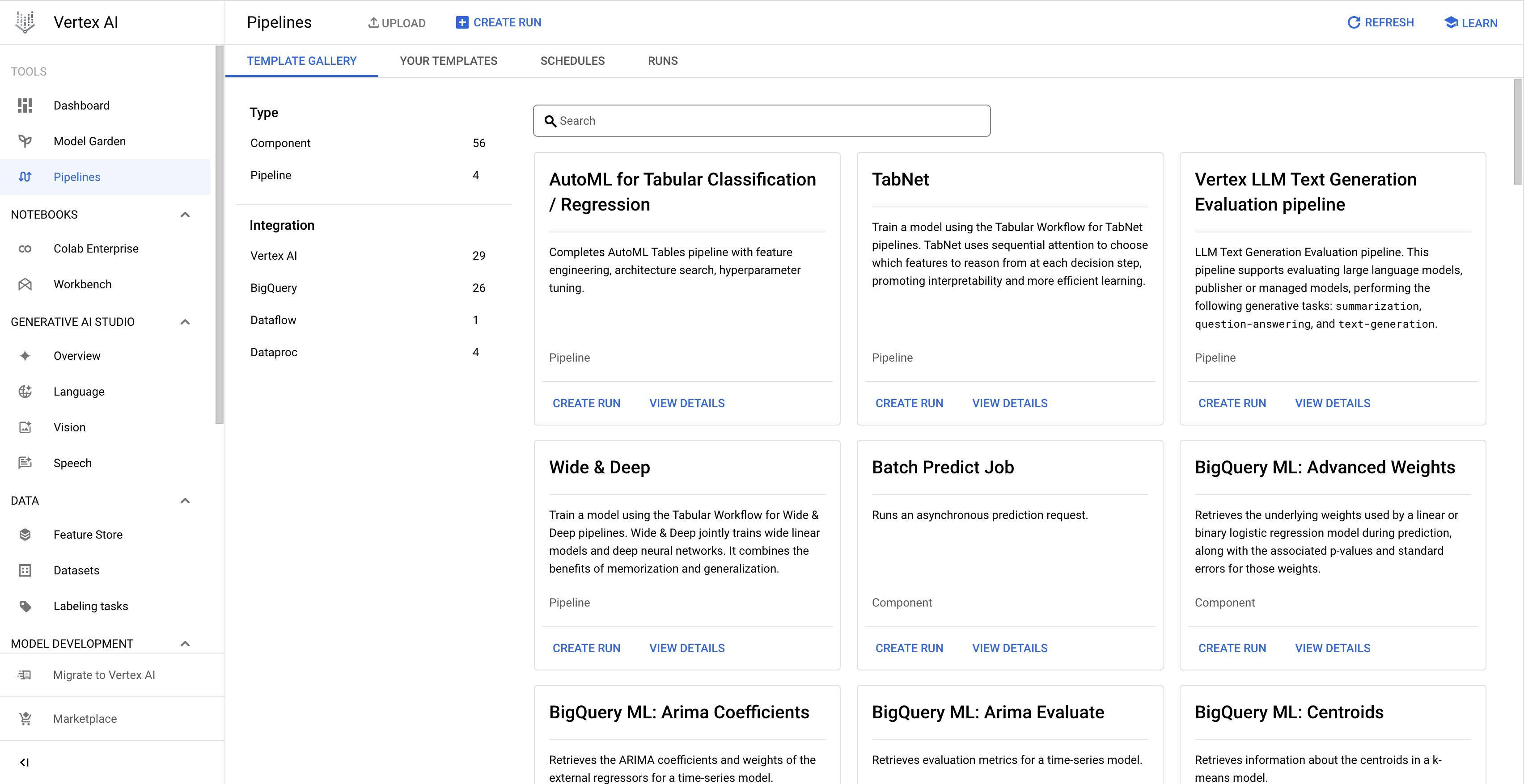
透過範本庫建立管道執行作業
請按照下列操作說明,使用範本庫中 Google 製作的範本建立管道執行作業。您也可以建立自訂管道範本,然後根據該範本建立管道執行作業。如要進一步瞭解如何建立及使用自訂管道範本,請參閱「建立、上傳及使用管道範本」。
控制台
請按照下列操作說明,從範本庫建立管道執行作業:
在 Google Cloud 控制台的「Agent Platform」部分,前往「Pipelines」頁面的「Template Gallery」分頁。
選用:如要篩選管道範本清單,請在左側窗格中選取篩選條件。舉例來說,如要只顯示管道範本,請選取「Type」(類型) 下方的「Templates」(範本)。
在要使用的範本對應資訊卡上,按一下「Create run」(建立執行作業),開啟「Create pipeline run」(建立管道執行作業) 頁面。
在「Run details」(執行作業詳細資料) 部分,執行下列操作:
- 選用:修改預設的「Run name」(執行作業名稱),用於唯一識別管道執行作業。
  1. Optional: To schedule recurring pipeline runs, specify the **Run schedule**, as follows:

      1. Select **Recurring**.

      1. Under **Start time**, specify when the schedule becomes active.

          * To schedule the first run to occur immediately after schedule creation, select **Immediately**.

          * To schedule the first run to occur at a specific time and date, select **On**.

      1. In the **Frequency** field, specify the frequency to schedule and execute the
      pipeline runs, using a cron schedule expression based on
      [unix-cron](https://man7.org/linux/man-pages/man5/crontab.5.html).

      1. Under **Ends**, specify when the schedule ends.

          * To indicate that the schedule creates pipeline runs indefinitely, select **Never**.

          * To indicate that the schedule ends on a specific date and time, select **On**, and specify the end date and time for the schedule.

      1. Optional: To specify that the pipeline run uses a custom service account,
      Customer-managed encryption keys (CMEK), or a peered VPC network, click
      **Advanced options**, and then follow these instructions:

          *  To specify a service account, select a service account from the
            **Service account** drop-down list.

              If you don't specify a service account,
              Agent Platform Pipelines runs your pipeline using the default
              Compute Engine service account.

              Learn more about [configuring a service account for use with
              Agent Platform Pipelines](/gemini-enterprise-agent-platform/machine-learning/pipelines/configure-project#service-account).

          *  To use a CMEK, select **Use a customer-managed encryption key**. The **Select a customer-managed key** drop-down list appears. In the **Select a customer-managed key** drop-down list, select the key that you want to use.

          *  To use a peered VPC network in this pipeline run, enter the VPC
          network name in the **Peered VPC network** box.

  1. Click **Continue**.
在「Runtime configuration」(執行階段設定) 部分,按照下列步驟設定管道執行作業:
在「Cloud Storage location」(Cloud Storage 位置) 下方,按一下「Browse」(瀏覽),選取要儲存管道輸出構件的 Cloud Storage bucket,然後點選「Select」(選取)。
選用:如要設定管道執行作業的失敗政策和快取,請按一下「Advanced options」(進階選項),然後按照下列操作說明進行:
在「Failure policy」(失敗政策) 下方,指定整個管道的失敗政策。進一步瞭解管道失敗政策。
如要設定管道,讓系統在某項工作失敗後繼續排定工作,請選取「Run all steps to completion」(執行所有步驟直到完成)。系統預設會選取這個選項。
如要將管道設為在一個工作失敗後即宣告失敗,請選取「Fail this run as soon as one step fails」(只要一個步驟未成功,這項執行作業即宣告失敗)。
在「Caching configuration」(快取設定) 下方,指定整個 pipeline 的快取設定。
如要對 pipeline 中的任務使用任務層級快取設定,請選取「Do not override task-level cache configuration」(不要覆寫任務層級的快取設定)。
如要為管道中的所有工作啟用快取,並覆寫任何工作層級的快取設定,請選取「Enable read from cache for all steps (fastest)」(啟用所有步驟的快取讀取功能 (最快))。
如要停用管道中所有工作的快取功能,並覆寫任何工作層級的快取設定,請選取「Disable read from cache for all steps (fastest)」(停用所有步驟的快取讀取功能 (最快))。
選用:如果管道有參數,請在「Pipeline parameters」(管道參數)下方指定管道執行作業參數。
如要建立管道執行作業,請按一下「Submit」(提交)。