


本頁面說明如何透過 Gemini Enterprise Agent Platform,使用 NVIDIA Triton 推論伺服器提供推論要求。NVIDIA Triton 推論伺服器 (Triton) 是 NVIDIA 推出的開放原始碼推論服務解決方案,已針對 CPU 和 GPU 進行最佳化,可簡化推論服務程序。
Gemini Enterprise Agent Platform 的 NVIDIA Triton
Gemini Enterprise Agent Platform 支援在 Triton 推論伺服器上部署模型,該伺服器在 NVIDIA GPU Cloud (NGC) 發布的自訂容器上執行 - NVIDIA Triton 推論伺服器映像檔。NVIDIA 的 Triton 映像檔包含所有必要套件和設定,符合 Gemini Enterprise Agent Platform 對自訂服務容器映像檔的要求。映像檔包含 Triton 推論伺服器,支援 TensorFlow、PyTorch、TensorRT、ONNX 和 OpenVINO 模型。映像檔也包含 FIL (Forest Inference Library) 後端,支援執行 XGBoost、LightGBM 和 Scikit-Learn 等機器學習架構。
Triton 會載入模型,並公開使用標準推論通訊協定的推論、健康狀態和模型管理 REST 端點。將模型部署至 Gemini Enterprise Agent Platform 時,Triton 會辨識 Gemini Enterprise Agent Platform 環境,並採用 Vertex AI Inference 通訊協定,進行健康狀態檢查和推論要求。
以下列出 NVIDIA Triton 推論伺服器的主要功能和用途:
- 支援多種深度學習和機器學習架構:Triton 支援部署多種模型,以及混合架構和模型格式,包括 TensorFlow (SavedModel 和 GraphDef)、PyTorch (TorchScript)、TensorRT、ONNX、OpenVINO 和 FIL 後端,可支援 XGBoost、LightGBM、Scikit-Learn 等架構,以及任何自訂 Python 或 C++ 模型格式。
- 同時執行多個模型:Triton 允許在具有零或多個 GPU 的相同運算資源上,同時執行多個模型、相同模型的多個執行個體,或兩者。
- 模型整合 (鏈結或管道):Triton 整合支援多個模型組成的管道 (或有向無環圖,DAG),其中輸入和輸出張量會相互連結。此外,使用 Triton Python 後端時,您可以加入由商業邏輯指令碼 (BLS) 定義的任何預先處理、後續處理或控制流程邏輯。
- 在 CPU 和 GPU 後端執行:Triton 支援對部署在 CPU 和 GPU 節點上的模型進行推論。
- 動態批次處理推論要求:針對支援批次處理的模型,Triton 內建排程和批次處理演算法。這些演算法會在伺服器端,動態將個別推論要求合併為批次,藉此提高推論處理量和 GPU 使用率。
如要進一步瞭解 NVIDIA Triton 推論伺服器,請參閱 Triton 說明文件。
可用的 NVIDIA Triton 容器映像檔
下表列出 NVIDIA NGC 目錄中提供的 Triton Docker 映像檔。請根據模型架構、後端和使用的容器映像檔大小,選擇映像檔。
xx 和 yy 分別代表 Triton 的主要和次要版本。
| NVIDIA Triton 映像檔 | 支援 |
|---|---|
xx.yy-py3 |
完整容器,支援 TensorFlow、PyTorch、TensorRT、ONNX 和 OpenVINO 模型 |
xx.yy-pyt-python-py3 |
僅限 PyTorch 和 Python 後端 |
xx.yy-tf2-python-py3 |
僅限 TensorFlow 2.x 和 Python 後端 |
xx.yy-py3-min |
視需要自訂 Triton 容器 |
開始使用:透過 NVIDIA Triton 提供推論
下圖顯示 Triton 在 Vertex AI Inference 的高階架構:
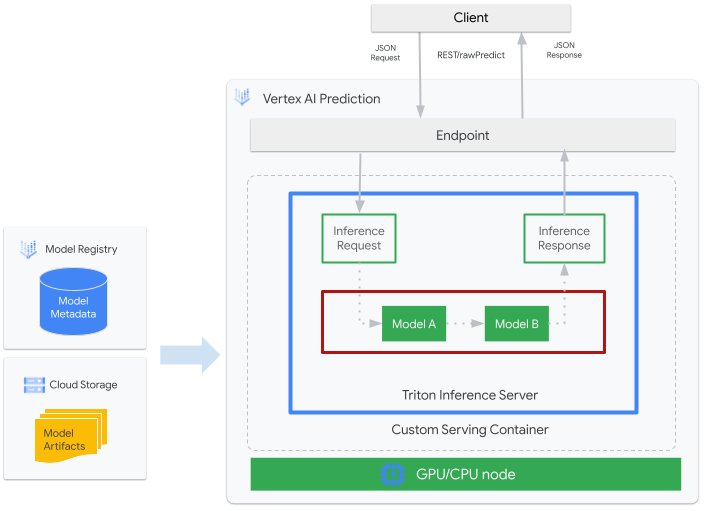
- 要由 Triton 提供的機器學習模型,已在 Gemini Enterprise Agent Platform Model Registry 註冊。模型的中繼資料會參照 Cloud Storage 中的模型構件位置、自訂服務容器及其設定。
- Gemini Enterprise Agent Platform Model Registry 中的模型會部署至 Vertex AI Inference 端點,該端點在具備 CPU 和 GPU 的運算節點上,以自訂容器的形式執行 Triton 推論伺服器。
- 推論要求會透過 Vertex AI Inference 端點傳送至 Triton 推論伺服器,並轉送至適當的排程器。
- 後端會使用批次要求中提供的輸入內容執行推論,並傳回回應。
- Triton 提供 readiness 和 liveness 健康狀態端點,可將 Triton 整合至 Gemini Enterprise Agent Platform 等部署環境。
本教學課程說明如何使用執行 NVIDIA Triton 推論伺服器的自訂容器,在 Gemini Enterprise Agent Platform 部署機器學習 (ML) 模型,提供線上推論。您將部署執行 Triton 的容器,以便從 TensorFlow Hub 的物件偵測模型提供推論,該模型已預先在 COCO 2017 資料集上訓練。接著,您可以使用 Gemini Enterprise Agent Platform 偵測圖片中的物件。
如要以筆記本形式執行本教學課程,請按照下列步驟操作:
在 Colab 中開啟 | 在 Colab Enterprise 中開啟 | 在 GitHub 中查看 | 在 Vertex AI Workbench 中開啟 |事前準備
- 登入 Google Cloud 帳戶。如果您未曾使用過 Google Cloud,歡迎 建立帳戶,親自體驗實際使用我們產品的成效。新客戶還能獲得價值 $300 美元的免費抵免額,用於執行、測試及部署工作負載。
-
In the Google Cloud console, on the project selector page, select or create a Google Cloud project.
Roles required to select or create a project
- Select a project: Selecting a project doesn't require a specific IAM role—you can select any project that you've been granted a role on.
-
Create a project: To create a project, you need the Project Creator role
(
roles/resourcemanager.projectCreator), which contains theresourcemanager.projects.createpermission. Learn how to grant roles.
-
Verify that billing is enabled for your Google Cloud project.
Enable the Agent Platform API and Artifact Registry API APIs, if any are not already enabled.
Roles required to enable APIs
To enable APIs, you need the
serviceusage.services.enablepermission. If you created the project, then you likely already have this permission through the Owner role (roles/owner). Otherwise, you can get this permission through the Service Usage Admin role (roles/serviceusage.serviceUsageAdmin). Learn how to grant roles.-
In the Google Cloud console, on the project selector page, select or create a Google Cloud project.
Roles required to select or create a project
- Select a project: Selecting a project doesn't require a specific IAM role—you can select any project that you've been granted a role on.
-
Create a project: To create a project, you need the Project Creator role
(
roles/resourcemanager.projectCreator), which contains theresourcemanager.projects.createpermission. Learn how to grant roles.
-
Verify that billing is enabled for your Google Cloud project.
Enable the Agent Platform API and Artifact Registry API APIs, if any are not already enabled.
Roles required to enable APIs
To enable APIs, you need the
serviceusage.services.enablepermission. If you created the project, then you likely already have this permission through the Owner role (roles/owner). Otherwise, you can get this permission through the Service Usage Admin role (roles/serviceusage.serviceUsageAdmin). Learn how to grant roles.-
在 Google Cloud 控制台啟用 Cloud Shell。
Google Cloud 控制台底部會開啟 Cloud Shell 工作階段,並顯示指令列提示。Cloud Shell 是已安裝 Google Cloud CLI 的殼層環境,並已設定適用於您目前專案的值。工作階段可能要幾秒鐘的時間才能初始化。
在本教學課程中,建議您使用 Cloud Shell 與 Google Cloud互動。如要使用其他 Bash 殼層,而非 Cloud Shell,請執行下列額外設定:
-
安裝 Google Cloud CLI。
-
若您採用的是外部識別資訊提供者 (IdP),請先 使用聯合身分登入 gcloud CLI。
-
執行下列指令,初始化 gcloud CLI:
gcloud init - 按照 Artifact Registry 說明文件安裝 Docker。
建構及推送容器映像檔
如要使用自訂容器,您必須指定符合自訂容器規定的 Docker 容器映像檔。本節說明如何建立容器映像檔,並推送至 Artifact Registry。
下載模型構件
模型構件是由機器學習訓練建立的檔案,可用於提供推論。至少包含訓練後機器學習模型的結構和權重。模型構件的格式取決於您用於訓練的機器學習架構。
在本教學課程中,您不必從頭訓練模型,而是從 TensorFlow Hub 下載已在 COCO 2017 資料集訓練的物件偵測模型。Triton 預期模型存放區會以以下結構組織,以提供 TensorFlow SavedModel 格式:
└── model-repository-path
       └── model_name
              ├── config.pbtxt
              └── 1
                  └── model.savedmodel
                        └── <saved-model-files>
config.pbtxt 檔案會說明模型的模型設定。根據預設,您必須提供包含必要設定的模型設定檔。不過,如果 Triton 是以 --strict-model-config=false 選項啟動,在某些情況下,Triton 可以自動產生模型設定,不需要明確提供。具體來說,TensorRT、TensorFlow SavedModel 和 ONNX 模型不需要模型設定檔,因為 Triton 可以自動衍生所有必要設定。所有其他模型類型都必須提供模型設定檔。
# Download and organize model artifacts according to the Triton model repository spec
mkdir -p models/object_detector/1/model.savedmodel/
curl -L "https://tfhub.dev/tensorflow/faster_rcnn/resnet101_v1_640x640/1?tf-hub-format=compressed" | \
    tar -zxvC ./models/object_detector/1/model.savedmodel/
ls -ltr ./models/object_detector/1/model.savedmodel/
在本機下載模型後,模型存放區會按照下列方式整理:
./models
└── object_detector
    └── 1
        └── model.savedmodel
            ├── saved_model.pb
            └── variables
                ├── variables.data-00000-of-00001
                └── variables.index
將模型構件複製到 Cloud Storage bucket
下載的模型構件 (包括模型設定檔) 會推送至 MODEL_ARTIFACTS_REPOSITORY 指定的 Cloud Storage bucket,可在建立 Gemini Enterprise Agent Platform 模型資源時使用。
gcloud storage cp ./models/object_detector MODEL_ARTIFACTS_REPOSITORY/ --recursive
建立 Artifact Registry 存放區
建立 Artifact Registry 存放區,用於儲存您將在下一節建立的容器映像檔。
為專案啟用 Artifact Registry API 服務。
gcloud services enable artifactregistry.googleapis.com
在殼層中執行下列指令,建立 Artifact Registry 存放區:
gcloud artifacts repositories create getting-started-nvidia-triton \
    --repository-format=docker \
    --location=LOCATION_ID \
    --description="NVIDIA Triton Docker repository"
將 LOCATION_ID 替換為 Artifact Registry 儲存容器映像檔的區域。稍後,您必須在與這個區域相符的位置端點上建立 Gemini Enterprise Agent Platform 模型資源,因此請選擇 Gemini Enterprise Agent Platform 具有位置端點的區域,例如 us-central1。
完成作業後,指令會輸出下列內容:
Created repository [getting-started-nvidia-triton].
建構容器映像檔
NVIDIA 提供 Docker 映像檔,可用於建構執行 Triton 的容器映像檔,並符合 Gemini Enterprise Agent Platform 的自訂容器提供需求。您可以使用 docker 提取映像檔,並標記要推送映像檔的 Artifact Registry 路徑。
NGC_TRITON_IMAGE_URI="nvcr.io/nvidia/tritonserver:22.01-py3"
docker pull $NGC_TRITON_IMAGE_URI
docker tag $NGC_TRITON_IMAGE_URI LOCATION_ID-docker.pkg.dev/PROJECT_ID/getting-started-nvidia-triton/vertex-triton-inference
更改下列內容:
- LOCATION_ID:Artifact Registry 存放區的區域,如先前章節所述
- PROJECT_ID:Google Cloud專案的 ID
這個指令可能需要幾分鐘才能執行完畢。
準備酬載檔案,用於測試推論要求
如要將推論要求傳送至容器的伺服器,請使用 Python 準備含有範例圖片檔的酬載。執行下列 Python 指令碼,產生酬載檔案:
import json
import requests

# install required packages before running
# pip install pillow numpy --upgrade
from PIL import Image
import numpy as np

# method to generate payload from image url
def generate_payload(image_url):
    # download image from url and resize
    image_inputs = Image.open(requests.get(image_url, stream=True).raw)
    image_inputs = image_inputs.resize((200, 200))

    # convert image to numpy array
    image_tensor = np.asarray(image_inputs)
    # derive image shape
    image_shape = [1] + list(image_tensor.shape)

    # create payload request
    payload = {
        "id": "0",
        "inputs": [
            {
                "name": "input_tensor",
                "shape": image_shape,
                "datatype": "UINT8",
                "parameters": {},
                "data": image_tensor.tolist(),
            }
        ],
    }

    # save payload as json file
    payload_file = "instances.json"
    with open(payload_file, "w") as f:
        json.dump(payload, f)
    print(f"Payload generated at {payload_file}")

    return payload_file

if __name__ == '__main__':
  image_url = "https://github.com/tensorflow/models/raw/master/research/object_detection/test_images/image2.jpg"
  payload_file = generate_payload(image_url)
Python 指令碼會生成酬載,並輸出下列回應:
Payload generated at instances.json
在本機執行容器 (選用)
將容器映像檔推送至 Artifact Registry,以便與 Gemini Enterprise Agent Platform 搭配使用之前,您可以在本機環境中以容器形式執行,確認伺服器運作正常:
如要在本機執行容器映像檔,請在殼層中執行下列指令:
docker run -t -d -p 8000:8000 --rm \
  --name=local_object_detector \
  -e AIP_MODE=True \
  LOCATION_ID-docker.pkg.dev/PROJECT_ID/getting-started-nvidia-triton/vertex-triton-inference \
  --model-repository MODEL_ARTIFACTS_REPOSITORY \
  --strict-model-config=false
按照上一節的做法,替換下列內容:
- LOCATION_ID:Artifact Registry 存放區的區域,如先前章節所述。
- PROJECT_ID:Google Cloud的 ID。專案
- MODEL_ARTIFACTS_REPOSITORY:模型構件所在的 Cloud Storage 路徑。
這個指令會在分離模式下執行容器,將容器的通訊埠
8000對應至本機環境的通訊埠8000。NGC 的 Triton 映像檔會將 Triton 設為使用通訊埠8000。如要將容器伺服器的健康狀態檢查傳送至容器伺服器,請在殼層中執行下列指令:
curl -s -o /dev/null -w "%{http_code}" http://localhost:8000/v2/health/ready如果成功,伺服器會傳回狀態碼
200。執行下列指令,使用先前產生的酬載,將推論要求傳送至容器的伺服器,並取得推論回應:
curl -X POST \
    -H "Content-Type: application/json" \
    -d @instances.json \
    localhost:8000/v2/models/object_detector/infer |
       jq -c '.outputs[] | select(.name == "detection_classes")'
這項要求會使用 TensorFlow 物件偵測範例中包含的其中一張測試圖片。
如果成功,伺服器會傳回下列推論:
{"name":"detection_classes","datatype":"FP32","shape":[1,300],"data":[38,1,...,44]}如要停止容器,請在殼層中執行下列指令:
docker stop local_object_detector

將容器映像檔推送至 Artifact Registry
設定 Docker 以存取 Artifact Registry。然後將容器映像檔推送至 Artifact Registry 存放區。
如要授予本機 Docker 安裝權限,以便推送至所選區域中的 Artifact Registry,請在殼層中執行下列指令:
gcloud auth configure-docker LOCATION_ID-docker.pkg.dev- 將 LOCATION_ID 替換為您在先前章節中建立存放區的區域。
如要將剛才建立的容器映像檔推送至 Artifact Registry,請在殼層中執行下列指令:
docker push LOCATION_ID-docker.pkg.dev/PROJECT_ID/getting-started-nvidia-triton/vertex-triton-inference按照上一節的做法,替換下列內容:
- LOCATION_ID:Artifact Registry 存放區的區域,如先前章節所述。
- PROJECT_ID:Google Cloud專案的 ID。
部署模型
在本節中,您將建立模型和端點,然後將模型部署至端點。
建立模型
如要建立使用執行 Triton 的自訂容器的 Model 資源,請使用 gcloud ai models upload 指令。
建立模型前,請參閱「自訂容器設定」,瞭解是否需要為容器指定選用的 sharedMemorySizeMb、startupProbe 和 healthProbe 欄位。
gcloud ai models upload \
    --region=LOCATION_ID \
    --display-name=DEPLOYED_MODEL_NAME \
    --container-image-uri=LOCATION_ID-docker.pkg.dev/PROJECT_ID/getting-started-nvidia-triton/vertex-triton-inference \
    --artifact-uri=MODEL_ARTIFACTS_REPOSITORY \
    --container-args='--strict-model-config=false'
- LOCATION_ID:您使用 Agent Platform 的區域。
- PROJECT_ID:Google Cloud專案的 ID
-
DEPLOYED_MODEL_NAME:
DeployedModel的名稱。您也可以將Model的顯示名稱用於DeployedModel。
引數 --container-args='--strict-model-config=false' 可讓 Triton 自動產生模型設定。
建立端點
您必須先將模型部署至端點,才能使用模型進行線上推論。如要將模型部署至現有端點,可以略過這個步驟。下列範例使用 gcloud ai endpoints create 指令:
gcloud ai endpoints create \
    --region=LOCATION_ID \
    --display-name=ENDPOINT_NAME
更改下列內容:
- LOCATION_ID:您使用 Agent Platform 的區域。
- ENDPOINT_NAME:端點的顯示名稱。
Google Cloud CLI 工具可能需要幾秒鐘才能建立端點。
將模型部署至端點
端點準備就緒後,請將模型部署至端點。將模型部署至端點時,服務會將實體資源與執行 Triton 的模型建立關聯,以便提供線上推論。
以下範例使用 gcloud ai endpoints deploy-model 指令,將 Model 部署至在 GPU 上執行 Triton 的 endpoint,以加速推論服務,且不分割多個 DeployedModel 資源之間的流量:
ENDPOINT_ID=$(gcloud ai endpoints list \ --region=LOCATION_ID\ --filter=display_name=ENDPOINT_NAME\ --format="value(name)") MODEL_ID=$(gcloud ai models list \ --region=LOCATION_ID\ --filter=display_name=DEPLOYED_MODEL_NAME\ --format="value(name)") gcloud ai endpoints deploy-model $ENDPOINT_ID \ --region=LOCATION_ID\ --model=$MODEL_ID \ --display-name=DEPLOYED_MODEL_NAME\ --machine-type=MACHINE_TYPE\ --min-replica-count=MIN_REPLICA_COUNT\ --max-replica-count=MAX_REPLICA_COUNT\ --accelerator=count=ACCELERATOR_COUNT,type=ACCELERATOR_TYPE\ --traffic-split=0=100
更改下列內容:
- LOCATION_ID:您使用 Agent Platform 的區域。
- ENDPOINT_NAME:端點的顯示名稱。
-
DEPLOYED_MODEL_NAME:
DeployedModel的名稱。您也可以將Model的顯示名稱用於DeployedModel。 -
MACHINE_TYPE:選用。這項部署作業中每個節點使用的機器資源。預設設定為
n1-standard-2。進一步瞭解機型。 - MIN_REPLICA_COUNT:這項部署作業的節點數量下限。 節點數量可依推論負載需求增減,但不會超過節點數量上限,也不會低於這個數量。
- MAX_REPLICA_COUNT:這項部署作業的節點數量上限。節點數量可依推論負載需求增減,但不得超過這個數量,也不得低於節點數量下限。
ACCELERATOR_COUNT:要附加至執行工作的每部機器的加速器數量。通常是 1。如未指定,預設值為 1。
ACCELERATOR_TYPE:管理 GPU 服務的加速器設定。使用 Compute Engine 機型部署模型時,也可以選取 GPU 加速器,且必須指定類型。選項包括
nvidia-tesla-a100、nvidia-tesla-p100、nvidia-tesla-p4、nvidia-tesla-t4和nvidia-tesla-v100。
Google Cloud CLI 可能需要幾秒鐘,才能將模型部署至端點。模型部署成功後,這個指令會輸出下列內容:
Deployed a model to the endpoint xxxxx. Id of the deployed model: xxxxx.
從已部署的模型取得線上推論
如要透過 Vertex AI Inference 端點叫用模型,請使用標準推論要求 JSON 物件
或具有二進位副檔名的推論要求 JSON 物件
設定推論要求格式,並將要求提交至 Gemini Enterprise Agent Platform REST rawPredict 端點。
下列範例使用 gcloud ai endpoints raw-predict 指令:
ENDPOINT_ID=$(gcloud ai endpoints list \
    --region=LOCATION_ID \
    --filter=display_name=ENDPOINT_NAME \
    --format="value(name)")

gcloud ai endpoints raw-predict $ENDPOINT_ID \
    --region=LOCATION_ID \
    --http-headers=Content-Type=application/json \
    --request=@instances.json
更改下列內容:
- LOCATION_ID:您使用 Agent Platform 的區域。
- ENDPOINT_NAME:端點的顯示名稱。
如果要求有效,端點會傳回下列回應:
{
    "id": "0",
    "model_name": "object_detector",
    "model_version": "1",
    "outputs": [{
        "name": "detection_anchor_indices",
        "datatype": "FP32",
        "shape": [1, 300],
        "data": [2.0, 1.0, 0.0, 3.0, 26.0, 11.0, 6.0, 92.0, 76.0, 17.0, 58.0, ...]
    }]
}
清除所用資源
為避免產生更多 Gemini Enterprise Agent Platform 費用和 Artifact Registry 費用,請刪除您在本教學課程中建立的 Google Cloud 資源:
如要從端點取消部署模型並刪除端點,請在殼層中執行下列指令:
ENDPOINT_ID=$(gcloud ai endpoints list \
    --region=LOCATION_ID \
    --filter=display_name=ENDPOINT_NAME \
    --format="value(name)")

DEPLOYED_MODEL_ID=$(gcloud ai endpoints describe $ENDPOINT_ID \
    --region=LOCATION_ID \
    --format="value(deployedModels.id)")

gcloud ai endpoints undeploy-model $ENDPOINT_ID \
    --region=LOCATION_ID \
    --deployed-model-id=$DEPLOYED_MODEL_ID

gcloud ai endpoints delete $ENDPOINT_ID \
    --region=LOCATION_ID \
    --quiet
將 LOCATION_ID 替換為您在上一節建立模型的區域。
如要刪除模型,請在殼層中執行下列指令:
MODEL_ID=$(gcloud ai models list \
    --region=LOCATION_ID \
    --filter=display_name=DEPLOYED_MODEL_NAME \
    --format="value(name)")

gcloud ai models delete $MODEL_ID \
    --region=LOCATION_ID \
    --quiet
將 LOCATION_ID 替換為您在先前章節中建立模型的區域。
如要刪除 Artifact Registry 存放區和其中的容器映像檔,請在殼層中執行下列指令:
gcloud artifacts repositories delete getting-started-nvidia-triton \
  --location=LOCATION_ID \
  --quiet
將 LOCATION_ID 替換為您在先前章節中建立 Artifact Registry 存放區的區域。
後續步驟
- 如要進一步瞭解如何在 Gemini Enterprise Agent Platform 上,使用 NVIDIA Triton 推論伺服器部署模式,請參閱 NVIDIA Triton 筆記本教學課程。