

Gemini's computer use tool lets you build browser, mobile, and desktop control agents that interact with and automate tasks across graphical user interfaces (GUIs). When computer use is enabled, the model uses screenshots to observe the screen and act by generating specific UI actions such as mouse clicks, scrolling, and keyboard inputs.
Gemini supports several advanced computer use capabilities:
- Multi-environment support: Build agents for browser, mobile, and desktop environments.
- Streamlined actions with intents: Actions include an
intentfield explaining the model's reasoning behind each step. - Configurable safety policies: Fine-tune safety behavior with built-in policy categories and overrides.
- Prompt injection detection: Opt-in screenshot scanning to detect hidden adversarial instructions.
You can utilize computer use to build agents that can:
- Automate repetitive data entry or form filling across websites and desktop applications.
- Perform automated testing of web, mobile, and desktop user flows.
- Navigate websites and applications to gather research (for example, comparing product information, prices, and reviews).
- Assist users by performing multi-step sequences of actions across applications.
This guide covers:
- How computer use works
- How to enable computer use
- How to set up your environment, send requests, receive responses, and build agent loops
- Supported environments and custom functions
- What computer actions are supported
- Safety and security support
- Pricing
Similar to function calling, you need to write the client-side application code to receive the computer use function call and execute the corresponding actions.
This guide assumes you're using the Google Gen AI SDK for Python and are familiar with the Playwright API.
You can find the the reference implementation for computer use on GitHub.
Supported models
Computer use is supported in the following models:
Click to expand supported models
How computer use works
Instead of generating text responses, computer use determines when to
take specific UI actions like mouse clicks, and returns the necessary parameters
to execute these actions. You need to write the client-side application code to
receive the computer use function_call and execute the corresponding
actions.
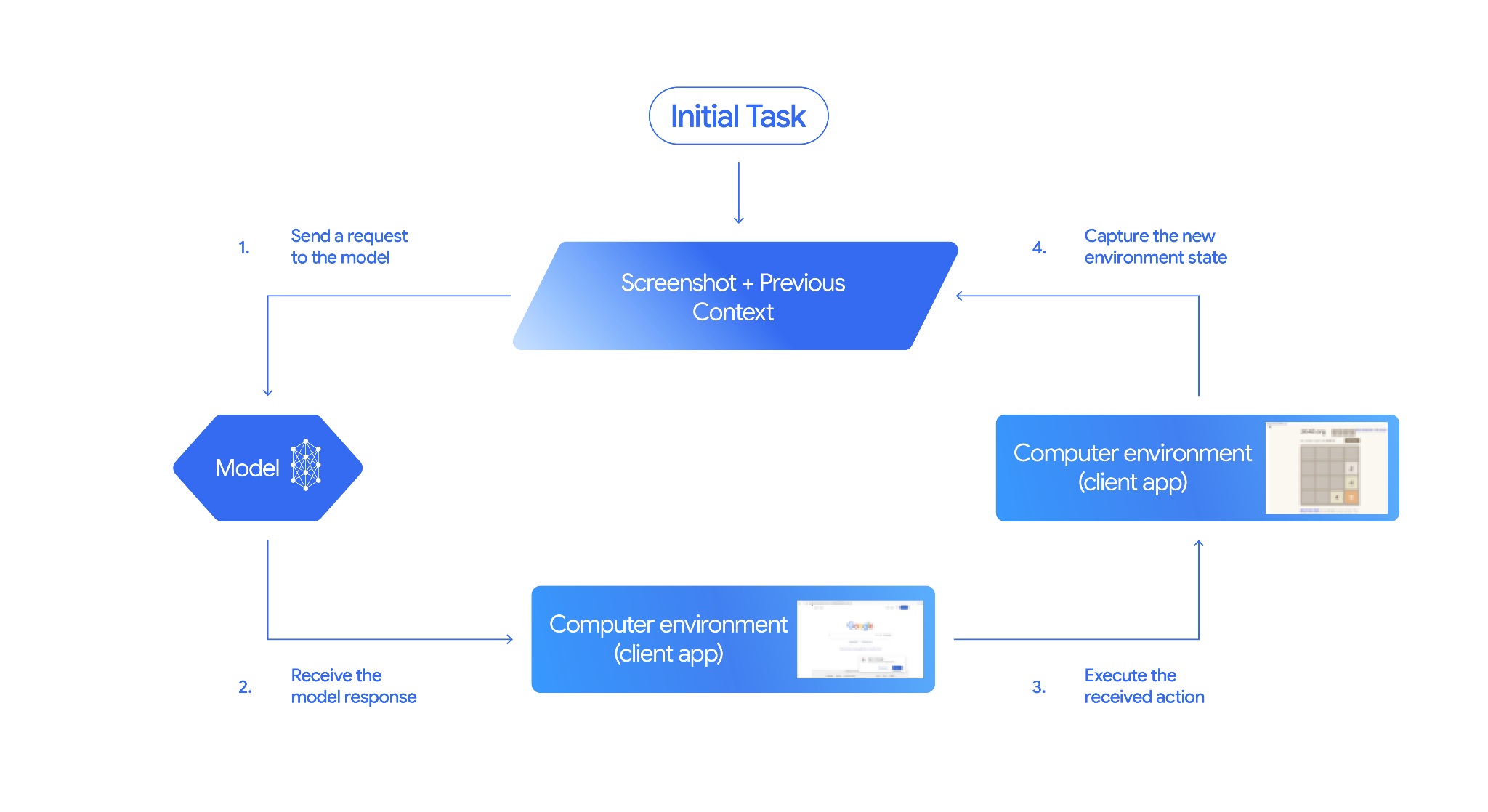
Computer use interactions follow an agentic loop process:
Send a request to the model
- Add computer use (and optionally any additional tools) to your API request.
- Send a prompt to the model with the user's request and a screenshot representing the current state of the GUI.
Receive the model response
- The model analyzes the user request and screenshot, and generates a
response which includes a suggested
function_callrepresenting a UI action (for example, "click at coordinate (x,y)" or "type 'text'"). See Supported actions for the list of all actions you can use with the model. - The API response may also include a
safety_decisionfrom an internal safety system that has checked the model's proposed action. Thissafety_decisionclassifies the action as:- Regular or allowed: The action is considered safe. This may also
be represented by no
safety_decisionbeing present. - Requires confirmation: The model is about to perform an action that may be risky (for example, clicking on an "accept cookie banner").
- Regular or allowed: The action is considered safe. This may also
be represented by no
- The model analyzes the user request and screenshot, and generates a
response which includes a suggested
Execute the received action
- Your client-side code receives the
function_calland any accompanyingsafety_decision. - If the
safety_decisionindicates regular or allowed (or if nosafety_decisionis present), your client-side code can execute the specifiedfunction_callin your target environment (such as a web browser). - If the
safety_decisionindicates required confirmation, your application must prompt the end-user for confirmation before executing thefunction_call. If the user confirms, proceed to execute the action. If the user denies, don't execute the action.
- Your client-side code receives the
Capture the new environment state
- If the action has been executed, your client captures a new screenshot
of the GUI and the current URL to send back to the model as part of a
function_response. - If an action was blocked by the safety system or denied confirmation by the user, your application might send a different form of feedback to the model or end the interaction.
- If the action has been executed, your client captures a new screenshot
of the GUI and the current URL to send back to the model as part of a
A new request is sent to the model with the updated state. The process repeats from step 2, with the model using the new screenshot (if provided) and the ongoing goal to suggest the next action. The loop continues until the task is completed, an error occurs, or the process is terminated (for example, if a response is blocked by safety filters or user decision).
The following diagram illustrates how computer use works:
Enable computer use
To enable computer use, make sure your application is using one of the supported models, and add computer use to your list of enabled tools:
Python
from google import genai
from google.genai import types
from google.genai.types import Content, Part

client = genai.Client(
    enterprise=True,
    project="PROJECT_ID",
    location="global",
)

# Add computer use to the list of tools
generate_content_config = types.GenerateContentConfig(
    tools=[
        types.Tool(
            computer_use=types.ComputerUse(
                environment=types.Environment.ENVIRONMENT_BROWSER,
            )
        ),
    ]
)

contents = [
    Content(
        role="user",
        parts=[
            Part(text="Go to google.com and search for 'weather in New York'"),
        ],
    )
]

response = client.models.generate_content(
    model="gemini-3.8-flash",
    contents=contents,
    config=generate_content_config,
)
print(response)
Node.js
import { GoogleGenAI, Environment } from '@google/genai';

const ai = new GoogleGenAI({
  enterprise: true,
  project: 'PROJECT_ID',
  location: 'global',
});

const response = await ai.models.generateContent({
  model: 'gemini-3.8-flash',
  contents: "Go to google.com and search for 'weather in New York'",
  config: {
    tools: [
      {
        computerUse: {
          environment: Environment.ENVIRONMENT_BROWSER,
        },
      },
    ],
  },
});

console.log(response);
REST API
curl -X POST "https://aiplatform.googleapis.com/v1/projects/PROJECT_ID/locations/global/publishers/google/models/gemini-3.8-flash:generateContent" \
  -H "Authorization: Bearer $(gcloud auth print-access-token)" \
  -H "Content-Type: application/json" \
  -d '{
    "contents": [
      {
        "role": "user",
        "parts": [
          {
            "text": "Go to google.com and search for '\''weather in New York'\''"
          }
        ]
      }
    ],
    "tools": [
      {
        "computer_use": {
          "environment": "ENVIRONMENT_BROWSER"
        }
      }
    ]
  }'
Set up your execution environment
Before building with the computer use tool, set up:
- A secure execution environment: Run your agent in a sandboxed virtual machine (VM) or container (such as Docker) to isolate it from your host system.
- A client-side action handler: Implement client logic to execute mouse clicks, keyboard strokes, and screenshot capture.
First, install the SDK and browser dependencies, then configure your environment:
pip install --upgrade google-genai playwright termcolor
playwright install chromium

export GOOGLE_CLOUD_PROJECT="PROJECT_ID"
export GOOGLE_CLOUD_LOCATION="global"
export GOOGLE_GENAI_USE_ENTERPRISE=True
Next, initialize a Playwright browser instance with explicit viewport dimensions so normalized coordinates (0–1000) scale accurately:
from playwright.sync_api import sync_playwright

SCREEN_WIDTH = 1440
SCREEN_HEIGHT = 900

playwright = sync_playwright().start()
browser = playwright.chromium.launch(headless=False)

context = browser.new_context(
    viewport={"width": SCREEN_WIDTH, "height": SCREEN_HEIGHT}
)
page = context.new_page()
page.goto("https://www.google.com")
Send a request
After configuring the computer use tool, send a prompt to the model that includes the user's goal and an initial screenshot of the GUI.
You can also optionally add the following:
- Excluded actions: If there are any actions from the list of supported
UI actions that you don't want the model to take,
specify these actions in the
excluded_predefined_functions. - User-defined functions: You may want to include custom user-defined functions in addition to computer use.
The following sample code enables the computer use and sends the request to the model:
Python
from google import genai
from google.genai import types
from google.genai.types import Content, Part

client = genai.Client()

# Specify predefined functions to exclude (optional)
excluded_functions = ["drag_and_drop"]

# Configuration for computer use with browser environment
generate_content_config = genai.types.GenerateContentConfig(
    tools=[
        # 1. Computer Use tool with browser environment
        types.Tool(
            computer_use=types.ComputerUse(
                environment=types.Environment.ENVIRONMENT_BROWSER,
                # Optional: Exclude specific predefined functions
                excluded_predefined_functions=excluded_functions
                )
              ),
        # 2. Optional: Custom user-defined functions (need to defined above)
        # types.Tool(
           # function_declarations=custom_functions
           #   )
    ],
)

# Create the content with user message
contents: list[Content] = [
    Content(
        role="user",
        parts=[
            Part(text="Search for highly rated smart fridges with touchscreen, 2 doors, around 25 cu ft, priced below 4000 dollars on Google Shopping. Create a bulleted list of the 3 cheapest options in the format of name, description, price in an easy-to-read layout."),
            # Optional: include a screenshot of the initial state
            # Part.from_bytes(
                 # data=screenshot_image_bytes,
                 # mime_type='image/png',
            # ),
        ],
    )
]

# Generate content with the configured settings
response = client.models.generate_content(
    model='gemini-3.8-flash',
    contents=contents,
    config=generate_content_config,
)

# Print the response output
print(response.text)
You can also include custom user-defined functions to extend the functionality
of the model. See Gemini 3.5 Flash or later and mobile or desktop use
cases for information on how you can configure computer use
for mobile use cases by adding actions such as open_app, long_press_at, and
go_home while excluding browser-specific actions.
Receive responses
The model responds with one or more FunctionCalls if it determines UI actions
or user-defined functions are needed to complete the task. Your application code
needs to parse these actions, execute them, and collect the results.
Computer use supports parallel function calling, meaning
the model can return multiple independent actions in a single turn.
For Gemini 3.5 Flash and later models, each action includes an intent
argument explaining the model's reasoning behind that step:
{
  "content": {
    "parts": [
      {
        "function_call": {
          "name": "type",
          "args": {
            "x": 450,
            "y": 320,
            "text": "smart fridge touchscreen 2 doors 25 cu ft under $4000",
            "press_enter": true,
            "intent": "Type the search query into the Google search box and submit."
          }
        }
      }
    ]
  }
}
Depending on the action, the API response might also return a safety_decision
inside the function call arguments:
{
  "content": {
    "parts": [
      {
        "function_call": {
          "name": "click",
          "args": {
            "x": 60,
            "y": 100,
            "intent": "Click the 'I'm not a robot' verification checkbox.",
            "safety_decision": {
              "explanation": "I have encountered a CAPTCHA challenge that requires interaction. I need you to complete the challenge by clicking the 'I'm not a robot' checkbox and any subsequent verification steps.",
              "decision": "require_confirmation"
            }
          }
        }
      }
    ]
  }
}
Execute received actions
After receiving a response, parse the function_call, scale the coordinates
from the normalized 0–1000 grid to actual viewport pixel dimensions, and execute
the action:
import time
from typing import Any, Dict, List, Tuple
import termcolor


def denormalize_x(x: int, screen_width: int) -> int:
    """Convert normalized x coordinate (0-1000) to actual pixel coordinate."""
    return int(x / 1000 * screen_width)


def denormalize_y(y: int, screen_height: int) -> int:
    """Convert normalized y coordinate (0-1000) to actual pixel coordinate."""
    return int(y / 1000 * screen_height)


def get_safety_confirmation(safety_decision: Dict[str, Any]) -> str:
    """Prompt user for confirmation when safety check is triggered."""
    termcolor.cprint("Safety service requires explicit confirmation!", color="red")
    print(safety_decision.get("explanation", ""))

    decision = ""
    while decision.lower() not in ("y", "n", "ye", "yes", "no"):
        decision = input("Do you wish to proceed? [Y]es/[N]o\n")

    if decision.lower() in ("n", "no"):
        return "TERMINATE"
    return "CONTINUE"


def execute_function_calls(
    response, page, screen_width: int, screen_height: int
) -> List[Tuple[str, Dict[str, Any]]]:
    """Extract and execute modern and legacy function calls from Gemini response."""
    candidate = response.candidates[0]
    function_calls = []
    thoughts = []

    for part in candidate.content.parts:
        if hasattr(part, "function_call") and part.function_call:
            function_calls.append(part.function_call)
        elif hasattr(part, "text") and part.text:
            thoughts.append(part.text)

    if thoughts:
        print(f"Model Reasoning: {' '.join(thoughts)}")

    results: List[Tuple[str, Dict[str, Any]]] = []
    for function_call in function_calls:
        fname = function_call.name
        args = function_call.args or {}
        action_result: Dict[str, Any] = {}

        print(f" -> Executing: {fname} (Intent: {args.get('intent', 'N/A')})")

        # Check for safety decision before executing
        if "safety_decision" in args:
            decision = get_safety_confirmation(args["safety_decision"])
            if decision == "TERMINATE":
                print("Terminating agent loop")
                break
            action_result["safety_acknowledgement"] = "true"

        try:
            if fname in ("open_web_browser", "open_app", "take_screenshot"):
                pass

            elif fname in (
                "click",
                "click_at",
                "double_click",
                "triple_click",
                "middle_click",
                "right_click",
                "mouse_down",
                "mouse_up",
                "move",
                "hover_at",
            ):
                actual_x = denormalize_x(args["x"], screen_width)
                actual_y = denormalize_y(args["y"], screen_height)

                if fname in ("click", "click_at"):
                    page.mouse.click(actual_x, actual_y)
                elif fname == "double_click":
                    page.mouse.dblclick(actual_x, actual_y)
                elif fname == "triple_click":
                    page.mouse.click(actual_x, actual_y, click_count=3)
                elif fname == "middle_click":
                    page.mouse.click(actual_x, actual_y, button="middle")
                elif fname == "right_click":
                    page.mouse.click(actual_x, actual_y, button="right")
                elif fname == "mouse_down":
                    page.mouse.move(actual_x, actual_y)
                    page.mouse.down()
                elif fname == "mouse_up":
                    page.mouse.move(actual_x, actual_y)
                    page.mouse.up()
                elif fname in ("move", "hover_at"):
                    page.mouse.move(actual_x, actual_y)

            elif fname in ("type", "type_text_at"):
                actual_x = denormalize_x(args["x"], screen_width) if "x" in args else None
                actual_y = denormalize_y(args["y"], screen_height) if "y" in args else None
                text = args["text"]
                press_enter = args.get("press_enter", False)
                clear_before_typing = args.get("clear_before_typing", True)

                if actual_x is not None and actual_y is not None:
                    page.mouse.click(actual_x, actual_y)
                    time.sleep(0.1)

                if clear_before_typing:
                    page.keyboard.press("ControlOrMeta+A")
                    page.keyboard.press("Backspace")

                page.keyboard.type(text)
                if press_enter:
                    page.keyboard.press("Enter")

            elif fname in ("scroll", "scroll_at", "scroll_document"):
                if "x" in args and "y" in args:
                    page.mouse.move(denormalize_x(args["x"], screen_width), denormalize_y(args["y"], screen_height))
                direction = args.get("direction", "down")
                magnitude = args.get("magnitude_in_pixels", args.get("magnitude", 300))
                dx, dy = 0, 0
                if direction == "down":
                    dy = magnitude
                elif direction == "up":
                    dy = -magnitude
                elif direction == "right":
                    dx = magnitude
                elif direction == "left":
                    dx = -magnitude
                page.mouse.wheel(dx, dy)

            elif fname == "drag_and_drop":
                start_x = denormalize_x(args.get("start_x", args.get("x", 0)), screen_width)
                start_y = denormalize_y(args.get("start_y", args.get("y", 0)), screen_height)
                end_x = denormalize_x(args.get("end_x", args.get("destination_x", 0)), screen_width)
                end_y = denormalize_y(args.get("end_y", args.get("destination_y", 0)), screen_height)
                page.mouse.move(start_x, start_y)
                page.mouse.down()
                page.mouse.move(end_x, end_y)
                page.mouse.up()

            elif fname == "press_key":
                page.keyboard.press(args["key"])
            elif fname == "key_down":
                page.keyboard.down(args["key"])
            elif fname == "key_up":
                page.keyboard.up(args["key"])
            elif fname == "hotkey":
                page.keyboard.press("+".join(args.get("keys", [])))
            elif fname == "key_combination":
                page.keyboard.press(args["keys"])
            elif fname == "navigate":
                page.goto(args["url"])
            elif fname == "search":
                page.goto("https://www.google.com")
            elif fname == "go_back":
                page.go_back()
            elif fname == "go_forward":
                page.go_forward()
            elif fname in ("wait", "wait_5_seconds"):
                time.sleep(5 if fname == "wait_5_seconds" else args.get("seconds", 1))
            else:
                action_result["warning"] = f"unhandled_function: {fname}"

            page.wait_for_load_state(timeout=5000)
            time.sleep(1)

        except Exception as e:
            print(f"Error executing {fname}: {e}")
            action_result["error"] = str(e)

        results.append((fname, action_result))

    return results
If the returned safety_decision is require_confirmation, you must ask the
user to confirm before proceeding with executing the action. Per the terms
of service, you are not permitted to bypass requests for human confirmation.
Capture the new state
After executing the actions, package each action result and updated screenshot
into a FunctionResponse to return to the model:
from google.genai import types
from google.genai.types import Content, FunctionResponse, Part


def get_function_responses(
    page, results: List[Tuple[str, Dict[str, Any]]]
) -> Content:
    """Capture screenshot and URL and package them as FunctionResponses."""
    screenshot = page.screenshot(type="png")
    current_url = page.url
    function_response_parts = []

    for name, action_result in results:
        function_response_parts.append(
            Part(
                function_response=FunctionResponse(
                    name=name,
                    response={
                        "url": current_url,
                        **action_result,
                    },
                    parts=[
                        types.FunctionResponsePart(
                            inline_data=types.FunctionResponseBlob(
                                mime_type="image/png",
                                data=screenshot,
                            )
                        )
                    ],
                )
            )
        )

    return Content(
        role="user",
        parts=function_response_parts,
    )
Build an agent loop
Combine these steps into an end-to-end loop that continuously iterates between the model and the execution environment:
Python
from google import genai
from google.genai import types
from google.genai.types import Content, Part
from playwright.sync_api import sync_playwright

def has_function_calls(response) -> bool:
    """Check if model response contains any function calls."""
    candidate = response.candidates[0]
    return any(
        hasattr(part, "function_call") and part.function_call
        for part in candidate.content.parts
    )

def main():
    client = genai.Client(
        enterprise=True,
        project="PROJECT_ID",
        location="global",
    )

    generate_content_config = types.GenerateContentConfig(
        tools=[
            types.Tool(
                computer_use=types.ComputerUse(
                    environment=types.Environment.ENVIRONMENT_BROWSER,
                    enable_prompt_injection_detection=True,
                )
            )
        ],
    )

    screen_width, screen_height = 1440, 900

    with sync_playwright() as p:
        browser = p.chromium.launch(headless=False)
        context = browser.new_context(
            viewport={"width": screen_width, "height": screen_height}
        )
        page = context.new_page()
        page.goto("https://www.google.com")

        initial_screenshot = page.screenshot(type="png")
        contents: list[Content] = [
            Content(
                role="user",
                parts=[
                    Part(text="Search for flights from San Francisco to Honolulu departing June 30 and returning July 6."),
                    Part.from_bytes(data=initial_screenshot, mime_type="image/png"),
                ],
            )
        ]

        # Agent loop: iterate until model provides a final text response
        for iteration in range(10):
            print(f"\n--- Iteration {iteration + 1} ---")

            response = client.models.generate_content(
                model="gemini-3.8-flash",
                contents=contents,
                config=generate_content_config,
            )

            contents.append(response.candidates[0].content)

            if not has_function_calls(response):
                print(f"FINAL RESPONSE:\n{response.text}")
                break

            results = execute_function_calls(response, page, screen_width, screen_height)
            if not results:
                break

            user_feedback_content = get_function_responses(page, results)
            contents.append(user_feedback_content)

        browser.close()

if __name__ == "__main__":
    main()
Gemini 3.5 Flash or later and mobile or desktop use cases
Computer use supports setting mobile (ENVIRONMENT_MOBILE),
desktop (ENVIRONMENT_DESKTOP), or browser (ENVIRONMENT_BROWSER)
environments. The default is ENVIRONMENT_BROWSER.
The following examples demonstrate how to configure the execution environment for computer use with Gemini 3.5 Flash or later:
REST API
Before using any of the request data, make the following replacements:
- PROJECT_ID: Your project ID.
HTTP method and URL:
POST https://aiplatform.googleapis.com/v1/projects/PROJECT_ID/locations/global/publishers/google/models/gemini-3.5-flash:generateContent
Request JSON body:
{
  "contents": [
    {
      "role": "user",
      "parts": {
        "text": "find me a flight from SF to Hawaii on Jun 30th, coming back on Jul 6th. start by navigating directly to flights.google.com"
      }
    }
  ],
  "generation_config": {
    "candidateCount": 1
  },
  "tools": [
    {
      "computer_use": {
        "environment": "ENVIRONMENT_BROWSER"
      }
    }
  ]
}
To send your request, expand one of these options:
You should receive a successful status code (2xx) and an empty response.
Python
The following example requires python-genai version 2.7.0 or later.
from google import genai
from google.genai.types import (
    Part,
    GenerateContentConfig,
    Content,
    Tool,
    ComputerUse,
    Environment,
    ThinkingConfig,
)
client = genai.Client()

response = client.models.generate_content(
    model="gemini-3.6-flash",
    contents=[
        Content(
            role="user",
            parts=[
                Part(text="find me a flight from SF to Hawaii on Jun 30th, coming back on Jul 6th"),
            ],
        )
    ],
    config=GenerateContentConfig(
        temperature=1,
        top_p=0.95,
        top_k=40,
        max_output_tokens=8192,
        tools=[
            Tool(
                computer_use=ComputerUse(
                    environment=Environment.ENVIRONMENT_MOBILE
                ),
            ),
        ],
        thinking_config=ThinkingConfig(
            include_thoughts=True
        ),
    )
)
Custom user-defined functions
You can extend the functionality of the model by combining computer_use with
custom user-defined functions (function_declarations). For example, in
human-in-the-loop (HITL) scenarios, you can exclude specific predefined actions
using excluded_predefined_functions and register a custom yield_to_user
function so the agent can return control to a human when encountering 2FA
prompts or ambiguous screens:
Python
from google import genai
from google.genai import types
from google.genai.types import Content, Part

client = genai.Client()

def yield_to_user(reason: str) -> dict[str, str]:
    """Yields control back to the user for assistance or verification when an automated action is unsafe or ambiguous.

    Args:
        reason: The reason why the agent is yielding control to the human.
    """
    return {"status": "yielded", "reason": reason}

generate_content_config = types.GenerateContentConfig(
    tools=[
        types.Tool(
            computer_use=types.ComputerUse(
                environment=types.Environment.ENVIRONMENT_BROWSER,
                excluded_predefined_functions=["drag_and_drop"],
            )
        ),
        types.Tool(
            function_declarations=[
                types.FunctionDeclaration.from_callable(
                    client=client, callable=yield_to_user
                )
            ]
        ),
    ]
)

response = client.models.generate_content(
    model="gemini-3.8-flash",
    contents=[
        Content(
            role="user",
            parts=[
                Part(
                    text="Click the submit button. If you need a second-factor authentication code, ask me."
                ),
            ],
        )
    ],
    config=generate_content_config,
)
print(response)
Supported actions
The computer use tool enables the model to request the following
actions using a FunctionCall. Your client-side code must implement the
execution logic for these actions. See the reference implementation for
examples. The following table are supported actions for the browser environment.
Gemini 3 Flash and Gemini 3.5 Flash or later models have
different FunctionCall name sets.
Gemini 3.5 Flash or later
Gemini 3.5 Flash: You have access to different sets of function calls depending on the environment that you select:Browser environment
| Command name | Description | Arguments (in Function Call) |
|---|---|---|
click |
Left-clicks at the specified coordinate. |
y: int (0-999)x: int (0-999)intent: str
|
double_click |
Double-clicks at the specified coordinate. |
y: int (0-999)x: int (0-999)intent: str
|
triple_click |
Triple-clicks at the specified coordinate. |
y: int (0-999)x: int (0-999)intent: str
|
middle_click |
Middle-clicks at the specified coordinate. |
y: int (0-999)x: int (0-999)intent: str
|
right_click |
Right-clicks at the specified coordinate. |
y: int (0-999)x: int (0-999)intent: str
|
mouse_down |
Presses and holds the mouse button at the coordinate. |
y: int (0-999)x: int (0-999)intent: str
|
mouse_up |
Releases the mouse button at the coordinate. |
y: int (0-999)x: int (0-999)intent: str
|
move |
Moves the cursor to the specified position. |
y: int (0-999)x: int (0-999)intent: str
|
type |
Types text (optionally clicking at x, y first). |
y: int (0-999, Optional)x: int (0-999, Optional)text: strpress_enter: bool (Optional, default false)intent: str
|
drag_and_drop |
Drags an item from (start_x, start_y) to (end_x, end_y). |
start_y: int (0-999)start_x: int (0-999)end_y: int (0-999)end_x: int (0-999)intent: str
|
wait |
Waits for the specified number of seconds. |
seconds: int (Optional, default 1)intent: str
|
press_key |
Presses the specified key and releases it. |
key: strintent: str
|
key_down |
Presses and holds the specified key. |
key: strintent: str
|
key_up |
Releases the specified key. |
key: strintent: str
|
hotkey |
Presses the specified key combination. |
keys: List[str]intent: str
|
take_screenshot |
Returns a screenshot of the current screen. | intent: str |
scroll |
Scrolls up, down, left, or right at a coordinate by a pixel distance. |
y: int (0-999)x: int (0-999)direction: str ("up", "down", "left", "right")magnitude_in_pixels: int (0-999, Optional, default 300)intent: str
|
open_web_browser |
Opens the web browser. | intent: str |
navigate |
Navigates the browser directly to the specified URL. |
url: strintent: str
|
go_back |
Navigates back to the previous web page in the browser history. | intent: str |
go_forward |
Navigates forward to the next web page in the browser history. | intent: str |
Mobile environment
| Command name | Description | Arguments (in Function Call) |
|---|---|---|
open_app |
Opens an application by its name. | intent: str |
click |
Left clicks at the coordinate. |
y: int (0-999)x: int (0-999)intent: str
|
list_apps |
Lists available applications on the device, returning their names and package names. | intent: str |
wait |
Waits for the specified number of seconds. |
intent: strseconds: int(Optional, default 1)
|
go_back |
Navigates back to the previous webpage in the browser history. | intent: str |
type |
Types text. |
text: strintent: strpress_enter: bool(Optional, default false)
|
drag_and_drop |
Drags item from start_y and start_x to end_y and end_x |
start_y: int (0-999)start_x: int (0-999)end_y: int (0-999)end_x: int (0-999)intent: str
|
long_press |
Performs a long press at a specific y (0-999), x (0-999) coordinate on the screen. |
y: int (0-999)x: int (0-999)intent: strseconds: int (Optional, default 2)
|
press_key |
Presses the specified key and release it. |
key: strintent: str
|
take_screenshot |
Returns a screenshot of the current screen. | intent: str |
Desktop environment
| Command name | Description | Arguments (in Function Call) |
|---|---|---|
click |
Left clicks at the coordinate. |
y: int (0-999)x: int (0-999)intent: str
|
double_click |
Double clicks at the coordinate. |
y: int (0-999)x: int (0-999)intent: str
|
triple_click |
Triple clicks at the coordinate. |
y: int (0-999)x: int (0-999)intent: str
|
middle_click |
Middle clicks at the coordinate. |
y: int (0-999)x: int (0-999)intent: str
|
right_click |
Right clicks at the coordinate. |
y: int (0-999)x: int (0-999)intent: str
|
mouse_down |
Presses and holds the mouse button at the coordinate. |
y: int (0-999)x: int (0-999)intent: str
|
mouse_up |
Releases the mouse button at the coordinate. |
y: int (0-999)x: int (0-999)intent: str
|
move |
Move the cursor to the specified position. |
y: int (0-999)x: int (0-999)intent: str
|
type |
Types text. |
text: strintent: strpress_enter: bool(Optional, default false)
|
drag_and_drop |
Drags item from start_y and start_x to end_y and end_x. |
start_y: int (0-999)start_x: int (0-999)end_y: int (0-999)end_x: int (0-999)intent: str
|
wait |
Wait for the specified number of seconds. |
intent: strseconds: int(Optional, default 1)
|
press_key |
Presses the specified key and releases it. |
key: strintent: str
|
key_down |
Presses and holds the specified key. |
key: strintent: str
|
key_up |
Releases the specified key. |
key: strintent: str
|
hotkey |
Presses the specified key combination. |
keys: List[str]intent: str
|
take_screenshot |
Returns a screenshot of the current screen. | intent: str |
scroll |
Scrolls up, down, left, or right at a coordinate by a pixel distance. |
y: int (0-999)x: int (0-999)direction: str ("up", "down", "left", "right")intent: strmagnitude_in_pixels: int (0-999, Optional, default 300)
|
Gemini 3 Flash
| Command Name | Description | Arguments (in Function Call) | Example Function Call |
|---|---|---|---|
| open_web_browser | Opens the web browser. | None | {"name": "open_web_browser", "args": {}} |
| wait_5_seconds | Pauses execution for 5 seconds to allow dynamic content to load or animations to complete. | None | {"name": "wait_5_seconds", "args": {}} |
| go_back | Navigates to the previous page in the browser's history. | None | {"name": "go_back", "args": {}} |
| go_forward | Navigates to the next page in the browser's history. | None | {"name": "go_forward", "args": {}} |
| search | Navigates to the default search engine's homepage (for example, Google). Useful for starting a new search task. | None | {"name": "search", "args": {}} |
| navigate | Navigates the browser directly to the specified URL. | url: str |
{"name": "navigate", "args": {"url": "https://www.wikipedia.org"}}
|
| click_at | Clicks at a specific coordinate on the webpage. The x and y values are based on a 1000x1000 grid and are scaled to the screen dimensions. | y: int (0-999), x: int (0-999) |
{"name": "click_at", "args": {"y": 300, "x": 500}}
|
| hover_at | 521963309 Hovers the mouse at a specific coordinate on the webpage. Useful for revealing sub-menus. x and y are based on a 1000x1000 grid. | y: int (0-999) x: int (0-999) |
{"name": "hover_at", "args": {"y": 150, "x": 250}}
|
| type_text_at | Types text at a specific coordinate, defaults to clearing the field first and pressing ENTER after typing, but these can be disabled. x and y are based on a 1000x1000 grid. |
y: int (0-999), x: int (0-999),
text: str, press_enter: bool (Optional,
default True), clear_before_typing: bool (Optional,
default True)
|
{"name": "type_text_at", "args": {"y": 250, "x": 400,
              "text": "search query", "press_enter": false}}
|
| key_combination | Presses keyboard keys or combinations, such as "Control+C" or "Enter". Useful for triggering actions (like submitting a form with "Enter") or clipboard operations. |
keys: str (for example, 'enter', 'control+c'. See API
reference for full list of allowed keys)
|
{"name": "key_combination", "args": {"keys":
              "Control+A"}}
|
| scroll_document | Scrolls the entire webpage "up", "down", "left", or "right". | direction: str ("up", "down", "left", or "right") |
{"name": "scroll_document", "args": {"direction": "down"}}
|
| scroll_at | Scrolls a specific element or area at coordinate (x, y) in the specified direction by a certain magnitude. Coordinates and magnitude (default 800) are based on a 1000x1000 grid. |
y: int (0-999), x: int (0-999),
direction: str ("up", "down", "left", "right"),
magnitude: int (0-999, Optional, default 800)
|
{"name": "scroll_at", "args": {"y": 500, "x": 500,
              "direction": "down", "magnitude": 400}}
|
| drag_and_drop | Drags an element from a starting coordinate (x, y) and drops it at a destination coordinate (destination_x, destination_y). All coordinates are based on a 1000x1000 grid. |
y: int (0-999), x: int (0-999),
destination_y: int (0-999),
destination_x: int (0-999)
|
{"name": "drag_and_drop", "args": {"y": 100, "x": 100,
              "destination_y": 500, "destination_x": 500}}
|
Safety and security
This section describes the safeguards that the computer use tool has in place to improve user control and improve safety. It also describes best practices to mitigate potential new risks that the tool might present.
Acknowledge safety decision
Depending on the action, the response from the model might include a
safety_decision from an internal safety system. This decision verifies the
action proposed by the tool for safety.
{
  "content": {
    "parts": [
      {
        "text": "I have evaluated step 2. It seems Google detected unusual traffic and is asking me to verify I'm not a robot. I need to click the 'I'm not a robot' checkbox located near the top left (y=98, x=95)."
      },
      {
        "function_call": {
          "name": "click_at",
          "args": {
            "x": 60,
            "y": 100,
            "safety_decision": {
              "explanation": "I have encountered a CAPTCHA challenge that requires interaction. I need you to complete the challenge by clicking the 'I'm not a robot' checkbox and any subsequent verification steps.",
              "decision": "require_confirmation"
            }
          }
        }
      }
    ]
  }
}
If the safety_decision is require_confirmation, you must ask the end
user to confirm before proceeding with executing the action.
The following code sample prompts the end for confirmation before executing the
action. If the user doesn't confirm the action, the loop terminates. If the user
confirms the action, the action is executed and the safety_acknowledgement
field is marked as True.
import termcolor

def get_safety_confirmation(safety_decision):
    """Prompt user for confirmation when safety check is triggered."""
    termcolor.cprint("Safety service requires explicit confirmation!", color="red")
    print(safety_decision["explanation"])

    decision = ""
    while decision.lower() not in ("y", "n", "ye", "yes", "no"):
        decision = input("Do you wish to proceed? [Y]es/[N]o\n")

    if decision.lower() in ("n", "no"):
        return "TERMINATE"
    return "CONTINUE"

def execute_function_calls(response, page, screen_width: int, screen_height: int):

    # ... Extract function calls from response ...

    for function_call in function_calls:
        extra_fr_fields = {}

        # Check for safety decision
        if 'safety_decision' in function_call.args:
            decision = get_safety_confirmation(function_call.args['safety_decision'])
            if decision == "TERMINATE":
                print("Terminating agent loop")
                break
            extra_fr_fields["safety_acknowledgement"] = "true" # Safety acknowledgement

        # ... Execute function call and append to results ...
If the user confirms, you must include the safety acknowledgement in your FunctionResponse.
function_response_parts.append(
    FunctionResponse(
        name=name,
        response={"url": current_url,
                  **extra_fr_fields},  # Include safety acknowledgement
        parts=[
            types.FunctionResponsePart(
                inline_data=types.FunctionResponseBlob(
                    mime_type="image/png", data=screenshot
                )
             )
           ]
         )
       )
Prompt injection detection
Computer use in Gemini 3.5 Flash or later supports
an advanced safety mechanism to detect prompt injection attacks. When enabled,
this feature checks if an included screenshot has the potential to introduce a
prompt injection attack. You can set this feature in the computer use
configuration. The default is false.
The following examples demonstrate enabling the computer use configuration to enable prompt injection detection:
REST API
Before using any of the request data, make the following replacements:
- PROJECT_ID: Your project ID.
HTTP method and URL:
POST https://aiplatform.googleapis.com/v1/projects/PROJECT_ID/locations/global/publishers/google/models/gemini-3.5-flash:generateContent
Request JSON body:
{
  "contents": [
    {
      "role": "user",
      "parts": {
        "text": "find me a flight from SF to Hawaii on Jun 30th, coming back on Jul 6th. start by navigating directly to flights.google.com"
      }
    }
  ],
  "generation_config": {
    "candidateCount": 1
  },
  "tools": [
    {
      "computer_use": {
        "environment": "ENVIRONMENT_BROWSER",
        "enable_prompt_injection_detection": true
      }
    }
  ]
}
To send your request, expand one of these options:
You should receive a successful status code (2xx) and an empty response.
Python
The following example requires python-genai version 2.7.0 or later.
from google import genai
from google.genai.types import (
    Part,
    GenerateContentConfig,
    Content,
    Tool,
    ComputerUse,
    Environment,
    ThinkingConfig,
)
client = genai.Client()

response = client.models.generate_content(
    model="gemini-3.6-flash",
    contents=[
        Content(
            role="user",
            parts=[
                Part(text="find me a flight from SF to Hawaii on Jun 30th, coming back on Jul 6th"),
            ],
        )
    ],
    config=GenerateContentConfig(
        temperature=1,
        top_p=0.95,
        top_k=40,
        max_output_tokens=8192,
        tools=[
            Tool(
                computer_use=ComputerUse(
                    environment=Environment.ENVIRONMENT_MOBILE,
                    enable_prompt_injection_detection=True
                ),
            ),
        ],
        thinking_config=ThinkingConfig(
            include_thoughts=True
        ),
    )
)
Safety best practices
Computer use presents risks that developers should be mindful of:
- Untrusted content & scams: As the model tries to achieve the user's goal, it may rely on untrustworthy sources of information and instructions from the screen.
- Occasional unintended actions: The model can misinterpret a user's goal or webpage content, causing it to take incorrect actions like clicking the wrong button or filling the wrong form.
- Policy violations: The API's capabilities could be directed toward activities that violate Google's terms and policies, such as bypassing CAPTCHAs or compromising system integrity.
To address these risks, you should implement the following safety measures and best practices:
- Human-in-the-loop (HITL):
- Implement user confirmation: When the safety response indicates
require_confirmation, you must implement user confirmation before execution. - Provide custom safety instructions: In addition to the built-in user confirmation checks, developers may optionally add a custom system instruction that enforces their own safety policies, either to block certain model actions or require user confirmation before the model takes certain high-stakes irreversible actions.
Click to view an example custom safety system instruction
## **RULE 1: Seek User Confirmation (USER_CONFIRMATION)**

This is your first and most important check. If the next required action falls
into any of the following categories, you MUST stop immediately, and seek the
user's explicit permission.

**USER_CONFIRMATION Categories:**
*   **Consent and Agreements:** Terms of Service, Privacy Policies, Cookie banners.
*   **Robot Detection:** CAPTCHAs of any kind.
*   **Financial Transactions:** Completing purchases or moving funds.
*   **Sending Communications:** Emails, forum posts, or chat messages.
*   **Accessing/Modifying Sensitive Information:** Healthcare, financial, or ID records.
*   **User Data Management:** Downloading files, transferring user data.
*   **Browser Data Usage:** Chrome history, bookmarks, autofill passwords.
*   **Security and Identity:** Logging into accounts or impersonation.

## **RULE 2: Default Behavior (ACTUATE)**
If an action does NOT fall under USER_CONFIRMATION, proactively perform all
necessary steps to move the user's request forward.
- Implement user confirmation: When the safety response indicates
- Secure execution environment: Run your agent in a secure, sandboxed environment to limit its potential impact (for example, a sandboxed virtual machine (VM), a container (such as Docker), or a dedicated browser profile with limited permissions).
- Input sanitization: Sanitize all user-generated text in prompts to mitigate the risk of unintended instructions or prompt injection. This is a helpful layer of security, but not a replacement for a secure execution environment.
- Content guardrails: Use guardrails and content safety APIs (such as Model Armor) to evaluate user inputs, tool inputs and outputs, and the agent's responses for appropriateness, prompt injection, and jailbreak detection.
- Allowlists and blocklists: Implement filtering mechanisms to control where the model can navigate and what it can do. A blocklist of prohibited websites is a good starting point, while a more restrictive allowlist is even more secure.
- Observability and logging: Maintain detailed logs for debugging,
auditing, and incident response. Your client should log prompts,
screenshots, model-suggested actions (
function_call), safety responses, and all actions ultimately executed by the client. - Environment management: Ensure the GUI environment is consistent. Unexpected pop-ups, system notifications, or layout shifts can confuse the model. Start from a known, clean state for each new task when possible.
Human-in-the-loop (HITL) confirmations
Human-in-the-loop (HITL) confirmations is the process of seeking user confirmation before executing a model-suggested action. This process is necessary when the model can't perform an action due to safety concerns.
Gemini's computer use tool provides the following mechanisms for controlling HITL confirmations:
- At the developer level: Developers can configure whether or not some or all default HITL confirmations are enforced.
- At the organization level: Organizational administrators can create an organization-level policy that prevents individual developers from disabling some or all HITL confirmations. This policy supersedes any developer-level settings.
Override HITL confirmations
You can override the following default HITL confirmations:
FINANCIAL_TRANSACTIONS: Completion of the final step of a financial transaction (such as payments, fund transfers, placing a money order, starting or modifying a subscription, or completing a reservation).SENSITIVE_DATA_MODIFICATION: Modification of sensitive information, like healthcare, financial, or government records.COMMUNICATION_TOOL: Access for or usage of communication tools to send, share, post, or otherwise transmit communications.ACCOUNT_CREATION: Interaction with registration or sign-up flows that create or provision new user or service accounts.DATA_MODIFICATION: Modification, management, sharing, storage, submission, or deletion of browser data or files.USER_CONSENT_MANAGEMENT: Interaction with user consent dialogs or banners by making a decision.LEGAL_TERMS_AND_AGREEMENTS: Interaction with legally binding agreement dialogs such as terms of service acceptance, privacy policy dialogs, or legal notices.
You can override any or all of these HITL confirmations by listing them within
the disabled_safety_policies field of the computer use configuration:
Python
GenerateContent API
generate_content_config = genai.types.GenerateContentConfig(
    tools=[
        types.Tool(
            computer_use=types.ComputerUse(
                environment=types.Environment.ENVIRONMENT_MOBILE,
                disabled_safety_policies=[
                    types.SafetyPolicy.FINANCIAL_TRANSACTIONS,
                    types.SafetyPolicy.COMMUNICATION_TOOL,
                ]
            )
        ),
    ],
)

contents = [
    types.Content(
        role="user",
        parts=[
            types.Part(text="Open the Maps app and find the nearest coffee shop."),
        ],
    )
]

response = client.models.generate_content(
    model='gemini-3.5-flash',
    contents=contents,
    config=generate_content_config,
)
Interactions API
from google import genai
client = genai.Client()

interaction = client.interactions.create(
    model='gemini-3.5-flash',
    input='Open the Maps app and find the nearest coffee shop.',
    tools=[
        {
            'type': 'computer_use',
            'environment': 'mobile',
            'disabled_safety_policies': [
                'financial_transactions',
                'communication_tool',
            ],
        }
    ]
)
REST
GenerateContent API
{
  "contents": [
    {
      "role": "user",
      "parts": [
        {
          "text": "Open the Maps app and find the nearest coffee shop."
        }
      ]
    }
  ],
  "tools": [
    {
      "computer_use": {
        "environment": "ENVIRONMENT_MOBILE",
        "disabled_safety_policies" : [
          "FINANCIAL_TRANSACTIONS",
          "COMMUNICATION_TOOL"
         ]
      }
    }
  ]
}
Interactions API
{
  "model": "gemini-3.5-flash",
  "input": "Open the Maps app and find the nearest coffee shop.",
  "tools": [
    {
      "type": "computer_use",
      "environment": "mobile",
      "disabled_safety_policies": [
        "financial_transactions",
        "communication_tool"
      ]
    }
  ]
}
Create organizational policies
If you are an organization administrator, you can create an organization-level policy using the Organization Policy Service Service that prevents individual developers from disabling some or all HITL confirmations. This policy supersedes any developer-level settings.
You can create a policy using either the
Google Cloud console
or using the
Google Cloud CLI.
The constraint ID is vertexai.configurableComputerUseToolSafetyPolicies.
Organization policy changes can take up to one hour to propagate.
For full details on how to create and manage organizational policies, see Create organization policies.
Pricing
Computer use is priced at the same rates as Gemini and uses the same SKUs. To split computer use costs, use custom metadata labels. For more information about using custom metadata labels for cost monitoring, see Custom metadata labels.