


Gemini 的電腦使用工具可讓您建構瀏覽器、行動裝置和電腦控制代理,在圖形使用者介面 (GUI) 之間互動及自動執行工作。啟用電腦使用功能後,模型會透過螢幕截圖觀察畫面,並產生滑鼠點擊、捲動和鍵盤輸入等特定 UI 動作來執行操作。
Gemini 支援多項進階電腦使用功能:
- 支援多種環境:為瀏覽器、行動裝置和電腦環境建構代理。
- 透過意圖簡化動作:動作包含
intent欄位,說明模型在每個步驟背後的推論。 - 可設定的安全政策:使用內建政策類別和覆寫功能,微調安全行為。
- 提示詞注入偵測:選擇加入螢幕截圖掃描功能,偵測隱藏的對抗性指令。
您可以運用電腦使用功能,建構能執行下列操作的代理:
- 自動在網站和電腦應用程式中重複輸入資料或填寫表單。
- 對網頁、行動裝置和電腦使用者流程執行自動化測試。
- 瀏覽網站和應用程式,收集研究資料 (例如比較產品資訊、價格和評論)。
- 在多個應用程式中執行多步驟動作序列,協助使用者。
本指南涵蓋以下內容:
與函式呼叫類似,您需要編寫用戶端應用程式程式碼,才能接收電腦使用函式呼叫並執行相應動作。
本指南假設您使用 Google Gen AI SDK for Python,且熟悉 Playwright API。
您可以在 GitHub 找到電腦使用參考實作。
支援的模型
下列模型支援電腦使用功能:
按一下即可展開支援的模型
電腦使用功能的運作方式
電腦使用功能不會生成文字回覆,而是判斷何時要採取特定 UI 動作 (例如點按滑鼠),並傳回執行這些動作所需的參數。您需要編寫用戶端應用程式程式碼,才能接收電腦使用 function_call 並執行對應動作。
電腦使用互動遵循代理迴圈程序:
向模型傳送要求
- 在 API 要求中加入電腦使用功能 (以及任何其他工具,如有需要)。
- 將提示傳送至模型,其中包含使用者的要求和代表 GUI 目前狀態的螢幕截圖。
接收模型回覆
- 模型會分析使用者要求和螢幕截圖,並生成回覆,其中包含代表 UI 動作的建議
function_call(例如「點選座標 (x,y)」或「輸入『文字』」)。如要查看可與模型搭配使用的所有動作,請參閱「支援的動作」。 - API 回應也可能包含內部安全系統的
safety_decision,該系統會檢查模型建議的操作。safety_decision會將動作分類為:- 一般或允許:系統判定該動作安全無虞。這也可能表示沒有
safety_decision。 - 需要確認:模型即將執行的動作可能有風險 (例如點選「接受 Cookie 橫幅」)。
- 一般或允許:系統判定該動作安全無虞。這也可能表示沒有
- 模型會分析使用者要求和螢幕截圖,並生成回覆,其中包含代表 UI 動作的建議
執行收到的動作
- 用戶端程式碼會收到
function_call和任何隨附的safety_decision。 - 如果
safety_decision指出一般或允許 (或沒有safety_decision),用戶端程式碼可以在目標環境 (例如網路瀏覽器) 中執行指定的function_call。 - 如果
safety_decision指出需要確認,應用程式必須先提示使用者確認,才能執行function_call。如果使用者確認,請繼續執行動作。如果使用者拒絕,請勿執行動作。
- 用戶端程式碼會收到
擷取新環境狀態
- 如果動作已執行,用戶端會擷取 GUI 和目前網址的新螢幕截圖,並以
function_response的一部分傳回模型。 - 如果動作遭到安全系統封鎖,或使用者拒絕確認,應用程式可能會向模型傳送不同形式的回饋,或結束互動。
- 如果動作已執行,用戶端會擷取 GUI 和目前網址的新螢幕截圖,並以
系統會將新要求傳送至模型,並附上更新後的狀態。模型會使用新的螢幕截圖 (如有提供) 和持續進行的目標,建議下一個動作,並從步驟 2 開始重複執行。這個迴圈會持續執行,直到工作完成、發生錯誤或程序終止 (例如回應遭安全篩選器或使用者決定封鎖)。
下圖說明電腦使用功能的運作方式:
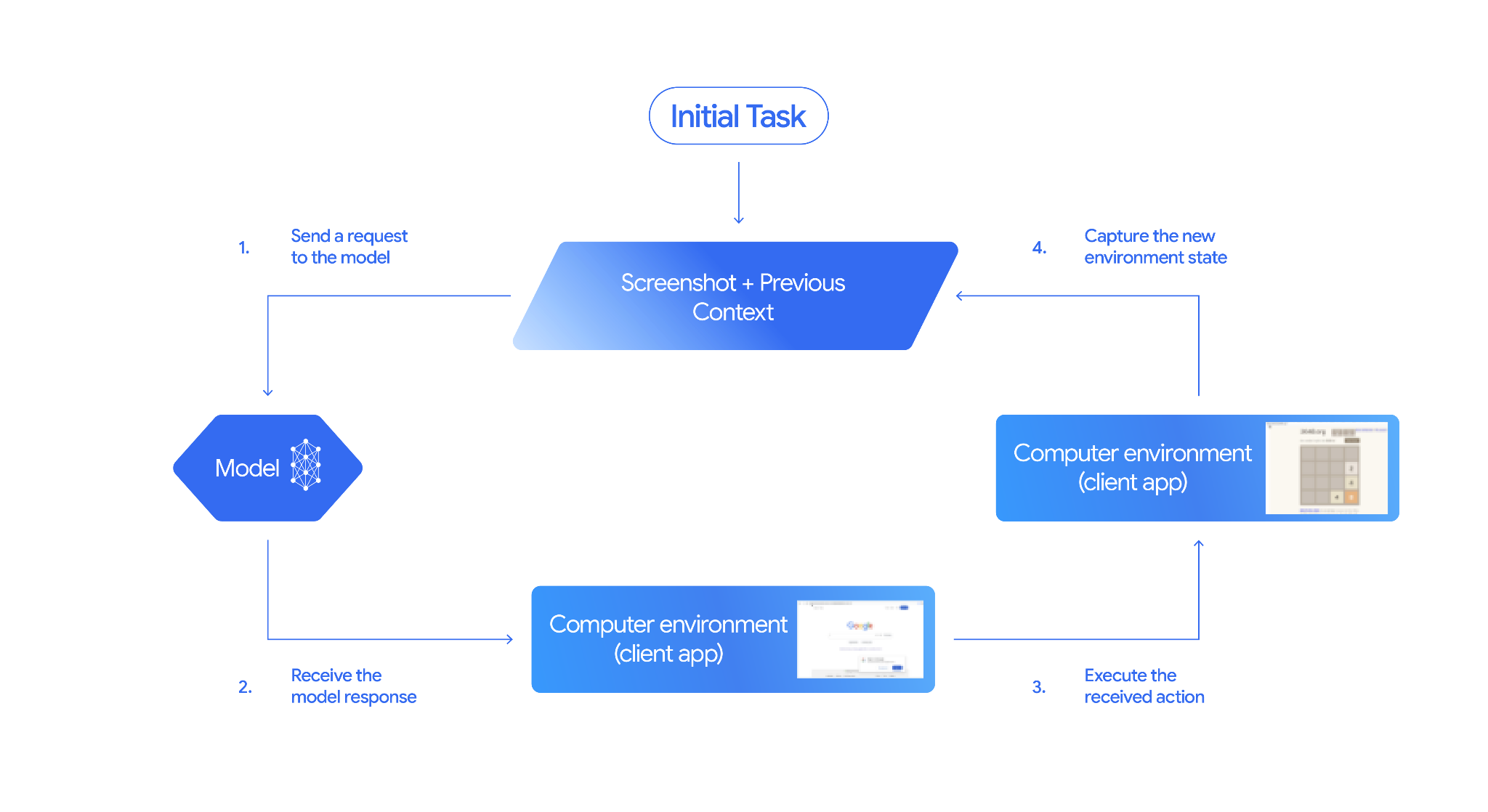
啟用「操作電腦」功能
如要啟用電腦使用功能,請確認應用程式使用支援的模型,並將電腦使用功能加入已啟用的工具清單:
Python
from google import genai
from google.genai import types
from google.genai.types import Content, Part

client = genai.Client(
    enterprise=True,
    project="PROJECT_ID",
    location="global",
)

# Add computer use to the list of tools
generate_content_config = types.GenerateContentConfig(
    tools=[
        types.Tool(
            computer_use=types.ComputerUse(
                environment=types.Environment.ENVIRONMENT_BROWSER,
            )
        ),
    ]
)

contents = [
    Content(
        role="user",
        parts=[
            Part(text="Go to google.com and search for 'weather in New York'"),
        ],
    )
]

response = client.models.generate_content(
    model="gemini-3.8-flash",
    contents=contents,
    config=generate_content_config,
)
print(response)
Node.js
import { GoogleGenAI, Environment } from '@google/genai';

const ai = new GoogleGenAI({
  enterprise: true,
  project: 'PROJECT_ID',
  location: 'global',
});

const response = await ai.models.generateContent({
  model: 'gemini-3.8-flash',
  contents: "Go to google.com and search for 'weather in New York'",
  config: {
    tools: [
      {
        computerUse: {
          environment: Environment.ENVIRONMENT_BROWSER,
        },
      },
    ],
  },
});

console.log(response);
REST API
curl -X POST "https://aiplatform.googleapis.com/v1/projects/PROJECT_ID/locations/global/publishers/google/models/gemini-3.8-flash:generateContent" \
  -H "Authorization: Bearer $(gcloud auth print-access-token)" \
  -H "Content-Type: application/json" \
  -d '{
    "contents": [
      {
        "role": "user",
        "parts": [
          {
            "text": "Go to google.com and search for '\''weather in New York'\''"
          }
        ]
      }
    ],
    "tools": [
      {
        "computer_use": {
          "environment": "ENVIRONMENT_BROWSER"
        }
      }
    ]
  }'
設定執行環境
使用電腦使用工具建構前,請先完成下列設定:
- 安全的執行環境:在沙箱虛擬機器 (VM) 或容器 (例如 Docker) 中執行代理,與主機系統隔離。
- 用戶端動作處理常式:實作用戶端邏輯,執行滑鼠點擊、鍵盤輸入和螢幕截圖。
首先,請安裝 SDK 和瀏覽器依附元件,然後設定環境:
pip install --upgrade google-genai playwright termcolor
playwright install chromium

export GOOGLE_CLOUD_PROJECT="PROJECT_ID"
export GOOGLE_CLOUD_LOCATION="global"
export GOOGLE_GENAI_USE_ENTERPRISE=True
接著,使用明確的可視區域尺寸初始化 Playwright 瀏覽器執行個體,讓正規化座標 (0 至 1000) 能準確縮放:
from playwright.sync_api import sync_playwright

SCREEN_WIDTH = 1440
SCREEN_HEIGHT = 900

playwright = sync_playwright().start()
browser = playwright.chromium.launch(headless=False)

context = browser.new_context(
    viewport={"width": SCREEN_WIDTH, "height": SCREEN_HEIGHT}
)
page = context.new_page()
page.goto("https://www.google.com")
傳送要求
設定電腦使用工具後,請向模型傳送提示,其中包含使用者的目標和 GUI 的初始螢幕截圖。
您也可以視需要新增下列項目:
- 排除的動作:如果支援的 UI 動作清單中,有任何您不希望模型執行的動作,請在
excluded_predefined_functions中指定這些動作。 - user-defined function:除了電腦使用功能外,您可能也想加入自訂 user-defined function。
下列程式碼範例會啟用電腦使用功能,並將要求傳送至模型:
Python
from google import genai
from google.genai import types
from google.genai.types import Content, Part

client = genai.Client()

# Specify predefined functions to exclude (optional)
excluded_functions = ["drag_and_drop"]

# Configuration for computer use with browser environment
generate_content_config = genai.types.GenerateContentConfig(
    tools=[
        # 1. Computer Use tool with browser environment
        types.Tool(
            computer_use=types.ComputerUse(
                environment=types.Environment.ENVIRONMENT_BROWSER,
                # Optional: Exclude specific predefined functions
                excluded_predefined_functions=excluded_functions
                )
              ),
        # 2. Optional: Custom user-defined functions (need to defined above)
        # types.Tool(
           # function_declarations=custom_functions
           #   )
    ],
)

# Create the content with user message
contents: list[Content] = [
    Content(
        role="user",
        parts=[
            Part(text="Search for highly rated smart fridges with touchscreen, 2 doors, around 25 cu ft, priced below 4000 dollars on Google Shopping. Create a bulleted list of the 3 cheapest options in the format of name, description, price in an easy-to-read layout."),
            # Optional: include a screenshot of the initial state
            # Part.from_bytes(
                 # data=screenshot_image_bytes,
                 # mime_type='image/png',
            # ),
        ],
    )
]

# Generate content with the configured settings
response = client.models.generate_content(
    model='gemini-3.8-flash',
    contents=contents,
    config=generate_content_config,
)

# Print the response output
print(response.text)
您也可以加入自訂的 user-defined function,擴充模型功能。請參閱「Gemini 3.5 Flash 或更新版本,以及行動裝置或電腦用途」,瞭解如何為行動裝置用途設定電腦使用,方法是新增 open_app、long_press_at 和 go_home 等動作,同時排除瀏覽器專屬動作。
接收回應
如果模型判斷需要 UI 動作或 user-defined function 才能完成工作,就會傳回一或多個 FunctionCalls。應用程式程式碼需要剖析這些動作、執行動作並收集結果。電腦使用功能支援平行函式呼叫,也就是說,模型可以在單一回合中傳回多個獨立動作。
如果是 Gemini 3.5 Flash 和後續模型,每項動作都會包含 intent 引數,說明模型在該步驟背後的推論:
{
  "content": {
    "parts": [
      {
        "function_call": {
          "name": "type",
          "args": {
            "x": 450,
            "y": 320,
            "text": "smart fridge touchscreen 2 doors 25 cu ft under $4000",
            "press_enter": true,
            "intent": "Type the search query into the Google search box and submit."
          }
        }
      }
    ]
  }
}
視動作而定,API 回應也可能在函式呼叫引數中傳回 safety_decision:
{
  "content": {
    "parts": [
      {
        "function_call": {
          "name": "click",
          "args": {
            "x": 60,
            "y": 100,
            "intent": "Click the 'I'm not a robot' verification checkbox.",
            "safety_decision": {
              "explanation": "I have encountered a CAPTCHA challenge that requires interaction. I need you to complete the challenge by clicking the 'I'm not a robot' checkbox and any subsequent verification steps.",
              "decision": "require_confirmation"
            }
          }
        }
      }
    ]
  }
}
執行收到的動作
收到回應後,剖析 function_call,將座標從正規化的 0-1000 網格縮放至實際可視區域像素尺寸,然後執行動作:
import time
from typing import Any, Dict, List, Tuple
import termcolor


def denormalize_x(x: int, screen_width: int) -> int:
    """Convert normalized x coordinate (0-1000) to actual pixel coordinate."""
    return int(x / 1000 * screen_width)


def denormalize_y(y: int, screen_height: int) -> int:
    """Convert normalized y coordinate (0-1000) to actual pixel coordinate."""
    return int(y / 1000 * screen_height)


def get_safety_confirmation(safety_decision: Dict[str, Any]) -> str:
    """Prompt user for confirmation when safety check is triggered."""
    termcolor.cprint("Safety service requires explicit confirmation!", color="red")
    print(safety_decision.get("explanation", ""))

    decision = ""
    while decision.lower() not in ("y", "n", "ye", "yes", "no"):
        decision = input("Do you wish to proceed? [Y]es/[N]o\n")

    if decision.lower() in ("n", "no"):
        return "TERMINATE"
    return "CONTINUE"


def execute_function_calls(
    response, page, screen_width: int, screen_height: int
) -> List[Tuple[str, Dict[str, Any]]]:
    """Extract and execute modern and legacy function calls from Gemini response."""
    candidate = response.candidates[0]
    function_calls = []
    thoughts = []

    for part in candidate.content.parts:
        if hasattr(part, "function_call") and part.function_call:
            function_calls.append(part.function_call)
        elif hasattr(part, "text") and part.text:
            thoughts.append(part.text)

    if thoughts:
        print(f"Model Reasoning: {' '.join(thoughts)}")

    results: List[Tuple[str, Dict[str, Any]]] = []
    for function_call in function_calls:
        fname = function_call.name
        args = function_call.args or {}
        action_result: Dict[str, Any] = {}

        print(f" -> Executing: {fname} (Intent: {args.get('intent', 'N/A')})")

        # Check for safety decision before executing
        if "safety_decision" in args:
            decision = get_safety_confirmation(args["safety_decision"])
            if decision == "TERMINATE":
                print("Terminating agent loop")
                break
            action_result["safety_acknowledgement"] = "true"

        try:
            if fname in ("open_web_browser", "open_app", "take_screenshot"):
                pass

            elif fname in (
                "click",
                "click_at",
                "double_click",
                "triple_click",
                "middle_click",
                "right_click",
                "mouse_down",
                "mouse_up",
                "move",
                "hover_at",
            ):
                actual_x = denormalize_x(args["x"], screen_width)
                actual_y = denormalize_y(args["y"], screen_height)

                if fname in ("click", "click_at"):
                    page.mouse.click(actual_x, actual_y)
                elif fname == "double_click":
                    page.mouse.dblclick(actual_x, actual_y)
                elif fname == "triple_click":
                    page.mouse.click(actual_x, actual_y, click_count=3)
                elif fname == "middle_click":
                    page.mouse.click(actual_x, actual_y, button="middle")
                elif fname == "right_click":
                    page.mouse.click(actual_x, actual_y, button="right")
                elif fname == "mouse_down":
                    page.mouse.move(actual_x, actual_y)
                    page.mouse.down()
                elif fname == "mouse_up":
                    page.mouse.move(actual_x, actual_y)
                    page.mouse.up()
                elif fname in ("move", "hover_at"):
                    page.mouse.move(actual_x, actual_y)

            elif fname in ("type", "type_text_at"):
                actual_x = denormalize_x(args["x"], screen_width) if "x" in args else None
                actual_y = denormalize_y(args["y"], screen_height) if "y" in args else None
                text = args["text"]
                press_enter = args.get("press_enter", False)
                clear_before_typing = args.get("clear_before_typing", True)

                if actual_x is not None and actual_y is not None:
                    page.mouse.click(actual_x, actual_y)
                    time.sleep(0.1)

                if clear_before_typing:
                    page.keyboard.press("ControlOrMeta+A")
                    page.keyboard.press("Backspace")

                page.keyboard.type(text)
                if press_enter:
                    page.keyboard.press("Enter")

            elif fname in ("scroll", "scroll_at", "scroll_document"):
                if "x" in args and "y" in args:
                    page.mouse.move(denormalize_x(args["x"], screen_width), denormalize_y(args["y"], screen_height))
                direction = args.get("direction", "down")
                magnitude = args.get("magnitude_in_pixels", args.get("magnitude", 300))
                dx, dy = 0, 0
                if direction == "down":
                    dy = magnitude
                elif direction == "up":
                    dy = -magnitude
                elif direction == "right":
                    dx = magnitude
                elif direction == "left":
                    dx = -magnitude
                page.mouse.wheel(dx, dy)

            elif fname == "drag_and_drop":
                start_x = denormalize_x(args.get("start_x", args.get("x", 0)), screen_width)
                start_y = denormalize_y(args.get("start_y", args.get("y", 0)), screen_height)
                end_x = denormalize_x(args.get("end_x", args.get("destination_x", 0)), screen_width)
                end_y = denormalize_y(args.get("end_y", args.get("destination_y", 0)), screen_height)
                page.mouse.move(start_x, start_y)
                page.mouse.down()
                page.mouse.move(end_x, end_y)
                page.mouse.up()

            elif fname == "press_key":
                page.keyboard.press(args["key"])
            elif fname == "key_down":
                page.keyboard.down(args["key"])
            elif fname == "key_up":
                page.keyboard.up(args["key"])
            elif fname == "hotkey":
                page.keyboard.press("+".join(args.get("keys", [])))
            elif fname == "key_combination":
                page.keyboard.press(args["keys"])
            elif fname == "navigate":
                page.goto(args["url"])
            elif fname == "search":
                page.goto("https://www.google.com")
            elif fname == "go_back":
                page.go_back()
            elif fname == "go_forward":
                page.go_forward()
            elif fname in ("wait", "wait_5_seconds"):
                time.sleep(5 if fname == "wait_5_seconds" else args.get("seconds", 1))
            else:
                action_result["warning"] = f"unhandled_function: {fname}"

            page.wait_for_load_state(timeout=5000)
            time.sleep(1)

        except Exception as e:
            print(f"Error executing {fname}: {e}")
            action_result["error"] = str(e)

        results.append((fname, action_result))

    return results
如果傳回的 safety_decision 為 require_confirmation,您必須先要求使用者確認,才能繼續執行動作。根據服務條款,您不得略過真人確認要求。
擷取新狀態
執行動作後,將每個動作結果和更新後的螢幕截圖封裝成 FunctionResponse,傳回給模型:
from google.genai import types
from google.genai.types import Content, FunctionResponse, Part


def get_function_responses(
    page, results: List[Tuple[str, Dict[str, Any]]]
) -> Content:
    """Capture screenshot and URL and package them as FunctionResponses."""
    screenshot = page.screenshot(type="png")
    current_url = page.url
    function_response_parts = []

    for name, action_result in results:
        function_response_parts.append(
            Part(
                function_response=FunctionResponse(
                    name=name,
                    response={
                        "url": current_url,
                        **action_result,
                    },
                    parts=[
                        types.FunctionResponsePart(
                            inline_data=types.FunctionResponseBlob(
                                mime_type="image/png",
                                data=screenshot,
                            )
                        )
                    ],
                )
            )
        )

    return Content(
        role="user",
        parts=function_response_parts,
    )
建構代理迴圈
將這些步驟結合成端對端迴圈,在模型和執行環境之間持續疊代:
Python
from google import genai
from google.genai import types
from google.genai.types import Content, Part
from playwright.sync_api import sync_playwright

def has_function_calls(response) -> bool:
    """Check if model response contains any function calls."""
    candidate = response.candidates[0]
    return any(
        hasattr(part, "function_call") and part.function_call
        for part in candidate.content.parts
    )

def main():
    client = genai.Client(
        enterprise=True,
        project="PROJECT_ID",
        location="global",
    )

    generate_content_config = types.GenerateContentConfig(
        tools=[
            types.Tool(
                computer_use=types.ComputerUse(
                    environment=types.Environment.ENVIRONMENT_BROWSER,
                    enable_prompt_injection_detection=True,
                )
            )
        ],
    )

    screen_width, screen_height = 1440, 900

    with sync_playwright() as p:
        browser = p.chromium.launch(headless=False)
        context = browser.new_context(
            viewport={"width": screen_width, "height": screen_height}
        )
        page = context.new_page()
        page.goto("https://www.google.com")

        initial_screenshot = page.screenshot(type="png")
        contents: list[Content] = [
            Content(
                role="user",
                parts=[
                    Part(text="Search for flights from San Francisco to Honolulu departing June 30 and returning July 6."),
                    Part.from_bytes(data=initial_screenshot, mime_type="image/png"),
                ],
            )
        ]

        # Agent loop: iterate until model provides a final text response
        for iteration in range(10):
            print(f"\n--- Iteration {iteration + 1} ---")

            response = client.models.generate_content(
                model="gemini-3.8-flash",
                contents=contents,
                config=generate_content_config,
            )

            contents.append(response.candidates[0].content)

            if not has_function_calls(response):
                print(f"FINAL RESPONSE:\n{response.text}")
                break

            results = execute_function_calls(response, page, screen_width, screen_height)
            if not results:
                break

            user_feedback_content = get_function_responses(page, results)
            contents.append(user_feedback_content)

        browser.close()

if __name__ == "__main__":
    main()
Gemini 3.5 Flash 以上版本,以及行動裝置或電腦用途
電腦使用功能支援設定行動裝置 (ENVIRONMENT_MOBILE)、電腦 (ENVIRONMENT_DESKTOP) 或瀏覽器 (ENVIRONMENT_BROWSER) 環境。預設值為 ENVIRONMENT_BROWSER。
下列範例說明如何設定執行環境,以便使用 Gemini 3.5 Flash 以上版本執行電腦操作:
REST API
使用任何要求資料之前,請先修改下列項目的值:
- PROJECT_ID:專案 ID。
HTTP 方法和網址:
POST https://aiplatform.googleapis.com/v1/projects/PROJECT_ID/locations/global/publishers/google/models/gemini-3.5-flash:generateContent
JSON 要求主體:
{
  "contents": [
    {
      "role": "user",
      "parts": {
        "text": "find me a flight from SF to Hawaii on Jun 30th, coming back on Jul 6th. start by navigating directly to flights.google.com"
      }
    }
  ],
  "generation_config": {
    "candidateCount": 1
  },
  "tools": [
    {
      "computer_use": {
        "environment": "ENVIRONMENT_BROWSER"
      }
    }
  ]
}
請展開以下其中一個選項,以傳送要求:
您應該會收到執行成功的狀態碼 (2xx) 和空白回應。
Python
以下範例需要 python-genai 2.7.0 以上版本。
from google import genai
from google.genai.types import (
    Part,
    GenerateContentConfig,
    Content,
    Tool,
    ComputerUse,
    Environment,
    ThinkingConfig,
)
client = genai.Client()

response = client.models.generate_content(
    model="gemini-3.6-flash",
    contents=[
        Content(
            role="user",
            parts=[
                Part(text="find me a flight from SF to Hawaii on Jun 30th, coming back on Jul 6th"),
            ],
        )
    ],
    config=GenerateContentConfig(
        temperature=1,
        top_p=0.95,
        top_k=40,
        max_output_tokens=8192,
        tools=[
            Tool(
                computer_use=ComputerUse(
                    environment=Environment.ENVIRONMENT_MOBILE
                ),
            ),
        ],
        thinking_config=ThinkingConfig(
            include_thoughts=True
        ),
    )
)
自訂 user-defined function
您可以將 computer_use 與自訂 user-defined function (function_declarations) 結合,擴充模型功能。舉例來說,在人工介入迴路 (HITL) 情境中,您可以使用 excluded_predefined_functions 排除特定預先定義的動作,並註冊自訂 yield_to_user 函式,讓代理在遇到雙重驗證提示或不明確的畫面時,將控制權交還給真人:
Python
from google import genai
from google.genai import types
from google.genai.types import Content, Part

client = genai.Client()

def yield_to_user(reason: str) -> dict[str, str]:
    """Yields control back to the user for assistance or verification when an automated action is unsafe or ambiguous.

    Args:
        reason: The reason why the agent is yielding control to the human.
    """
    return {"status": "yielded", "reason": reason}

generate_content_config = types.GenerateContentConfig(
    tools=[
        types.Tool(
            computer_use=types.ComputerUse(
                environment=types.Environment.ENVIRONMENT_BROWSER,
                excluded_predefined_functions=["drag_and_drop"],
            )
        ),
        types.Tool(
            function_declarations=[
                types.FunctionDeclaration.from_callable(
                    client=client, callable=yield_to_user
                )
            ]
        ),
    ]
)

response = client.models.generate_content(
    model="gemini-3.8-flash",
    contents=[
        Content(
            role="user",
            parts=[
                Part(
                    text="Click the submit button. If you need a second-factor authentication code, ask me."
                ),
            ],
        )
    ],
    config=generate_content_config,
)
print(response)
支援的動作
電腦使用工具可讓模型使用 FunctionCall 要求下列動作。用戶端程式碼必須實作這些動作的執行邏輯。如需範例,請參閱參考實作。下表列出瀏覽器環境支援的操作。Gemini 3 Flash 和 Gemini 3.5 Flash 或更新版本模型,有不同的 FunctionCall 名稱組合。
Gemini 3.5 Flash 以上版本
Gemini 3.5 Flash:視選取的環境而定,您可以使用不同的函式呼叫組合:瀏覽器環境
| 指令名稱 | 說明 | 引數 (在函式呼叫中) |
|---|---|---|
click |
在指定座標上按一下滑鼠左鍵。 |
y:int (0-999)x:int (0-999)intent:str
|
double_click |
在指定座標按兩下。 |
y:int (0-999)x:int (0-999)intent:str
|
triple_click |
在指定座標上按三下。 |
y:int (0-999)x:int (0-999)intent:str
|
middle_click |
在指定座標按下滑鼠中鍵。 |
y:int (0-999)x:int (0-999)intent:str
|
right_click |
在指定座標按一下滑鼠右鍵。 |
y:int (0-999)x:int (0-999)intent:str
|
mouse_down |
在指定座標按住滑鼠按鈕。 |
y:int (0-999)x:int (0-999)intent:str
|
mouse_up |
在指定座標放開滑鼠按鈕。 |
y:int (0-999)x:int (0-999)intent:str
|
move |
將游標移至指定位置。 |
y:int (0-999)x:int (0-999)intent:str
|
type |
輸入文字 (可選擇先點選 x、y)。 |
y:int (0-999,選填)x:int (0-999,選填)text:strpress_enter:bool (選填,預設為 false)intent:str
|
drag_and_drop |
將項目從 (start_x, start_y) 拖曳到 (end_x, end_y)。 |
start_y:int (0-999)start_x:int (0-999)end_y:int (0-999)end_x:int (0-999)intent:str
|
wait |
等待指定的秒數。 |
seconds:int (選用,預設為 1)intent:str
|
press_key |
按下指定按鍵後放開。 |
key: strintent: str
|
key_down |
按住指定按鍵。 |
key: strintent: str
|
key_up |
放開指定按鍵。 |
key: strintent: str
|
hotkey |
按下指定的按鍵組合。 |
keys:List[str]intent:str
|
take_screenshot |
傳回目前畫面的螢幕截圖。 | intent:str |
scroll |
在座標處向上、向下、向左或向右捲動,捲動距離以像素為單位。 |
y:int (0-999)x:int (0-999)direction:str ("up", "down", "left", "right")magnitude_in_pixels:int (0-999,選用,預設值為 300)intent:str
|
open_web_browser |
開啟網路瀏覽器。 | intent:str |
navigate |
直接將瀏覽器導向指定網址。 |
url: strintent: str
|
go_back |
返回瀏覽器記錄中的上一個網頁。 | intent:str |
go_forward |
前往瀏覽器記錄中的下一個網頁。 | intent:str |
行動環境
| 指令名稱 | 說明 | 引數 (在函式呼叫中) |
|---|---|---|
open_app |
依名稱開啟應用程式。 | intent: str |
click |
在座標處按一下滑鼠左鍵。 |
y:int (0-999)x:int (0-999)intent:str
|
list_apps |
列出裝置上可用的應用程式,並傳回其名稱和套件名稱。 | intent:str |
wait |
等待指定的秒數。 |
intent:strseconds:int(選用,預設為 1)
|
go_back |
返回瀏覽器記錄中的上一個網頁。 | intent:str |
type |
輸入文字。 |
text: strintent: strpress_enter: bool(選用,預設為 false)
|
drag_and_drop |
將項目從 start_y 和 start_x 拖曳至 end_y 和 end_x |
start_y:int (0-999)start_x:int (0-999)end_y:int (0-999)end_x:int (0-999)intent:str
|
long_press |
在螢幕上指定的 y (0-999)、x (0-999) 座標執行長按動作。 |
y:int (0-999)x:int (0-999)intent:strseconds:int (選用,預設為 2)
|
press_key |
按下指定按鍵後放開。 |
key: strintent: str
|
take_screenshot |
傳回目前畫面的螢幕截圖。 | intent:str |
桌面環境
| 指令名稱 | 說明 | 引數 (在函式呼叫中) |
|---|---|---|
click |
在座標處按一下滑鼠左鍵。 |
y:int (0-999)x:int (0-999)intent:str
|
double_click |
在座標處按兩下。 |
y:int (0-999)x:int (0-999)intent:str
|
triple_click |
在座標上連按三下。 |
y:int (0-999)x:int (0-999)intent:str
|
middle_click |
在座標處按下滑鼠中鍵。 |
y:int (0-999)x:int (0-999)intent:str
|
right_click |
在座標上按一下滑鼠右鍵。 |
y:int (0-999)x:int (0-999)intent:str
|
mouse_down |
在指定座標按住滑鼠按鈕。 |
y:int (0-999)x:int (0-999)intent:str
|
mouse_up |
在指定座標放開滑鼠按鈕。 |
y:int (0-999)x:int (0-999)intent:str
|
move |
將游標移至指定位置。 |
y:int (0-999)x:int (0-999)intent:str
|
type |
輸入文字。 |
text:strintent:strpress_enter:bool(選用,預設為 false)
|
drag_and_drop |
將項目從 start_y 和 start_x 拖曳到 end_y 和 end_x。 |
start_y:int (0-999)start_x:int (0-999)end_y:int (0-999)end_x:int (0-999)intent:str
|
wait |
等待指定秒數。 |
intent:strseconds:int(選用,預設為 1)
|
press_key |
按下指定按鍵後放開。 |
key: strintent: str
|
key_down |
按住指定按鍵。 |
key: strintent: str
|
key_up |
放開指定按鍵。 |
key: strintent: str
|
hotkey |
按下指定的按鍵組合。 |
keys:List[str]intent:str
|
take_screenshot |
傳回目前畫面的螢幕截圖。 | intent:str |
scroll |
在座標處向上、向下、向左或向右捲動,捲動距離以像素為單位。 |
y:int (0-999)x:int (0-999)direction:str ("up"、"down"、"left"、"right")intent:strmagnitude_in_pixels:int (0-999,選用,預設為 300)
|
Gemini 3 Flash
| 指令名稱 | 說明 | 引數 (在函式呼叫中) | 函式呼叫範例 |
|---|---|---|---|
| open_web_browser | 開啟網路瀏覽器。 | 無 | {"name": "open_web_browser", "args": {}} |
| wait_5_seconds | 暫停執行 5 秒,讓動態內容載入或動畫完成。 | 無 | {"name": "wait_5_seconds", "args": {}} |
| go_back | 前往瀏覽器記錄中的上一頁。 | 無 | {"name": "go_back", "args": {}} |
| go_forward | 前往瀏覽器記錄中的下一頁。 | 無 | {"name": "go_forward", "args": {}} |
| search | 前往預設搜尋引擎的首頁 (例如 Google)。適合用於開始新的搜尋工作。 | 無 | {"name": "search", "args": {}} |
| navigate | 直接將瀏覽器導向指定網址。 | url:str |
{"name": "navigate", "args": {"url": "https://www.wikipedia.org"}}
|
| click_at | 點選網頁上的特定座標。x 和 y 值是以 1000x1000 格線為基準,並會根據螢幕尺寸調整。 | y:int (0-999),x:int (0-999) |
{"name": "click_at", "args": {"y": 300, "x": 500}}
|
| hover_at | 521963309 將滑鼠懸停在網頁上的特定座標。適合用來顯示子選單。x 和 y 是以 1000x1000 格線為基準。 | y:int (0-999) x:int (0-999) |
{"name": "hover_at", "args": {"y": 150, "x": 250}}
|
| type_text_at | 在特定座標輸入文字,預設為先清除欄位,並在輸入後按下 ENTER 鍵,但可以停用這些功能。x 和 y 是以 1000x1000 格線為基礎。 |
y:int (0-999)、x:int (0-999)、text:str、press_enter:bool (選用,預設為 True)、clear_before_typing:bool (選用,預設為 True) |
{"name": "type_text_at", "args": {"y": 250, "x": 400,
              "text": "search query", "press_enter": false}}
|
| key_combination | 按下鍵盤按鍵或組合鍵,例如「Control+C」或「Enter」。適合用於觸發動作 (例如按下「Enter」鍵提交表單) 或剪貼簿操作。 |
keys:str (例如「enter」、「control+c」。如需允許金鑰的完整清單,請參閱 API 參考資料 |
{"name": "key_combination", "args": {"keys":
              "Control+A"}}
|
| scroll_document | 將整個網頁「向上」、「向下」、「向左」或「向右」捲動。 | direction:str (「up」、「down」、「left」或「right」) |
{"name": "scroll_document", "args": {"direction": "down"}}
|
| scroll_at | 在座標 (x, y) 處,以特定幅度朝指定方向捲動特定元素或區域。座標和大小 (預設為 800) 是以 1000x1000 格線為基準。 |
y:int (0-999),x:int (0-999),direction:str (「up」、「down」、「left」、「right」),magnitude:int (0-999,選用,預設為 800) |
{"name": "scroll_at", "args": {"y": 500, "x": 500,
              "direction": "down", "magnitude": 400}}
|
| drag_and_drop | 從起始座標 (x, y) 拖曳元素,並將其拖曳至目的地座標 (destination_x, destination_y)。所有座標都是以 1000x1000 的格線為基準。 |
y:int (0-999),x:int (0-999),destination_y:int (0-999),destination_x:int (0-999) |
{"name": "drag_and_drop", "args": {"y": 100, "x": 100,
              "destination_y": 500, "destination_x": 500}}
|
安全與安全性
本節說明電腦使用工具採取的防護措施,旨在提升使用者控管能力和安全性。此外,也說明瞭最佳做法,可降低工具可能帶來的新風險。
確認安全決策
視動作而定,模型的回覆可能包含內部安全系統的 safety_decision。這項決策會驗證工具建議的安全措施。
{
  "content": {
    "parts": [
      {
        "text": "I have evaluated step 2. It seems Google detected unusual traffic and is asking me to verify I'm not a robot. I need to click the 'I'm not a robot' checkbox located near the top left (y=98, x=95)."
      },
      {
        "function_call": {
          "name": "click_at",
          "args": {
            "x": 60,
            "y": 100,
            "safety_decision": {
              "explanation": "I have encountered a CAPTCHA challenge that requires interaction. I need you to complete the challenge by clicking the 'I'm not a robot' checkbox and any subsequent verification steps.",
              "decision": "require_confirmation"
            }
          }
        }
      }
    ]
  }
}
如果 safety_decision 為 require_confirmation,您必須先要求使用者確認,才能繼續執行動作。
以下程式碼範例會在執行動作前,提示使用者確認。如果使用者未確認動作,迴圈就會終止。如果使用者確認動作,系統就會執行動作,並將 safety_acknowledgement 欄位標示為 True。
import termcolor

def get_safety_confirmation(safety_decision):
    """Prompt user for confirmation when safety check is triggered."""
    termcolor.cprint("Safety service requires explicit confirmation!", color="red")
    print(safety_decision["explanation"])

    decision = ""
    while decision.lower() not in ("y", "n", "ye", "yes", "no"):
        decision = input("Do you wish to proceed? [Y]es/[N]o\n")

    if decision.lower() in ("n", "no"):
        return "TERMINATE"
    return "CONTINUE"

def execute_function_calls(response, page, screen_width: int, screen_height: int):

    # ... Extract function calls from response ...

    for function_call in function_calls:
        extra_fr_fields = {}

        # Check for safety decision
        if 'safety_decision' in function_call.args:
            decision = get_safety_confirmation(function_call.args['safety_decision'])
            if decision == "TERMINATE":
                print("Terminating agent loop")
                break
            extra_fr_fields["safety_acknowledgement"] = "true" # Safety acknowledgement

        # ... Execute function call and append to results ...
如果使用者確認,您必須在 FunctionResponse 中加入安全聲明。
function_response_parts.append(
    FunctionResponse(
        name=name,
        response={"url": current_url,
                  **extra_fr_fields},  # Include safety acknowledgement
        parts=[
            types.FunctionResponsePart(
                inline_data=types.FunctionResponseBlob(
                    mime_type="image/png", data=screenshot
                )
             )
           ]
         )
       )
提示插入偵測
Gemini 3.5 Flash 以上版本的電腦使用功能,支援進階安全機制,可偵測提示詞注入式攻擊。啟用後,這項功能會檢查隨附的螢幕截圖是否可能引發提示詞注入式攻擊。您可以在電腦使用設定中設定這項功能。預設為 false。
下列範例示範如何啟用電腦使用設定,以啟用提示詞注入偵測功能:
REST API
使用任何要求資料之前,請先修改下列項目的值:
- PROJECT_ID:專案 ID。
HTTP 方法和網址:
POST https://aiplatform.googleapis.com/v1/projects/PROJECT_ID/locations/global/publishers/google/models/gemini-3.5-flash:generateContent
JSON 要求主體:
{
  "contents": [
    {
      "role": "user",
      "parts": {
        "text": "find me a flight from SF to Hawaii on Jun 30th, coming back on Jul 6th. start by navigating directly to flights.google.com"
      }
    }
  ],
  "generation_config": {
    "candidateCount": 1
  },
  "tools": [
    {
      "computer_use": {
        "environment": "ENVIRONMENT_BROWSER",
        "enable_prompt_injection_detection": true
      }
    }
  ]
}
請展開以下其中一個選項,以傳送要求:
您應該會收到執行成功的狀態碼 (2xx) 和空白回應。
Python
以下範例需要 python-genai 2.7.0 以上版本。
from google import genai
from google.genai.types import (
    Part,
    GenerateContentConfig,
    Content,
    Tool,
    ComputerUse,
    Environment,
    ThinkingConfig,
)
client = genai.Client()

response = client.models.generate_content(
    model="gemini-3.6-flash",
    contents=[
        Content(
            role="user",
            parts=[
                Part(text="find me a flight from SF to Hawaii on Jun 30th, coming back on Jul 6th"),
            ],
        )
    ],
    config=GenerateContentConfig(
        temperature=1,
        top_p=0.95,
        top_k=40,
        max_output_tokens=8192,
        tools=[
            Tool(
                computer_use=ComputerUse(
                    environment=Environment.ENVIRONMENT_MOBILE,
                    enable_prompt_injection_detection=True
                ),
            ),
        ],
        thinking_config=ThinkingConfig(
            include_thoughts=True
        ),
    )
)
安全性最佳做法
開發人員應留意電腦使用功能帶來的風險:
- 不可信的內容和詐騙:模型在嘗試達成使用者目標時,可能會依賴不可信的資訊來源和畫面上的指示。
- 偶爾會執行非預期動作:模型可能會誤解使用者的目標或網頁內容,導致執行錯誤動作,例如點選錯誤按鈕或填寫錯誤表單。
- 違反政策:API 功能可能用於違反 Google 條款和政策的活動,例如繞過 CAPTCHA 或破壞系統完整性。
為因應這些風險,請採取下列安全措施和最佳做法:
- 人工介入迴路 (HITL):
- 實作使用者確認:如果安全回應指出
require_confirmation,您必須在執行前實作使用者確認。 - 提供自訂安全指令:除了內建的使用者確認檢查外,開發人員也可以選擇新增自訂系統指令,強制執行自己的安全政策,例如封鎖特定模型動作,或要求使用者確認後,模型才能執行特定高風險且不可逆的動作。
按一下查看自訂安全系統指令範例
## **RULE 1: Seek User Confirmation (USER_CONFIRMATION)**

This is your first and most important check. If the next required action falls
into any of the following categories, you MUST stop immediately, and seek the
user's explicit permission.

**USER_CONFIRMATION Categories:**
*   **Consent and Agreements:** Terms of Service, Privacy Policies, Cookie banners.
*   **Robot Detection:** CAPTCHAs of any kind.
*   **Financial Transactions:** Completing purchases or moving funds.
*   **Sending Communications:** Emails, forum posts, or chat messages.
*   **Accessing/Modifying Sensitive Information:** Healthcare, financial, or ID records.
*   **User Data Management:** Downloading files, transferring user data.
*   **Browser Data Usage:** Chrome history, bookmarks, autofill passwords.
*   **Security and Identity:** Logging into accounts or impersonation.

## **RULE 2: Default Behavior (ACTUATE)**
If an action does NOT fall under USER_CONFIRMATION, proactively perform all
necessary steps to move the user's request forward.
- 實作使用者確認:如果安全回應指出
- 安全執行環境:在安全的沙箱環境中執行代理,限制其潛在影響 (例如沙箱虛擬機器 (VM)、容器 (例如 Docker),或權限有限的專用瀏覽器設定檔)。
- 輸入內容清理:清理提示詞中所有使用者生成的文字,降低非預期指令或提示詞注入的風險。這項安全防護機制很有幫助,但無法取代安全執行環境。
- 內容護欄:使用護欄和內容安全 API (例如 Model Armor),評估使用者輸入內容、工具輸入和輸出內容,以及代理的回覆是否適當,並偵測提示詞注入和越獄行為。
- 許可清單和封鎖清單:實施篩選機制,控管模型可瀏覽的位置和可執行的操作。建議先建立禁止網站的封鎖清單,再建立更嚴格的許可清單,進一步提升安全性。
- 觀測能力和記錄:保留詳細記錄,用於偵錯、稽核和事件應變。用戶端應記錄提示、螢幕截圖、模型建議動作 (
function_call)、安全回應,以及用戶端最終執行的所有動作。 - 環境管理:確保 GUI 環境一致。非預期的彈出式視窗、系統通知或版面配置移位,都可能使模型混淆。盡可能從已知、乾淨的狀態開始執行每項新工作。
人工介入迴路 (HITL) 確認
人工介入迴路 (HITL) 確認是指在執行模型建議的動作前,先徵求使用者確認。如果模型因安全考量而無法執行動作,就必須進行這項程序。
Gemini 的電腦使用工具提供下列機制,可控制 HITL 確認:
- 開發人員層級:開發人員可以設定是否強制執行部分或所有預設 HITL 確認。
- 組織層級:組織管理員可以建立組織層級政策,禁止個別開發人員停用部分或所有 HITL 確認。這項政策會取代任何開發人員層級的設定。
覆寫 HITL 確認
您可以覆寫下列預設 HITL 確認:
FINANCIAL_TRANSACTIONS:完成金融交易的最後一個步驟 (例如付款、轉帳付款、匯票、開始或修改訂閱,或完成預訂)。SENSITIVE_DATA_MODIFICATION:修改私密資訊,例如醫療照護、財務或政府記錄。COMMUNICATION_TOOL:存取或使用通訊工具,傳送、分享、發布或以其他方式傳輸通訊內容。ACCOUNT_CREATION:與註冊或申請流程互動,建立或佈建新的使用者或服務帳戶。DATA_MODIFICATION:修改、管理、共用、儲存、提交或刪除瀏覽器資料或檔案。USER_CONSENT_MANAGEMENT:與使用者同意聲明對話方塊或橫幅互動,做出決定。LEGAL_TERMS_AND_AGREEMENTS:與具有法律約束力的協議對話方塊互動,例如接受服務條款、隱私權政策對話方塊或法律聲明。
如要覆寫任何或所有 HITL 確認,請在電腦使用設定的 disabled_safety_policies 欄位中列出這些確認:
Python
GenerateContent API
generate_content_config = genai.types.GenerateContentConfig(
    tools=[
        types.Tool(
            computer_use=types.ComputerUse(
                environment=types.Environment.ENVIRONMENT_MOBILE,
                disabled_safety_policies=[
                    types.SafetyPolicy.FINANCIAL_TRANSACTIONS,
                    types.SafetyPolicy.COMMUNICATION_TOOL,
                ]
            )
        ),
    ],
)

contents = [
    types.Content(
        role="user",
        parts=[
            types.Part(text="Open the Maps app and find the nearest coffee shop."),
        ],
    )
]

response = client.models.generate_content(
    model='gemini-3.5-flash',
    contents=contents,
    config=generate_content_config,
)
Interactions API
from google import genai
client = genai.Client()

interaction = client.interactions.create(
    model='gemini-3.5-flash',
    input='Open the Maps app and find the nearest coffee shop.',
    tools=[
        {
            'type': 'computer_use',
            'environment': 'mobile',
            'disabled_safety_policies': [
                'financial_transactions',
                'communication_tool',
            ],
        }
    ]
)
REST
GenerateContent API
{
  "contents": [
    {
      "role": "user",
      "parts": [
        {
          "text": "Open the Maps app and find the nearest coffee shop."
        }
      ]
    }
  ],
  "tools": [
    {
      "computer_use": {
        "environment": "ENVIRONMENT_MOBILE",
        "disabled_safety_policies" : [
          "FINANCIAL_TRANSACTIONS",
          "COMMUNICATION_TOOL"
         ]
      }
    }
  ]
}
Interactions API
{
  "model": "gemini-3.5-flash",
  "input": "Open the Maps app and find the nearest coffee shop.",
  "tools": [
    {
      "type": "computer_use",
      "environment": "mobile",
      "disabled_safety_policies": [
        "financial_transactions",
        "communication_tool"
      ]
    }
  ]
}
建立組織政策
如果您是組織管理員,可以使用組織政策服務建立組織層級政策,防止個別開發人員停用部分或所有 HITL 確認。這項政策會取代任何開發人員層級的設定。
您可以使用 Google Cloud 控制台或 Google Cloud CLI 建立政策。限制 ID 為 vertexai.configurableComputerUseToolSafetyPolicies。組織政策變更最多可能需要一小時才會生效。
如要進一步瞭解如何建立及管理組織政策,請參閱「建立組織政策」。
定價
電腦使用功能的費率與 Gemini 相同,且使用相同的 SKU。如要拆分電腦使用費用,請使用自訂中繼資料標籤。如要進一步瞭解如何使用自訂中繼資料標籤監控費用,請參閱「自訂中繼資料標籤」。