


Gemini Robotics ER 2 可透過連續影片動態消息,使用下列兩項功能追蹤工作進度:
- 尋找時刻:找出重要事件發生的精確時間戳記。
- 進度分類:將每部影片指派至五個完成度區間之一 (0-20%、20-40%、40-60%、60-80%、80-100%)。
尋找精彩時刻
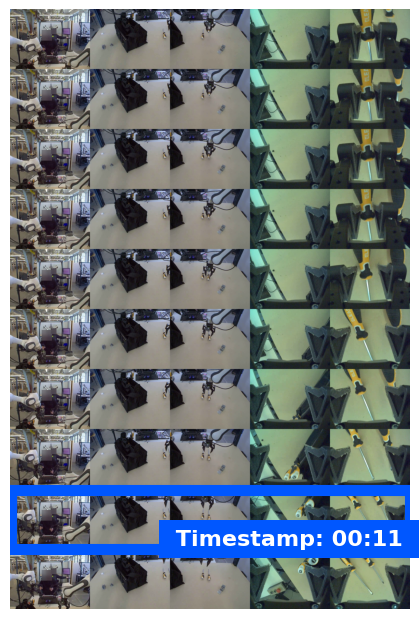
「尋找時刻」功能可找出發生重大事件的確切影片影格,例如杯子裝滿或打結時。機器人會利用這項資訊確認是否成功、安排步驟順序,以及觸發修正。
下列提示範例要求模型找出影片中特定工作的完成時間:
Python
from google import genai
from google.genai import types

client = genai.Client(
    enterprise=True,
    project="your-project-id",
    location="global",
)

with open("task_video.mp4", "rb") as f:
    video_bytes = f.read()

prompt = """
At what timestamp (in seconds) does the task reach successful completion?
Return a JSON object: {"completion_time_seconds": <float>}.
If the task is not completed, return {"completion_time_seconds": null}.
"""

response = client.models.generate_content(
    model="gemini-robotics-er-2-preview",
    contents=[
        types.Part.from_bytes(data=video_bytes, mime_type="video/mp4"),
        prompt,
    ],
)

print(response.text)
以下是尋找特定時刻影片的影格範例,模型會找出工作完成的時間戳記:
進度分類
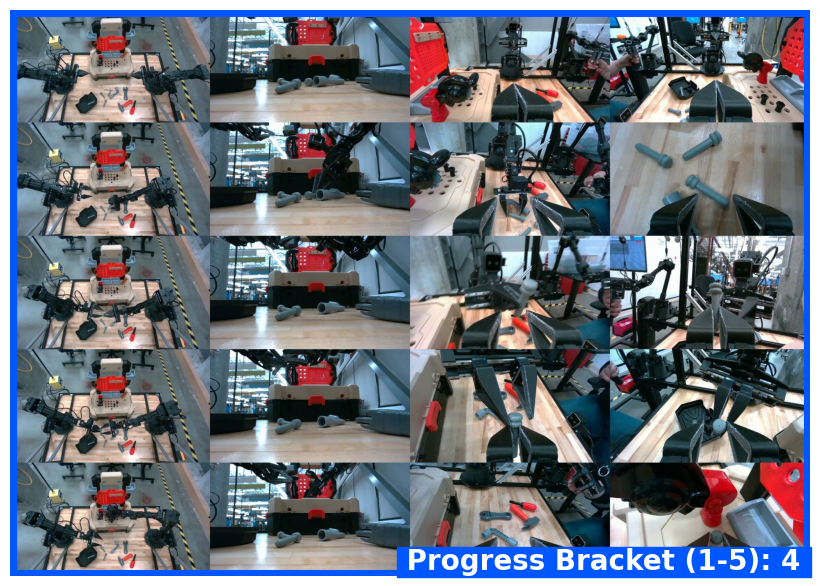
進度分類會將影片指派至五個完成度區間之一:0-20%、20-40%、40-60%、60-80% 或 80-100%。這讓機器人能即時掌握情況,調整動作或重試失敗的步驟,不必重新啟動整個工作流程。
下列範例提示會要求模型根據影片分類目前的進度等級:
Python
from google import genai
from google.genai import types

client = genai.Client(
    enterprise=True,
    project="your-project-id",
    location="global",
)

with open("task_video.mp4", "rb") as f:
    video_bytes = f.read()

prompt = """
Watch this video and classify the task progress level at the final frame.
Return a JSON object with the progress bracket:
{"progress_level": "0-20" | "20-40" | "40-60" | "60-80" | "80-100"}.
"""

response = client.models.generate_content(
    model="gemini-robotics-er-2-preview",
    contents=[
        types.Part.from_bytes(data=video_bytes, mime_type="video/mp4"),
        prompt,
    ],
)

print(response.text)
以下是進度分類影片的影格範例,模型會指派進度範圍:
完整範例
如需完整的可執行範例 (包括多步驟工作追蹤),請參閱機器人技術指南。
後續步驟
如要進一步瞭解 Gemini Robotics ER 2,請參閱下列資源:
- 工作自動化調度管理:具備空間推理能力的長程工作。
- 空間推論:指向、追蹤和定界框範例。
- Gemini Robotics ER 2 總覽:功能和快速入門指南。
- Gemini Robotics ER 2 模型資訊:技術規格、權杖限制和支援功能。