


本教學課程說明如何建立代理,並使用 Agent Development Kit (ADK) Streaming 啟用語音和視訊通訊。您將安裝 ADK、設定使用 Google 搜尋的基本代理,並使用 adk
web 工具執行代理。
事前準備
本指南假設您有在 Windows、macOS 或 Linux 環境中使用終端機的經驗。
設定環境並安裝 ADK
本節說明如何準備本機環境。
建立並啟用虛擬環境。建議使用虛擬環境。
# Create the environment python -m venv .venv # Activate the environment in each new terminal # For macOS or Linux: source .venv/bin/activate # For Windows CMD: .venv\Scripts\activate.bat # For Windows PowerShell: .venv\Scripts\Activate.ps1安裝 ADK。
pip install google-adk
建立專案結構
為代理建立必要的目錄和檔案。
建立下列資料夾結構,並加入空白檔案:
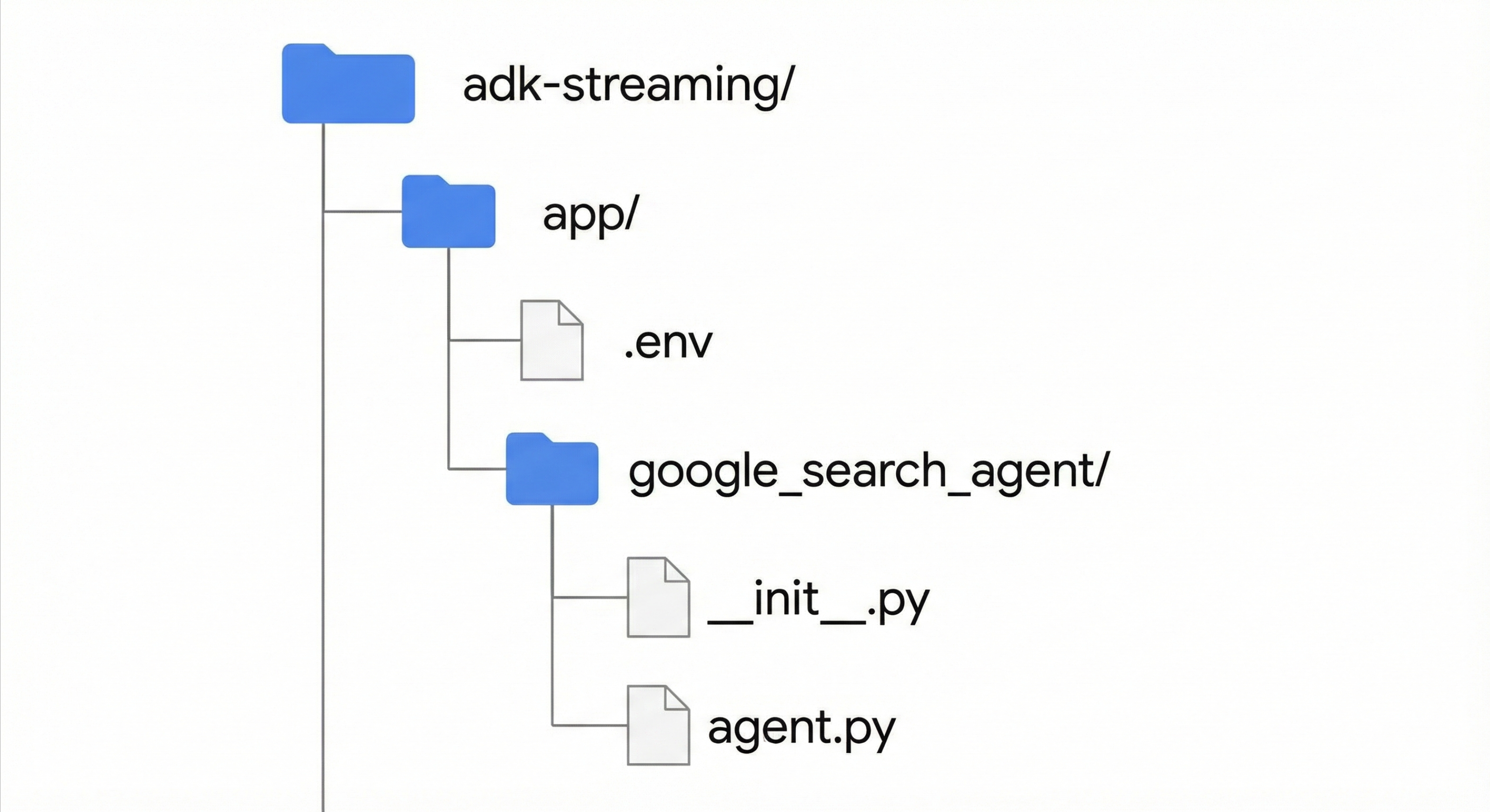
在
app/google_search_agent/agent.py檔案中新增下列程式碼。這個檔案會定義代理的邏輯。您必須定義root_agent。在下列程式碼中,使用支援的模型名稱更新model欄位。from google.adk.agents import Agent from google.adk.tools import google_search # Import the tool root_agent = Agent( # A unique name for the agent. name="basic_search_agent", # The Large Language Model (LLM) that agent will use. # Please fill in the latest model id that supports live from # https://adk.dev/live/get-started/streaming-python/#supported-models model="...", # for example: model="gemini-live-2.5-flash-native-audio" # A short description of the agent's purpose. description="Agent to answer questions using Google Search.", # Instructions to set the agent's behavior. instruction="You are an expert researcher. You always stick to the facts.", # Add google_search tool to perform grounding with Google search. tools=[google_search] )在
app/google_search_agent/__init__.py檔案中新增下列程式碼:from . import agent
設定平台
如要執行代理程式,請將其設定為使用 Google Cloud Gemini Enterprise Agent Platform。
開啟
app/目錄中的.env檔案。在檔案中新增下列內容。將
PROJECT_ID替換為 Google Cloud 專案 ID,並將LOCATION替換為 Google Cloud 位置。GOOGLE_CLOUD_PROJECT=PROJECT_ID GOOGLE_CLOUD_LOCATION=LOCATION GOOGLE_GENAI_USE_ENTERPRISE=True
使用開發 UI 執行代理
啟動開發使用者介面,與代理互動。
將目前目錄變更為
app。cd app設定
SSL_CERT_FILE環境變數。語音和視訊測試必須完成這個步驟。macOS/Linux
export SSL_CERT_FILE=$(python -m certifi)
Windows
$env:SSL_CERT_FILE = (python -m certifi)
執行開發人員 UI。
adk web開啟終端機中提供的網址,通常是
http://localhost:8000或http://127.0.0.1:8000。選取「
google_search_agent」。
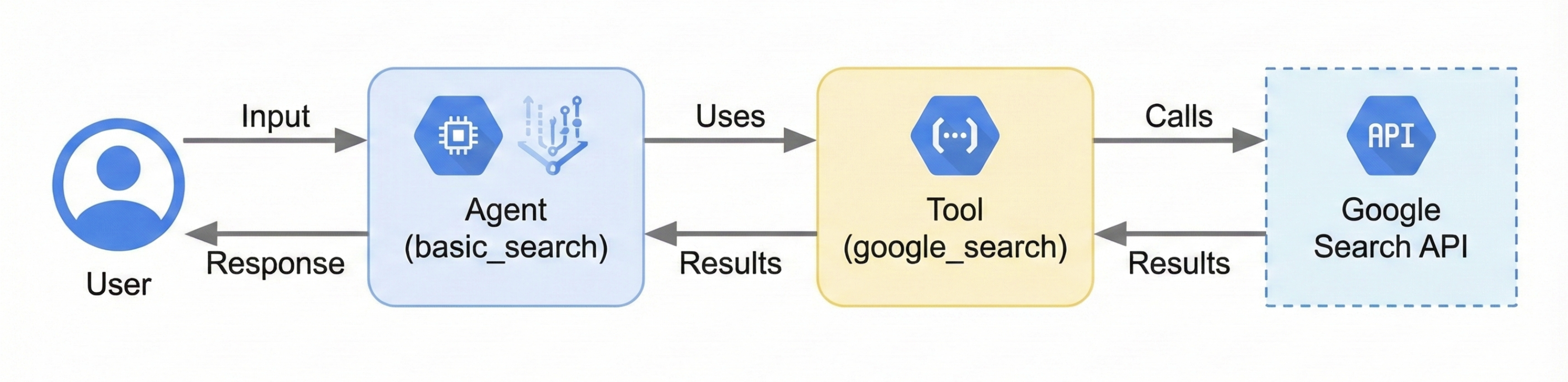
下圖顯示使用者輸入內容如何傳送至代理程式、代理程式如何使用 Google 搜尋工具,以及代理程式如何傳回回覆:
與服務專員互動
啟動開發人員 UI 後,即可透過文字、語音或影片與代理互動。
使用文字輸入
在 UI 中輸入下列提示,測試代理的文字回覆。
代理會使用 google_search 工具取得最新資訊,以回答這些問題。
- 紐約的天氣如何?
- 紐約現在幾點?
- 巴黎的天氣如何?
- 巴黎現在幾點?
使用語音和視訊輸入
如要使用語音輸入功能,請重新載入網路瀏覽器,然後按一下麥克風按鈕。提出問題,即時獲得解答。
如要使用影片輸入功能,請重新載入網路瀏覽器,然後按一下攝影機按鈕。提出問題,例如「你看到什麼?」,代理程式就會描述影片輸入內容。
停止開發人員 UI
如要停止 adk web 工具,請在執行該工具的終端機中按下 Ctrl+C。
後續步驟
- 如要進一步瞭解如何使用 ADK 開發 Gemini Live API,請參閱 ADK Gemini Live API 工具包。
- 開始使用 Google Gen AI SDK。
- 開始使用 WebSocket。
- 瞭解如何設定語言和語音。
- 瞭解如何設定 Gemini 功能。
- 瞭解 Gemini Live API 最佳做法。