

A Continuous Integration (CI) suite is a set of validation instructions that is associated with your LookML project. A Looker user with the manage_ci permission can configure the following in a CI suite:
- How a CI validation run is triggered (manually from the Looker IDE or automatically when a pull request is submitted to your repository).
- Which CI validators to run.
- Additional options for each validation test. See the documentation pages for each of the validators for details:
Before you begin
Before you can create a CI suite, you need the following:
- A Looker instance that meets the requirements for CI and that is enabled for CI.
- A Looker user account with the
manage_cipermission (this permission is included in the Admin permission set). - A LookML project with at least one commit that has been deployed to production. CI background services can retrieve the project's Git configuration only if the project is in Production Mode. If the project only exists in Development Mode, CI will return errors when configuring webhook triggers.
Creating a CI suite
You can configure and run the validators on the Suites page in the Looker IDE:
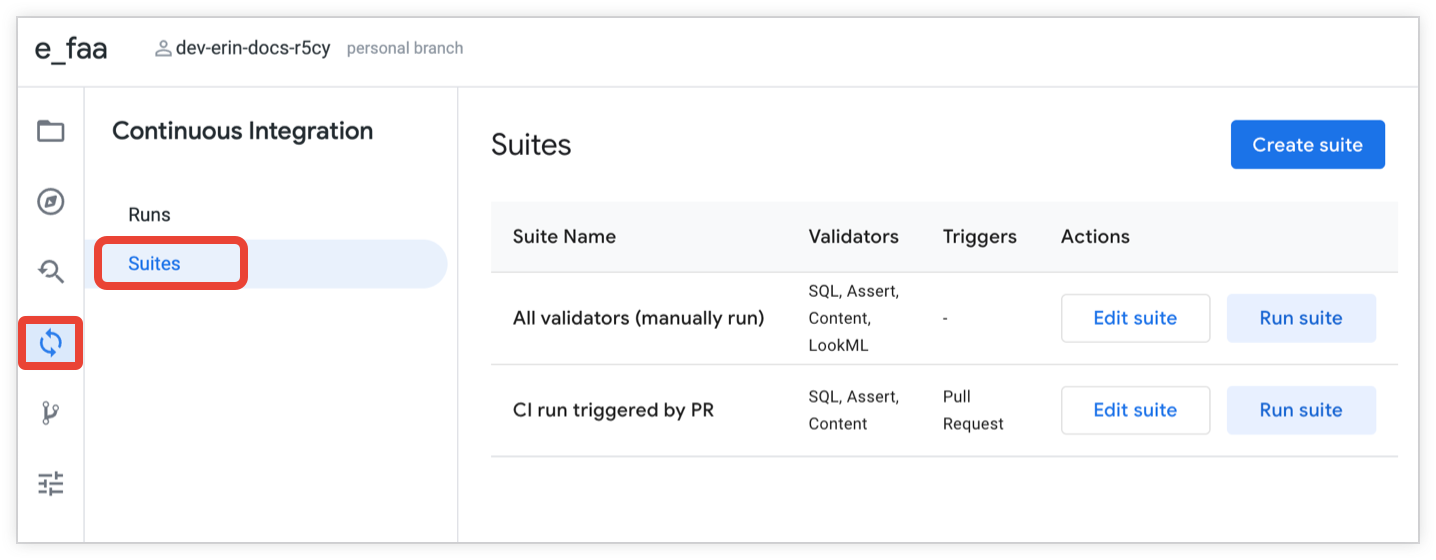
To create a CI suite, follow these steps:
- From the Looker IDE, click the Continuous Integration icon from the IDE navigation bar.
- Click the Suites tab to open the Suites page.
- On the Suites page, you can create a new suite or edit an existing suite:
- To create a new suite, click the Create suite button.
- To edit an existing suite, click the Edit suite button for the suite.
- Enter a name for the Suite name. If you are editing an existing suite, you can optionally click the pencil icon to edit the suite name.
- (Optional) Enable the Trigger on a schedule toggle if you want to set up automatic validation testing on a recurring schedule. See the Trigger on a schedule section of this page for more information.
(Optional) Enable the Trigger on pull requests from Looker toggle if you want to set up automatic validation testing whenever a Looker developer submits a pull request to your repository. See the Trigger on pull requests from Looker section of this page for more information.
If you enable pull request triggering for a CI suite, you can optionally use the Only for target branch field to specify that pull requests only to specific branches in the repository should trigger a run of the CI suite. See the Trigger on pull requests from Looker section of this page for more information.
(Optional) Turn on the Trigger on pull requests from dbt Cloud toggle if you want to set up automatic validation testing whenever a dbt Cloud CI job is run. See the Trigger on pull requests from dbt Cloud section of this page for more information.
(Optional) If you want to set up automatic validation testing whenever a pull request is submitted to an imported upstream (hub) project, perform the following steps:
- Enable the Trigger on pull requests from imported projects toggle.
- Under Select upstream projects to subscribe to, select the checkbox for each imported hub project that should trigger a run of this CI suite. You must select at least one upstream project.
See the Trigger on pull requests from imported projects section of this page for more information.
(Optional) Turn on the Enable email alerts toggle if you want to receive email alerts that are based on the status of a CI run. See the Set up alerting section of this page for more information.
Optionally, enable the validator toggles to turn on a validator and configure its options. See the following documentation pages for each of the validators for details:
Save your changes by using one of the following methods:
- If you're creating a new suite, click the Create suite button.
- If you're editing an existing suite, click the Update suite button.
Triggers
CI runs can be triggered in several ways:
- Automatically, on a recurring schedule.
- Automatically, when a pull request is submitted to your LookML project's repository by a Looker developer.
- Automatically, when a dbt Cloud CI job creates a pull request.
- Automatically, when a pull request is submitted to an imported LookML project.
- Manually, by using the Run suite button on the Suites page in the Looker IDE.
- Manually, by rerunning a previous CI run, from the Runs page of the Looker IDE.
Trigger on a schedule
You can configure a CI suite to automatically trigger on a schedule by enabling the Trigger on a schedule toggle.
When this toggle is enabled, you can select the frequency and specifics for automatically running your CI suite:
- Monthly, on a specific day and time
- Weekly, on a specific day and time
- Daily, at a specific time
- Hourly or every 2, 3, 4, 6, 8, or 12 hours, starting and ending at specific times of the day
- Minutes every 5, 10, 15, 20, or 30 minutes, starting and ending at specific times of the day
- Specific months of the year, on a specific day and time
- Specific days of the week at a specific time
Trigger on pull requests from Looker
To configure a CI suite for automatic triggering on pull request, enable the Trigger on pull requests from Looker toggle. To use pull request triggering, your Git repository must be configured by your Looker admin on the Continuous Integration Admin page of Looker).
If you enable pull request triggers for a CI suite, you can optionally specify that pull requests only to specific branches in the repository should trigger a run of the CI suite. To limit automatic pull request triggers of CI runs to specific branches in your repository, enter a comma-separated list of the branches in the Only for target branch field.
For example, if a repository has three branches named main, release_1, and dev, you can enter main, release_1 in the Only for target branch field. This means that CI runs will be triggered when a Looker developer submits a pull request to either the main or the release_1 branch. If a Looker developer submits a pull request to the dev branch, this won't trigger an automatic run of the CI suite.
Trigger on pull requests from dbt Cloud
If you've configured the dbt Cloud integration on your instance, you can configure a CI suite to trigger automatically when a dbt Cloud CI job finishes. The CI suite verifies whether changes in your dbt models will cause SQL errors in your Looker Explores before the dbt changes are deployed.
To configure this trigger, enable the Trigger on pull requests from dbt Cloud toggle when creating or editing a CI suite.
When you've enabled this trigger, configure the following options:
dbt Cloud Job: Select the dbt Cloud CI job from the drop-down field that should trigger this suite.
Schema user attribute: Select the Looker user attribute that holds the schema name for your database connection. Only user attributes that have been enabled for CI in the Admin panel will appear in this list.
When you save the suite with this trigger enabled, Looker automatically registers a webhook in your dbt Cloud account to listen for job completions.
For dbt Cloud-triggered runs, Looker dynamically identifies the temporary schema created by the dbt Cloud run and overrides the selected user attribute with this temporary schema name for the duration of the CI run.
Trigger on pull requests from imported projects
If your Looker project uses local project imports to import other projects from the same Looker instance, you can configure a CI suite to test downstream projects (known as spoke projects) whenever a pull request is opened or updated on an imported upstream project (known as a hub project).
For example, suppose you have a company_bi hub project that is imported into the marketing and finance spoke projects. You can configure a trigger in the marketing and finance projects to validate those spoke projects whenever a pull request is submitted to the company_bi repository.
Before configuring this trigger, consider the following prerequisites and behaviors:
- Local project imports only: All subscribed hub projects must be locally imported into the spoke project by using the
local_dependencyparameter inmanifest.lkmlon the same Looker instance. Remote projects (imports that use theremote_dependencyparameter in the project's manifest file) aren't supported. - Git and Production Mode: Both the spoke project and the imported hub projects must be deployed to Production Mode and have the CI GitHub app configured for their Git repositories.
- Permissions: The Looker CI Users role must have the
developpermission for the models in both the spoke project and the imported hub projects. - Validator behavior: Because the spoke project is validated against its production version and has no development branch Git state to compare against, incremental validation is disabled automatically for runs that are triggered by imported project pull requests, regardless of the suite setting. In addition, we recommend disabling the CI LookML Validator and the CI Style Validator on suites that are triggered only by imported project pull requests, because those validators check only the spoke project's files and aren't affected by upstream changes.
To configure a spoke project to run CI validation when pull requests are submitted to one or more imported hub projects, follow these steps when creating or editing a CI suite in the spoke project:
- Enable the Trigger on pull requests from imported projects toggle.
- Under Select upstream projects to subscribe to, select the checkbox for each imported hub project that should trigger a run of this CI suite. You must select at least one upstream project.
If you want changes to a hub project to trigger validation runs across multiple spoke projects, you must configure a CI suite in each spoke project.
When you save the CI suite, Looker automatically creates a webhook subscription on each selected hub project's repository for pull request events. When a pull request is submitted to a subscribed hub project's repository, Looker triggers a CI run in the spoke project. The run validates the production version of the spoke project while temporarily pinning the imported hub project to the pull request commit. Looker reports the result of the spoke project's CI run as a commit status on the hub project's pull request. You can also view the run details on the spoke project's Runs page in the Looker IDE, where the Trigger column displays Project Import and the run results page includes a Project Imports section. For more information about how these runs execute and how to inspect their results, see Running CI suites and Viewing the results of a CI run.
Set up alerting
To receive email alerts based on the status of your CI runs, you can set up alerting for a CI suite. This lets you monitor Continuous Integration runs without having to consult the Runs page in the Looker IDE.
To configure email alerts for a CI suite, follow these steps when creating or editing a CI suite:
- Enable the Enable email alerts toggle.
- In the Email addresses field, enter a comma-separated list of the email addresses that should receive the alerts.
- Use the checkboxes to select the job statuses that should trigger an alert:
- Failed: Triggers an email when a CI run fails validation tests.
- Error: Triggers an email when a CI run encounters a system or configuration error.
- Passed: Triggers an email when a CI run completes successfully.
- Cancelled: Triggers an email when a CI run is cancelled.
Deleting a suite
To delete a CI suite, perform the following steps:
- From the Looker IDE, click the Continuous Integration icon from the IDE navigation bar.
- Click the Suites tab to open the Suites page.
- On the Suites page, click the Edit suite button for the suite.
- On the suite's page, click the Delete suite button.
- In the confirmation dialog, click the Delete suite button.