

When you explore data in Looker, you might need fields that aren't defined in your data model—such as calculating a metric on the fly, categorizing values into custom groups, or filtering an aggregation for a specific scenario. Instead of waiting for a LookML developer to update the model, you can create custom fields directly in your Explore to tailor your analysis.
Custom fields let you create ad hoc dimensions and measures that generate SQL and run directly against your database, just like fields that are defined in LookML.
To create and use custom fields, you must have the create_custom_fields permission.
Depending on your analytical goals, you can create several types of custom fields:
- Custom measures from dimensions: Aggregate a dimension, such as calculating a sum, an average, a distinct count, a minimum, or a maximum.
- Filtered custom measures: Apply filter conditions to an existing measure, such as counting orders only for a specific status or region.
- Custom dimensions with Looker expressions: Build ad hoc dimensions by using Looker expressions (Lexp).
- Custom groups: Bucket categorical dimension values under custom labels without writing complex formulas.
- Custom bins: Tier numeric dimension values into equal-sized or custom-sized integer ranges.
Custom fields are different from LookML-defined fields and table calculations
Understanding the differences between custom fields, LookML-defined fields, and table calculations helps you choose the right approach for your analysis.
Differences between custom fields and LookML-defined fields include the following:
- You can create custom fields on the fly in an Explore without writing LookML or needing developer permissions.
- Custom fields don't support drilling.
- Custom fields persist in the Custom Fields section of the Configure panel (or field picker in classic Explores) only for users with permission to create them.
Differences between custom fields and table calculations include the following:
- Custom fields generate SQL that runs against your database, similar to LookML-defined fields. Table calculations run on the query results after data is retrieved from your database.
- Custom fields are not dependent on data displayed in the data table, and you can use custom fields to filter or pivot query results.
Viewing and using custom fields
The ability to see custom fields, and how you can interact with them, will be different depending on whether you're allowed to create them or not.
Viewing custom fields
If you have the create_custom_fields permission, then you can see and edit any that appear in the Custom Fields view in the Configure panel (or the Custom Fields section of the field picker in classic Explores).
If you don't have the create_custom_fields permission, then the Custom Fields section or view is not displayed.
However, if you include a custom field in an Explore, a Look, or a dashboard tile, any users with whom you then share that content can see the custom field regardless of whether they have the ability to create custom fields. If you're sharing this content by sharing an Explore's URL, the URL must include the qid parameter (such as instance_name.looker.com/explore/ec/order_items?qid=lEPPueGN7cHkozOEZVDQbO). Users who aren't allowed to create custom fields will see only the field's title, not its description, so it's important to name fields precisely if you'll be using them in queries shared with these users.
Using custom fields
If you have the create_custom_fields permission, then you can edit and use any that appear in the Custom Fields view in the Configure panel (or the Custom Fields section of the field picker in classic Explores). You can interact with them almost exactly as you would with any other measures or dimensions, including filtering on them, adding them to visualizations, and (for custom dimensions) using them to pivot results. One exception is that you cannot use custom fields to create dashboard filters.
Only users who are allowed to create custom fields can add them to queries in Explores, Looks, or dashboard tiles. However, if a user selects Explore from here on a shared Look or dashboard tile that includes a custom field, they can create a new query using that field whether or not they have the ability to create custom fields.
Custom field types
You can create and customize several types of custom fields, depending on the base LookML field type or types. The following tables outline the types of custom fields that are available to create based on the LookML field type:
Custom field types for dimensions
You can create several custom field types from dimensions in an Explore's field picker, depending on the base LookML field type or types. The following table outlines the types of custom fields that are supported for each type of dimension.
S = Works with the string data type
N = Works with the number data type and numeric measures
T = Works with the tier data type
ZC = Works with the zipcode data type
YN = Works with the yesno data type
DI = Works with the distance data type
DU = Works with the duration data type
TS = Works with most timestamp data types *
ID = Works with most integer date data types *
SD = Works with most string date data types *
L = Works with the location data type
Each custom field type that you can create from a dimension falls into one of the following categories:
- Aggregate — Aggregated fields are measures types that perform aggregations, such as sum and average. Aggregate measures can reference only dimensions, not other measures.
- Non-aggregate — Non-aggregated fields are dimensions that can be grouped by in an Explore query.
| Custom field name | Category | Description | LookML field type compatibility |
|---|---|---|---|
Count distinctCount distinct |
Aggregate |
Creates a count_distinct measure that calculates the number of distinct values for a selected dimension.
|
S N T ZC YN DI DU TS ID SD L |
SumSum |
Aggregate |
Creates a sum measure that adds up the values of a selected dimension.
|
N DI DU ID |
AverageAverage |
Aggregate |
Creates an average measure that averages the values of a selected dimension.
|
N DI DU ID |
MinMin |
Aggregate |
Creates a min measure that finds the smallest value of a selected dimension.
|
N DI DU ID |
MaxMax |
Aggregate |
Creates a max measure that finds the largest value of a selected dimension.
|
N DI DU ID |
MedianMedian |
Aggregate |
Creates a median measure that finds the midpoint value for the values of a selected dimension.
|
N DI DU ID |
List of unique valuesList of unique values |
Aggregate |
Creates a list measure that creates a list of the distinct values of a selected dimension.
|
S T ZC YN SD L |
BinBin |
Non-aggregate | Creates bins, or tiers, that separate the values of a selected numeric dimension into a custom set of number ranges. | N DI DU ID |
GroupGroup |
Non-aggregate | Creates a group that lets you bucket results of a selected dimension under custom labels. | S N T ZC YN DI DU TS ID SD L |
*Note about date and time data: Looker interprets some timeframes and time-based types as different data types when you're creating custom fields, and this can affect the custom field types that are available for those timeframe and time-based fields. For example, Looker interprets the hour_of_day timeframe as a number data type and therefore has custom field options available to other type: number fields. For more specific information, see the How custom fields interpret date and time data types section on this page. | |||
Custom field types for measures
You can create only one custom field type, a filtered measure, from measures in an Explore's field picker, depending on the base LookML measure type. The following table outlines the LookML fields to which measure types you can add a filter.
list measure type
DT = Works with the date measure type
YN = Works with the yesno measure type
N = Works with numeric measure types *
| Custom field name | Description | LookML field type compatibility | |
|---|---|---|---|
Filter measureFilter measure |
Adds a filter condition to a measure to limit the values included in the measure's aggregation. | LI DT YN N | |
| * For more specific information on the types of measures Looker interprets as numeric while it's using custom fields, see the How custom fields interpret numeric measures section on this page. | |||
How custom fields interpret date and time data types
Looker interprets some timeframes and time-based types as different data types when you're creating custom fields, which affects the type of custom fields that you can create for a given date or time field. Custom fields categorize date and time fields in the following ways:
These categories are compatible with different types of custom fields, as indicated in the Custom field types for dimensions table.
Timestamp date data types
Custom fields treat the following LookML time data types as timestamp data types:
datetimemicrosecondmillisecondmillisecondXsecondminuteminuteXhourhourXweekmonthquarterfiscal_quarterfiscal_yearyear
Integer date data types
Custom fields treat the following LookML date and time data types as integer date types:
String date data types
Custom fields treat the following LookML date and time data types as string data types:
How custom fields interpret numeric measures
Custom fields treat the following measure types as numeric types:
averageaverage_distinctcountcount_distinctmaxmedianmedian_distinctminpercent_of_previouspercent_of_totalpercentilepercentile_distinctrunning_totalsumsum_distinct
These measure types are compatible with the filtered measure custom field type, as indicated in the Custom field types for measures table.
Creating a custom measure from a dimension
The methods for creating a custom measure from a dimension differ depending on whether you're using the default Explore interface or classic Explore interface.
Creating a custom measure in the default Explore interface
In Explores, users with the create_custom_fields permission can create a custom measure in one of the following ways:
You can use the Configure panel:
- In the Configure panel, on either the All Fields tab or the Fields in use tab, hold the pointer over the dimension that you want to use to create the custom measure.
- Select the dimension's More menu.
- Select an aggregate function (such as Count distinct, Sum, Average, Min, or Max).
You can use the data table in the Data pane: In the data table, select the dimension's data column More menu, and select an aggregate function.
You can use the + Add button:
- In the Custom Fields section in the Configure panel, select + Add, and choose Custom Measure.
- In the Create custom measure dialog, select a field to measure, select a measure type, and define a custom measure with custom filters, formats, and descriptions.
The third + Add button method lets you customize the custom field as you create it, such as renaming, adding an optional description, or selecting a different format other than the default.
The new custom measure will automatically appear in the data table and in the Custom Fields view in the Configure panel. As with other fields, you can select a custom field's name to add or remove it from a query. You can also select its Filter button to use it as a filter in a query.
Creating a custom measure in classic Explores
In classic Explores, you can create a custom measure from a dimension in one of the following ways:
The second method lets you customize the custom field as you create it, such as renaming, adding an optional description, or selecting a different format other than the default.
Using the dimension's three-dot More menu
In many cases, you can use this shortcut technique:
- Expand the field picker view that contains the dimension that you want to measure.
- Select the dimension's three-dot More menu.
- Select Aggregate to display options for creating a custom measure. The suggested functions vary based on the type of dimension you've chosen (such as number, string, or date). Select a function.
Expand the Custom Fields section in the field picker to see your new field.
As with other fields, you can select a custom field's name to add or remove it from a query. You can also hold your cursor over the field to reveal more options that are available for that field, including selecting its Filter icon to use it as a filter in a query. You can also edit the field as necessary.
Using the Custom Fields section of the field picker
If you want to define a format or a filter for your custom measure while creating it, start with the Add button on the Custom Fields section:
- Select Add in the Custom Fields section of the field picker.
- Select the type of field that you want to create. This example uses Custom Measure.
- Select a field to measure from the Field to measure drop-down, select the measure type from the Measure type drop-down options, and then specify a name in the Name field. The name appears in the field picker and in the data table.
- If you want to add a filter condition, select a field from the Filter name drop-down on the Filters tab. You can add or remove filter conditions using the Add and Remove plus and minus Filter value buttons.
- You can also select the arrow next to Custom filter to create a custom filter expression using any Looker functions and operators that can be used in custom filters. The Looker expression editor will suggest field names and display syntax help for any functions you use. Fields that are both used in an Explore and eligible to be used with the field type that you're creating are marked with a black circle. Refer to the Adding a custom filter to a custom measure section on this page for more details about adding filters to measures.
- On the Field details tab, you can specify a format in the Format section and add an optional description of up to 255 characters in the Description box to give other users additional details about the custom field, including its intended use.
- Select Save.
The field picker will display your new custom measure in the Custom Fields section.
As with other fields, you can select a custom field's name to display it in a query. You can also select its Filter button to use it as a filter in a query.
Custom grouping
The Group custom field type lets you create ad hoc custom groups for dimensions without needing to use logical functions in Looker expressions or needing to develop CASE WHEN logic in sql parameters or type: case fields.
This can be helpful when you want to assign fixed labels or category names to values that match specific conditions, for example, by grouping specific states or countries into regions or order costs into categories.
To create a group, follow these steps:
- Expand the view that contains the dimension for which you want to create custom groups.
You can open the Group By menu in several ways:
- In the default Explore interface, select the dimension's More menu in the Configure panel (or the data column More menu in the Data pane), and then select Group.
- In classic Explores, select the dimension's three-dot More menu in the field picker (or the dimension's gear menu in the data table), and then select Group.
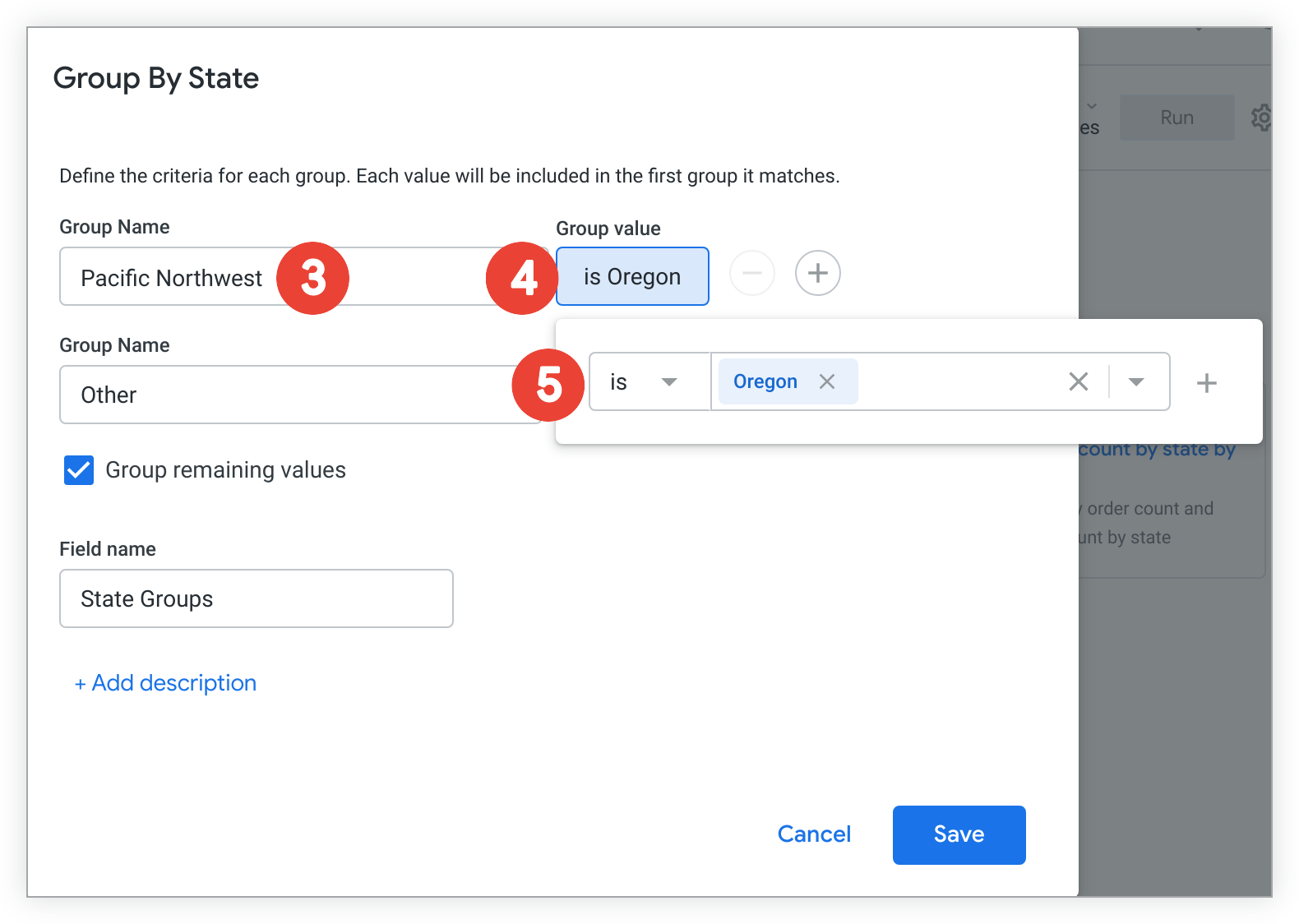
Specify a label for the first group of values in the Group Name field. This example illustrates how to create a group of states for the Pacific Northwest region of the United States using the State dimension, which is reflected by the Group Name 'Pacific Northwest'.
Select the existing condition button in the Group Value section, which by default is is any value, to customize the conditions that you want to apply for the group.
Select the condition, and enter or select one or more values. In this case, one of the conditions applied is State is Oregon. You can add or remove conditions using the Add and Remove plus and minus buttons. To save, click outside the filter condition, or use the escape key.
- When available, value suggestions will appear in a drop-down list, which is indicated with a downward-facing arrow in the value input box, for users to select or search against. Suggestions are most commonly available for fields of
type: string. - Looker automatically applies SQL conditions such as
ANDorORlogic when multiple conditions are created, based on the field types, conditions, and values that you specify. - If you're editing an existing custom group, consider changing the name to reflect the updated conditions.
- When available, value suggestions will appear in a drop-down list, which is indicated with a downward-facing arrow in the value input box, for users to select or search against. Suggestions are most commonly available for fields of
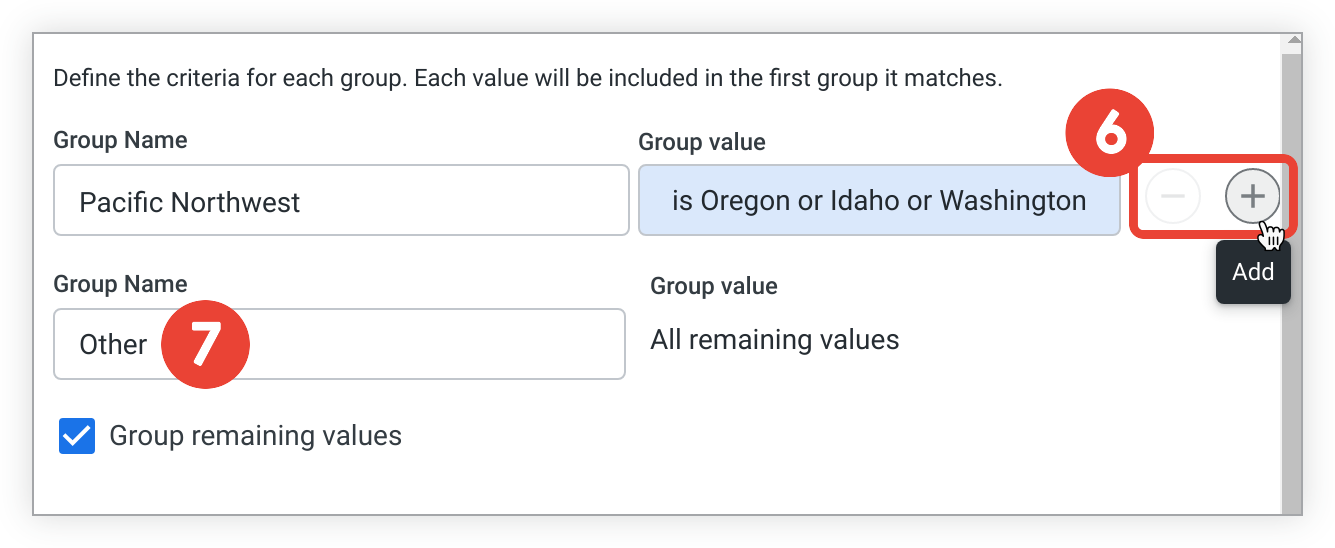
To add more groups for that dimension, hold your cursor over the existing group and select the Add plus sign button; to remove groups, select the Remove minus sign button. You can edit an existing group by selecting the group condition — is Oregon or Idaho or Washington in this case. Looker automatically applies SQL conditions such as
ANDorORlogic when multiple conditions are created, based on the field types, conditions, and values that you specify.Optionally, select the Group remaining values checkbox to create a category for grouping all other values that don't satisfy any group conditions. In this example, any state that is not Oregon, Idaho, or Washington will be grouped under a label named Other. Other is the default name, but you can customize it in the Group Name field, as necessary.
- If you're editing a custom group and want to remove grouping for all other values, clear the Group remaining values checkbox to remove that group.
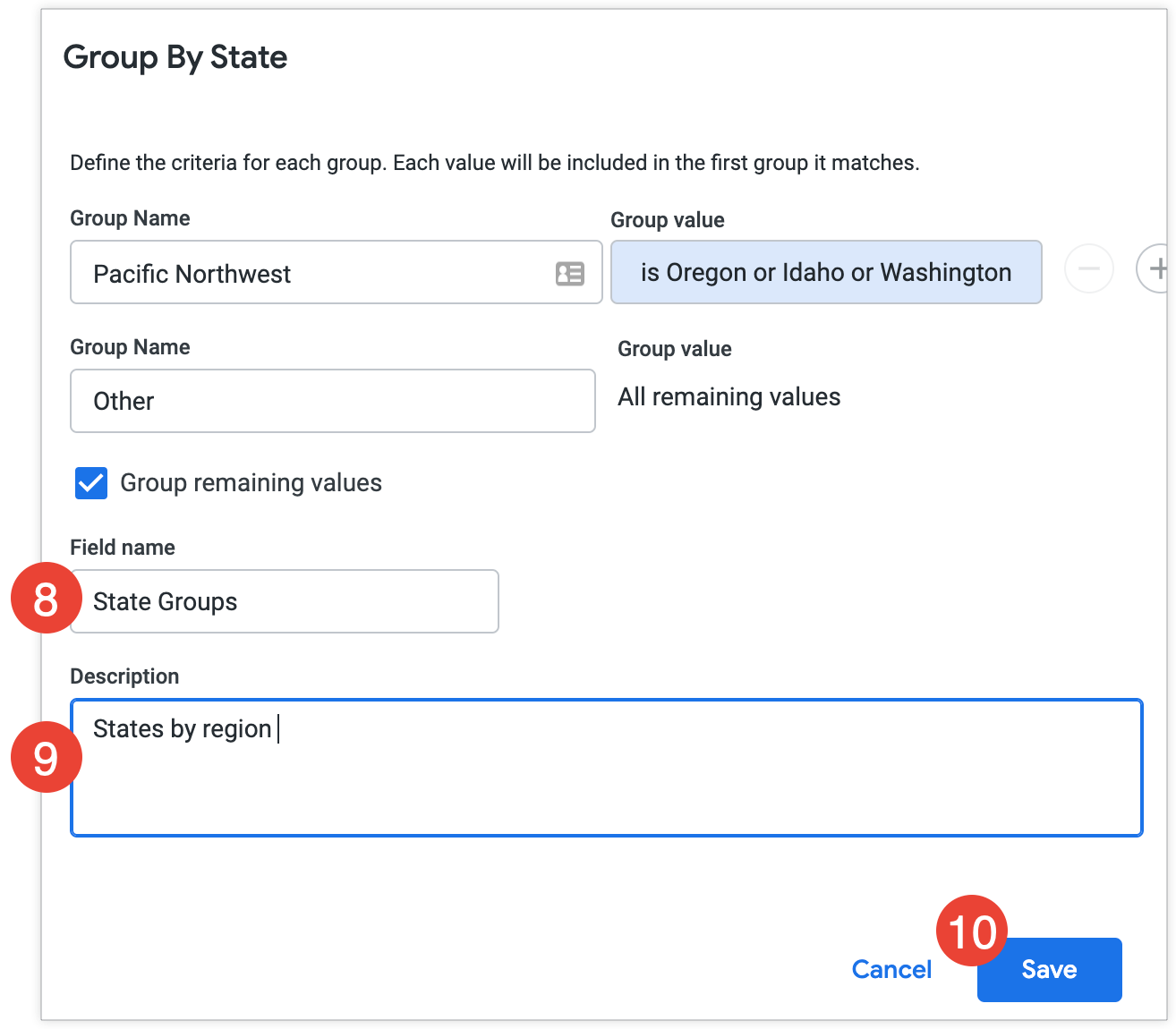
Specify a name in the Field name field. The name appears in the field picker and in the data table.
Select + Add Description to open the Description box and add an optional description of up to 255 characters to give other users more information about the custom group.
- If you're editing a custom group and there is an existing description, the Description box will automatically appear.
Select Save and then Run to rerun the Explore.
The new field will appear in the data table and display labels for all states: "Pacific Northwest" for the states Oregon, Washington, and Idaho, and "Other" for all other states.
You can use the new group to make new insights into your data. For example, compare how many orders have been placed by users in the Pacific Northwest region to users living in other regions in the United States.
The new field will appear in the Custom Fields section of the field picker.
As with other fields, you can select the field's name to add or remove it from a query. You can also hold your cursor over the field to reveal more options that are available for that field, including selecting its Filter icon to use it as a filter in a query. You can also edit the custom group as necessary.
Custom binning
The Bin custom field type lets you create ad hoc custom bins, or tiers, for numeric type dimensions and custom dimensions without needing to use logical functions in Looker expressions or needing to develop type: tier LookML fields.
This can be helpful when you want to quickly group values into specific integer ranges to adjust the granularity of your data.
Bin custom fields appear in the classic tier notation style.
To create a bin, follow these steps:
- Expand the view that contains the dimension for which you want to create custom bins.
You can open the Bin menu in several ways:
- In the default Explore interface, select the dimension's More menu in the Configure panel (or the data column More menu in the Data pane), and then select Bin.
- In classic Explores, select the dimension's three-dot More menu in the field picker (or the dimension's gear menu in the data table), and then select Bin.
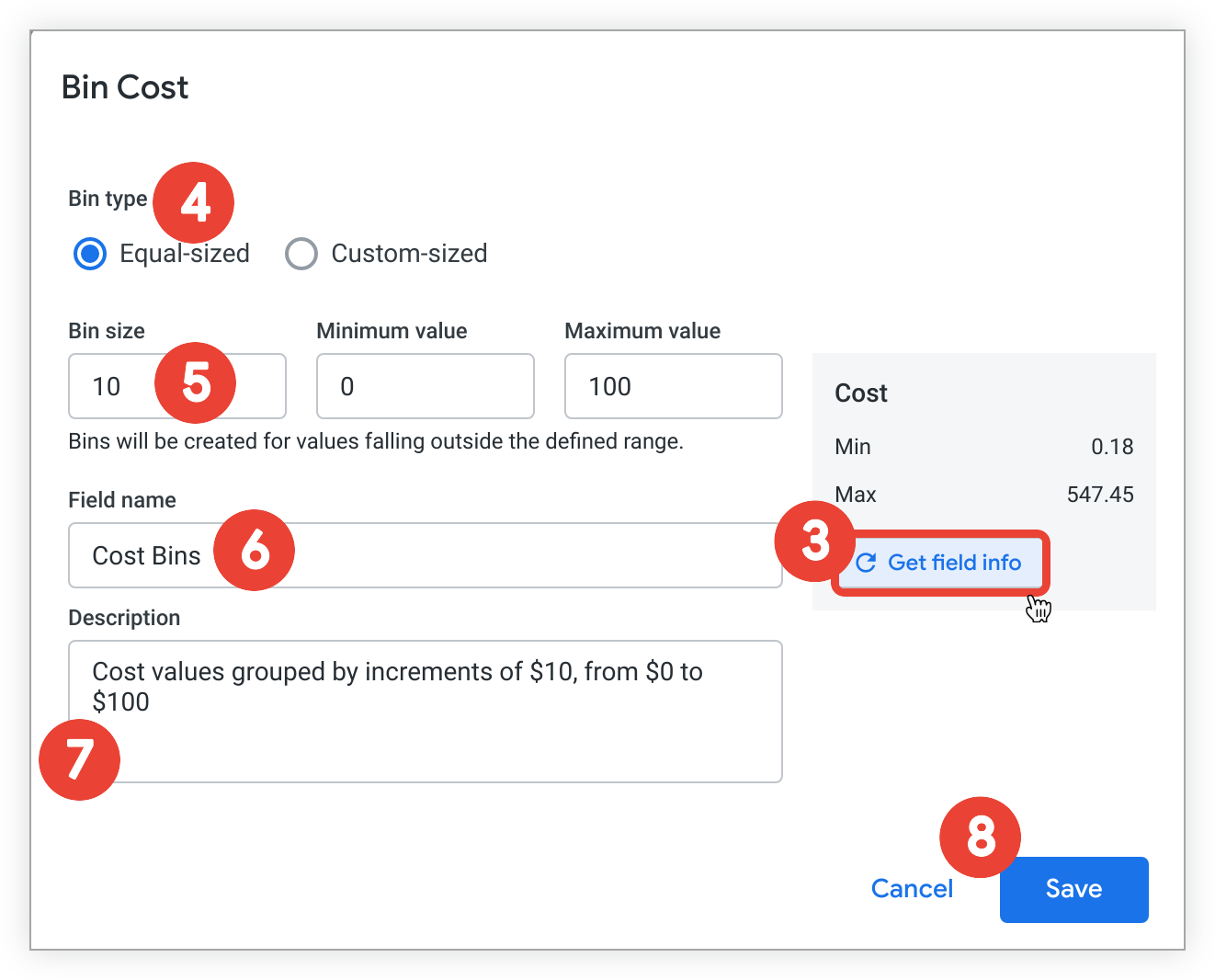
As an optional starting point, select Get field info to learn more about the values for the dimension for which you're creating custom bins, including the dimension's minimum value, its maximum value, and its range of values. Having this information can be helpful in determining the way in which you specify value bins.
Select a bin type in the Bin type section.
- Select Equal-sized to bin numeric values into equal integer ranges. For example, tiers of values ranging from 0-10, 10-20, and 20-30.
- Select Custom-sized to create custom bin sizes of varying integer ranges. For example, tiers of values ranging from 0-15, 15-75, and 75-100.
Customize the bin sizes and ranges.
- If the selected Bin type is Equal-sized, enter the necessary values in the Bin size, Minimum value, and Maximum value fields. The preceding example displays specifications of bins of 10, ranging from 0 to 100. Bins are automatically created for values in the data that fall outside the specified ranges.
- If the selected Bin type is Custom-sized, specify the tier breakpoints in ascending order in the Bin breakpoints box, separated either by commas or new lines.
Specify a name in the Field name field. The name appears in the field picker and in the data table.
Select + Add Description to open the Description box to add an optional description of up to 255 characters to give other users more information about the custom bin.
- If you're editing a custom bin that has an existing description, the Description box automatically appears.
Select Save and then Run to rerun the Explore.
The new field will appear in the data table and displays tier levels for values depending on where they fit into specified bins.
You can use the new bin to make new insights into your data. For example, for a custom bin that is based on a Cost dimension, you can compare the number of orders that contain items priced in specific cost ranges.
The new field will appear in the Custom Fields section of the field picker.
As with other fields, you can select the field's name to add or remove it from a query. You can also hold your cursor over the field to reveal more options that are available for that field — for example, you can select the field's Filter icon to use it as a filter in a query. You can also edit the custom bin as necessary.
Adding a filter to a custom measure
Applying filters to custom measures allows a measure to limit the data, such as only including orders from certain regions. You can add a custom filter to a custom measure when you're creating or editing a custom measure. To add a filter to a custom measure:
- Create or edit a custom measure in one of the following ways:
- In the Configure panel (or the field picker in classic Explores), select Add and select Custom Measure to create a new custom measure.
- In the default Explore interface, select the custom measure's More menu in the Configure panel (or the data column More menu in the Data pane), and then select Edit.
- In classic Explores, select the custom measure's three-dot More menu in the field picker (or the dimension's gear menu in the data table), and then select Edit.
- Select the field that you want to filter by from the Filter name drop-down in the Filters section.
- Select the existing condition button, which by default is any value, under Filter value to customize the filter conditions that you want to apply.
- Select the condition, and enter or select a value. Select the Add plus sign button next to the value to add multiple conditions for the selected field. To save, click outside the filter condition, or use the escape key.
- When available, value suggestions will appear in a drop-down list, which is indicated with a downward-facing arrow in the value input box, for users to select or search against. Suggestions are most commonly available for dimensions of
type: string. - If you're editing an existing custom measure, consider changing the custom measure's name to reflect the filter condition. The field name appears in the field picker and in the data table.
- When available, value suggestions will appear in a drop-down list, which is indicated with a downward-facing arrow in the value input box, for users to select or search against. Suggestions are most commonly available for dimensions of
- To add more filters, select the Add plus sign button in the Filter value section; to remove filters, select the Remove minus sign button.
- Looker automatically applies SQL conditions such as
ANDorORlogic when you create multiple filters, based on the field types, conditions, and values that you specify.
- Looker automatically applies SQL conditions such as
- Optionally, click the downward-facing arrow next to Custom filter at the bottom of the Filters tab to expand the Expression field to add a custom filter instead of or in addition to a UI-based filter. Enter a Looker expression in the Custom filter box by using any Looker functions and operators that can be used in custom filters. The Looker expression editor will suggest field names and display syntax help for any functions you use. Fields that are both used in an Explore and eligible to be used with the field type that you're creating are marked with a black circle.
- On the Field details tab you can specify a format in the Format section and add an optional description of up to 255 characters in the Description box to give other users additional details about the custom field, including its intended use.
- Select Save.
Creating a filtered measure from another measure
To create a custom measure that copies an existing measure and adds a filter, follow these steps:
- Expand the view that contains the measure to which you want to add a custom filter. The measure cannot be a custom measure or a
type: numbermeasure. To add a filter expression to an existing custom measure, you will need to edit the custom measure. - Select that measure's three-dot More menu in the Configure panel (or the field picker in classic Explores). You can also select the data column More menu in the Data pane, or the gear menu in the Data pane for classic Explores.
- Select Create filtered measure.
- Specify a name other than the default in the Name field as necessary. The name appears in the field picker and in the data table.
- In the Filters section, select the field that you want to filter by from the Filter name drop-down.
- Select the existing condition button, which by default is any value, under Filter value to customize the filter conditions that you want to apply.
- Select the condition, and enter or select a value. Select the Add plus sign button next to the value to add multiple conditions for the selected field. To save, click outside the filter condition, or use the escape key.
- When available, value suggestions will appear in a drop-down list, which is indicated with a downward-facing arrow in the value input box, for users to select or search against. Suggestions are most commonly available for dimensions of
type: string. - If you're editing an existing custom measure, consider changing the custom measure's name to reflect the filter condition.
- When available, value suggestions will appear in a drop-down list, which is indicated with a downward-facing arrow in the value input box, for users to select or search against. Suggestions are most commonly available for dimensions of
- To add more filters, select the Add plus sign button in the Filter value section; to remove filters select the Remove minus sign button.
- Looker automatically applies SQL conditions such as
ANDorORlogic when you create multiple filters, based on the field types, conditions, and values that you specify.
- Looker automatically applies SQL conditions such as
- Optionally, click the arrow next to Custom filter at the bottom of the Filters tab to expand the Expression field to add a custom filter instead of or in addition to a UI-based filter. Enter a Looker expression in the Custom filter box using any Looker functions and operators that can be used in custom filters. The Looker expression editor will suggest field names and display syntax help for any functions you use. Fields that are both used in an Explore and eligible to be used with the field type that you're creating are marked with a black circle.
- On the Field details tab you can specify a format in the Format section and add an optional description of up to 255 characters in the Description box to give other users additional details about the custom field, including its intended use.
- Select Save.
The field picker will display the new measure in the Custom Fields section.
As with other measures, you can select a custom measure's name to add or remove it from a query. You can also hold your cursor over the field to reveal more options that are available for that field, including selecting its Filter icon to use it as a filter in a query. You can also edit the field as necessary.
Creating a custom dimension using a Looker expression
The methods for creating a custom dimension will differ depending on whether you are using the default Explore interface or classic Explore interface.
Creating a custom dimension in the default Explore interface
To create a custom dimension in the default Explore interface using a Looker expression and one or more other dimensions, follow these steps:
In the Configure panel, select + Add, and choose Custom Dimension.
In the Expression box, enter a Looker expression that calculates the value for your dimension, using any Looker functions and operators. The Looker expression editor will suggest field names and display syntax help for any functions you use. Fields that are used in an Explore and that are eligible to be used with the field that you're creating are marked with a black circle.
Select a formatting option other than the default in the Format drop-down as necessary.
Specify the custom dimension's name in the Name field. The name appears in the Configure panel and in the data table.
Select + Add Description to add an optional description of up to 255 characters in the Description box to give other users more context or information about the custom dimension.
Select Save.
The new custom dimension will automatically appear in the data table and under the Custom Fields view in the Configure panel.
As with other fields, you can select a custom dimension's name to add or remove it from a query. You can also hold the pointer over the field to reveal more options that are available for that field, including selecting its Filter icon to use it as a filter in a query. You can also edit the field as necessary.
Creating a custom dimension in classic Explores
To create a custom dimension in classic Explores using a Looker expression and one or more other dimensions, follow these steps:
- Select Add in the Custom Fields section of the field picker.
- Choose Custom Dimension.
- In the Expression box, enter a Looker expression that calculates the value for your dimension, using any Looker functions and operators. The Looker expression editor will suggest field names and display syntax help for any functions you use. Fields that are used in an Explore and that are eligible to be used with the field that you're creating are marked with a black circle.
- Select a formatting option other than the default in the Format drop-down as necessary.
- Specify the custom dimension's name in the Name field. The name appears in the field picker and in the data table.
- Select + Add Description to add an optional description of up to 255 characters in the Description box to give other users more context or information about the custom dimension.
- Select Save.
The field picker will display your new custom dimension in the Custom Fields section.
As with other fields, you can select a custom dimension's name to add or remove it from a query. You can also hold the pointer over the field to reveal more options that are available for that field, including selecting its Filter icon to use it as a filter in a query. You can also edit the field as necessary.
Duplicating a custom field
If you're allowed to create custom fields, you can also duplicate existing custom fields that you or other users have created. Duplicating and then editing custom fields can be helpful if you'd like to create multiple custom fields with only small differences (for example, 30-day, 60-day, or 90-day sums).
The methods for duplicating a custom field will differ depending on whether you are using the default Explore interface or classic Explore interface.
Duplicating custom fields in the default Explore interface
You can duplicate custom fields in the default Explore interface in either of the following ways:
- In the Configure panel, expand the Custom Fields view, select the custom field's More menu, and select Duplicate.
- In the Data pane, select the custom field's data column More menu, and select Duplicate.
The duplicated custom field appears in the Custom Fields view in the Configure panel and in the data table, using the name of the original field plus the word "Copy" appended to the end.
Next, you can edit the duplicated custom field.
Duplicating custom fields in classic Explores
In classic Explores, you can duplicate custom fields in these ways:
- Using a custom field's three-dot More menu in the Custom Fields section of the field picker
- Using a custom field's data table gear menu
To duplicate a custom field in classic Explores, follow these steps:
- In the field picker, expand the Custom Fields section.
- Select the three-dot More menu for the custom field that you want to duplicate.
- Select Duplicate.
Alternatively, select Duplicate from the custom field's data table gear menu.
The duplicated field appears under the original in the Custom Fields section of the field picker, using the name of the original field plus the word "Copy" appended to the end.
Next, you can edit the duplicated custom field.
Editing a custom field
If you're allowed to create custom fields, you also can edit custom fields that you or other users have created.
The methods for editing a custom field will differ depending on whether you are using the default Explore interface or classic Explore interface.
Editing custom fields in the default Explore interface
You can edit custom fields in the default Explore interface in either of the following ways:
- In the Configure panel, expand the Custom Fields view, select the custom field's More menu, and select Edit.
- In the Data pane, select the custom field's data column More menu, and select Edit.
Either option opens the dialog for editing the custom field.
Editing a custom dimension
To edit a custom dimension, follow these steps:
- Change the custom dimension definition as necessary in the Expression box. When available, you can use Gemini assistance in creating a Looker expression.
- Select a new format from the Format drop-down, if necessary.
- Enter a new name in the Name field, as necessary. The name appears in the Configure panel and in the data table. If you have changed a custom field's definition, consider modifying the name to match.
- Add or update an optional description of up to 255 characters in the Description box to give other users more context or information about the custom dimension.
- If there is an existing description, the Description box will automatically appear. If there is no existing description, select + Add Description to add an optional description.
- Select Save.
Editing a custom measure
To edit a custom measure, follow these steps:
- To change the field that should be aggregated, select a new field from the Field to measure drop-down.
- To change the type of measure function, select a new measure type from the Measure type drop-down.
- Enter a new name in the Name field, as necessary. The name appears in the Configure panel and in the data table. If you change a field or measure type, typically you should also change the custom measure's name to match. For example, if you change the field Sale Price to Cost, you should also change the custom field name, in this case from Sum of Sale Price to Sum of Cost.
- Add, change, or remove a UI-based or custom filter on the Filters tab.
- If there is an existing custom filter, the custom filter Expression box will automatically appear. If there is no existing custom filter, select the downward arrow next to Custom filter to add an optional custom filter in the Expression box instead of or in addition to a UI-based filter.
- On the Field details tab, add, change, or remove any formatting in the Format section, or add an optional description of up to 255 characters in the Description box to give other users additional details about the custom field, including its intended use.
- Select Save.
Editing a custom group or custom bin
To edit group conditions, bin breakpoints, field names, and descriptions in a custom group or custom bin, after you open the edit dialog, follow the steps in the Custom grouping and Custom binning sections.
Editing custom fields in classic Explores
In classic Explores, you can edit custom fields in these ways:
- Using a custom field's three-dot More menu in the Custom Fields section of the field picker
- Using a custom field's data table gear menu
Editing a custom dimension
To edit a custom dimension in classic Explores, follow these steps:
- Change the custom dimension definition as necessary in the Expression box.
- Select a new format from the Format drop-down if necessary.
- Enter a new name in the Name field as necessary. The name appears in the field picker and in the data table. If you have changed a custom field's definition, consider modifying the name to match.
- Select + Add Description to add an optional description of up to 255 characters in the Description box to give other users more context or information about the custom dimension.
- If there is an existing description, the Description box will automatically appear.
- Select Save.
Editing a custom measure
To edit a custom measure in classic Explores, follow these steps:
- To change the field that should be aggregated, select a new field from the Field to measure drop-down.
- To change the type of measure function, select a new measure type from the Measure type drop-down.
- Enter a new name in the Name field as necessary. The name appears in the field picker and in the data table. If you change a field or measure type, typically you should also change the custom measure's name to match. For example, if you change the field Sale Price to Cost, you should also change the custom field name, in this case from Sum of Sale Price to Sum of Cost.
- Add, change, or remove a UI-based or custom filter on the Filters tab.
- If there is an existing custom filter, the custom filter Expression box will automatically appear. If there is no existing custom filter, select the downward arrow next to Custom filter to add an optional custom filter in the Expression box instead of or in addition to a UI-based filter.
- On the Field details tab, add, change, or remove any formatting in the Format section, or add an optional description of up to 255 characters in the Description box to give other users additional details about the custom field, including its intended use.
- Select Save.
Editing a custom group or custom bin in classic Explores
To edit group conditions, bin breakpoints, field names, and descriptions in a custom group or custom bin in classic Explores, after you open the edit dialog, follow the steps in the Custom grouping and Custom binning sections.
Removing and deleting custom fields
If you're allowed to create custom fields, you can remove custom fields from a query or delete them from the Explore.
When you delete a custom field, it disappears from the Explore but not from any Looks or dashboard tiles that use that field. Additionally, anyone using a URL for an Explore that had the custom field will still have the field.
You can choose between Remove and Delete:
- Remove: Removes the custom field from the Explore query and data table, but keeps the custom field definition in the Custom Fields section of the field picker so that you can add it back to the query later.
- Delete: Permanently deletes the custom field from both the Explore query and the Custom Fields section of the Configure panel (or the field picker in classic Explores).
The methods for removing and deleting a custom field will differ depending on whether you are using the default Explore interface or classic Explore interface.
Removing custom fields in the default Explore interface
In the default Explore interface, you can choose between Remove and Delete:
- Remove: Removes the custom field from the Explore query and data table, but keeps the custom field definition in the Custom Fields view in the Configure panel so that you can add it back to the query later.
- Delete: Permanently deletes the custom field from both the Explore query and the Custom Fields view in the Configure panel.
To remove a custom field from the query while keeping it in the Configure panel, use either of the following methods:
- In the Data pane, select the custom field's data column More menu, and select Remove.
- In the Configure panel, select the Fields in use tab, and click the custom field's name to deselect it.
The custom field will no longer appear in the data table or query results, but remains available under the Custom Fields view in the Configure panel.
Deleting custom fields in the default Explore interface
To permanently delete a custom field from an Explore query and the Configure panel, use either of the following methods:
- In the Configure panel, expand the Custom Fields view, select the custom field's More menu, and select Delete.
- In the Data pane, select the custom field's data column More menu, and select Delete.
You can also use the keyboard shortcuts Command-K (Mac) or Ctrl+K (Windows) to delete custom fields and clear fields from an Explore query.
You can reinstate a custom field that you've deleted by selecting the back arrow on your browser.
Removing custom fields in classic Explores
You can remove custom fields in classic Explores in either of the following ways:
- Using a custom field's three-dot More menu in the Custom Fields section of the field picker
- Using a custom field's data table gear menu
To delete a custom field in classic Explores, follow these steps:
- In the field picker, expand the Custom Fields section.
- Select the three-dot More menu for the custom field that you want to remove.
- Select Remove.
Alternatively, select Remove from the custom field's data table gear menu.
Deleting custom fields in classic Explores
You can delete custom fields in classic Explores in either of the following ways:
- Using a custom field's three-dot More menu in the Custom Fields section of the field picker
- Using a custom field's data table gear menu
To delete a custom field in classic Explores, follow these steps:
- In the field picker, expand the Custom Fields section.
- Select the three-dot More menu for the custom field that you want to delete.
- Select Delete.
Alternatively, select Delete from the custom field's data table gear menu.
You can also use the keyboard shortcuts Command-K (Mac) or Ctrl+K (Windows) to delete custom fields and clear fields from an Explore query.
You can reinstate a custom field that you've deleted by selecting the back arrow on your browser.
Related resources
Now that you have learned how to create and edit custom fields, you may want to do the following:
- Filter and limit your results to just the data you're interested in.
- Use table calculations to create ad hoc Explore metrics.
- Create visualizations.
- Save Explore queries as Looks.
- Add Explore queries to dashboards.
- Share data with other users.