


本页介绍了如何使用扩绘功能将图片的内容扩展到更大的区域或者具有不同尺寸的区域。
以下模型支持扩图:
扩绘示例
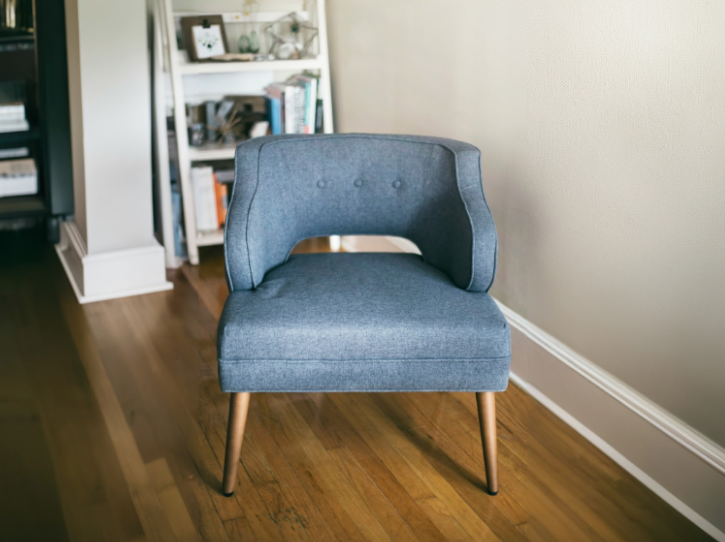
扩绘是一种基于蒙版的修改方法,可让您扩展基础图片的内容,以适合更大或不同大小的蒙版画布。
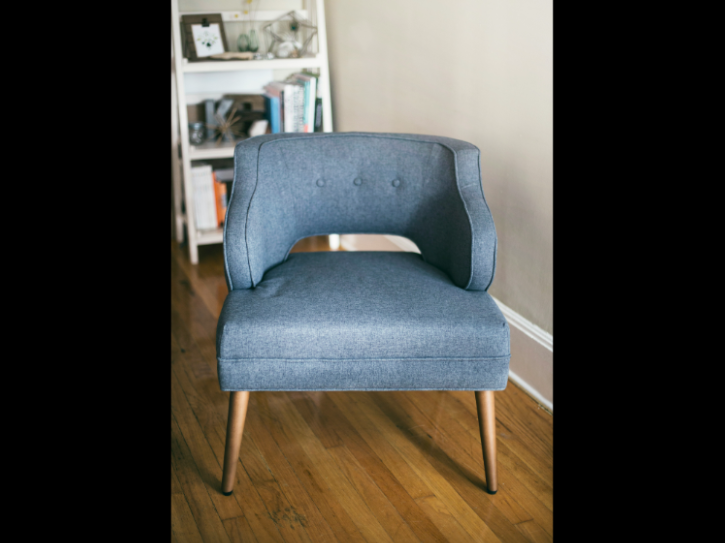
图片来源:Unsplash 用户 Kari Shea。 |

|
|
查看 Imagen for Editing and Customization 模型卡片
准备工作
- 登录您的 Google Cloud 账号。如果您是 Google Cloud新手,请 创建一个账号来评估我们的产品在实际场景中的表现。新客户还可获享 $300 赠金,用于运行、测试和部署工作负载。
-
In the Google Cloud console, on the project selector page, select or create a Google Cloud project.
Roles required to select or create a project
- Select a project: Selecting a project doesn't require a specific IAM role—you can select any project that you've been granted a role on.
-
Create a project: To create a project, you need the Project Creator role
(
roles/resourcemanager.projectCreator), which contains theresourcemanager.projects.createpermission. Learn how to grant roles.
-
Verify that billing is enabled for your Google Cloud project.
Enable the Vertex AI API, if it is not already enabled.
Roles required to enable APIs
To enable APIs, you need the
serviceusage.services.enablepermission. If you created the project, then you likely already have this permission through the Owner role (roles/owner). Otherwise, you can get this permission through the Service Usage Admin role (roles/serviceusage.serviceUsageAdmin). Learn how to grant roles.-
In the Google Cloud console, on the project selector page, select or create a Google Cloud project.
Roles required to select or create a project
- Select a project: Selecting a project doesn't require a specific IAM role—you can select any project that you've been granted a role on.
-
Create a project: To create a project, you need the Project Creator role
(
roles/resourcemanager.projectCreator), which contains theresourcemanager.projects.createpermission. Learn how to grant roles.
-
Verify that billing is enabled for your Google Cloud project.
Enable the Vertex AI API, if it is not already enabled.
Roles required to enable APIs
To enable APIs, you need the
serviceusage.services.enablepermission. If you created the project, then you likely already have this permission through the Owner role (roles/owner). Otherwise, you can get this permission through the Service Usage Admin role (roles/serviceusage.serviceUsageAdmin). Learn how to grant roles.-
为您的环境设置身份验证。
选择标签页以了解您打算如何使用本页面上的示例:
控制台
当您使用 Google Cloud 控制台访问 Google Cloud 服务和 API 时,无需设置身份验证。
REST
如需在本地开发环境中使用本页面上的 REST API 示例,请使用您提供给 gcloud CLI 的凭证。
安装 Google Cloud CLI。
如果您使用的是外部身份提供方 (IdP),则必须先使用联合身份登录 gcloud CLI。
如需了解详情,请参阅 Google Cloud 身份验证文档中的使用 REST 时进行身份验证。
扩展图片的内容
使用以下代码示例扩展现有图片的内容。
控制台
在 Google Cloud 控制台中,依次前往 Vertex AI > Vertex AI Studio 页面。
点击生成媒体。
点击图片。
从任务列表中,选择智能扩图。
从模型列表中,选择要使用的 Imagen 模型。
在输入图片中,点击添加,然后选择要上传的正在编辑的图片。
在提示框中,输入描述如何编辑图片的提示。
在宽高比菜单中,选择一个宽高比:
- crop_square 方形
- crop_16_9 16:9
- crop_9_16 9:16
- crop_landscape 4:3
- crop_portrait 3:4
- fullscreen 自定义
在编辑工具栏中,选择图片的放置位置:
- 左对齐:
- 水平居中对齐:
- 右对齐:
- 顶部对齐:
- 垂直居中对齐:
- 底端对齐:
点击运行。
REST
如需详细了解 Imagen API,请参阅以下内容:- 方法:
endpoints.predict VisionGenerativeModelInstanceVisionGenerativeModelParamsVisionGenerativeModelResult
在使用任何请求数据之前,请先进行以下替换:
- PROJECT_ID:您的 Google Cloud 项目 ID。
- LOCATION:您的项目的区域。 例如
us-central1、europe-west2或asia-northeast3。如需查看可用区域的列表,请参阅 Vertex AI 上的生成式 AI 位置。使用区域性 API 端点时,端点网址中的区域会决定请求的处理位置,如果发生冲突,系统会忽略资源路径中的LOCATION。 prompt:对于图片扩绘,您可以提供空字符串来创建修改后的图片。 如果您选择提供提示,请使用蒙版区域的说明,以获得最佳结果。例如,使用“蓝天”,而不是“插入蓝天”。referenceType:ReferenceImage是一种图片,可为图片修改提供更多上下文。修改应用场景需要使用常规 RGB 原始参考图片 (REFERENCE_TYPE_RAW)。一次请求中最多只能存在一张原始参考图片。 输出图片的高度和宽度与原始参考图片相同。蒙版修改应用场景需要蒙版参考图片 (REFERENCE_TYPE_MASK)。如果存在原始参考图片,蒙版图片的高度和宽度必须与原始参考图片相同。如果蒙版参考图片为空,并且maskMode未设置为MASK_MODE_USER_PROVIDED,则系统会根据原始参考图片计算蒙版。- B64_BASE_IMAGE:要修改或放大的基础图片。图片必须指定为 base64 编码的字节字符串。大小上限:10 MB。
- B64_OUTPAINTING_MASK:您要用作蒙版层来修改原始图片的黑白图片。蒙版的分辨率应与输入图片相同。 输出图片的分辨率将与输入图片相同。 此蒙版图片必须指定为 base64 编码的字节字符串。大小上限:10 MB。
- MASK_DILATION - 浮点数。将此蒙版扩大的图像宽度的百分比。建议使用值
0.03,以进行扩绘。设置"dilation": 0.0可能会导致在扩展点出现明显的边框,或者可能会导致白色边框效果。 - EDIT_STEPS - 整数。基本模型的采样步数。对于扩绘,从
35步数开始。如果质量不符合您的要求,请增加步数。 - EDIT_IMAGE_COUNT - 已修改图片的数量。接受的整数值:1-4。默认值:4。
HTTP 方法和网址:
POST https://LOCATION-aiplatform.googleapis.com/v1/projects/PROJECT_ID/locations/LOCATION/publishers/google/models/imagen-3.0-capability-001:predict
请求 JSON 正文:
{
  "instances": [
    {
      "prompt": "",
      "referenceImages": [
        {
          "referenceType": "REFERENCE_TYPE_RAW",
          "referenceId": 1,
          "referenceImage": {
            "bytesBase64Encoded": "B64_BASE_IMAGE"
          }
        },
        {
          "referenceType": "REFERENCE_TYPE_MASK",
          "referenceId": 2,
          "referenceImage": {
            "bytesBase64Encoded": "B64_OUTPAINTING_MASK"
          },
          "maskImageConfig": {
            "maskMode": "MASK_MODE_USER_PROVIDED",
            "dilation": MASK_DILATION
          }
        }
      ]
    }
  ],
  "parameters": {
    "editConfig": {
      "baseSteps": EDIT_STEPS
    },
    "editMode": "EDIT_MODE_OUTPAINT",
    "sampleCount": EDIT_IMAGE_COUNT
  }
}
如需发送请求,请选择以下方式之一:
curl
将请求正文保存在名为 request.json 的文件中,然后执行以下命令:
curl -X POST \
     -H "Authorization: Bearer $(gcloud auth print-access-token)" \
     -H "Content-Type: application/json; charset=utf-8" \
     -d @request.json \
     "https://LOCATION-aiplatform.googleapis.com/v1/projects/PROJECT_ID/locations/LOCATION/publishers/google/models/imagen-3.0-capability-001:predict"
PowerShell
将请求正文保存在名为 request.json 的文件中,然后执行以下命令:
$cred = gcloud auth print-access-token
$headers = @{ "Authorization" = "Bearer $cred" }

Invoke-WebRequest `
    -Method POST `
    -Headers $headers `
    -ContentType: "application/json; charset=utf-8" `
    -InFile request.json `
    -Uri "https://LOCATION-aiplatform.googleapis.com/v1/projects/PROJECT_ID/locations/LOCATION/publishers/google/models/imagen-3.0-capability-001:predict" | Select-Object -Expand Content
"sampleCount": 2 的请求。响应返回两个预测对象,其中生成的图片字节采用 base64 编码。
{
  "predictions": [
    {
      "bytesBase64Encoded": "BASE64_IMG_BYTES",
      "mimeType": "image/png"
    },
    {
      "mimeType": "image/png",
      "bytesBase64Encoded": "BASE64_IMG_BYTES"
    }
  ]
}
限制
如果扩绘后的图片扩大到原始图片大小的 200% 或更大,模型可能会生成失真的细节。根据最佳实践,我们建议添加一个后处理步骤,以对扩绘后的图片运行 Alpha 混合。
以下代码展示了后处理的示例:
parameters = {
   "editConfig": {
       "outpaintingConfig": {
         "blendingMode": "alpha-blending",
         "blendingFactor": 0.01,
       },
   },
}
后续步骤
阅读有关 Imagen 和其他 Vertex AI 上的生成式 AI 产品的文章:
- Imagen 3 on Vertex AI 开发者入门指南
- 与创作者一起为创作者打造的全新生成式媒体模型和工具
- Gemini 中的新功能:自定义 Gem 以及通过 Imagen 3 改进的图片生成
- Google DeepMind:Imagen 3 - 我们质量最高的文本转图片模型