


本頁說明如何使用 Outpainting,將圖片內容擴展至更大的區域,或不同尺寸的區域。
下列模型支援外繪功能:
Outpainting 範例
外繪是以遮罩為基礎的編輯方法,可擴展基礎圖片的內容,以符合較大或不同尺寸的遮罩畫布。
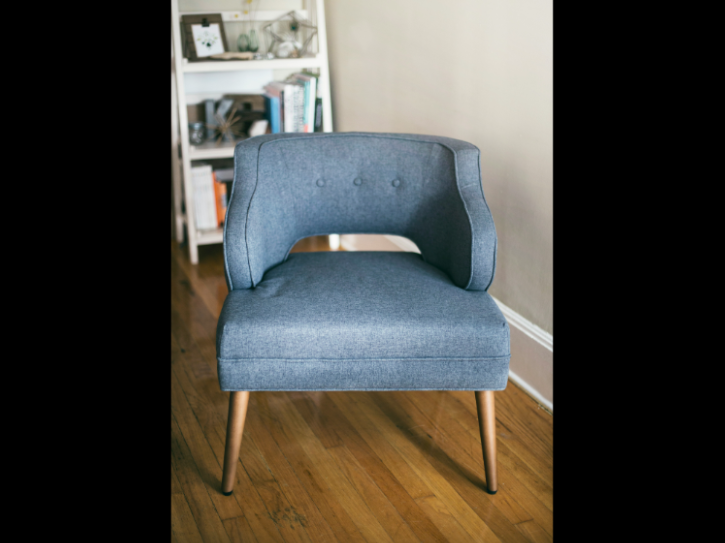
圖片來源:Kari Shea 發表於 Unsplash 網站上。 |

|

|
查看 Imagen for Editing and Customization 模型資訊卡
事前準備
- 登入 Google Cloud 帳戶。如果您未曾使用過 Google Cloud,歡迎 建立帳戶,親自體驗實際使用我們產品的成效。新客戶還能獲得價值 $300 美元的免費抵免額,用於執行、測試及部署工作負載。
-
In the Google Cloud console, on the project selector page, select or create a Google Cloud project.
Roles required to select or create a project
- Select a project: Selecting a project doesn't require a specific IAM role—you can select any project that you've been granted a role on.
-
Create a project: To create a project, you need the Project Creator role
(
roles/resourcemanager.projectCreator), which contains theresourcemanager.projects.createpermission. Learn how to grant roles.
-
Verify that billing is enabled for your Google Cloud project.
Enable the Vertex AI API, if it is not already enabled.
Roles required to enable APIs
To enable APIs, you need the
serviceusage.services.enablepermission. If you created the project, then you likely already have this permission through the Owner role (roles/owner). Otherwise, you can get this permission through the Service Usage Admin role (roles/serviceusage.serviceUsageAdmin). Learn how to grant roles.-
In the Google Cloud console, on the project selector page, select or create a Google Cloud project.
Roles required to select or create a project
- Select a project: Selecting a project doesn't require a specific IAM role—you can select any project that you've been granted a role on.
-
Create a project: To create a project, you need the Project Creator role
(
roles/resourcemanager.projectCreator), which contains theresourcemanager.projects.createpermission. Learn how to grant roles.
-
Verify that billing is enabled for your Google Cloud project.
Enable the Vertex AI API, if it is not already enabled.
Roles required to enable APIs
To enable APIs, you need the
serviceusage.services.enablepermission. If you created the project, then you likely already have this permission through the Owner role (roles/owner). Otherwise, you can get this permission through the Service Usage Admin role (roles/serviceusage.serviceUsageAdmin). Learn how to grant roles.-
設定環境的驗證機制。
選取這個頁面上範例的預計用途分頁:
控制台
使用 Google Cloud 控制台存取 Google Cloud 服務和 API 時,不需要設定驗證。
REST
如要在本機開發環境中使用本頁的 REST API 範例,請使用您提供給 gcloud CLI 的憑證。
安裝 Google Cloud CLI。
若您採用的是外部識別資訊提供者 (IdP),請先 使用聯合身分登入 gcloud CLI。
詳情請參閱 Google Cloud 驗證說明文件中的「使用 REST 進行驗證」一節。
擴展圖片內容
使用下列程式碼範例,即可擴展現有圖片的內容。
控制台
在 Google Cloud 控制台中,依序前往「Vertex AI」 >「Vertex AI Studio」 頁面。
按一下「生成媒體」。
按一下「圖像」。
從「工作」清單中選取「外繪」。
從「模型」清單中,選取要使用的 Imagen 模型。
在「輸入圖片」中,按一下「新增」,然後選取要編輯的圖片以上傳。
在「提示」方塊中輸入提示詞,說明如何編輯圖片。
在顯示比例選單中,選取顯示比例:
- crop_square 正方形
- crop_16_9 16:9
- crop_9_16 9:16
- crop_landscape 4:3
- crop_portrait 3:4
- fullscreen Custom
在編輯工具列中,選取圖片位置:
- 靠左對齊:
- 水平置中對齊:
- 靠右對齊:
- 頂端對齊:
- 垂直置中對齊:
- 底部對齊:
按一下「執行」。
REST
如要進一步瞭解 Imagen API,請參閱下列內容:- 方法:
endpoints.predict VisionGenerativeModelInstanceVisionGenerativeModelParamsVisionGenerativeModelResult
使用任何要求資料之前,請先修改下列項目的值:
- PROJECT_ID:您的 Google Cloud 專案 ID。
- LOCATION:專案的區域。例如:
us-central1、europe-west2或asia-northeast3。如需可用區域的清單,請參閱「Vertex AI 的生成式 AI 服務地區」。使用區域 API 端點時,系統會根據端點網址中的區域,決定要求處理位置,並忽略資源路徑中衝突的LOCATION。 prompt:如要使用圖像外擴功能,可以提供空字串來建立編輯後的圖片。如果選擇提供提示,請描述遮罩區域,以獲得最佳效果。例如,輸入「藍天」,而非「插入藍天」。referenceType:ReferenceImage是指提供圖片編輯額外背景資訊的圖片。編輯用途需要使用正常的 RGB 原始參考圖像 (REFERENCE_TYPE_RAW)。每個要求最多只能有一個原始參考圖像。輸出圖片的高度和寬度與原始參考圖像相同。如要使用遮罩編輯,必須提供遮罩參考圖像 (REFERENCE_TYPE_MASK)。如有原始參考圖像,遮罩圖像的高度和寬度必須與原始參考圖像相同。如果遮罩參考圖像為空白,且maskMode未設為MASK_MODE_USER_PROVIDED,系統會根據原始參考圖像計算遮罩。- B64_BASE_IMAGE:要編輯或放大顯示的基礎圖片。圖片必須指定為以 Base64 編碼的位元組字串。大小限制:10 MB。
- B64_OUTPAINTING_MASK:要用做遮罩圖層的黑白圖片,用於編輯原始圖片。遮罩的解析度應與輸入圖片相同。輸出圖片的解析度會與輸入圖片相同。這個遮罩圖片必須指定為 Base64 編碼位元組字串。大小限制:10 MB。
- MASK_DILATION - 浮點值。這個遮罩要擴張的圖片寬度百分比。建議外繪功能使用
0.03值。設定"dilation": 0.0可能會在擴充點產生明顯的邊框,或造成白色邊框效果。 - EDIT_STEPS - 整數。基礎模型的取樣步驟數。如要使用外繪功能,請從步驟
35開始。如果品質不符合需求,請增加步數。 - EDIT_IMAGE_COUNT - 編輯過的圖片數量。接受的整數值:1 到 4。 預設值:4。
HTTP 方法和網址:
POST https://LOCATION-aiplatform.googleapis.com/v1/projects/PROJECT_ID/locations/LOCATION/publishers/google/models/imagen-3.0-capability-001:predict
JSON 要求內文:
{
  "instances": [
    {
      "prompt": "",
      "referenceImages": [
        {
          "referenceType": "REFERENCE_TYPE_RAW",
          "referenceId": 1,
          "referenceImage": {
            "bytesBase64Encoded": "B64_BASE_IMAGE"
          }
        },
        {
          "referenceType": "REFERENCE_TYPE_MASK",
          "referenceId": 2,
          "referenceImage": {
            "bytesBase64Encoded": "B64_OUTPAINTING_MASK"
          },
          "maskImageConfig": {
            "maskMode": "MASK_MODE_USER_PROVIDED",
            "dilation": MASK_DILATION
          }
        }
      ]
    }
  ],
  "parameters": {
    "editConfig": {
      "baseSteps": EDIT_STEPS
    },
    "editMode": "EDIT_MODE_OUTPAINT",
    "sampleCount": EDIT_IMAGE_COUNT
  }
}
如要傳送要求,請選擇以下其中一個選項:
curl
將要求主體儲存在名為 request.json 的檔案中,然後執行下列指令:
curl -X POST \
     -H "Authorization: Bearer $(gcloud auth print-access-token)" \
     -H "Content-Type: application/json; charset=utf-8" \
     -d @request.json \
     "https://LOCATION-aiplatform.googleapis.com/v1/projects/PROJECT_ID/locations/LOCATION/publishers/google/models/imagen-3.0-capability-001:predict"
PowerShell
將要求主體儲存在名為 request.json 的檔案中,然後執行下列指令:
$cred = gcloud auth print-access-token
$headers = @{ "Authorization" = "Bearer $cred" }

Invoke-WebRequest `
    -Method POST `
    -Headers $headers `
    -ContentType: "application/json; charset=utf-8" `
    -InFile request.json `
    -Uri "https://LOCATION-aiplatform.googleapis.com/v1/projects/PROJECT_ID/locations/LOCATION/publishers/google/models/imagen-3.0-capability-001:predict" | Select-Object -Expand Content
"sampleCount": 2) 的範例回應。回應會傳回兩個預測物件,其中包含以 Base64 編碼的生成圖像位元組。
{
  "predictions": [
    {
      "bytesBase64Encoded": "BASE64_IMG_BYTES",
      "mimeType": "image/png"
    },
    {
      "mimeType": "image/png",
      "bytesBase64Encoded": "BASE64_IMG_BYTES"
    }
  ]
}
限制
如果擴展後的圖片是原始圖片大小的 200% 以上,模型可能會產生扭曲的細節。最佳做法是新增後續處理步驟,對外繪圖片執行 Alpha 混合。
以下是後續處理的程式碼範例:
parameters = {
   "editConfig": {
       "outpaintingConfig": {
         "blendingMode": "alpha-blending",
         "blendingFactor": 0.01,
       },
   },
}
後續步驟
閱讀 Vertex AI 上的 Imagen 和其他生成式 AI 產品相關文章:
- 開發人員指南:開始在 Vertex AI 使用 Imagen 3
- 專為創作者打造的全新生成式媒體模型和工具
- Gemini 新功能:自訂 Gem 和 Imagen 3 圖像生成功能
- Google DeepMind:Imagen 3 - 品質最高的文字轉圖像模型