


本頁面說明如何安裝及使用 Contact Center AI 平台 (CCAI Platform) 網頁 SDK。為協助您快速上手,Google 建議下載並使用我們的 Web SDK 第 2 版範例檔案。
事前準備
在網路用戶端中加入 CCAI Platform 網路 SDK 載入器。
<script src="https://websdk.ujet.co/v2/loader.js"></script>使用 COMPANY_KEY 初始化 CCAI Platform 網頁 SDK。
使用後端程式碼,以 COMPANY_SECRET 初始化驗證。
安裝工作流程
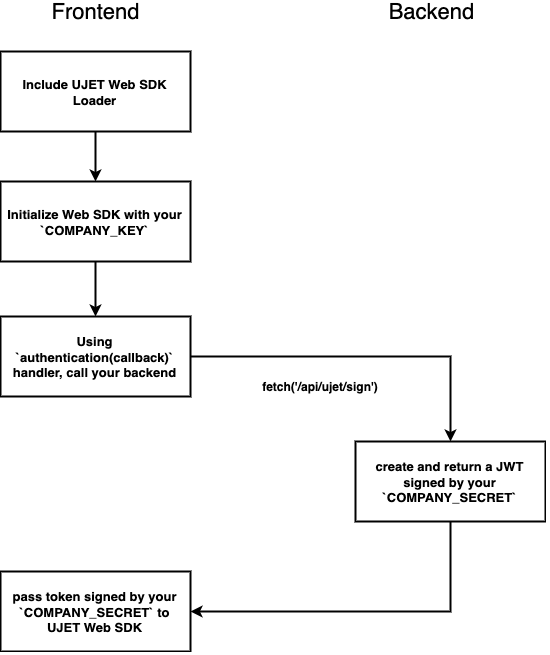
開始使用
下列各節提供 CCAI Platform 網頁 SDK 的入門資訊。
初始化網頁 SDK
您可以使用公司金鑰初始化網頁 SDK。
取得公司金鑰
如要取得公司金鑰,請按照下列步驟操作:
使用管理員憑證登入 CCAI 平台入口網站。
依序點選「選單」圖示 >「設定」>「開發人員設定」。
前往「Company key and secret code」(公司金鑰和密鑰) 窗格,然後儲存「Company key」(公司金鑰) 欄位中的代碼。
接著,您可以使用 UJET(config) 方法和 ujet.on('created', function) 事件初始化網頁 SDK。提供 CCAI 平台執行個體主機,例如 myccaip.uc1.ccaiplatform.com。
// INITIALIZE WEB SDK
var ujet = new UJET({
  companyId: "YOUR_COMPANY_ID",
  host: "https://myccaip.uc1.ccaiplatform.com",
});

ujet.on('created', function () {
  ujet.authenticate(getAuthToken);
});
或者,您也可以使用驗證選項,而不建立事件:
var ujet = new UJET({
  companyId: "YOUR_COMPANY_ID",
  authenticate: getAuthToken,
  host: "https://myccaip.uc1.ccaiplatform.com",
});
其中 getAuthToken() 是從後端呼叫 JWT 簽署機制的函式:
function getAuthToken() {
  // YOU SHOULD HAVE THIS KIND OF API ON YOUR SERVER
  return fetch('/auth/token')
    .then(function(resp) {
      // { token: '....' }
      return resp.json();
    });
}
其中 fetch() 會從後端呼叫 JWT 簽署機制。詳情請參閱 Mozilla Fetch API。
設定共同瀏覽的網頁 SDK
共同瀏覽是選用功能,可讓服務專員查看使用者的螢幕畫面,並視需要控制畫面。如要使用共同瀏覽功能,您必須在 SDK 初始化期間,提供 CCAI Platform 執行個體的共同瀏覽網域和授權金鑰。
如要設定共同瀏覽網頁 SDK,請按照下列步驟操作:
如要取得 CCAI Platform 執行個體的共同瀏覽網域和授權金鑰,請按照下列步驟操作:
使用管理員憑證登入 CCAI 平台入口網站。
依序點選「選單」圖示 >「設定」>「開發人員設定」。
前往「共同瀏覽」窗格,然後將切換鈕設為開啟。
儲存「Co-browse Domain」和「授權金鑰」欄位中的值。
如要在 SDK 初始化期間提供共同瀏覽網域和授權金鑰,請在初始化網頁 SDK 時加入下列程式碼:
var ujet = new UJET({
  // other options
  cobrowseOptions: {
    license: "LICENSE_KEY",
    trustedOrigins: ["CO-BROWSE_DOMAIN"],
    api: "CO-BROWSE_DOMAIN"
  },
  // other options
})
更改下列內容:
LICENSE_KEY:您在上一個步驟中儲存的授權金鑰CO-BROWSE_DOMAIN:您在上一個步驟中儲存的共同瀏覽網域
詳情請參閱「設定共同瀏覽」。
使用公司密鑰初始化驗證
getAuthToken() 函式應呼叫 API,並使用 COMPANY_SECRET 編碼酬載。
以下是使用 ExpressJS 簽署 JWT 的範例:
const express = require('express')
const jwt = require('jsonwebtoken')

const port = process.env.PORT || 3000
const secret = process.env.COMPANY_SECRET || 'secret'

const app = express()

app.use(express.json())

app.post('/auth/token', function (req, res) {
  const payload = {}
  payload['iss'] = 'YOUR_COMPANY_NAME'
  const iat = parseInt(Date.now() / 1000, 10)
  payload['iat'] = iat
  payload['exp'] = iat + 600
  const token = jwt.sign(payload, secret, { algorithm: 'HS256' })
  res.json({ token })
})

app.listen(port, function () {
  console.log(`Listing at http://localhost:${port}`)
})
您可以使用任何後端服務。
內容安全政策
如果正式版伺服器設有內容安全政策,請將 https://websdk.ujet.co/ 新增至 script-src 和 frame-src。
支援 Internet Explorer 11
為了支援 Internet Explorer,我們的程式碼會使用 babel-polyfill。如果您的網站也使用 babel-polyfill,請勿將其匯入網頁 SDK,因為在全域和網頁 SDK 中使用相同的程式庫可能會導致例外狀況。建議您在匯入套件前,先新增程式碼來檢查並避免這種情況。
追蹤使用者
上述範例不會追蹤使用者。如要識別 CRM 中的回訪使用者,並使用預先設定的回應和使用者資訊,則必須為使用者新增 ID。
如要這麼做,請在下列位置新增 ID:
傳遞至
getAuthToken()的後端function getAuthToken() { // YOU SHOULD HAVE THIS KIND OF API ON YOUR SERVER return fetch('/auth/token', { headers: { 'Content-Type': 'application/json' }, method: "POST", body: JSON.stringify({ payload: { identifier: 'c727f2851b64b29761da170d0adee67a9a89c2d9960c8eee0ae53737413cfa4e', name: 'Test user', email: 'test@user.com', phone: '1800UJETSDK' } }) }).then(function(resp) { return resp.json(); }); }編碼 JWT 時新增至酬載
const express = require('express')
const jwt = require('jsonwebtoken')

const port = process.env.PORT || 3000
const secret = process.env.COMPANY_SECRET || 'secret'

const app = express()

app.use(express.json())

app.post('/auth/token', function (req, res) {
  const payload = req.body.payload
  payload['iss'] = 'YOUR_COMPANY_NAME'
  const iat = parseInt(Date.now() / 1000, 10)
  payload['iat'] = iat
  payload['exp'] = iat + 600
  const token = jwt.sign(payload, secret, { algorithm: 'HS256' })
  res.json({ token })
})

app.listen(port, function () {
  console.log(`Listing at http://localhost:${port}`)
})
在「
authentication()」中新增額外選項new UJET({ // ... authenticate: function() { return getAuthToken().then({ token } => { return { token: token, user: { identifier: YOUR_UNIQUE_USER_ID, name: 'Test user' //optional, email: 'test@user.com', //optional, phone: '000000000' //optional } }; }); }, })
外部聊天機器人轉移
將即時通訊從虛擬服務專員轉移給服務專員時,您可以覆寫問候訊息,並將 external_chat_transfer 欄位回填至自訂資料,將轉錄稿傳送給服務專員。greeting_override 支援 Markdown 格式。
{
  "external_chat_transfer": {
    "greeting_override": "Please hold while we connect you with a human agent.",
    "agent": {
      "name": "Agent Name",
      "avatar": "https://ujet.s3.amazonaws.com/default-virtual-agent-avatar-1.png"
    },
    "transcript": [
      {
        "sender": "agent",
        "timestamp": "2021-03-15 12:00:00Z",
        "content": [
          {
            "type": "text",
            "text": "Hello! How can I help you today?"
          },
          {
            "type": "buttons",
            "buttons": [
              {
                "label": "Create New Order",
                "selected": false
              },
              {
                "label": "Check Order Status",
                "selected": true
              },
              {
                "label": "Check Account Balance",
                "selected": false
              }
            ]
          }
        ]
      },
      {
        "sender": "end_user",
        "timestamp": "2021-03-15 12:00:15Z",
        "content": [
          {
            "type": "txt",
            "text": "Ceck Order Status"
          }
        ]
      },
      {
        "sender": "aget",
        "timestamp": "021-03-15 12:00:16Z",
        "content": [
          {
            "type": "txt",
            "text": "Ican help you with that, what's your order number?"
          }
        ]
      },
      {
        "sender": "enduser",
        "timestamp": "021-03-15 12:00:20Z",
        "content": [
          {
            "type": "mdia",
            "media": {
              "type": image",
              "url": "https://ujet.s3.amazonaws.com/default-virtual-agent-avatar-1.png"
            }
          }
        ]
      }
    ]
  }
}
Chat 未簽署的自訂資料
開始即時通訊時,您可以透過即時通訊物件傳遞自訂資料。自訂資料可以是作業系統、版本號碼、位置,或任何其他可能與即時通訊相關的資料。這項資料未經加密,因此不應包含個人識別資訊 (PII)。
您也可以將這項自訂資料傳遞至虛擬服務專員。詳情請參閱「虛擬服務專員」。
var ujet = new UJET({
  // other parameters
  customData: {
    version: {
      label: 'Version',
      value: '1.1.0'
    },
    platform: {
      label: 'Platform',
      value: navigator.platform
    }
  },
});
自訂資料格式與 JSON 類似。每個資料欄位都包含鍵、標籤和值。範例如下:
{
  "k1": {
    "label": "Version",
    "value": "1.2.3"
  },
  "k2": {
    "label": "Dashboard",
    "value": "http://example.com"
  }
}
在這個範例中,k1 和 k2 是鍵。label 是客戶關係管理頁面上的標籤,value 則是標籤的值。
禁止顯示自訂資料
您可以搭配 customData 物件使用 invisible_to_agent 屬性,防止已簽署或未簽署的自訂資料顯示在代理程式轉接器中。在以下範例中,版本會顯示在代理程式轉接器中,但不會顯示平台。
var ujet = new UJET({
  // Other parameters
});

ujet.config({
  customData: {
    version: {
      label: 'Version',
      value: '1.1.0'
      invisible_to_agent: true
    },
    platform: {
      label: 'Platform',
      value: navigator.platform
      invisible_to_agent: false
    }
  }
});
在自訂資料物件中加入 "invisible_to_agent" : true 屬性時,預期會發生下列行為:
- 自訂資料會包含在工作階段中繼資料檔案中。
- 自訂資料不會納入客戶關係管理記錄。
詳情請參閱「在代理程式轉接器中查看工作階段資料」。
保留資料屬性
工作階段開始時,您可以將保留的資料屬性,以已簽署自訂資料的形式傳送至 Contact Center AI Platform (CCAI Platform)。詳情請參閱「傳送預留資料屬性」。
以下是自訂資料中保留資料屬性的範例:
  {
    "custom_data": {
      "reserved_verified_customer": {
        "label": "Verified Customer",
        "value": false,
        "type": "boolean"
      },
      "reserved_bad_actor": {
        "label": "Bad Actor",
        "value": false,
        "type": "boolean"
      },
      "reserved_repeat_customer": {
        "label": "Repeat Customer",
        "value": false,
        "type": "boolean"
      }
    }
  }
將每個值設為 true 或 false。
reserved_verified_customer:如果您認為這位使用者是合法客戶,請輸入true。reserved_bad_actor:如果您認為這位使用者可能是惡意人士,請使用true。reserved_repeat_customer:如果您判定這位使用者先前曾與客服中心聯絡,請設為true。
停用附件
您可以使用 disableAttachment 選項,禁止消費者上傳附件:
new UJET({
// ...
  disableAttachment: true
});
如果設為 disableAttachment: true,即時通訊輸入區域就不會顯示附件圖示,消費者也無法將檔案拖曳到訊息區域。
Chat 轉移
當服務專員無法提供服務時,您可以指定選項,自動處理網頁和行動裝置即時通訊的這種情況。
如要查看即時通訊轉移選項,請前往 CCAI 平台入口網站,依序點選 「Settings」>「Chat」>「Web & mobile deflection」。
非營業時間轉移
非上班時間轉移功能僅適用於客服中心或佇列在非營業時間的情況。如要啟用非營業時間轉接功能,請按照下列步驟操作:
在 CCAI Platform 入口網站中,依序前往「Settings」>「Chat」>「Web & mobile deflection」。
如果「非營業時間轉移」功能已關閉,只要選取「非營業時間轉移」選項即可啟用。
變更「Allow Transfers」選項,允許在非營業時間轉接至佇列,會產生下列行為:
服務專員可在 Agent Adapter 中,看到下列可轉接的佇列選項:
營業時間內的所有佇列
所有非營業時間的佇列,且未啟用轉移功能,也沒有已登入的活躍服務專員
所有非營業時間的佇列,且已指派虛擬服務專員,並設為 24 小時可用模式
服務專員無法查看下列類型的佇列:
所有非營業時間佇列,且已啟用非營業時間轉接功能
所有非營業時間的佇列,且指派的虛擬服務專員僅限於佇列營業時間
超過容量上限
「超過容量時轉移」功能會根據目前的代理容量,以及工作階段指派佇列的目前等待時間,如要啟用這個選項,請按照下列步驟操作:
在 Contact Center AI Platform 入口網站中,依序前往「Settings」>「Chat」>「Web & Mobile Deflection」。
如果「Overcapacity Deflection」(超載轉移) 處於關閉狀態,請選取「Overcapacity Deflection」(超載轉移) 切換鈕,將其開啟。
設定等待時間 (以分鐘為單位),超過這個時間,佇列狀態就會變更為「容量超載」。
這項時間門檻設定也會用來設定使用者看到超載訊息的頻率。
轉移選項
您可以指定在發生偏離時,使用者可用的選項。
電子郵件
啟用電子郵件選項後,使用者就能轉向電子郵件。如果使用者在非營業時間發起網頁或行動即時通訊工作階段,系統會提示他們是否要撰寫電子郵件。
具體行為如下:
行動裝置:啟用電子郵件轉移功能,且達到預估等待時間門檻後,使用者輕觸「即時通訊」選項,就會導向預設的電子郵件應用程式。應用程式版本和 iOS/Android 版本會自動插入電子郵件內文,主旨則是「[所選選單路徑]支援」。或者,您也可以啟用電子郵件表單。詳情請參閱「行動裝置和網頁 SDK 的整合式電子郵件表單」。
網頁:向使用者顯示電子郵件選項。點選後,系統會顯示電子郵件表單。詳情請參閱「行動裝置和網頁 SDK 的整合式電子郵件表單」。
繼續等待 (僅限網頁):使用者可點選選項繼續等待。
自訂共同瀏覽同意聲明對話方塊和工作階段結束按鈕
使用者可透過共同瀏覽同意聲明對話方塊,同意初始共同瀏覽工作階段要求,以及後續的遠端控制要求或完整裝置存取要求。設定共同瀏覽網頁 SDK 時,網頁 SDK 會提供預設的同意聲明對話方塊和工作階段結束按鈕。不過,您可以在 cobrowseOptions 物件中加入選項欄位,自訂同意聲明對話方塊和工作階段結束按鈕。這不僅能讓您控管這些元素的外觀和風格,還能根據需求自訂同意聲明對話方塊中的同意聲明。
同意聲明
同意聲明對話方塊會顯示同意聲明。同意聲明會向使用者說明共同瀏覽體驗的行為,以及他們同意的事項。如果您打算錄製共同瀏覽工作階段,請在同意聲明中說明。如需包含同意聲明的自訂同意聲明對話方塊範例,請參閱「自訂同意聲明對話方塊的程式碼範例」。
程序
如要設定共同瀏覽網頁 SDK 並自訂同意聲明對話方塊,請按照下列步驟操作:
如要取得 CCAI Platform 執行個體的共同瀏覽網域和授權金鑰,請按照下列步驟操作:
使用管理員憑證登入 CCAI 平台入口網站。
依序點選「選單」圖示 > 「設定」>「開發人員設定」。
前往「Co-browse」(共同瀏覽) 窗格,然後將切換鈕設為開啟位置。
儲存「Co-browse Domain」和「授權金鑰」欄位中的值。
如要初始化網頁 SDK 並加入共同瀏覽自訂欄位,請執行下列程式碼:
var ujet = new UJET({
  // other options
  cobrowseOptions: {
    license: "LICENSE_KEY",
    trustedOrigins: ["CO-BROWSE_DOMAIN"],
    api: "CO-BROWSE_DOMAIN"
    cobrowseRequestHtml: "COBROWSE_REQUEST_HTML",
    remoteControlHtml: "REMOTE_CONTROL_HTML",
    fullDeviceHtml: "FULL_DEVICE_HTML",
    styles: "STYLES",
    sessionControlsHtml: "SESSION_CONTROLS_HTML"
  },
  // other options
})
更改下列內容:
LICENSE_KEY:您在上一個步驟中儲存的授權金鑰CO-BROWSE_DOMAIN:您在上一個步驟中儲存的共同瀏覽網域COBROWSE_REQUEST_HTML:分享螢幕畫面模式中共同瀏覽工作階段的同意聲明對話方塊 HTML 程式碼。如需範例,請參閱「自訂同意聲明對話方塊的程式碼範例」中的cobrowseRequestHtml。REMOTE_CONTROL_HTML:遠端控制模式中,共同瀏覽工作階段同意聲明對話方塊的 HTML 程式碼。如需範例,請參閱「自訂同意聲明對話方塊的程式碼範例」中的remoteControlHtml。FULL_DEVICE_HTML:完整裝置模式中,共同瀏覽工作階段同意聲明對話方塊的 HTML 程式碼。如需範例,請參閱「自訂同意聲明對話方塊的程式碼範例」中的fullDeviceHtml。STYLES:同意聲明對話方塊和結束工作階段按鈕中元素的樣式資訊。如需範例,請參閱「自訂同意聲明對話方塊的程式碼範例」中的styles。SESSION_CONTROLS_HTML:結束工作階段按鈕的 HTML 程式碼。如需範例,請參閱「自訂同意聲明對話方塊的程式碼範例」中的sessionControlsHtml。
按鈕類別
同意聲明對話方塊包含按鈕,可讓使用者允許或拒絕共同瀏覽要求,或關閉同意聲明對話方塊。如要讓這些按鈕與網頁 SDK 互動,您必須將下列按鈕類別與對應的按鈕類型建立關聯。網頁 SDK 會在程式碼中搜尋這些類別,並為每個類別新增事件監聽器。按鈕類別如下:
cobrowse-allow:使用者點選後可允許要求的按鈕cobrowse-deny:使用者用來拒絕要求的按鈕cobrowse-close:使用者用來關閉同意聲明對話方塊的按鈕
自訂同意聲明對話方塊的程式碼範例
下列程式碼範例包含自訂同意聲明對話方塊、結束工作階段按鈕,以及這些元素的樣式資訊。範例中的每個同意聲明對話方塊都包含同意聲明。以下是三種共同瀏覽模式的同意聲明對話方塊屬性:
cobrowseRequestHtml:螢幕分享模式的同意聲明對話方塊remoteControlHtml:遠端控制模式的同意聲明對話方塊fullDeviceHtml:完整裝置模式的同意聲明對話方塊
"cobrowseOptions": {
    "license": "example_license",
    "trustedOrigins": "[https://example.com]",
    "cobrowseRequestHtml": "<div class=\"custom-backdrop\">\n <div class=\"cobrowse-confirm-dialog\">\n <div class=\"title\">\n <div></div>\n <span>Co-browse</span>\n <div class=\"cobrowse-close cobrowse-deny\">\n <svg width=\"14\" height=\"14842 13.1765 11.5294L8.64706 7L13.1765 2.47059C13.6313 2.01577 13.6313 1.27835 13.1765 0.823529C12.7216 0.368707 11.9842 0.368706 11.5294 0.823529L7 5.35294Z\" fill=\"#919191\"/>\n </svg>\n </div>\n </div>\n <div class=\"body\">\n <h2>Get step-by-step live and secure guidance with a Care Expert</h2>\n \n <ul>\n <li>Stop screen sharing at any time</li>\n <li>Personal info automatically hidden</li>\n  <li>Only your_company_name screens are shared</li>\n </ul>\n </div>\n <div class=\"description\">\n <svg id=\"loader\" xmlns=\"http://www.w3.org/2000/svg\" viewBox=\"0 0 24 24\" fill=\"none\" stroke=\"currentColor\" stroke-width=\"2\" stroke-linecap=\"round\" stroke-linejoin=\"round\"><line x1=\"12\" y1=\"2\" x2=\"12\" y2=\"6\"></line><line x1=\"12\" y1=\"18\" x2=\"12\" y2=\"22\"></line><line x1=\"4.93\" y1=\"4.93\" x2=\"7.76\" y2=\"7.76\"></line><line x1=\"16.24\" y1=\"16.24\" x2=\"19.07\" y2=\"19.07\"></line><line x1=\"2\" y1=\"12\" x2=\"6\" y2=\"12\"></line><line x1=\"18\" y1=\"12\" x2=\"22\" y2=\"12\"></line><line x1=\"4.93\" y1=\"19.07\" x2=\"7.76\" y2=\"16.24\"></line><line x1=\"16.24\" y1=\"7.76\" x2=\"19.07\" y2=\"4.93\"></line></svg>\n <span>\n Co-browse lets us view your active session in a limited way to give you live, on-screen assistance. We won't be able to view any other applications on your device.\n </span>\n </div>\n <div class=\"footer\">\n <span>\n By tapping accept & continue, you are consenting to allow the your_company_name Expert to view your screen to initiate assisted navigation. <a href=\"https://www.example.com\">View the your_company_name Privacy Policy</a>\n </span>\n <button class=\"cobrowse-allow\">Accept & continue</button>\n </div>\n </div>\n </div>\" viewBox=\"0 0 14 14\" fill=\"none\" xmlns=\"http://www.w3.org/2000/svg\">\n <path d=\"M7 5.35294L2.47059 0.823529C2.01577 0.368707 1.27835 0.368707 0.823529 0.823529C0.368707 1.27835 0.368706 2.01576 0.823529 2.47059L5.35294 7L0.823529 11.5294C0.368707 11.9842 0.368707 12.7216 0.823529 13.1765C1.27835 13.6313 2.01576 13.6313 2.47059 13.1765L7 8.64706L11.5294 13.1765C11.9842 13.6313 12.7216 13.6313 13.1765 13.1765C13.6313 12.7216 13.6313 11.9",
    "remoteControlHtml": "<div class=\"custom-backdrop\">\n <div class=\"cobrowse-confirm-dialog\">\n <div class=\"title\">\n <div></div>\n <span>Co-browse</span>\n <div class=\"cobrowse-close cobrowse-deny\">\n  <svg width=\"14\" height=\"14\" viewBox=\"0 0 14 14\" fill=\"none\" xmlns=\"http://www.w3.org/2000/svg\">\n <path d=\"M7 5.35294L2.47059 0.823529C2.01577 0.368707 1.27835 0.368707 0.823529 0.823529C0.368707 1.27835 0.368706 2.01576 0.823529 2.47059L5.35294 7L0.823529 11.5294C0.368707 11.9842 0.368707 12.7216 0.823529 13.1765C1.27835 13.6313 2.01576 13.6313 2.47059 13.1765L7 8.64706L11.5294 13.1765C11.9842 13.6313 12.7216 13.6313 13.1765 13.1765C13.6313 12.7216 13.6313 11.9842 13.1765 11.5294L8.64706 7L13.1765 2.47059C13.6313 2.01577 13.6313 1.27835 13.1765 0.823529C12.7216 0.368707 11.9842 0.368706 11.5294 0.823529L7 5.35294Z\" fill=\"#919191\"/>\n  </svg>\n </div>\n </div>\n <div class=\"body\">\n <h2>Get step-by-step live and secure guidance with a Care Expert</h2>\n \n <ul>\n  <li>Stop screen sharing at any time</li>\n  <li>Personal info automatically hidden</li>\n <li>Only your_company_name screens are shared</li>\n</ul>\n</div>\n<div class=\"description\">\n<svg id=\"loader\" xmlns=\"http://www.w3.org/2000/svg\" viewBox=\"0 0 24 24\" fill=\"none\" stroke=\"currentColor\" stroke-width=\"2\" stroke-linecap=\"round\" stroke-linejoin=\"round\"><line x1=\"12\" y1=\"2\" x2=\"12\" y2=\"6\"></line><line x1=\"12\" y1=\"18\" x2=\"12\" y2=\"22\"></line><line x1=\"4.93\" y1=\"4.93\" x2=\"7.76\" y2=\"7.76\"></line><line x1=\"16.24\" y1=\"16.24\" x2=\"19.07\" y2=\"19.07\"></line><line x1=\"2\" y1=\"12\" x2=\"6\" y2=\"12\"></line><line x1=\"18\" y1=\"12\" x2=\"22\" y2=\"12\"></line><line x1=\"4.93\" y1=\"19.07\" x2=\"7.76\" y2=\"16.24\"></line><line x1=\"16.24\" y1=\"7.76\" x2=\"19.07\" y2=\"4.93\"></line></svg>\n<span>\n Co-browse lets us view your active session in a limited way to give you live, on-screen assistance. We won't be able to view any other applications on your device.\n</span>\n</div>\n<div class=\"footer\">\n<span>\n By tapping accept & continue, you are consenting to allow the your_company_name Expert to view your screen to initiate assisted navigation. <a href=\"https://www.example.com\">View the your_company_name Privacy Policy</a>\n </span>\n <button class=\"cobrowse-allow\">Accept & continue</button>\n </div>\n </div>\n </div>",
    "fullDeviceHtml": "<div class=\"custom-backdrop\">\n <div class=\"cobrowse-confirm-dialog\">\n <div class=\"title\">\n <div></div>\n <span>Co-browse</span>\n <div class=\"cobrowse-close cobrowse-deny\">\n  <svg width=\"14\" height=\"14\" viewBox=\"0 0 14 14\" fill=\"none\" xmlns=\"http://www.w3.org/2000/svg\">\n <path d=\"M7 5.35294L2.47059 0.823529C2.01577 0.368707 1.27835 0.368707 0.823529 0.823529C0.368707 1.27835 0.368706 2.01576 0.823529 2.47059L5.35294 7L0.823529 11.5294C0.368707 11.9842 0.368707 12.7216 0.823529 13.1765C1.27835 13.6313 2.01576 13.6313 2.47059 13.1765L7 8.64706L11.5294 13.1765C11.9842 13.6313 12.7216 13.6313 13.1765 13.1765C13.6313 12.7216 13.6313 11.9842 13.1765 11.5294L8.64706 7L13.1765 2.47059C13.6313 2.01577 13.6313 1.27835 13.1765 0.823529C12.7216 0.368707 11.9842 0.368706 11.5294 0.823529L7 5.35294Z\" fill=\"#919191\"/>\n </svg>\n </div>\n </div>\n <div class=\"body\">\n <h2>Get step-by-step live and secure guidance with a Care Expert</h2>\n \n <ul>\n <li>Stop screen sharing at any time</li>\n <li>Personal info automatically hidden</li>\n <li>Only your_company_name screens are shared</li>\n </ul>\n </div>\n <div class=\"description\">\n <svg id=\"loader\" xmlns=\"http://www.w3.org/2000/svg\" viewBox=\"0 0 24 24\" fill=\"none\" stroke=\"currentColor\" stroke-width=\"2\" stroke-linecap=\"round\" stroke-linejoin=\"round\"><line x1=\"12\" y1=\"2\" x2=\"12\" y2=\"6\"></line><line x1=\"12\" y1=\"18\" x2=\"12\" y2=\"22\"></line><line x1=\"4.93\" y1=\"4.93\" x2=\"7.76\" y2=\"7.76\"></line><line x1=\"16.24\" y1=\"16.24\" x2=\"19.07\" y2=\"19.07\"></line><line x1=\"2\" y1=\"12\" x2=\"6\" y2=\"12\"></line><line x1=\"18\" y1=\"12\" x2=\"22\" y2=\"12\"></line><line x1=\"4.93\" y1=\"19.07\" x2=\"7.76\" y2=\"16.24\"></line><line x1=\"16.24\" y1=\"7.76\" x2=\"19.07\" y2=\"4.93\"></line></svg>\n <span>\n Co-browse lets us view your active session in a limited way to give you live, on-screen assistance. We won't be able to view any other applications on your device.\n </span>\n </div>\n <div class=\"footer\">\n <span>\n By tapping accept & continue, you are consenting to allow the your_company_name Expert to view your screen to initiate assisted navigation. <a href=\"https://www.example.com\">View the your_company_name Privacy Policy</a>\n </span>\n  <button class=\"cobrowse-allow\">Accept & continue</button>\n </div>\n </div>\n </div>",
    "styles": ".some-end-button {\n border-radius: 20px;\n background-color: blue;\n color: white;\n display: marquee;\n width: 20rem;\n font-size:200%;\n height: 20rem;\n }\n .custom-backdrop {\n background: rgba(0, 0, 0, 0.1);\n position: fixed;\n z-index: 2147483647;\n bottom: 0;\n top: 0;\n left: 0;\n right: 0;\n }\n .cobrowse-confirm-dialog {\n color: #232424;\n font-family:sans-serif;\n line-height:140%;\n position:fixed;\n background:white;\n border-radius:5px;\n z-index:2147483647;\n top:50px;\n left:50%;\n width:75%;\n max-width:450px;\n transform:translateX(-50%);\n box-shadow:2px 2px 30px rgb(0,0,0,0.08);\n padding: 1.5rem;\n }\n .title {\n text-align:center;\n display: flex;\n align-items: center;\n justify-content: space-between;\n font-size: 125%;\n line-height: 25px;\n padding: 20px;\n border-radius: 5px 5px 0 0;\n }\n \n .description {\n height: 8rem;\n display: flex;\n flex-direction:column;\n justify-content: center;\n align-items: center;\n background-color: #F3F3F3;\n }\n \n #loader {\n height:4rem;\n }\n \n .footer {\n margin-top: 1rem;\n margin-bottom: 1rem;\n display: flex;\n flex-direction: column;\n justify-content: flex-start\n }\n .cobrowse-allow {\n background-color: pink;\n color: white;\n flex-grow: 2;\n height: 3rem;\n }\n #cobrowse-end-button {\n cursor: pointer;\n position: fixed;\n z-index: 2147483647;\n top: 50%;\n left: 25%;\n transform: translateX(-50%);\n display: flex;\n justify-content: center;\n align-items: center;\n }\n #cobrowse-end-button:hover {\n background-color: #92162D;\n }",
    "sessionControlsHtml": " <div class=\"some-end-button\">\n End Session\n </div>"
  }
詳情請參閱「設定共同瀏覽」。
多語言和視覺訊息自訂
新的 CCAI 平台 (選項) 方法有兩個欄位,可支援多種語言和視覺訊息自訂:
lang:如果使用者未選擇偏好語言,系統會使用這個預設語言。這個代碼符合 ISO 639-1 標準,如省略,則預設為 en。translation:網頁 SDK 支援多種語言的顯示文字。您可以使用翻譯物件,自訂現有語言的文字,甚至新增其他語言的文字。例如:de、es、fr、ja。
以下是自訂英文文案的翻譯物件範例。如您所見,翻譯物件的頂層索引鍵應為語言代碼。
// ES6
let translation = `{
  "en": {
    "ujet_start_title": "Hi!"
  },
  "es": {
    "ujet_start_title": "¡Hola!"
  },
  "fr": {
    "ujet_start_title": "Salut!"
  },
  "de": {
    "ujet_start_title": "Hallo!"
  },
  "it": {
    "ujet_start_title": "Ciao!"
  },
  "ja": {
    "ujet_start_title": "こんにちは!"
  },
  "ko": {
    "ujet_start_title": "안녕하세요!"
  },
  "pt": {
    "ujet_start_title": "Olá!"
  },
  "pt-BR": {
    "ujet_start_title": "Olá!"
  },
  "sv": {
    "ujet_start_title": "Hej!"
  }
}`;

// initialize when dom ready
var ujet = new UJET({
  // other fields
  lang: 'en',
  translation: translation
});
自訂訊息如下:
"ujet_ask_phone_number_button_title": "Call Me"
"ujet_ask_phone_number_description": "Provide your phone number below"
"ujet_ask_phone_number_title_instant": "We'll Call You"
"ujet_ask_phone_number_title_scheduled": "Let's Schedule a Call"
"ujet_ask_phone_number_warning": "Your call may be monitored or recorded for training and quality assurance purposes."
"ujet_call_confirm_content": "Your phone should be ringing right about - {0}"
"ujet_call_confirm_start_new_conversation": "Start A New Conversation"
"ujet_call_record_permission_subtitle": "Do you give permission for {0} to record your call for training and quality?"
"ujet_call_record_permission_title": "Permission to Record"
"ujet_channel_chat": "Let's connect you to one of our chat support specialists",
"ujet_channel_instant_call": "Let one of our support specialists give you a call now",
"ujet_channel_menu_chat": "Chat now"
"ujet_channel_menu_email": "Email"
"ujet_channel_menu_instant_call": "Call now"
"ujet_channel_menu_keep_waiting": "Keep Waiting"
"ujet_channel_menu_scheduled_call": "Schedule call"
"ujet_channel_scheduled_call": "Let's schedule a time for a support specialist to call and help you",
"ujet_channel_email": "Please send us an email so we can help",
"ujet_chat_end": "End chat"
"ujet_chat_ended": "This chat has ended"
"ujet_chat_input_placeholder": "Type your message here"
"ujet_chat_leave": "Leave chat"
"ujet_chat_timed_out": "This chat has timed out"
"ujet_chat_title_with_multiple_agent": "Multiple Agents"
"ujet_chat_title_with_one_agent": "Chatting with {0}"
"ujet_chat_title_with_two_agent": "Chatting with {0} & {1}"
"ujet_chat_transfer_failed": "Transfer has failed"
"ujet_chat_transfer_joined": "<b>{0}<\/b> just joined the conversation"
"ujet_chat_transfer_left": "<b>{0}<\/b> just left the conversation"
"ujet_chat_transfer_started_menu": "<b>{0}<\/b> is transferring this chat to another agent..."
"ujet_chat_transfer_started_user": "<b>{0}<\/b> is adding another agent to this conversation..."
"ujet_common_back": "Back"
"ujet_common_cancel": "Cancel"
"ujet_common_end": "End"
"ujet_common_no": "No"
"ujet_common_save": "Save"
"ujet_common_submit": "Submit"
"ujet_common_support": "Support"
"ujet_common_yes": "Yes"
"ujet_deflection_menu_title": "Select from the options below"
"ujet_error_no_available_language": "No Available Language"
"ujet_error_phone_number_invalid": "Please input a valid phone number."
"ujet_file_upload_button": "Choose a file to upload"
"ujet_file_upload_failure_size": "Looks like we couldn't upload. <br> Please try uploading a file <br> that is less than {0}."
"ujet_file_upload_failure_type": "Looks like we couldn't upload. <br> We only accept <br> .JPG, .PNG, or .MP4."
"ujet_file_upload_failure_unknown": "Looks like we couldn't upload. <br> Please try again!"
"ujet_file_upload_subtitle": "Drop files here to upload"
"ujet_file_upload_title": "Upload Files"
"ujet_greeting": "Hi there, how can we help?"
"ujet_instant_call_confirm_content": "Your phone should be ringing shortly"
"ujet_language_chinese": "中文"
"ujet_language_english": "English"
"ujet_language_french": "Français"
"ujet_language_german": "Deutsch"
"ujet_language_italian": "Italiano"
"ujet_language_japanese": "日本語"
"ujet_language_korean": "한국어"
"ujet_language_portuguese": "Português (Portugal)"
"ujet_language_portuguese_brazil": "Português (Brazil)"
"ujet_language_spanish": "Español"
"ujet_language_swedish": "Svenska"
"ujet_menu_title": "Select an option"
"ujet_message_back_in_menu": "Looks like you changed your mind! How else can we help?"
"ujet_message_channel": "How would you like to communicate?"
"ujet_message_chat_deflection_afterhour": "We are currently closed. We look forward to helping you during our normal business hours."
"ujet_message_chat_deflection_default": "We are currently experiencing a high volume of requests with a current wait time of <b>{0}<\/b>. How would you like to reach out?"
"ujet_message_chat_deflection_email": "Please contact us via email: <b><a href="mailto:{0}">{0}<\/a><\/b>."
"ujet_message_chat_deflection_keepwaiting": "Thank you for continuing to wait. The remaining wait time is <b>{0}<\/b>."
"ujet_message_chat_deflection_outage": "We are currently experiencing a high volume of request, how would you like to reach out?"
"ujet_message_chat_deflection_recurring": "Thanks for your patience! The remaining wait time is <b>{0}<\/b>."
"ujet_message_chat_restart": "Connecting to your ongoing chat, one moment please..."
"ujet_message_chat_start": "One moment please..."
"ujet_message_queue": "Let's help you with<br /><strong>{0}<\/strong>"
"ujet_rating_feedback_placeholder": "Let us know how we can improve."
"ujet_rating_result_subtitle": "We appreciate your feedback"
"ujet_rating_result_title": "Thank you!"
"ujet_rating_title": "Rate Your Experience"
"ujet_redirect_action_title": "Open this page in a new tab"
"ujet_redirect_url_title": "Visit the page below"
"ujet_schedule_time_description": "Pick a time that works best for you"
"ujet_schedule_time_title": "Let's Schedule a Call"
"ujet_scheduled_call_cancel_cancel": "Cancel"
"ujet_scheduled_call_cancel_content": "You scheduled a support call for<br><b>{0}<\/b> at <b>{1}<\/b>."
"ujet_scheduled_call_cancel_keep": "Keep It"
"ujet_scheduled_call_cancel_title": "Cancel the existing call?"
"ujet_screenshot_init_cancel": "No Thanks"
"ujet_screenshot_init_okay": "Accept"
"ujet_screenshot_init_title": "Screenshot Request"
"ujet_screenshot_install_cancel": "Cancel"
"ujet_screenshot_install_okay": "Install"
"ujet_screenshot_install_title": "Install Chrome Extension"
"ujet_screenshot_take_action": "Take Screenshot"
"ujet_screenshot_take_title": "Click the button below to send a screenshot to the agent"
"ujet_screenshot_verify_cancel": "No"
"ujet_screenshot_verify_okay": "Yes"
"ujet_screenshot_verify_title": "Successfully Installed Chrome Extension"
"ujet_start_title": "Need any help?"
"ujet_tap_to_minimize": "Tap to minimize"
"ujet_time_hour": "hour | hours"
"ujet_time_minute": "minute | minutes"
自訂標誌和圖示
new UJET(option) 方法提供欄位,可自訂標誌和圖示。
logo:標誌圖片的網址
小工具的位置 (僅適用於電腦版)
right:設定右側邊緣位置,以像素為單位 (預設值為 50)
bottom:設定底緣位置,單位為像素 (預設值為 50)
圖示位置 (僅適用於電腦版)
right:設定右側邊緣位置,以像素為單位 (預設值為 50)
bottom:設定底緣位置,單位為像素 (預設值為 50)
自訂標誌和圖示範例
new UJET({
  logo: 'https://example.com/logo.svg',
  // widget position
  right: '50px',
  bottom: '150px',

  // launcher position
  launcher: {
    right: '50px',
    bottom: '50px',
  }
})

自訂標誌和圖示
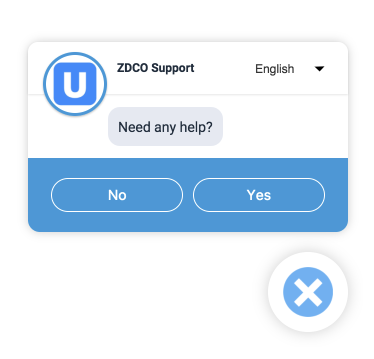
自訂標誌和圖示
自訂主題
new UJET(option) 方法有一個欄位,可用來自訂主題。
style:主題物件支援四個小工具值。
links:網路字型的樣式表連結清單
--primary-font:套用至整個網頁 UI 的 font-family CSS 樣式值,例如 Merriweather
--primary-color:用於網頁 UI 主要顏色的十六進位代碼值,例如 #51C3C3
--link-color:用於網頁 UI 連結顏色的十六進位代碼值,例如 #51C3C3
launcher:啟動器物件支援四個啟動器值。
cssText:CSS 語法,用於啟動器的 CSS 樣式
chatIcon:一般即時通訊圖示使用的 SVG 圖示網址
closeIcon:關閉圖示使用的 SVG 圖示網址
style:這個獨立主題物件支援啟動器的兩個值。
- --background-color:啟動器背景顏色的十六進位代碼值,例如 #E85230 --icon-color:啟動器圖示顏色的十六進位代碼值,例如 #FFF
var ujet = new UJET({
  // ...
  style: {
    links: [
      'https://fonts.example.com/css?family=Droid+Serif:400,700&display=swap',
    ],
    '--primary-font': 'Droid Serif, Georgia, serif',
    '--primary-color': '#F1684A',
    '--link-color': '#F1684A',
  },
  launcher: {
    cssText: '.wrap button {background: #E85230}',
    chatIcon: 'https://example.com/logo.svg',
    closeIcon: 'https://example.com/close.svg',
    style: {
      '--background-color': '#F1684A',
      '--icon-color': '#fff',
    }
  }
});

追蹤管道選擇和電子郵件提交
為追蹤管道選擇和電子郵件提交,網頁 SDK 會使用 postMessage 函式,傳遞包含下列資料的訊息:
application:裝置類型。
sdk_version:Web SDK 的版本。
user_agent:瀏覽器版本。
company:租戶名稱。
menu_name:使用者選取的佇列或選單名稱。
menu_path:使用者選取的佇列或選單路徑。
menu_id:使用者選取的佇列或選單 ID。
url:使用者選取管道或提交電子郵件時所在的網頁網址。
timestamp:使用者做出選擇的時間。
has_attachments:提交電子郵件時是否含有附件 (這項資訊只會在提交電子郵件時顯示,不會在選取管道時顯示)。
訊息資料會儲存在具有 2 個屬性的 ujet 物件中:一個名為 action,會是包含已完成動作名稱的字串;另一個名為 data,會包含先前所述的資料。
如要從訊息中擷取資料,可以建立事件監聽器來監聽「message」。下一節將概述一個範例,說明如何將動作和資料輸出至控制台。您可以在 tracking-channel-selection 資料夾中找到實際運作範例。
window.addEventListener('message', (e) => {
  if (e.data && e.data.ujet) {
    console.log(`Action: ${e.data.ujet.action}`);
    console.log(`Message Data: ${e.data.ujet.data}`);
  }
});
隱藏代理標誌框線
如要隱藏服務專員標誌邊框,請在樣式屬性中新增「'--logo-shadow': 'none'」,並在新的 UJET(option) 中設為 true:
new UJET({
  // ...
  style: {
    '--logo-shadow': 'none',
  }
});
隱藏啟動圖示
基於美觀考量,您可以隱藏網頁 UI 啟動圖示,改用主動式即時通訊觸發條件,或透過程式輔助方式啟動即時通訊。如要移除啟動圖示,請新增啟動器屬性,並在新 UJET(選項) 中設為 true:
new UJET({
  // ...
  launcher: false,
});
如要透過程式輔助方式啟動網頁 UI,請參閱「透過程式輔助方式啟動網頁 UI」。如要透過主動式即時通訊觸發條件啟動網頁 UI,請參閱「主動式觸發條件」。
使用直接存取點
您可以使用直接存取權,將使用者直接傳送至特定佇列。
如要使用直接存取點,請按照下列步驟操作:
登入 CCAI 平台入口網站。
依序前往「設定」>「待播清單」。
切換「使用」,確認已啟用網頁管道。
依序前往「編輯」>「查看」,查看網站管道。系統便會顯示網頁結構。
選取要讓使用者直接前往的佇列。
前往「Access Point」(存取點) 專區,然後按一下「Create direct access point」(建立直接存取點)。
用下列資訊作答:
將存取點類型設為一般。
提供存取點名稱。這個名稱會顯示在「Access Point」(存取點) 清單中。
提供一般存取點標籤。您將使用這個值設定 Web SDK。
點選「建立」。
您可以使用 ujet.start(options) 方法傳遞直接存取點的名稱。請參閱以下範例:
var launcher = document.getElementById('launcher');
launcher.addEventListener('click', function() {
  if (ujet.status === 'open') {
    ujet.close();
  } else {
    ujet.start({ menuKey: '__MENU_KEY__' });
  }
});
以程式輔助方式關閉網頁版使用者介面
這個步驟可以省略。如果沒有這個步驟,網頁 UI 會自行完成並最小化。
這個步驟可讓您在消費者想關閉 Web SDK 時,呼叫回呼函式。
ujet.on('close', function() {
  // do something here
});
以程式輔助方式啟動網頁版使用者介面
這個步驟可以省略。如果沒有這個步驟,使用者只要點選網頁版 UI 啟動圖示,就能啟動網頁版 UI。
這個步驟可讓您使用 ujet.start(options) 方法,透過程式輔助方式開啟網頁 UI。您可能希望使用者點選其他按鈕來開啟網頁 UI,如下所示:
<button id="launcher">點選即可開啟</button>
var ujet = new UJET({
  companyId: "YOUR_COMPANY_ID",
  host: "HOST_URL",
  launcher: false
});

var launcher = document.getElementById('launcher');
launcher.addEventListener('click', function() {
  if (ujet.status === 'open') {
    ujet.close();
  } else {
    ujet.start();
  }
});

ujet.on('ready', function() {
  launcher.textContent = 'ready to talk';
});

ujet.registerHook('loading', function() {
  launcher.textContent = 'loading';
});

ujet.registerHook('open', function() {
  launcher.textContent = 'Click to close';
});

ujet.registerHook('close', function() {
  launcher.textContent = 'Click to open';
});

ujet.on('created', function() {
  ujet.authenticate(getAuthToken);
});
您也可以使用 ujet.close() 方法關閉小工具,並使用 ujet.destroy() 方法移除小工具。
主動觸發
您可以透過主動觸發條件,觸發網頁 SDK 主動傳送訊息給使用者。
如要設定主動觸發條件,請按照下列步驟操作:
在 CCAI Platform 入口網站中,依序前往「Settings」>「Chat」。
前往「Web Proactive Chat Triggers」(網頁主動式即時通訊觸發條件) 窗格,然後按一下「View triggers」(查看觸發條件)。「Triggers」(觸發條件) 窗格隨即顯示。
按一下「新增觸發條件」。「Choose Name」(選擇名稱) 窗格隨即顯示。
在「Trigger name」(觸發條件名稱) 欄位中輸入名稱,然後按一下「Next」(下一步)。系統隨即會顯示「Set Conditions」(設定條件) 窗格。
如要設定條件,請按照下列步驟操作:
在「使用者」旁邊選取條件。
在「Enter a keyword」(輸入關鍵字) 欄位中,輸入要讓條件參照的關鍵字,然後按下 Enter 鍵。
針對要輸入的每個關鍵字,重複執行上述步驟。
如要新增其他條件,請按一下「Add Another Condition」(新增其他條件),然後點選所需條件類型。
設定條件的設定選項。
如要新增其他條件,請重複前兩個步驟。
點選「下一步」。「Define Actions」(定義動作) 窗格隨即顯示。
如要定義動作,請按照下列步驟操作:
在「Queue Assignment」(指派佇列) 下方,輸入要指派給使用者的即時通訊佇列節點名稱。如果有名稱相同的即時通訊佇列,該名稱會以粗體顯示在欄位下方。
按一下粗體的即時通訊佇列名稱。即會顯示確認對話方塊。
點選「OK」繼續。
在「Chat message」(即時通訊訊息) 下方,輸入要在觸發的即時通訊中顯示的訊息。
按一下「完成」。
如要啟用新觸發條件,請按一下「上線」。
現有支援單 ID
如果您已有使用者的現有票證,可以從 CRM 擷取票證 ID,並呼叫 ujet.start(),將 ID 傳遞至 Web SDK。
例如:
yourFunctionToRetrieveTicket()
  .then((existingTicket) => {
    ujet.start({ ticketId: existingTicket });
  });
您可以參考 ticket-id 資料夾中的範例。