

The term agent can mean different things. In a Multi-Agent System, which forms a hierarchical agent tree, the entire agent tree is referred to as the agent application.
An agent application is composed of one or more agents, where each agent can be either the root agent or a sub-agent.
A root agent (also known as steering agent) acts as the primary entry point and orchestrator for the overall agent application. It typically handles the main interaction with the end-user, it is responsible for understanding the overall goals, and it delegates specific tasks to appropriate sub-agents.
A sub-agent (also known as child agent) is a more specialized agent designed to handle a specific task, domain, or capability. For example, a sub-agent could be tasked with searching a specific database or analyzing a particular type of data. Sub-agents promote modularity and reusability in your agent application.
Root agents can invoke sub-agents, and sub-agents can invoke other sub-agents.
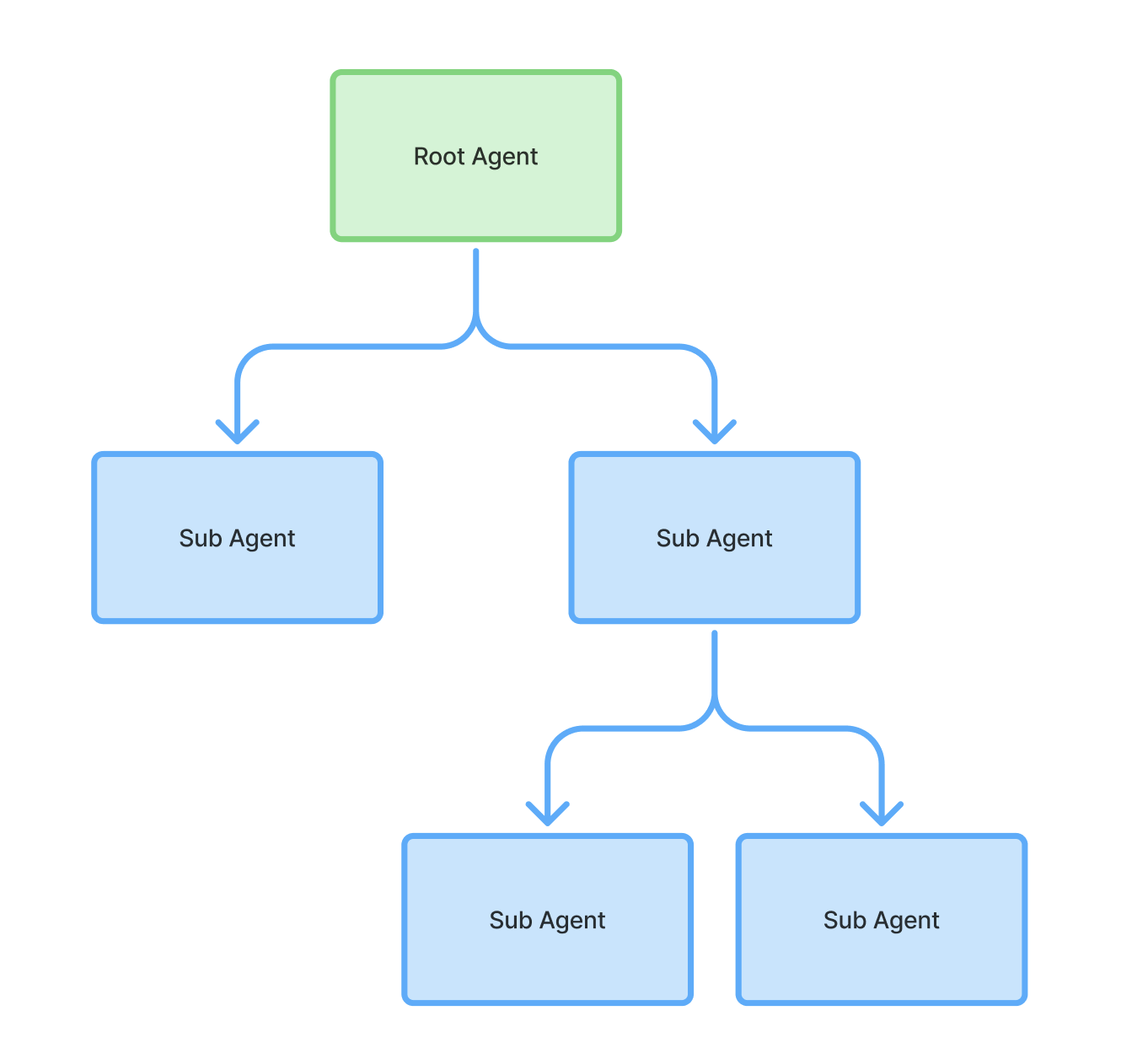
Create an agent application and root agent
To create an agent application and root agent:
- Open the CX Agent Studio console.
- Select your project.
- Click Create or Create agent.
- Provide an agent application name.
- Click Create. If this is the first agent application you have created for the project, creation may take 1-2 minutes. The agent builder is shown and, a root agent is created for you.
- Click the plus sign in the top right corner of the root agent.
- Click Add instructions to add instructions for the root agent.
- Click Add tool to add tools for the root agent.
Create a sub-agent
To create a sub-agent:
- Click the plus sign at the bottom of the root agent.
- Click Add sub-agent.
Manage agent applications
To manage agent applications for your project:
- Open the CX Agent Studio console.
- Select your project. The list of agent applications for your project are shown.
For each agent application, the following information and actions are available:
- Click the agent application name to open the application in the agent builder.
- Deployed to column shows the number of channels the application is deployed to.
- Sessions column shows the number of sessions in the past 24 hours that use a deployment channel.
- Escalation column shows the number of escalations in the past 24 hours that use a deployment channel.
- The latest update time for the agent application is shown.
- You can click the context menu for a particular agent application, then Import agent, Export agent, or Delete agent. For more information, see Export and import.
Language support
You should design your agents using English, but agents can automatically detect the language of end-user input, and they will automatically respond using the same language. For the list of supported languages, see the languages reference.
Model support
CX Agent Studio uses Gemini foundation models to power generative reasoning, instruction following, and multimodal capabilities. You can select a global model for the entire agent application or override it for specific sub-agents.
Models in CX Agent Studio are performance-tuned for customer experience, potentially differing from standard Vertex AI offerings.
For CX Agent Studio, the following models are supported:
| Model | Optimization | Launch stage |
|---|---|---|
gemini-composite-v2 |
Voice Optimized | GA |
gemini-composite-v1 |
Voice Optimized | GA |
gemini-3.7-flash |
Text Optimized | GA |
gemini-3.5-flash |
Text Optimized | GA |
gemini-3-flash |
Text Optimized | Preview |
gemini-2.5-flash |
Text Optimized | GA |
gemini-3.1-flash-live |
Voice Optimized | GA |
Gemini Composite V2 model
The Gemini Composite V2 model is the next version of the Composite V1 model for enterprise voice agents. It uses the same Listener and Thinking models as Composite V1, with an upgraded Speaker model that provides the following improvements:
- More natural speech: Better pacing, tone, and expression.
- Precise delivery control: Inline tags add pauses, breaths, laughs, and tone shifts exactly where you place them.
- Improved alphanumeric accuracy: More accurate reading of values such as tracking numbers, phone numbers, and addresses.
To use Composite V2, select gemini-composite-v2 as the
global model
for your agent application.
If you're moving an agent from Composite V1,
see Migrate from Composite V1.
Gemini Composite V1 model
The Gemini Composite V1 model is engineered for enterprise voice agents. It combines three sub-component models to deliver strict instruction adherence, superior tool execution, and exceptional voice stability:
This composite model is a combination of three underlying sub-component models:
- Listener Model: Converts incoming audio into transcripts with real-time noise rejection.
- Thinking Model: Processes inputs, enforces instructions, and executes backend tools.
- Speaker Model: Converts text responses into natural, low-latency speech.
Best practices for composite models
Follow these best practices to get natural, reliable speech from the Composite V2 model. Composite V2 uses punctuation and context to shape delivery, so most responses sound natural without extra direction. Start simple, and add direction only where it improves the conversation.
Speaking style
The Speaking style in voice settings shapes the voice for every response. Follow these guidelines:
- Start with an empty speaking style. Test your agent without a speaking style first, and then add one only if it helps.
- Keep it short.
Describe the speaker in about a dozen words,
such as their age, vocal timbre, pitch, accent, and pace.
For example:
Friendly woman in her early 30s, warm mid-pitch voice, relaxed conversational pace. - Describe who the speaker is, not how they feel. Use inline tags for emotions that change from moment to moment.
- Avoid long prompts. Long, multi-section prompts, such as an audio profile with scene and director's notes, can cause the voice to drift during a call and can conflict with inline tags.
Inline tags
Inline tags in an agent response control delivery at a specific point. To use them, tell the agent in its instructions when to add tags to its responses.
The following table lists common tags:
| Tag type | Examples | Effect |
|---|---|---|
| Pause | <short pause>, <long pause> |
Adds a short or long silence. |
| Sound | <breath>, <sigh>, <chuckles>, <exhales> |
Adds a non-verbal sound once, where you place it. |
| Tone | <warm>, <calm>, <empathetic>, <positive>, <clear> |
Sets the tone until the next tone tag. |
In the following example response, the agent shifts from an empathetic tone to a positive tone:
<calm><empathetic> I'm so sorry your flight was canceled. <positive> The good news is that I've already rebooked you on the next flight out.
Follow these guidelines when you use inline tags:
- Use angle brackets.
Write tags as
<sigh>, not[sigh]. - Put tags at the start of a sentence.
You can stack tags there, such as
<calm><empathetic>. Only pause tags belong mid-sentence, after punctuation. For example:I checked your account, <short pause> everything is in order. - Use one or two tags per turn. Most customer conversations don't need more.
- Don't use closing tags, such as
</warm>. A tone tag stays in effect until the next one. - Keep tags in English, even when your agent responds in another language.
- Use capitalization and punctuation for emphasis. Capitalize a word to stress it, and use an ellipsis for a natural hesitation.
For the full list of tags, see the Gemini TTS prompting guide.
Numbers and identifiers
To make sure that the agent speaks numbers, currency, dates, phone numbers,
and alphanumeric IDs correctly,
add text normalization rules to your
global instructions.
For example, tell the agent to speak $87.25 as
"eighty-seven dollars and twenty-five cents"
and to read the order ID XED1234 one character at a time.
State that these rules apply only to spoken responses,
so the agent still passes original values, such as XED1234, to tools.
Migrate from Composite V1
To move an existing agent from Composite V1 to Composite V2:
- In voice settings, replace any long speaking style prompt with a short description, or leave it empty.
- In your instructions and tools, change square-bracket tags to angle brackets.
For example, change
[sigh]to<sigh>. - Set the model to
gemini-composite-v2for the agent application and for any sub-agents that override the global model. - Test the agent with your usual evaluations and user acceptance testing before you deploy it.
Agent application settings
See settings.
Agent settings
See settings.