


Gemini Robotics ER 2 可以指向对象、在视频中跟踪对象、使用边界框检测对象,以及生成运动轨迹。本页面上的所有示例均使用 generate_content 的自然语言提示。
如需查看完整的可运行代码,请参阅机器人技术实战指南。
指向物体
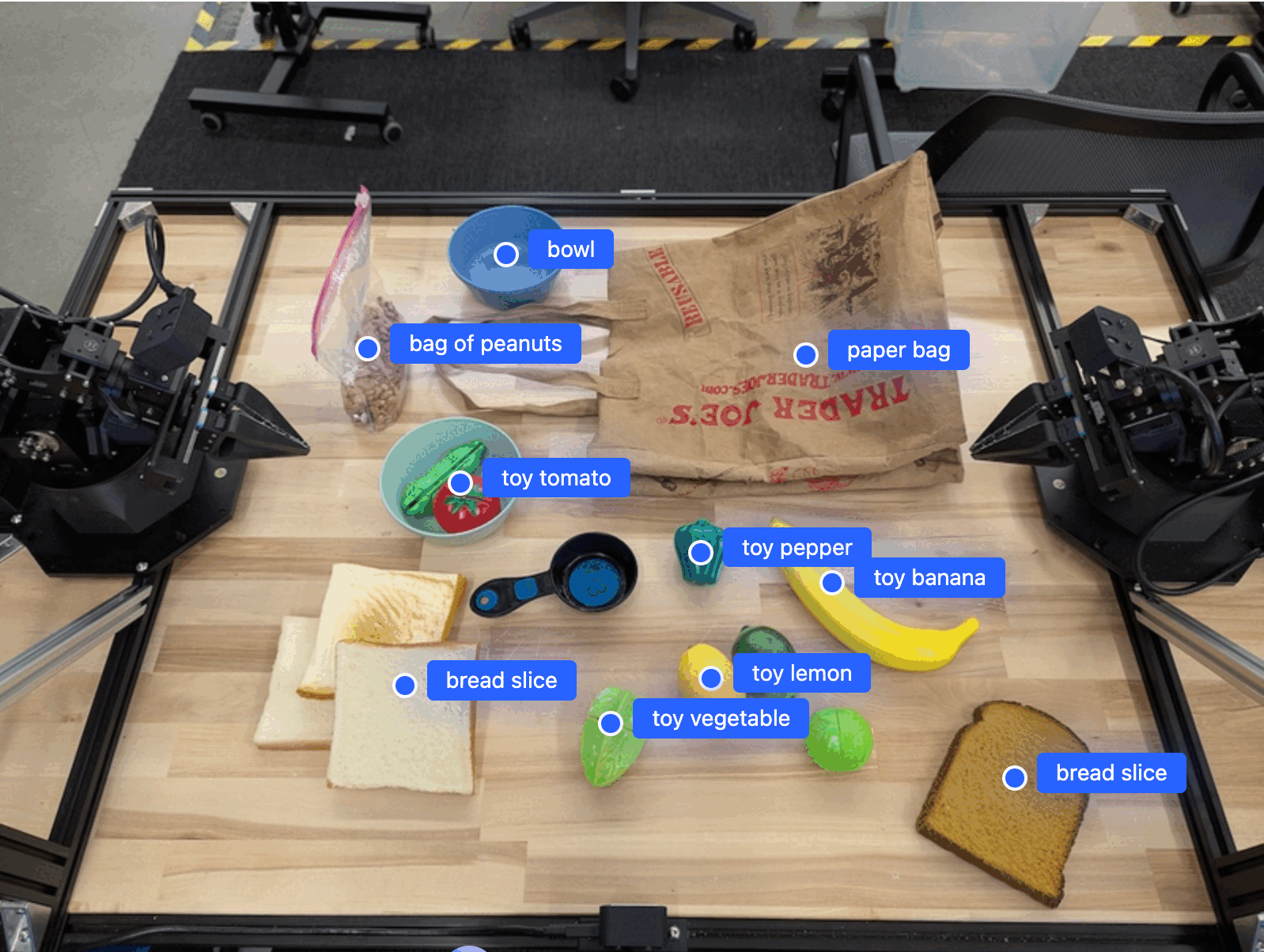
以下示例在图片中查找特定对象,并返回其归一化 [y, x] 坐标:
Python
from google import genai
from google.genai import types

PROMPT = """
          Point to no more than 10 items in the image. The label returned
          should be an identifying name for the object detected.
          The answer should follow the json format: [{"point": <point>,
          "label": <label1>}, ...]. The points are in [y, x] format
          normalized to 0-1000.
        """
client = genai.Client(
    enterprise=True,
    project="your-project-id",
    location="global",
)

# Load your image
with open("my-image.png", 'rb') as f:
    image_bytes = f.read()

image_response = client.models.generate_content(
    model="gemini-robotics-er-2-preview",
    contents=[
        types.Part.from_bytes(
            data=image_bytes,
            mime_type='image/png',
        ),
        PROMPT
    ],
    config = types.GenerateContentConfig(
        thinking_config=types.ThinkingConfig(
            thinking_level=types.ThinkingLevel.HIGH
        )
    )
)

print(image_response.text)
REST
# First, ensure you have the image file locally.
# Encode the image to base64
IMAGE_BASE64=$(base64 -w 0 my-image.png)

# Set your Google Cloud project and location.
export PROJECT_ID="your-project-id"
export LOCATION="global"
export MODEL="gemini-robotics-er-2-preview"

curl -X POST \
  "https://aiplatform.googleapis.com/v1/projects/${PROJECT_ID}/locations/${LOCATION}/publishers/google/models/${MODEL}:generateContent" \
  -H "Authorization: Bearer $(gcloud auth application-default print-access-token)" \
  -H "Content-Type: application/json" \
  -d '{
    "contents": [
      {
        "parts": [
          {
            "inlineData": {
              "mimeType": "image/png",
              "data": "'"${IMAGE_BASE64}"'"
            }
          },
          {
            "text": "Point to no more than 10 items in the image. The label returned should be an identifying name for the object detected. The answer should follow the json format: [{\"point\": [y, x], \"label\": <label1>}, ...]. The points are in [y, x] format normalized to 0-1000."
          }
        ]
      }
    ],
    "generationConfig": {
      "thinkingConfig": {
        "thinkingLevel": "HIGH"
      }
    }
  }'
输出将是一个包含对象的 JSON 数组,每个对象都有一个 point(归一化 [y, x] 坐标)和一个用于标识对象的 label。
JSON
[
  {"point": [376, 508], "label": "small banana"},
  {"point": [287, 609], "label": "larger banana"},
  {"point": [223, 303], "label": "pink starfruit"},
  {"point": [435, 172], "label": "paper bag"},
  {"point": [270, 786], "label": "green plastic bowl"},
  {"point": [488, 775], "label": "metal measuring cup"},
  {"point": [673, 580], "label": "dark blue bowl"},
  {"point": [471, 353], "label": "light blue bowl"},
  {"point": [492, 497], "label": "bread"},
  {"point": [525, 429], "label": "lime"}
]
下图展示了这些点的显示方式:
跟踪视频中的对象
Gemini Robotics ER 2 还可以分析视频帧,以跟踪物体随时间的变化。
Python
from google import genai
from google.genai import types

client = genai.Client(
    enterprise=True,
    project="your-project-id",
    location="global",
)

# Load your video
with open("my-video.mp4", 'rb') as f:
    video_bytes = f.read()

prompt = """
          Point to the red ball in every frame where it appears.
          The answer should follow the json format: [{"point": [y, x],
          "label": <label>}, ...]. The points are in [y, x] format
          normalized to 0-1000. Return one entry per frame that contains
          the object.
        """

image_response = client.models.generate_content(
  model="gemini-robotics-er-2-preview",
  contents=[
    types.Part.from_bytes(
      data=video_bytes,
      mime_type='video/mp4',
    ),
    prompt
  ],
  config = types.GenerateContentConfig(
      thinking_config=types.ThinkingConfig(
          thinking_level=types.ThinkingLevel.HIGH
      )
  )
)

print(image_response.text)
对象检测和边界框
除了点之外,您还可以提示模型返回 2D 边界框,以便为检测到的对象提供更多空间细节。
Python
from google import genai
from google.genai import types

client = genai.Client(
    enterprise=True,
    project="your-project-id",
    location="global",
)

with open("my-image.png", 'rb') as f:
    image_bytes = f.read()

prompt = """
          Detect all objects in this image and return bounding boxes.
          The answer should follow the JSON format:
          [{"label": <label>, "y": <y_min>, "x": <x_min>,
            "y2": <y_max>, "x2": <x_max>}, ...]
          where coordinates are normalized to 0-1000.
        """

image_response = client.models.generate_content(
  model="gemini-robotics-er-2-preview",
  contents=[
    types.Part.from_bytes(
      data=image_bytes,
      mime_type='image/png',
    ),
    prompt
  ],
  config = types.GenerateContentConfig(
      thinking_config=types.ThinkingConfig(
          thinking_level=types.ThinkingLevel.LOW
      )
  )
)

print(image_response.text)
轨迹
Gemini Robotics ER 2 可以生成定义轨迹的点序列,这对于引导机器人移动非常有用。
此示例请求生成一条轨迹,将一支红笔移动到收纳盒中,并估算中间航点。代码已缩减,仅显示提示。
Python
prompt = """
          Generate a trajectory for the robotic arm to pick up the red pen
          and place it in the organizer. Return a list of waypoints as JSON:
          [{"step": <int>, "point": [y, x], "action": <description>}, ...]
          where coordinates are normalized to 0-1000.
        """
为笔记本电脑腾出空间
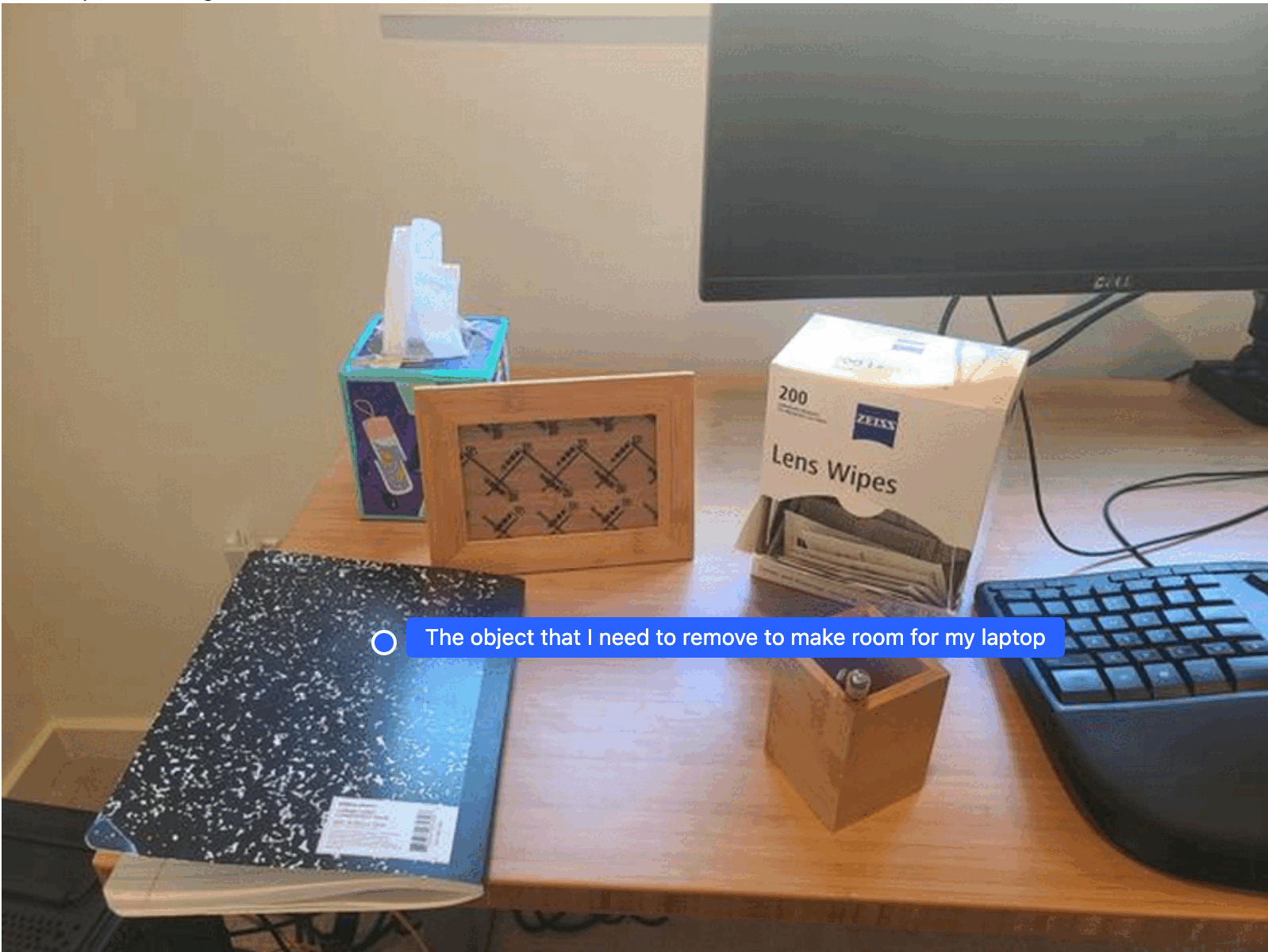
此示例展示了 Gemini Robotics ER 2 如何对空间进行推理。提示会要求模型识别需要移动哪个对象,以便为另一个对象腾出空间。
Python
from google import genai
from google.genai import types

client = genai.Client(
    enterprise=True,
    project="your-project-id",
    location="global",
)

# Load your image
with open('path/to/image-with-objects.jpg', 'rb') as f:
    image_bytes = f.read()

prompt = """
          Point to the object that I need to remove to make room for my laptop
          The answer should follow the JSON format: [{"point": <point>,
          "label": <label1>}, ...]. The points are in [y, x] format normalized to 0-1000.
        """

image_response = client.models.generate_content(
  model="gemini-robotics-er-2-preview",
  contents=[
    types.Part.from_bytes(
      data=image_bytes,
      mime_type='image/jpeg',
    ),
    prompt
  ],
  config = types.GenerateContentConfig(
      thinking_config=types.ThinkingConfig(
          thinking_level=types.ThinkingLevel.HIGH
      )
  )
)

print(image_response.text)
回答中包含回答用户问题的对象的 2D 坐标,在本例中,即应该移动以腾出笔记本电脑空间的对象。
[
  {"point": [672, 301], "label": "The object that I need to remove to make room for my laptop"}
]
打包午餐
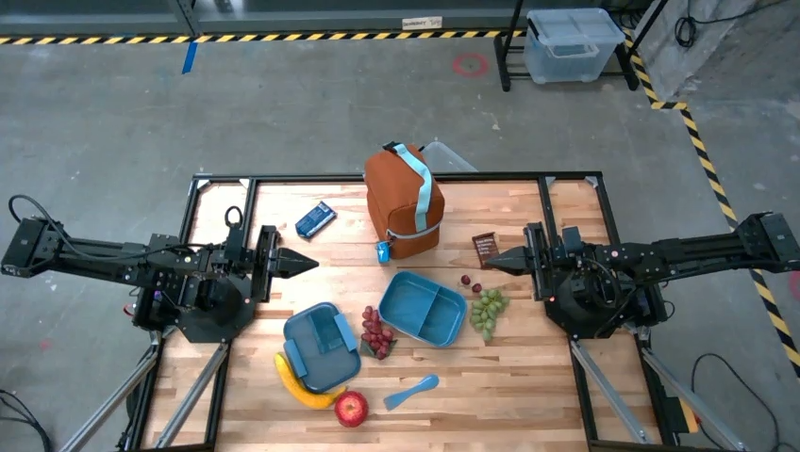
该模型还可以为多步骤任务提供说明,并指出每个步骤的相关对象。此示例展示了模型如何规划一系列步骤来打包午餐袋。
Python
from google import genai
from google.genai import types

client = genai.Client(
    enterprise=True,
    project="your-project-id",
    location="global",
)

# Load your image and set up your prompt
with open('path/to/image-of-lunch.jpg', 'rb') as f:
    image_bytes = f.read()

prompt = """
          Explain how to pack the lunch box and lunch bag. Point to each
          object that you refer to. Each point should be in the format:
          [{"point": [y, x], "label": }], where the coordinates are
          normalized between 0-1000.
        """

image_response = client.models.generate_content(
  model="gemini-robotics-er-2-preview",
  contents=[
    types.Part.from_bytes(
      data=image_bytes,
      mime_type='image/jpeg',
    ),
    prompt
  ],
  config = types.GenerateContentConfig(
      thinking_config=types.ThinkingConfig(
          thinking_level=types.ThinkingLevel.HIGH
      )
  )
)

print(image_response.text)
此提示的回答是一组分步说明,介绍如何根据图片输入打包午餐袋。
输入图片
模型输出
Based on the image, here is a plan to pack the lunch box and lunch bag:

1.  **Pack the fruit into the lunch box.** Place the apple, banana, red grapes, and green grapes into the blue lunch box.
2.  **Add the spoon to the lunch box.** Put the blue spoon inside the lunch box as well.
3.  **Close the lunch box.** Secure the lid on the blue lunch box.
4.  **Place the lunch box inside the lunch bag.** Put the closed blue lunch box into the brown lunch bag.
5.  **Pack the remaining items into the lunch bag.** Place the blue snack bar and the brown snack bar into the brown lunch bag.

Here is the list of objects and their locations:
*   [{"point": [899, 440], "label": "apple"}]
*   [{"point": [814, 363], "label": "banana"}]
*   [{"point": [727, 470], "label": "red grapes"}]
*   [{"point": [675, 608], "label": "green grapes"}]
*   [{"point": [706, 529], "label": "blue lunch box"}]
*   [{"point": [864, 517], "label": "blue spoon"}]
*   [{"point": [499, 401], "label": "blue snack bar"}]
*   [{"point": [614, 705], "label": "brown snack bar"}]
*   [{"point": [448, 501], "label": "brown lunch bag"}]
后续步骤
如需详细了解 Gemini Robotics ER 2,请参阅以下资源:
- 智能体功能:代码执行、仪器读取和图片注解。
- 任务编排:使用自定义机器人 API 执行长跨度任务。
- 视频理解:时刻查找和进度分类。
- Gemini Robotics ER 2 概览:功能和快速入门。
- Gemini Robotics ER 2 模型信息:技术规格、词元限制和支持的功能。