

Understanding how Gemini Enterprise bills for licenses and usage helps you choose the right model for your team. This page explains how charges flow and where you can keep an eye on your costs.
Billing concepts
| Term | Definition |
|---|---|
| License | Gives a user access to a license-based edition, such as Gemini Enterprise Standard or Plus. Licenses are billed to your Cloud Billing account. For more information, see Get subscriptions and assign licenses. |
| Pooled quota | The usage included with your licenses. Each license adds to a quota for each feature that all users in the edition share. For more information, see Quotas and pay-as-you-go usage. |
| Pay-as-you-go usage above quota | A setting that lets usage continue after the pooled quota runs out. This usage is charged at pay-as-you-go rates. For more information, see Configure pay-as-you-go usage above quota. |
| Pay-as-you-go edition | An edition with no license fee and no pooled quota. All usage is charged at pay-as-you-go rates. |
| Project monthly spend limit | A Cloud Billing budget cap that stops paid usage when your project reaches the amount that you set. For more information, see Cap costs with a project spend limit. |
| Billing account type |
Determines how you pay for usage:
|
| Prepaid credits | Credits that a self-serve billing account buys in advance. Paid usage is deducted from the credit balance. When you turn on pay-as-you-go usage above quota for the first time, you can continue with a zero balance. If your balance is zero, usage above quota stops until you add credits. If prepaid credits are already set up and your balance is zero, you must add credits before turning it on again. To use the Pay-as-you-go edition, you must buy credits when setting up prepaid credits on your billing account. For more information, see Manage prepaid credits. |
How charges flow
The following diagram shows how license fees and usage are billed:
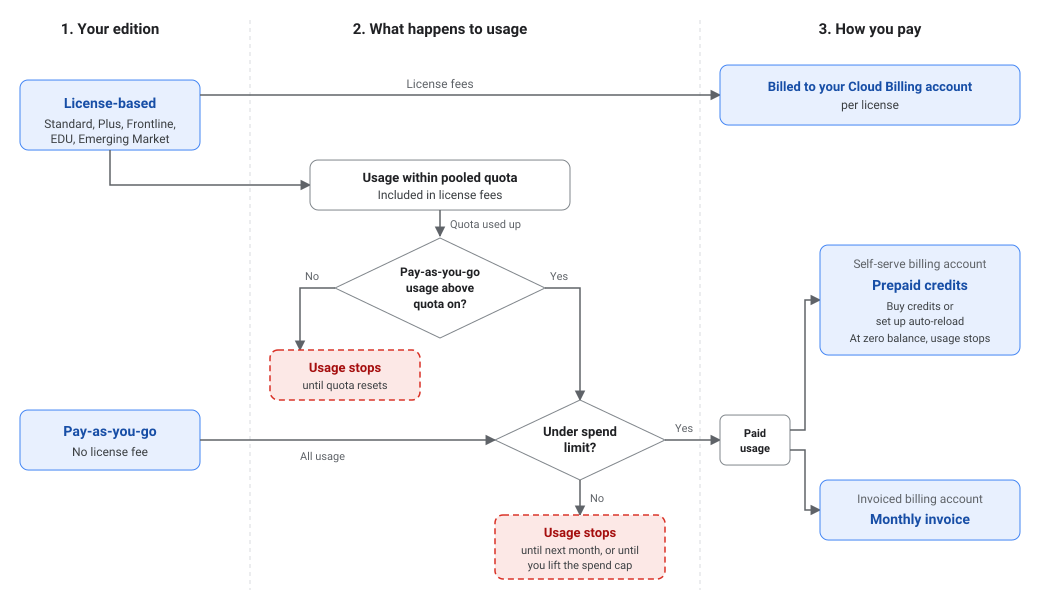
Billing models
How you're billed depends on your edition and on whether you turn on pay-as-you-go usage above quota:
| Billing model | Editions | Subscription fees | Usage charges |
|---|---|---|---|
| Subscription only |
|
Billed to your Cloud Billing account per license. | None. Usage is limited to your edition's pooled quotas. When a feature reaches its quota, usage of that feature stops until the quota resets. |
| Subscription with pay-as-you-go usage above quota |
|
Billed to your Cloud Billing account per license. | Usage above your pooled quotas is charged at pay-as-you-go rates. You turn on pay-as-you-go usage above quota separately for each edition. For more information, see Configure pay-as-you-go usage above quota. |
| Pay-as-you-go |
|
None. | All usage is charged at pay-as-you-go rates, with no pooled quota limits. |
Where to manage billing
| Task | Location |
|---|---|
| Manage subscriptions and view your credit balance | Gemini Enterprise > Plans & billing page in the Google Cloud console |
| View feature usage, turn on pay-as-you-go usage above quota, and set a spend limit | Gemini Enterprise > Usage & spend > Usage tab in the Google Cloud console |
| View costs | Gemini Enterprise > Usage & spend > Spend tab in the Google Cloud console |
| Manage auto-reload, payment methods, and invoices | Billing page in the Google Cloud console |
Cap costs with a project spend limit
To prevent unexpected charges when you turn on pay-as-you-go usage above quota, you can configure a monthly spend limit on your total spend in Cloud Billing. When defining a budget for your project, you select Vertex AI (aiplatform.googleapis.com) as the service scope. This sets a project-level spend cap that applies across all of the following areas:
- Gemini Enterprise app
- Gemini Enterprise Agent Platform
- AI coding and developer tools (such as Google Antigravity)
When your project reaches this spend limit, paid usage is automatically stopped. Usage resumes at the start of the next month, or earlier if you lift the spend cap. To configure a monthly spend limit for your project, see Set a monthly spend limit.
If you pay with prepaid credits, the spend limit still applies. Usage stops when your project reaches the spend limit or your credit balance reaches zero, whichever happens first. To limit how much auto-reload can charge, you can also set a monthly auto-charge limit.
Switch billing models
Your prepaid credit balance stays with your Cloud Billing account when you change how you use Gemini Enterprise:
- Add a license-based subscription alongside Pay-as-you-go: For users assigned a seat-based license, your remaining credits pay for usage above quota if you turn on pay-as-you-go usage above quota for that edition. If you keep your Pay-as-you-go subscription active, users assigned to it continue using your credits.
- Move from a license-based subscription to Pay-as-you-go: If you cancel your license-based subscription, it remains active until the end of its current term. When you subscribe to the Pay-as-you-go edition, buy credits if prepaid credits aren't set up on your billing account yet. After you assign users to the subscription, your credits pay for their Pay-as-you-go usage.
- Turn off pay-as-you-go usage above quota: Your credits stay in your balance until they expire, and you can use them if you turn it on again.
If you move to an invoiced billing account, your credits stay on the self-serve billing account where you bought them.
End-user experience when limits are reached
When your project reaches a usage or spending limit, Gemini Enterprise restricts further usage. Feature access resumes automatically when the quota resets or at the start of the next billing cycle.
Gemini Enterprise app displays the Usage limit reached error message when you chat with the assistant or use Gemini Enterprise features in either of the following scenarios:
- Your project reached its monthly spend cap.
- Your project exceeds its pooled quota limit for a specific feature and your Gemini Enterprise administrator hasn't enabled overages.
This error affects only the feature that reached its limit. You can continue using other features that have remaining quota.
If you pay with prepaid credits and your credit balance is empty or inactive, users see a message that your organization's prepaid balance is used up or inactive. To restore access, a billing account administrator must buy credits.
Budget and billing notifications
The Gemini Enterprise app doesn't send automated email alerts or push notifications when your project reaches its pooled feature quotas or starts incurring pay-as-you-go charges. When your project reaches a pooled quota and you haven't turned on pay-as-you-go usage above quota, end users see the Usage limit reached error message in the app.
If you pay with prepaid credits, Cloud Billing sends email notifications and shows alerts in the Google Cloud console when any of the following happens:
- Your credit balance is low or empty.
- A payment is declined.
- Auto-reload pauses because it reached your monthly auto-charge limit.
When you configure a monthly spend limit in Cloud Billing, you can set alert threshold rules to monitor your costs. Cloud Billing automatically sends email notifications when your spend reaches specified percentages of your budget, such as 50%, 80%, and 100% of the budget amount.
The following principals receive budget alert notifications:
- Default recipients: Cloud Billing sends email alerts to users who have the Billing Account Administrator or Billing Account User IAM roles on the target billing account.
- Custom recipients: You can configure custom email recipients, such as specific project administrators, team distribution lists, or Pub/Sub channels, in your budget alert rules.
What's next
- Learn how to manage prepaid credits.
- Learn how to configure pay-as-you-go usage above quota.
- Learn how to view costs.
- Learn how to create budgets and budget alerts.
- Learn how to manage budget alert recipients.
- Learn how to troubleshoot billing and payments.