

Ray History Server lets you access the Ray Dashboard, events, and logs after a Ray cluster has been terminated.
This document describes how to configure and deploy the Ray History Server on Google Kubernetes Engine (GKE) clusters running Ray workloads. This document also explains how to access terminated RayCluster data using the Ray Dashboard.
By default, the Ray Dashboard and its logs exist only while the Ray cluster is running. When running jobs on ephemeral Ray clusters, the debug data is lost as soon as the cluster terminates. Previously, preserving this data for debugging required keeping idle clusters running, which consumed unnecessary compute resources.
Ray History Server persists this data to Cloud Storage, which lets you optimize resource usage by terminating clusters shortly after a job finishes. You can continue to access the dashboard, review logs, and troubleshoot issues after the compute resources are released.
The Ray History Server consists of two components:
- Collector: runs as a sidecar container on Ray nodes, and exports events and logs to object storage. The collector compresses event streams before upload.
- History Server: is a standalone deployment that serves the Ray Dashboard API. The History Server parses a stored cluster session only when you open that session. Memory usage stays bounded and startup time doesn't grow with the number of stored sessions.
When configured, Ray History Server acts as the backend for the Ray Dashboard. For more information about using the dashboard, see Ray Dashboard.
Cost
Ray History Server uses Cloud Storage. For more information, see Cloud Storage pricing.
If you build and store custom container images in Artifact Registry, see Artifact Registry pricing.
Before you begin
Before you start, make sure that you have performed the following tasks:
- Enable the Cloud Storage API and the Google Kubernetes Engine API. Enable APIs
- To use the Google Cloud CLI for this task,
install and then
initialize the
gcloud CLI. If you previously installed the gcloud CLI, get the latest
version by running the
gcloud components updatecommand. Earlier gcloud CLI versions might not support running the commands in this document.
Requirements and limitations
Ray History Server requires KubeRay v1.7 or later and Ray v2.55 or later. This document uses KubeRay v1.7.1 for the KubeRay operator, the History Server, and the collector. Use the same KubeRay version for all three components.
The GKE Ray Operator add-on doesn't provide KubeRay v1.7, so this document installs the open-source KubeRay operator by using Helm. Use a cluster that doesn't have the Ray Operator add-on enabled so that only one KubeRay operator runs in the cluster.
This document assumes that you are familiar with the following concepts and operations:
- Kubernetes concepts and command-line tooling (
kubectl) - Google Cloud projects and command-line tooling (Google Cloud CLI)
- Fundamentals of GKE and Kubernetes
- Fundamentals of Ray and KubeRay
Set up GKE cluster
In this section, you set up necessary variables and the GKE cluster.
Configure environment variables
The following environment variables are used throughout this document:
export LOCATION="LOCATION"
export PROJECT_ID="PROJECT_ID"
export PROJECT_NUMBER="PROJECT_NUMBER"
export GKE_CLUSTER_NAME="GKE_CLUSTER_NAME"
export GCS_BUCKET="GCS_BUCKET"
export RAY_JOB="RAY_JOB"
export NAMESPACE="NAMESPACE"
Replace the following:
LOCATION: the region or zone of the cluster.PROJECT_ID: your Google Cloud project ID.PROJECT_NUMBER: your Google Cloud project number.GKE_CLUSTER_NAME: the name of the GKE cluster.GCS_BUCKET: the name of your Cloud Storage bucket.RAY_JOB: the name of the RayJob.NAMESPACE: the Kubernetes namespace where Ray History Server runs in your GKE cluster.
Create a GKE cluster
The GKE cluster must have Workload Identity Federation for GKE enabled to access Cloud Storage.
Create a Standard cluster with Workload Identity Federation for GKE enabled:
gcloud container clusters create GKE_CLUSTER_NAME \
  --location=LOCATION \
  --workload-pool=PROJECT_ID.svc.id.goog
Set the
kubectlcontext to the GKE cluster:gcloud container clusters get-credentials GKE_CLUSTER_NAME \ --location=LOCATION
Configure storage with Workload Identity Federation and service accounts
Set up necessary permissions for Cloud Storage bucket access. For more information, see Workload Identity Federation.
Cloud Storage is used to store all the necessary logs and events emitted by Ray and is also used to reconstruct the Ray Dashboard. The Cloud Storage bucket must be created with uniform bucket-level access enabled:
gcloud storage buckets update gs://GCS_BUCKET \
  --uniform-bucket-level-access
If the NAMESPACE namespace doesn't already exist, create it:
kubectl create namespace NAMESPACE
To create the Kubernetes service account, run the following command:
kubectl apply -f - <<EOF
apiVersion: v1
kind: ServiceAccount
metadata:
  name: ray-history-server
  namespace: NAMESPACE
automountServiceAccountToken: true
EOF
Bind the roles/storage.objectUser role to the Kubernetes service account:
gcloud storage buckets add-iam-policy-binding gs://GCS_BUCKET \
  --member "principal://iam.googleapis.com/projects/PROJECT_NUMBER/locations/global/workloadIdentityPools/PROJECT_ID.svc.id.goog/subject/ns/NAMESPACE/sa/ray-history-server" \
  --role "roles/storage.objectUser"
History Server and collector images
KubeRay publishes prebuilt container images for the History Server and the collector on Quay.io. This document uses the images from the KubeRay v1.7.1 release:
- History Server:
quay.io/kuberay/historyserver:v1.7.1 - Collector:
quay.io/kuberay/collector:v1.7.1
Use image tags that match your KubeRay operator version. The nightly tags are built from the KubeRay development branch and might not work with the configuration in this document.
To build the images from source and push them to Artifact Registry, see the image build and push guide.
Install KubeRay
Add and update the KubeRay repository:
helm repo add kuberay https://ray-project.github.io/kuberay-helm/
helm repo update
To install KubeRay operator v1.7.1, run the helm install command:
helm install kuberay-operator kuberay/kuberay-operator --version 1.7.1
Set up Ray History Server
Configure RBAC roles for Ray History Server
Create the required ClusterRole and ClusterRoleBinding for the Ray History Server components:
kubectl apply -f - <<EOF
apiVersion: rbac.authorization.k8s.io/v1
kind: ClusterRole
metadata:
  name: rayclusters-reader
rules:
- apiGroups: ["ray.io"]
  resources: ["rayclusters"]
  verbs: ["get", "list", "watch"]
---
apiVersion: rbac.authorization.k8s.io/v1
kind: ClusterRoleBinding
metadata:
  name: historyserver-sa-binding
subjects:
- kind: ServiceAccount
  name: ray-history-server
  namespace: NAMESPACE
roleRef:
  kind: ClusterRole
  name: rayclusters-reader
  apiGroup: rbac.authorization.k8s.io
EOF
Deploy Ray History Server
Create a YAML file named historyserver.yaml with the following manifest:
apiVersion: apps/v1
kind: Deployment
metadata:
  name: historyserver-demo
  namespace: NAMESPACE
  labels:
    app: historyserver
spec:
  replicas: 1
  selector:
    matchLabels:
      app: historyserver
  template:
    metadata:
      labels:
        app: historyserver
    spec:
      serviceAccountName: ray-history-server
      containers:
      - name: historyserver
        image: quay.io/kuberay/historyserver:v1.7.1
        imagePullPolicy: IfNotPresent
        env:
        - name: GCS_BUCKET
          value: "GCS_BUCKET"
        - name: STORAGE_BACKEND
          value: "gcs"
        args:
        - --session-cache-max-memory=8Gi
        ports:
        - containerPort: 8080
        resources:
          requests:
            cpu: "500m"
            memory: 2Gi
          limits:
            memory: 12Gi
The History Server reads its storage settings from the GCS_BUCKET and STORAGE_BACKEND environment variables. The --session-cache-max-memory flag sets a soft cap on the memory that cached sessions use, and the 12Gi memory limit leaves space for decoding sessions that aren't cached yet.
Apply the deployment using kubectl:
kubectl apply -f historyserver.yaml
Create a service manifest named historyserver-service.yaml for Ray History Server:
apiVersion: v1
kind: Service
metadata:
  name: historyserver
  namespace: NAMESPACE
  labels:
    app: historyserver
spec:
  selector:
    app: historyserver
  ports:
  - protocol: TCP
    name: http
    port: 30080
    targetPort: 8080
  type: ClusterIP
Apply the service manifest using kubectl:
kubectl apply -f historyserver-service.yaml
Deploy a RayJob with an ephemeral Ray cluster
The collector component lives as a sidecar container on each RayCluster Pod. It collects logs and events and exports them to Cloud Storage.
Create a YAML file named rayjob-demo.yaml with the following manifest:
apiVersion: ray.io/v1
kind: RayJob
metadata:
  name: RAY_JOB
  namespace: NAMESPACE
spec:
  entrypoint: "python -c 'import ray; ray.init(); print(ray.cluster_resources())'"
  shutdownAfterJobFinishes: true
  # Keep the RayCluster alive long enough for the collector to gather data from the Ray nodes.
  ttlSecondsAfterFinished: 90
  rayClusterSpec:
    rayVersion: "2.56.0"
    headGroupSpec:
      rayStartParams:
        dashboard-host: 0.0.0.0
      template:
        spec:
          serviceAccountName: ray-history-server
          containers:
          - name: ray-head
            image: rayproject/ray:2.56.0
            imagePullPolicy: IfNotPresent
            env:
            - name: RAY_TMP_ROOT
              value: /tmp/ray
            - name: RAY_enable_ray_event
              value: "true"
            - name: RAY_enable_core_worker_ray_event_to_aggregator
              value: "true"
            - name: RAY_DASHBOARD_AGGREGATOR_AGENT_EVENTS_EXPORT_ADDR
              value: "http://localhost:8084/v1/events"
            - name: RAY_DASHBOARD_AGGREGATOR_AGENT_EXPOSABLE_EVENT_TYPES
              value: "ALL"
            volumeMounts:
            - name: ray-logs
              mountPath: /tmp/ray
          - name: collector
            image: quay.io/kuberay/collector:v1.7.1
            imagePullPolicy: IfNotPresent
            env:
            - name: RAY_CLUSTER_NAME
              valueFrom:
                fieldRef:
                  fieldPath: metadata.labels['ray.io/cluster']
            - name: RAY_CLUSTER_NAMESPACE
              valueFrom:
                fieldRef:
                  fieldPath: metadata.namespace
            - name: POD_IP
              valueFrom:
                fieldRef:
                  fieldPath: status.podIP
            - name: FQ_RAY_IP
              value: $(RAY_CLUSTER_NAME)-head-svc.$(RAY_CLUSTER_NAMESPACE).svc.cluster.local
            - name: RAY_TMP_ROOT
              value: /tmp/ray
            - name: GCS_BUCKET
              value: "GCS_BUCKET"
            - name: RAY_ROLE
              value: "Head"
            - name: OWNER_KIND
              value: "rayjob"
            - name: OWNER_NAME
              value: "RAY_JOB"
            - name: STORAGE_BACKEND
              value: "gcs"
            - name: EVENTS_PORT
              value: "8084"
            volumeMounts:
            - name: ray-logs
              mountPath: /tmp/ray
          volumes:
          - name: ray-logs
            emptyDir: {}
    workerGroupSpecs:
    - groupName: cpu
      replicas: 1
      template:
        spec:
          serviceAccountName: ray-history-server
          containers:
          - name: ray-worker
            image: rayproject/ray:2.56.0
            imagePullPolicy: IfNotPresent
            env:
            - name: RAY_TMP_ROOT
              value: /tmp/ray
            - name: RAY_enable_ray_event
              value: "true"
            - name: RAY_enable_core_worker_ray_event_to_aggregator
              value: "true"
            - name: RAY_DASHBOARD_AGGREGATOR_AGENT_EVENTS_EXPORT_ADDR
              value: "http://localhost:8084/v1/events"
            - name: RAY_DASHBOARD_AGGREGATOR_AGENT_EXPOSABLE_EVENT_TYPES
              value: "ALL"
            volumeMounts:
            - name: ray-logs
              mountPath: /tmp/ray
          - name: collector
            image: quay.io/kuberay/collector:v1.7.1
            imagePullPolicy: IfNotPresent
            env:
            - name: RAY_CLUSTER_NAME
              valueFrom:
                fieldRef:
                  fieldPath: metadata.labels['ray.io/cluster']
            - name: RAY_CLUSTER_NAMESPACE
              valueFrom:
                fieldRef:
                  fieldPath: metadata.namespace
            - name: POD_IP
              valueFrom:
                fieldRef:
                  fieldPath: status.podIP
            - name: FQ_RAY_IP
              value: $(RAY_CLUSTER_NAME)-head-svc.$(RAY_CLUSTER_NAMESPACE).svc.cluster.local
            - name: RAY_TMP_ROOT
              value: /tmp/ray
            - name: GCS_BUCKET
              value: "GCS_BUCKET"
            - name: RAY_ROLE
              value: "Worker"
            - name: OWNER_KIND
              value: "rayjob"
            - name: OWNER_NAME
              value: "RAY_JOB"
            - name: STORAGE_BACKEND
              value: "gcs"
            - name: EVENTS_PORT
              value: "8084"
            volumeMounts:
            - name: ray-logs
              mountPath: /tmp/ray
          volumes:
          - name: ray-logs
            emptyDir: {}
Apply the RayJob manifest using kubectl:
kubectl apply -f rayjob-demo.yaml
Configuration reference
The example manifests configure the History Server, the primary Ray containers, and the collector sidecars with the following settings.
History Server container variables and flags
Where a setting supports both an environment variable and a flag, a non-empty environment variable takes precedence over the flag.
| Environment variable | CLI flag | Default | Description |
|---|---|---|---|
GCS_BUCKET |
"" |
Cloud Storage bucket name. Must match the collector's GCS_BUCKET. |
|
STORAGE_BACKEND |
--storage-backend |
"" |
Storage backend type (gcs). Required: the History Server exits if you don't set either the variable or the flag. |
STORAGE_ROOT_DIR |
--storage-root-dir |
"" |
Root path prefix inside the bucket. Must match the collector's STORAGE_ROOT_DIR; otherwise, the History Server can't find the uploaded sessions. |
--session-cache-max-memory |
2Gi |
Soft cap on the memory held by cached session snapshots, as a Kubernetes quantity. Keep the container memory limit higher than this value to leave memory for decoding sessions that aren't cached yet. The example manifest sets 8Gi with a 12Gi memory limit. |
|
--session-cache-size |
100 |
Maximum number of terminated session snapshots held in the cache. |
Primary Ray container variables (event export)
The following list describes the primary variables for the Ray container:
RAY_TMP_ROOT: path to the shared Ray temporary directory (default/tmp/ray).RAY_enable_ray_event: variable that enables the Ray event export subsystem ("true").RAY_enable_core_worker_ray_event_to_aggregator: variable that enables Core Worker event forwarding to the agent aggregator ("true").RAY_DASHBOARD_AGGREGATOR_AGENT_EVENTS_EXPORT_ADDR: target HTTP endpoint for the collector's event server ("http://localhost:8084/v1/events").RAY_DASHBOARD_AGGREGATOR_AGENT_EXPOSABLE_EVENT_TYPES: comma-separated list of event types to collect, or"ALL". To narrow the set, specify event types such as"TASK_DEFINITION_EVENT,TASK_LIFECYCLE_EVENT,ACTOR_TASK_DEFINITION_EVENT,TASK_PROFILE_EVENT,DRIVER_JOB_DEFINITION_EVENT,DRIVER_JOB_LIFECYCLE_EVENT,ACTOR_DEFINITION_EVENT,ACTOR_LIFECYCLE_EVENT,NODE_DEFINITION_EVENT,NODE_LIFECYCLE_EVENT".
Collector container variables
The following table describes the environment variables and CLI flags for the collector container:
| Environment variable | CLI flag | Required | Description |
|---|---|---|---|
POD_IP |
Yes (all nodes) | IP address of the Pod, populated from status.podIP with the Kubernetes Downward API. |
|
FQ_RAY_IP |
Yes (all nodes) | Fully qualified domain name or service address of the Ray head node (for example, $(RAY_CLUSTER_NAME)-head-svc.$(RAY_CLUSTER_NAMESPACE).svc.cluster.local). |
|
RAY_TMP_ROOT |
Yes (all nodes) | Path to the shared Ray temporary directory (default /tmp/ray). |
|
GCS_BUCKET |
Yes (all nodes) | Cloud Storage bucket name. Must match the History Server's GCS_BUCKET. |
|
STORAGE_BACKEND |
--storage-backend |
Yes (all nodes) | Storage backend type (gcs). |
RAY_ROLE |
--role |
Yes (all nodes) | Node role ("Head" or "Worker"). |
RAY_CLUSTER_NAME |
--ray-cluster-name |
Yes (all nodes) | Name of the target RayCluster. For a RayJob, KubeRay generates this name, so read it from the ray.io/cluster Pod label using the Kubernetes Downward API. |
OWNER_KIND |
--owner-kind |
No (set for RayJob and RayService) | Owner resource kind ("rayjob" or "rayservice"). Determines the storage path and lets you select sessions by the owner name. |
OWNER_NAME |
--owner-name |
No (set for RayJob and RayService) | Name of the owning RayJob or RayService. |
RAY_CLUSTER_NAMESPACE |
--ray-cluster-namespace |
No | Namespace of the target RayCluster (defaults to "default"). |
RAY_DASHBOARD_ADDRESS |
--ray-dashboard-address |
No (head node) | URL of the local Ray Dashboard (defaults to "http://localhost:8265"). The head node collector uses it to fetch cluster metadata and poll dashboard APIs. |
RAY_COLLECTOR_ADDITIONAL_ENDPOINTS |
No (head node) | Comma-separated list of extra Ray Dashboard API endpoints to periodically poll and store (for example, "/api/train/v2/runs/v1"). The head collector already polls Ray Serve, placement groups, and Ray Data endpoints by default. |
|
RAY_COLLECTOR_POLL_INTERVAL |
No (head node) | Polling frequency interval for additional endpoints (defaults to "30s"). |
|
RAY_COLLECTOR_ROTATED_LOG_SCAN_INTERVAL |
No | Interval at which the collector uploads completed Ray log rotation backups before Ray overwrites them (defaults to "30s"). |
|
STORAGE_ROOT_DIR |
--storage-root-dir |
No | Root path prefix inside the Cloud Storage bucket (defaults to ""). Must match the History Server's STORAGE_ROOT_DIR. |
EVENTS_PORT |
--events-port |
No | Event server listening port (defaults to 8084). Must match the port in the Ray container's RAY_DASHBOARD_AGGREGATOR_AGENT_EVENTS_EXPORT_ADDR value. |
Verify the deployment
Check that the History Server and RayJob Pods are running:
kubectl get pods -n NAMESPACE -o wide
Check the RayJob status:
kubectl get rayjob RAY_JOB -n NAMESPACE
Check the collector sidecar logs to confirm that event export and session logging are active:
kubectl logs -n NAMESPACE -l ray.io/node-type=head -c collector --tail=20
List the bucket contents to confirm session log uploads:
gcloud storage ls gs://GCS_BUCKET/
Terminate the RayJob
The ttlSecondsAfterFinished: 90 setting in the manifest automatically deletes the RayJob custom resource 90 seconds after completion, giving the collector time to flush all logs and events. To skip the wait, delete the RayJob directly:
kubectl delete rayjob RAY_JOB -n NAMESPACE
After the RayJob terminates, the collector uploads the final events and logs to Cloud Storage.
Storage layout
The collector organizes files in Cloud Storage according to the following directory structure (prefixed by STORAGE_ROOT_DIR if set):
gs://GCS_BUCKET/
├── cluster-metadata/
│   ├── raycluster/
│   │   └── <namespace>_<cluster_name>/
│   │       └── <session_name>                            # Empty marker file
│   └── <rayjob|rayservice>/
│       └── <namespace>_<owner_name>_<cluster_name>/
│           └── <session_name>
└── cluster-history/
    ├── raycluster/
    │   └── <namespace>/
    │       └── <cluster_name>/
    │           └── <session_name>/
    │               └── <node_id>/
    │                   ├── logs/
    │                   │   ├── dashboard_agent.log
    │                   │   ├── raylet.out
    │                   │   └── ...
    │                   ├── node_events/
    │                   │   └── <node_id>-<date_hour>     # Node event logs
    │                   └── job_events/
    │                       └── <job_id>/
    │                           └── <node_id>-<date_hour> # Job event logs
    └── <rayjob|rayservice>/
        └── <namespace>/
            └── <owner_name>/
                └── <cluster_name>/
                    └── <session_name>/                   # Same <node_id> layout as under raycluster/
Because the example RayJob sets the value of the OWNER_KIND environment variable to rayjob and the value of the OWNER_NAME environment variable to the RayJob name, the collector stores its data under the cluster-metadata/rayjob/ and cluster-history/rayjob/ paths. The <cluster_name> segment is the name of the RayCluster that KubeRay generates for the RayJob.
To list the objects in storage, run the following command:
gcloud storage ls --recursive gs://GCS_BUCKET
Access terminated RayClusters using the Ray Dashboard
To view terminated Ray clusters, you can run a local Ray Dashboard that uses the History Server as its backend, or host the Ray Dashboard in your GKE cluster.
Port-forward the History Server
Port-forward the historyserver service:
kubectl port-forward svc/historyserver 8080:30080 -n NAMESPACE
Verify that the History Server API is responding:
curl -s http://localhost:8080/clusters
Option 1: Start the local Ray Dashboard
Install Ray locally. Ensure you use Ray v2.55 or later.
pip uninstall -y ray
pip install -U "ray[default]>=2.55.0"
Start the Ray Dashboard that points to the port-forwarded History Server:
ray start --head --num-cpus=1 --proxy-server-url=http://localhost:8080
Option 2: Host the Ray Dashboard on the GKE cluster
To host the Ray Dashboard on the GKE cluster instead of running it locally, complete the following steps:
Create a YAML file named
raycluster-head-only.yamlfor a head-only RayCluster that has theproxy-server-urlparameter set:apiVersion: ray.io/v1 kind: RayCluster metadata: name: raycluster-head-only namespace: NAMESPACE spec: rayVersion: "2.56.0" headGroupSpec: rayStartParams: dashboard-host: 0.0.0.0 num-cpus: "0" proxy-server-url: "http://historyserver:30080" serviceType: ClusterIP template: metadata: labels: test: raycluster-head-only spec: serviceAccountName: ray-history-server containers: - name: ray-head image: rayproject/ray:2.56.0 imagePullPolicy: IfNotPresent ports: - containerPort: 6379 name: gcs-server - containerPort: 8265 name: dashboard - containerPort: 10001 name: client resources: limits: cpu: "1" memory: "2Gi" requests: cpu: "100m" memory: "512Mi" workerGroupSpecs: []Apply the RayCluster manifest:
kubectl apply -f raycluster-head-only.yamlPort-forward the head service to access the in-cluster dashboard locally:
kubectl port-forward svc/raycluster-head-only-head-svc 8265:8265 -n NAMESPACE
Select a historical Ray cluster session
The Ray Dashboard uses cookies to identify which RayCluster to display. You can select a cluster using the cluster selection page or the /enter_cluster endpoint.
Use the cluster selection page
Navigate to the cluster selection page in your browser:
http://localhost:8265/select_cluster
This page lists every stored cluster session with its name, namespace, status, and creation timestamp. To switch the Ray Dashboard to that session, click Open Dashboard on any row.
Use the /enter_cluster endpoint
Alternatively, you can select a session using the /enter_cluster endpoint. First, view the available sessions:
http://localhost:8265/clusters
The response returns JSON output similar to the following:
[
 {
  "name": "rayjob-demo-lz9xt",
  "namespace": "default",
  "sessionName": "session_2026-07-28_17-07-51_736134_1",
  "createTime": "2026-07-28T17:07:51Z",
  "createTimeStamp": 1785258471,
  "ownerKind": "rayjob",
  "ownerName": "rayjob-demo"
 }
]
The /enter_cluster endpoint takes the format:
/enter_cluster/{namespace}/{resourceType}/{resourceName}/{session}
{namespace}: Kubernetes namespace of the workload (for example,default).{resourceType}: resource type (raycluster,rayjob, orrayservice).{resourceName}: name of the resource. For aRayJoborRayService, use the owner name, not the generatedRayClustername.{session}: optional. The session ID (for example,session_2026-07-28_17-07-51_736134_1). Use"latest"for the most recent session. Defaults to"latest".
Navigate to the endpoint in your browser:
http://localhost:8265/enter_cluster/default/rayjob/rayjob-demo/SESSION_ID
Replace SESSION_ID with the sessionName value from the /clusters response.
Or omit the session ID to automatically load the latest session:
http://localhost:8265/enter_cluster/default/rayjob/rayjob-demo
Loading the endpoint sets the session cookies and returns confirmation:
{
 "name": "rayjob-demo-lz9xt",
 "namespace": "default",
 "result": "success",
 "session": "session_2026-07-28_17-07-51_736134_1"
}
You can now open the Ray Dashboard at:
http://localhost:8265
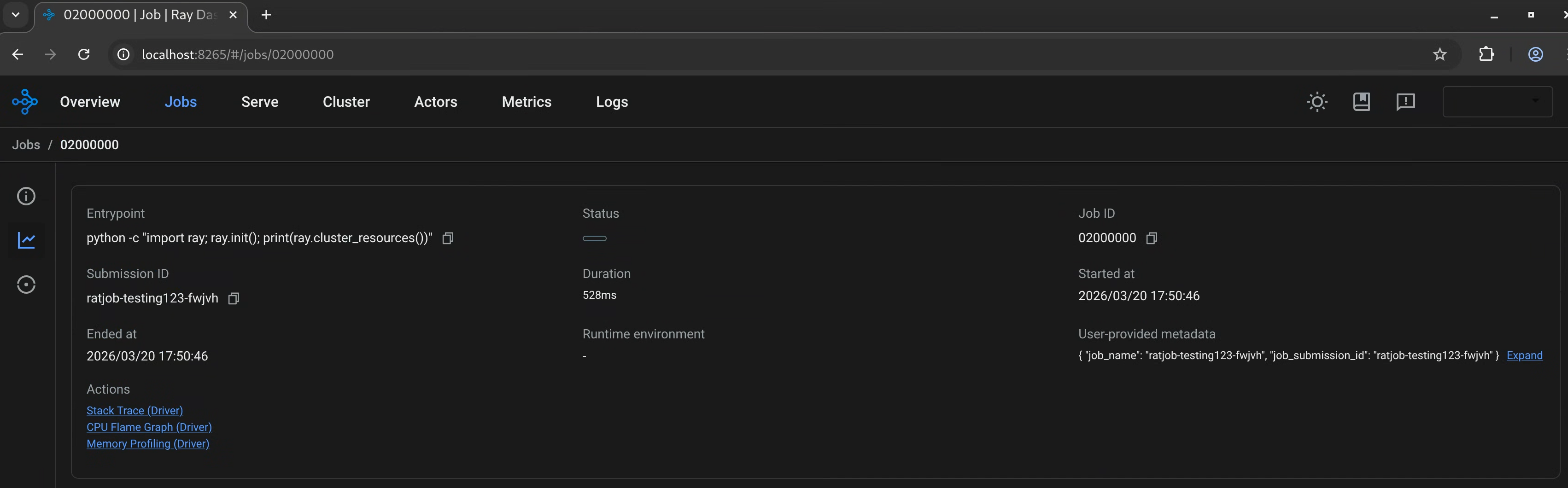
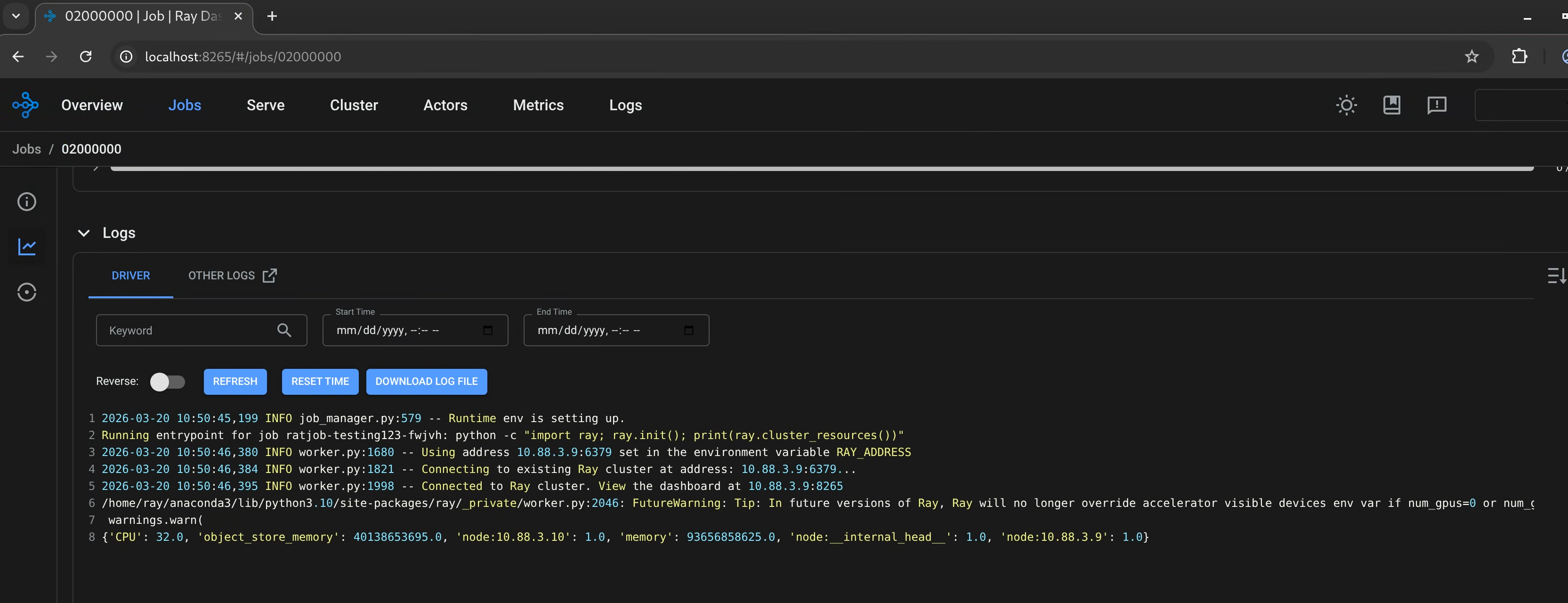
The following images show example Ray Dashboard views backed by Ray History Server:
Ray job status page using Ray History Server as a backend:
Ray job log page using Ray History Server as a backend:
Data retention
Ray History Server doesn't automatically purge data or enforce a retention window. To manage log expiration and control Cloud Storage costs, configure Object Lifecycle Management on your Cloud Storage bucket.
What's next
- Send feedback and bug reports to the KubeRay issue tracker in GitHub.
- Try running Trillium TPU with Ray.
- Learn more about using the Ray operator provided by GKE.