

Create a lakehouse with Spark and Lakehouse runtime catalog
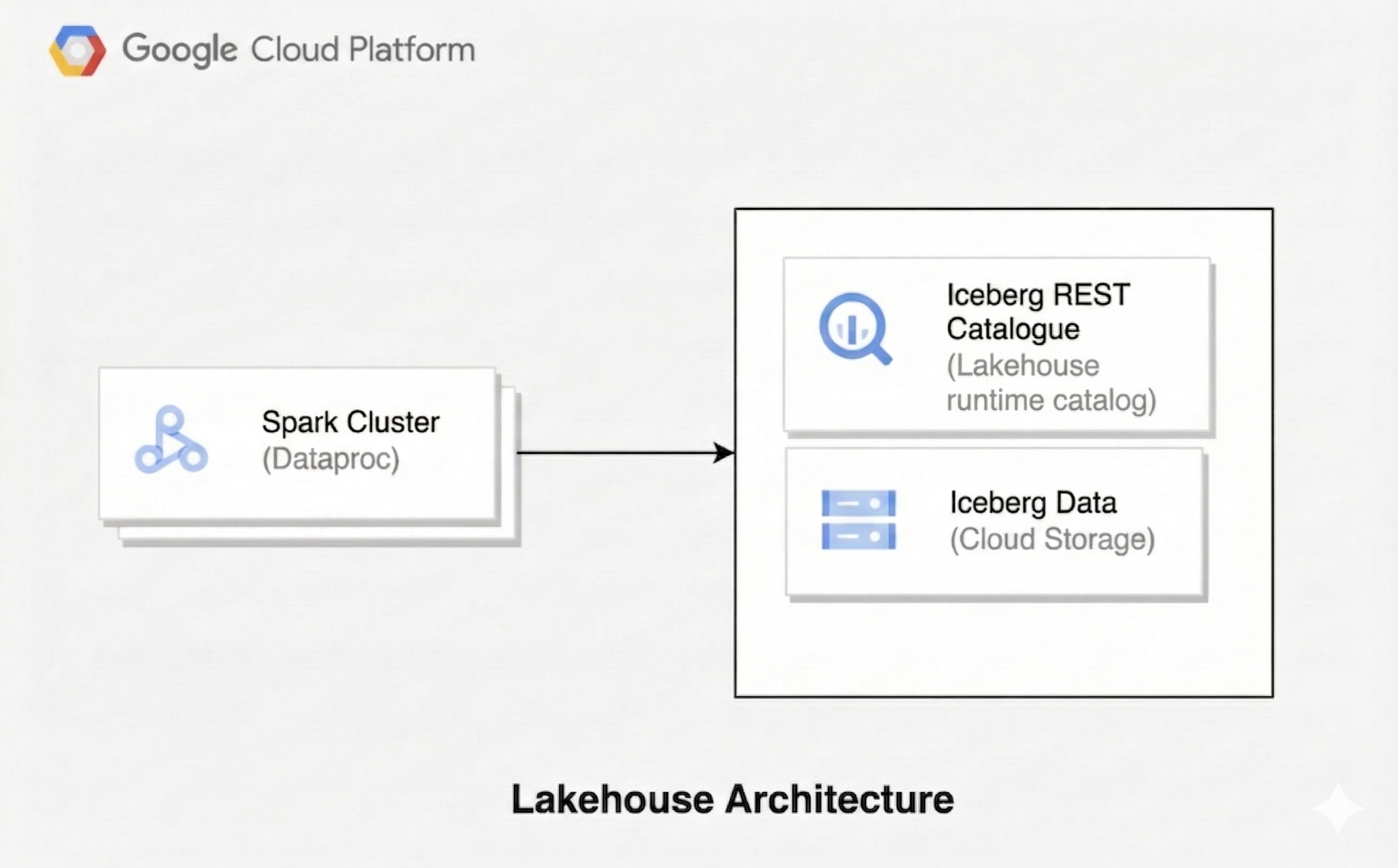
A lakehouse architecture combines the flexibility of a data lake with the data management features of a data warehouse. This document shows you how to set up a lakehouse on Google Cloud. You use Apache Iceberg as the table format, Managed Service for Apache Spark for processing, and the Lakehouse runtime catalog Iceberg REST Catalog for unified metadata management.
This architecture uses open table formats like Iceberg to add data warehousing capabilities, such as transactions and schema evolution, to data in Cloud Storage. This approach creates a single source of truth for your data that various engines can access.
This document covers catalogs that you create in Lakehouse runtime catalog. To query Iceberg tables that are managed by AWS Glue Data Catalog, Databricks Unity Catalog, or Snowflake Horizon Catalog through Lakehouse runtime catalog federated catalogs, see Query federated catalogs with Spark.
Before you begin
- Sign in to your Google Cloud account. If you're new to Google Cloud, create an account to evaluate how our products perform in real-world scenarios. New customers also get $300 in free credits to run, test, and deploy workloads.
-
In the Google Cloud console, on the project selector page, select or create a Google Cloud project.
Roles required to select or create a project
- Select a project: Selecting a project doesn't require a specific IAM role—you can select any project that you've been granted a role on.
-
Create a project: To create a project, you need the Project Creator role
(
roles/resourcemanager.projectCreator), which contains theresourcemanager.projects.createpermission. Learn how to grant roles.
-
Verify that you have the permissions required to complete this guide.
-
Verify that billing is enabled for your Google Cloud project.
Enable the Dataproc, BigLake, BigQuery, and Cloud Storage APIs, if any are not already enabled.
Roles required to enable APIs
To enable APIs, you need the
serviceusage.services.enablepermission. If you created the project, then you likely already have this permission through the Owner role (roles/owner). Otherwise, you can get this permission through the Service Usage Admin role (roles/serviceusage.serviceUsageAdmin). Learn how to grant roles.-
In the Google Cloud console, on the project selector page, select or create a Google Cloud project.
Roles required to select or create a project
- Select a project: Selecting a project doesn't require a specific IAM role—you can select any project that you've been granted a role on.
-
Create a project: To create a project, you need the Project Creator role
(
roles/resourcemanager.projectCreator), which contains theresourcemanager.projects.createpermission. Learn how to grant roles.
-
Verify that you have the permissions required to complete this guide.
-
Verify that billing is enabled for your Google Cloud project.
Enable the Dataproc, BigLake, BigQuery, and Cloud Storage APIs, if any are not already enabled.
Roles required to enable APIs
To enable APIs, you need the
serviceusage.services.enablepermission. If you created the project, then you likely already have this permission through the Owner role (roles/owner). Otherwise, you can get this permission through the Service Usage Admin role (roles/serviceusage.serviceUsageAdmin). Learn how to grant roles.- Create a Cloud Storage bucket to store Iceberg data.
- Create a catalog in Lakehouse runtime catalog that points to your bucket. A multiple-bucket catalog is recommended.
Required roles
Certain Identity and Access Management (IAM) roles are required to run the examples on this page. Depending on organization policies, these roles may have already been granted. To check role grants, see Do you need to grant roles?.
For more information about granting roles, see Manage access to projects,folders, and organizations.
The roles that you need depend on how your workload runs.
Managed Service for Apache Spark clusters and
Managed Service for Apache Spark serverless runtimes 2.3 and earlier run workloads
as a service account. Managed Service for Apache Spark serverless runtimes 3.0 and
later run workloads with your end-user credentials (EUC) by default, so you
grant data access roles to your user account instead of a service account. If
you specify a custom service account for a 3.0 or later runtime, the workload
runs with service account credentials. For more information, see
Serverless deployments roles.
User roles
To get the permissions that you need to create a Managed Service for Apache Spark cluster, submit a batch workload, or create an interactive session, ask your administrator to grant you the following IAM roles:
-
Use a cluster or a serverless runtime 2.3 or earlier:
- Dataproc Editor (
roles/dataproc.editor) on the project - Service Account User (
roles/iam.serviceAccountUser) on the Compute Engine default service account or a custom service account
- Dataproc Editor (
-
Use a serverless runtime 3.0 or later:
Dataproc Serverless Editor (
roles/dataproc.serverlessEditor) on the project -
Use service account credentials on a serverless runtime 3.0 or later:
Service Account User (
roles/iam.serviceAccountUser) on the custom service account
If you use a Managed Service for Apache Spark serverless runtime 3.0 or later with
end-user credentials (the default), you also need the following data access
roles:
To get the permissions that you need to read and write tables in your catalog with end-user credentials, ask your administrator to grant you the following IAM roles:
-
Read and write table data in credential vending mode:
BigLake Editor (
roles/biglake.editor) on the project that contains the catalog -
Manage catalog resources and write table data in non-credential vending mode:
- BigLake Editor (
roles/biglake.editor) on the project that contains the catalog - Storage Object User (
roles/storage.objectUser) on all Cloud Storage buckets associated with the catalog
- BigLake Editor (
Service account roles
Grant the following roles to the service account that runs your workload.
Managed Service for Apache Spark serverless runtimes 3.0 and later need these
roles only if the workload runs with service account credentials.
To ensure that the Compute Engine default service account or a custom service account has the necessary permissions to run Managed Service for Apache Spark jobs and read and write tables in your catalog, ask your administrator to grant the following IAM roles to the Compute Engine default service account or a custom service account:
-
Run Managed Service for Apache Spark jobs on a cluster or a serverless runtime 2.3 or earlier:
Dataproc Worker (
roles/dataproc.worker) on the project -
Run Managed Service for Apache Spark jobs on a serverless runtime 3.0 or later:
- Dataproc Serverless Node (
roles/dataproc.serverlessNode) on the project - Dataproc Resource Manager Node Service Agent (
roles/dataprocrm.nodeServiceAgent) on the project
- Dataproc Serverless Node (
-
Read and write table data in credential vending mode:
BigLake Editor (
roles/biglake.editor) on the project that contains the catalog -
Manage catalog resources and write table data in non-credential vending mode:
- BigLake Editor (
roles/biglake.editor) on the project that contains the catalog - Storage Object User (
roles/storage.objectUser) on all Cloud Storage buckets associated with the catalog
- BigLake Editor (
Configure Managed Service for Apache Spark and create a Spark session
Configure a Managed Service for Apache Spark cluster, a
Managed Service for Apache Spark serverless batch workload, or a
Managed Service for Apache Spark serverless interactive session to use the
Lakehouse runtime catalog Iceberg REST Catalog. All three
support the
dataproc.lakehouse.catalog.CATALOG_NAME simplified
configuration property (recommended), which lets Managed Service for Apache Spark
read the catalog definition and generate the Iceberg REST
Catalog Spark properties. Only the cluster form takes the dataproc: prefix.
Supported image and runtime versions:
Both simplified configuration and manual configuration use Google authorization
for Iceberg (GoogleAuthManager), which requires one of
the following versions:
- Managed Service for Apache Spark clusters:
2.2image versions2.2.65and later, or2.3image versions2.3.11and later. - Managed Service for Apache Spark serverless batch workloads and interactive
sessions:
2.2runtimes2.2.60and later,2.3runtimes2.3.10and later, or3.0runtimes.
For serverless batch workloads and interactive sessions, the required roles
depend on the runtime version. Runtimes 3.0 and later use end-user
credentials by default. For details, see Required roles.
Cluster
Create a Managed Service for Apache Spark cluster with the Iceberg and Jupyter optional components using simplified configuration properties (recommended), or by manually specifying catalog properties in your notebook.
Simplified configuration using properties (recommended)
Create the cluster with the catalog property:
gcloud dataproc clusters create CLUSTER_NAME \
  --project=PROJECT_ID \
  --region=REGION \
  --image-version=IMAGE_VERSION \
  --optional-components=ICEBERG,JUPYTER \
  --enable-component-gateway \
  --properties='dataproc:dataproc.lineage.enabled=true,dataproc:dataproc.lakehouse.catalog.CATALOG_NAME=projects/PROJECT_ID/catalogs/CATALOG_ID,spark:spark.sql.defaultCatalog=CATALOG_NAME'
Replace the following:
CLUSTER_NAME: a name for your cluster.PROJECT_ID: your Google Cloud project ID.REGION: the Google Cloud region for the cluster, for example,us-central1.IMAGE_VERSION: the Managed Service for Apache Spark image version—for example,2.3-debian12. See Supported image and runtime versions.CATALOG_NAME: a name for the local Spark catalog, for example,iceberg_catalog. It can be the same asCATALOG_ID.CATALOG_ID: the ID of the catalog that you created in Before you begin.
The dataproc:dataproc.lineage.enabled=true property isn't required for the
Lakehouse runtime catalog Iceberg REST Catalog to work
correctly. It is added for lineage tracking in the
data lineage example.
Connect to the cluster using a Jupyter notebook (either a
Vertex AI Workbench notebook or a notebook launched on the
cluster), and create the SparkSession without specifying catalog configs:
from pyspark.sql import SparkSession

spark = SparkSession.builder.appName("APP_NAME").getOrCreate()
Replace APP_NAME with the name of your
Spark application.
Manual configuration
If you don't use the simplified configuration property, create the cluster
as described earlier without dataproc:dataproc.lakehouse.catalog.
in the --properties flag, connect to a Jupyter notebook, and
configure your SparkSession manually, as follows:
import pyspark
from pyspark.context import SparkContext
from pyspark.sql import SparkSession

catalog_name = "CATALOG_NAME"

spark = SparkSession.builder.appName("APP_NAME") \
.config('spark.sql.defaultCatalog', catalog_name) \
.config(f'spark.sql.catalog.{catalog_name}', 'org.apache.iceberg.spark.SparkCatalog') \
.config(f'spark.sql.catalog.{catalog_name}.type', 'rest') \
.config(f'spark.sql.catalog.{catalog_name}.uri', 'https://biglake.googleapis.com/iceberg/v1/restcatalog') \
.config(f'spark.sql.catalog.{catalog_name}.warehouse', 'WAREHOUSE_PATH') \
.config(f'spark.sql.catalog.{catalog_name}.header.x-goog-user-project', 'PROJECT_ID') \
.config(f'spark.sql.catalog.{catalog_name}.rest.auth.type', 'org.apache.iceberg.gcp.auth.GoogleAuthManager') \
.config(f'spark.sql.catalog.{catalog_name}.io-impl', 'org.apache.iceberg.gcp.gcs.GCSFileIO') \
.config('spark.sql.extensions', 'org.apache.iceberg.spark.extensions.IcebergSparkSessionExtensions') \
.getOrCreate()
Replace the following:
CATALOG_NAME: a name for the local Spark catalog, for example,iceberg_catalog.APP_NAME: the name of your Spark application.WAREHOUSE_PATH: the path to your warehouse. For multiple-bucket catalogs (recommended), usebl://projects/PROJECT_ID/catalogs/CATALOG_ID. For single-bucket catalogs, usegs://CLOUD_STORAGE_BUCKET_NAME.PROJECT_ID: your Google Cloud project ID.
Configure with credential vending
To use credential vending, you must use a
catalog in credential vending mode
and add the X-Iceberg-Access-Delegation header to
Iceberg REST catalog requests with a value of
vended-credentials by adding the following line to the
SparkSession builder:
.config(f'spark.sql.catalog.{catalog_name}.header.X-Iceberg-Access-Delegation', 'vended-credentials')
The following example configures the SparkSession with
credential vending:
from pyspark.sql import SparkSession

catalog_name = "CATALOG_NAME"

spark = SparkSession.builder.appName("APP_NAME") \
.config('spark.sql.defaultCatalog', catalog_name) \
.config(f'spark.sql.catalog.{catalog_name}', 'org.apache.iceberg.spark.SparkCatalog') \
.config(f'spark.sql.catalog.{catalog_name}.type', 'rest') \
.config(f'spark.sql.catalog.{catalog_name}.uri', 'https://biglake.googleapis.com/iceberg/v1/restcatalog') \
.config(f'spark.sql.catalog.{catalog_name}.warehouse', 'WAREHOUSE_PATH') \
.config(f'spark.sql.catalog.{catalog_name}.header.x-goog-user-project', 'PROJECT_ID') \
.config(f'spark.sql.catalog.{catalog_name}.rest.auth.type', 'org.apache.iceberg.gcp.auth.GoogleAuthManager') \
.config(f'spark.sql.catalog.{catalog_name}.io-impl', 'org.apache.iceberg.gcp.gcs.GCSFileIO') \
.config(f'spark.sql.catalog.{catalog_name}.header.X-Iceberg-Access-Delegation', 'vended-credentials') \
.config('spark.sql.extensions', 'org.apache.iceberg.spark.extensions.IcebergSparkSessionExtensions') \
.getOrCreate()
Simplified configuration adds this header when the catalog uses
credential vending mode. For more information, see the
Headers in the RESTCatalog
section of the Iceberg documentation.
Serverless
Submit a PySpark batch workload to Managed Service for Apache Spark serverless using simplified configuration properties (recommended), or by manually specifying catalog properties.
Simplified configuration using properties (recommended)
Pass the dataproc.lakehouse.catalog.CATALOG_NAME
property (without the dataproc: prefix) when you submit the batch workload:
gcloud dataproc batches submit pyspark PYSPARK_FILE \
  --project=PROJECT_ID \
  --region=REGION \
  --version=RUNTIME_VERSION \
  --properties="dataproc.lakehouse.catalog.CATALOG_NAME=projects/PROJECT_ID/catalogs/CATALOG_ID,spark.sql.defaultCatalog=CATALOG_NAME"
Replace the following:
PYSPARK_FILE: thegs://Cloud Storage path to your PySpark application file.PROJECT_ID: your Google Cloud project ID.REGION: the region for your batch workload.RUNTIME_VERSION: the Managed Service for Apache Spark serverless runtime version, for example,3.0. The required roles depend on the runtime version (see Supported image and runtime versions).CATALOG_NAME: a name for the local Spark catalog, for example,iceberg_catalog. It can be the same asCATALOG_ID.CATALOG_ID: the ID of the catalog that you created in Before you begin.
In your PySpark application file, create the SparkSession without
specifying catalog configs:
from pyspark.sql import SparkSession

spark = SparkSession.builder.appName("APP_NAME").getOrCreate()
Manual configuration
If you don't use the simplified configuration property, specify the catalog
properties in the --properties flag when you submit your batch
workload:
gcloud dataproc batches submit pyspark PYSPARK_FILE \
  --project=PROJECT_ID \
  --region=REGION \
  --version=RUNTIME_VERSION \
  --properties="\
spark.sql.defaultCatalog=CATALOG_NAME,\
spark.sql.catalog.CATALOG_NAME=org.apache.iceberg.spark.SparkCatalog,\
spark.sql.catalog.CATALOG_NAME.type=rest,\
spark.sql.catalog.CATALOG_NAME.uri=https://biglake.googleapis.com/iceberg/v1/restcatalog,\
spark.sql.catalog.CATALOG_NAME.warehouse=WAREHOUSE_PATH,\
spark.sql.catalog.CATALOG_NAME.header.x-goog-user-project=PROJECT_ID,\
spark.sql.catalog.CATALOG_NAME.rest.auth.type=org.apache.iceberg.gcp.auth.GoogleAuthManager,\
spark.sql.catalog.CATALOG_NAME.io-impl=org.apache.iceberg.gcp.gcs.GCSFileIO,\
spark.sql.extensions=org.apache.iceberg.spark.extensions.IcebergSparkSessionExtensions"
Replace WAREHOUSE_PATH with the path
to your warehouse. For multiple-bucket catalogs (recommended), use
bl://projects/PROJECT_ID/catalogs/CATALOG_ID.
For single-bucket catalogs, use
gs://CLOUD_STORAGE_BUCKET_NAME.
Configure with credential vending
To use credential vending, you must use a
catalog in credential vending mode
and add the X-Iceberg-Access-Delegation header to
Iceberg REST catalog requests with a value of
vended-credentials by adding the following property to the
--properties flag:
spark.sql.catalog.CATALOG_NAME.header.X-Iceberg-Access-Delegation=vended-credentialsThe following example submits a batch workload with credential vending:
gcloud dataproc batches submit pyspark PYSPARK_FILE \
  --project=PROJECT_ID \
  --region=REGION \
  --version=RUNTIME_VERSION \
  --properties="\
spark.sql.defaultCatalog=CATALOG_NAME,\
spark.sql.catalog.CATALOG_NAME=org.apache.iceberg.spark.SparkCatalog,\
spark.sql.catalog.CATALOG_NAME.type=rest,\
spark.sql.catalog.CATALOG_NAME.uri=https://biglake.googleapis.com/iceberg/v1/restcatalog,\
spark.sql.catalog.CATALOG_NAME.warehouse=WAREHOUSE_PATH,\
spark.sql.catalog.CATALOG_NAME.header.x-goog-user-project=PROJECT_ID,\
spark.sql.catalog.CATALOG_NAME.rest.auth.type=org.apache.iceberg.gcp.auth.GoogleAuthManager,\
spark.sql.catalog.CATALOG_NAME.io-impl=org.apache.iceberg.gcp.gcs.GCSFileIO,\
spark.sql.catalog.CATALOG_NAME.header.X-Iceberg-Access-Delegation=vended-credentials,\
spark.sql.extensions=org.apache.iceberg.spark.extensions.IcebergSparkSessionExtensions"
Simplified configuration adds this header when the catalog uses
credential vending mode. For more information, see the
Headers in the RESTCatalog
section of the Iceberg documentation.
Serverless
Create a Managed Service for Apache Spark serverless interactive session from a
notebook with the
DataprocSparkSession
API, using simplified configuration properties (recommended), or by manually
specifying catalog properties.
Simplified configuration using properties (recommended)
In a notebook that has the dataproc-spark-connect package installed, such as
a BigQuery Studio notebook or a Vertex AI Workbench
notebook, pass the
dataproc.lakehouse.catalog.CATALOG_NAME property
(without the dataproc: prefix) when you create the session:
from google.cloud.dataproc_spark_connect import DataprocSparkSession
from google.cloud.dataproc_v1 import Session

catalog_name = "CATALOG_NAME"

session_config = Session()
session_config.runtime_config.version = 'RUNTIME_VERSION'

spark = DataprocSparkSession.builder.appName("APP_NAME") \
.dataprocSessionConfig(session_config) \
.config(f'dataproc.lakehouse.catalog.{catalog_name}', 'projects/PROJECT_ID/catalogs/CATALOG_ID') \
.config('spark.sql.defaultCatalog', catalog_name) \
.getOrCreate()
Replace the following:
CATALOG_NAME: a name for the local Spark catalog, for example,iceberg_catalog. It can be the same asCATALOG_ID.RUNTIME_VERSION: the Managed Service for Apache Spark serverless runtime version, for example,3.0. The required roles depend on the runtime version (see Supported image and runtime versions).APP_NAME: the name of your Spark application.PROJECT_ID: your Google Cloud project ID.CATALOG_ID: the ID of the catalog that you created in Before you begin.
You can also set these properties in a session template.
Manual configuration
If you don't use the simplified configuration property, specify the catalog properties when you create the session:
from google.cloud.dataproc_spark_connect import DataprocSparkSession
from google.cloud.dataproc_v1 import Session

catalog_name = "CATALOG_NAME"

session_config = Session()
session_config.runtime_config.version = 'RUNTIME_VERSION'

spark = DataprocSparkSession.builder.appName("APP_NAME") \
.dataprocSessionConfig(session_config) \
.config('spark.sql.defaultCatalog', catalog_name) \
.config(f'spark.sql.catalog.{catalog_name}', 'org.apache.iceberg.spark.SparkCatalog') \
.config(f'spark.sql.catalog.{catalog_name}.type', 'rest') \
.config(f'spark.sql.catalog.{catalog_name}.uri', 'https://biglake.googleapis.com/iceberg/v1/restcatalog') \
.config(f'spark.sql.catalog.{catalog_name}.warehouse', 'WAREHOUSE_PATH') \
.config(f'spark.sql.catalog.{catalog_name}.header.x-goog-user-project', 'PROJECT_ID') \
.config(f'spark.sql.catalog.{catalog_name}.rest.auth.type', 'org.apache.iceberg.gcp.auth.GoogleAuthManager') \
.config(f'spark.sql.catalog.{catalog_name}.io-impl', 'org.apache.iceberg.gcp.gcs.GCSFileIO') \
.config('spark.sql.extensions', 'org.apache.iceberg.spark.extensions.IcebergSparkSessionExtensions') \
.getOrCreate()
Replace RUNTIME_VERSION as
described in the simplified configuration example earlier in this tab.
Replace WAREHOUSE_PATH with the path
to your warehouse. For multiple-bucket catalogs (recommended), use
bl://projects/PROJECT_ID/catalogs/CATALOG_ID.
For single-bucket catalogs, use
gs://CLOUD_STORAGE_BUCKET_NAME.
Configure with credential vending
To use credential vending, you must use a
catalog in credential vending mode
and add the X-Iceberg-Access-Delegation header to
Iceberg REST catalog requests with a value of
vended-credentials by adding the following line to the
session builder:
.config(f'spark.sql.catalog.{catalog_name}.header.X-Iceberg-Access-Delegation', 'vended-credentials')
The following example creates a session with credential vending:
from google.cloud.dataproc_spark_connect import DataprocSparkSession
from google.cloud.dataproc_v1 import Session

catalog_name = "CATALOG_NAME"

session_config = Session()
session_config.runtime_config.version = 'RUNTIME_VERSION'

spark = DataprocSparkSession.builder.appName("APP_NAME") \
.dataprocSessionConfig(session_config) \
.config('spark.sql.defaultCatalog', catalog_name) \
.config(f'spark.sql.catalog.{catalog_name}', 'org.apache.iceberg.spark.SparkCatalog') \
.config(f'spark.sql.catalog.{catalog_name}.type', 'rest') \
.config(f'spark.sql.catalog.{catalog_name}.uri', 'https://biglake.googleapis.com/iceberg/v1/restcatalog') \
.config(f'spark.sql.catalog.{catalog_name}.warehouse', 'WAREHOUSE_PATH') \
.config(f'spark.sql.catalog.{catalog_name}.header.x-goog-user-project', 'PROJECT_ID') \
.config(f'spark.sql.catalog.{catalog_name}.rest.auth.type', 'org.apache.iceberg.gcp.auth.GoogleAuthManager') \
.config(f'spark.sql.catalog.{catalog_name}.io-impl', 'org.apache.iceberg.gcp.gcs.GCSFileIO') \
.config(f'spark.sql.catalog.{catalog_name}.header.X-Iceberg-Access-Delegation', 'vended-credentials') \
.config('spark.sql.extensions', 'org.apache.iceberg.spark.extensions.IcebergSparkSessionExtensions') \
.getOrCreate()
Simplified configuration adds this header when the catalog uses
credential vending mode. For more information, see the
Headers in the RESTCatalog
section of the Iceberg documentation.
Manage data with Spark SQL
After you configure the Spark session, use Spark SQL to perform data management operations.
Setting the catalog: The dataproc.lakehouse.catalog. property registers
the catalog with Spark, but it doesn't make it the default catalog. The
examples in the preceding section set spark.sql.defaultCatalog
(spark:spark.sql.defaultCatalog on a cluster) so that you can use
unqualified table names. If you omit that property, qualify table names with
the catalog name—for example,
CATALOG_NAME.NAMESPACE_NAME.base_table.
Create a namespace. In the Lakehouse runtime catalog Iceberg REST Catalog, a namespace corresponds to a BigQuery dataset.
spark.sql("CREATE NAMESPACE IF NOT EXISTS NAMESPACE_NAME")
spark.sql("USE NAMESPACE_NAME")
Replace
NAMESPACE_NAMEwith the name for your namespace, for example,spark_lakehouse.Create a base table in Iceberg format and insert data.
spark.sql("DROP TABLE IF EXISTS base_table PURGE")
spark.sql("CREATE TABLE base_table (id LONG) USING iceberg")
spark.sql("INSERT INTO base_table VALUES 0, 1, 2, 3, 4")
spark.sql("SELECT * FROM base_table").show()
The output is similar to the following:
   +---+
   | id|
   +---+
   |  0|
   |  1|
   |  2|
   |  3|
   |  4|
   +---+
Create another table for new data.
spark.sql("DROP TABLE IF EXISTS newdata PURGE")
spark.sql("CREATE TABLE newdata(id LONG) USING iceberg")
spark.sql("INSERT INTO newdata VALUES 3, 4, 5, 6")
spark.sql("SELECT * FROM newdata").show()
The output is similar to the following:
   +---+
   | id|
   +---+
   |  3|
   |  4|
   |  5|
   |  6|
   +---+
Merge the new data into the base table.
spark.sql("""MERGE INTO base_table USING newdata
           ON base_table.id = newdata.id
           WHEN MATCHED THEN
             UPDATE SET base_table.id = newdata.id
           WHEN NOT MATCHED THEN INSERT * """)
spark.sql("SELECT * FROM base_table").show()
The output is similar to the following:
   +---+
   | id|
   +---+
   |  0|
   |  1|
   |  2|
   |  3|
   |  4|
   |  5|
   |  6|
   +---+
Update records in the base table.
spark.sql(
     "UPDATE base_table SET id = (id + 100) WHERE (id % 2 == 0)"
 )
spark.sql("SELECT * FROM base_table").show()
The output is similar to the following:
   +---+
   | id|
   +---+
   |  3|
   |104|
   |  5|
   |106|
   |100|
   |102|
   |  1|
   +---+
Delete records from the base table.
spark.sql("DELETE FROM base_table WHERE (id % 2 == 0)")
spark.sql("SELECT * FROM base_table").show()
The output is similar to the following:
   +---+
   | id|
   +---+
   |  3|
   |  5|
   |  1|
   +---+
Query a historical snapshot
Retrieve a previous version of a table by querying a snapshot ID. This operation is also known as time travel.
Retrieve the snapshot ID of the table version before the
MERGE,UPDATE, andDELETEoperations.snapshot_ids = spark.sql( "SELECT snapshot_id FROM `NAMESPACE_NAME`.`base_table`.snapshots" ).collect() oldest_snapshot_id = snapshot_ids[1]["snapshot_id"]Replace
NAMESPACE_NAMEwith the namespace that you created.Query the table using the retrieved snapshot ID.
df = (
     spark.read.format("iceberg")
     .option("versionAsOf", oldest_snapshot_id)
     .load("base_table")
 )
df.show()
The output shows the state of the table after the
MERGEoperation but beforeUPDATEorDELETEoperations.+---+ | id| +---+ | 0| | 1| | 2| | 3| | 4| | 5| | 6| +---+
Discover data lineage
Using Managed Service for Apache Spark 2.2 and later image versions,
you can track data movement between Lakehouse runtime catalog
Iceberg REST Catalog tables
with data lineage.
Data lineage example
Create source and target Iceberg tables, then copy data.
spark.sql("DROP TABLE IF EXISTS source_table PURGE")
spark.sql("DROP TABLE IF EXISTS target_table PURGE")
spark.sql("CREATE TABLE source_table (id LONG) USING iceberg")
spark.sql("""CREATE TABLE target_table
  USING ICEBERG
  AS SELECT max(id) as top_id FROM source_table
  """)
In the Google Cloud console, go to the Knowledge Catalog Search page.
Search for one of the tables, and then click the
Lineagetab: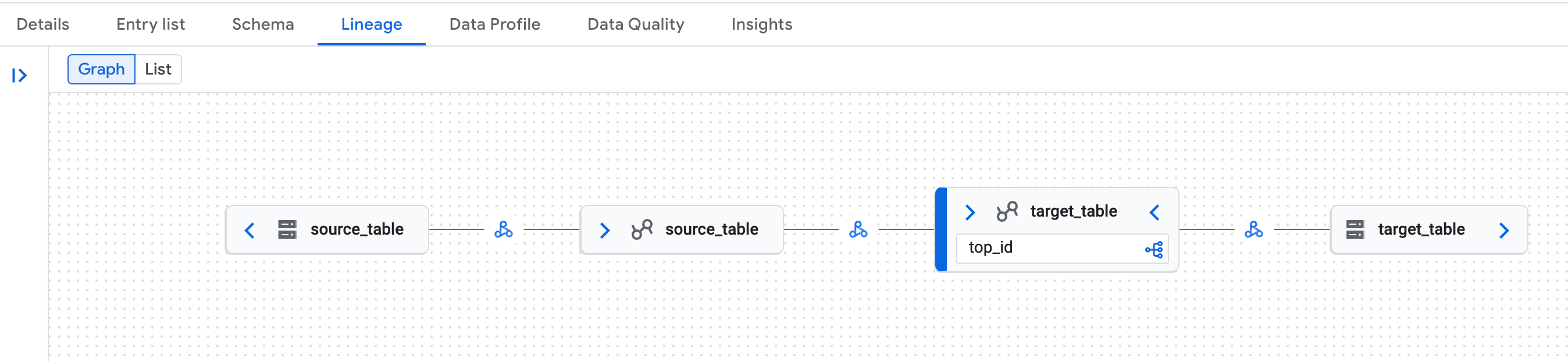
Example of data lineage graph in the Knowledge Catalog page in the Google Cloud console. Data lineage recognizes both the logical (Lakehouse runtime catalog table) and physical (Cloud Storage) representations of Lakehouse runtime catalog Iceberg REST Catalog tables.
Data lineage known issues
In some Managed Service for Apache Spark clusters, the full data lineage may not be generated due to an OpenLineage library issue. This is a known limitation. If it affects your workloads, contact Google Cloud support.
What's next
- Learn more about the Lakehouse runtime catalog Iceberg REST Catalog.
- Query federated catalogs with Spark.
- Explore the features of Apache Iceberg.
- Learn how to query Iceberg data from Lakehouse runtime catalog.
- Learn more about data lineage and Managed Service for Apache Spark.