

This document explains how to install, upgrade, and uninstall Google Distributed Cloud (GDC) air-gapped Marketplace software packages using the GDC console. You can also install software packages using the gdcloud marketplace CLI or the Marketplace API.
This document is for audiences within the application operator group who manage the lifecycle of Marketplace deployments within GDC projects. For more information, see Audiences for GDC air-gapped documentation.
Before you begin
Before you can install, upgrade, or uninstall Marketplace software packages, you must have the necessary permissions and prepare your environment.
Request IAM roles
Contact your IAM Org Admin or IAM Project Admin to request the following roles based on the tasks you need to perform within your project:
- Marketplace Editor (
marketplace-editor): install, upgrade, and uninstall Marketplace software packages. - Project Viewer (
project-viewer): view an existing project and its resources.
The IAM Org Admin can grant these roles for any project within the organization. The IAM Project Admin can grant these roles within the scope of their specific project.
Prepare your environment
The tasks on this page primarily use the GDC console. If you plan to use the command-line alternatives, complete the following:
- Download and install the gdcloud CLI, if you haven't already done so.
- To use the API with
kubectl, additional setup is required:
Install a Distributed Cloud marketplace software package
To install a software package from the Distributed Cloud marketplace, complete the following steps:
Console
- In the project selector of the GDC console, select the project you want to install the software package in.
- In the Distributed Cloud marketplace, visit the listing page for the product that you want to install. From this page, you can review details of the product and follow links to its documentation, pricing, and terms of services.
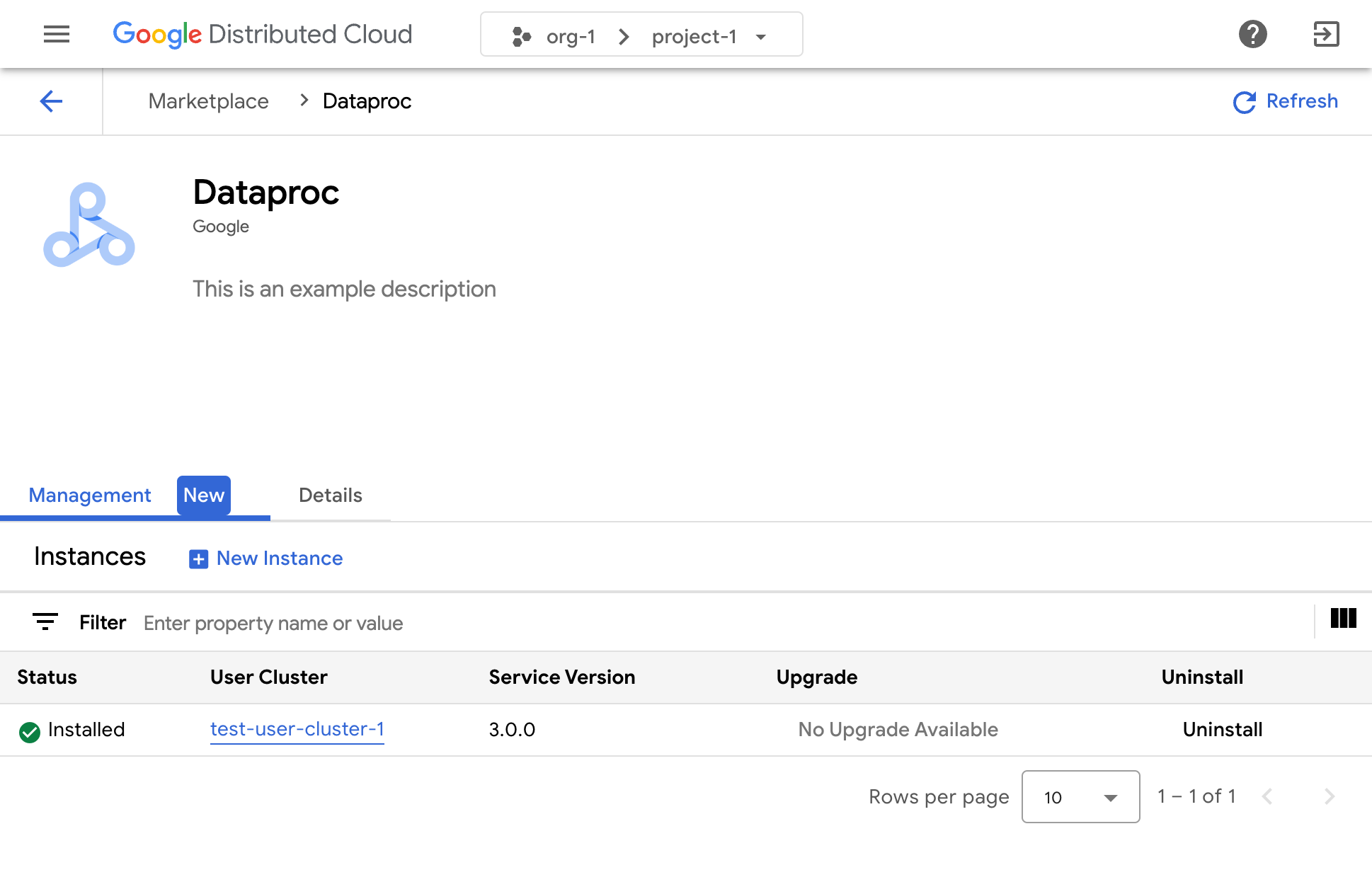
- If it's the first time you are installing this product, click Install. Otherwise, go to the Management tab and click New Instance.
- In the dialog, select which user cluster you want to install the software package in. If you want to customize its configuration, click Next. If you want to use the default configuration, click Install.
- If you clicked Next, you can now examine the default configuration. Click Custom configuration to enter your own parameters, following the vendor's documentation. When finished, click Install to proceed with the installation. For Kubernetes software packages, the parameters that you configure here override the default values provided by the vendor in their Helm values file.
Wait a few minutes for your new instance to be marked as Ready in the Management tab of the page.
Consult the documentation of the relevant software vendor to learn how to use their solution once it's installed.
gdcloud
Select the project you want to install the software package in:
gdcloud config set project PROJECT_NAMEReplace
PROJECT_NAMEwith the name of the project you want to install the software package in.List the available Marketplace applications:
gdcloud marketplace services listInstall the selected application from the list, specifying the target cluster:
gdcloud marketplace services install SERVICE_NAME \
  --cluster=CLUSTER_NAME
To provide custom configuration overrides during installation, use the
--parameters-fileflag:gdcloud marketplace services install SERVICE_NAME \ --cluster=CLUSTER_NAME \ --parameters-file=PATH_TO_PARAMETERS_FILEReplace the following:
SERVICE_NAME: the name of the Marketplace service to install (for example,dataproc)CLUSTER_NAME: the name of the target user cluster where you want to install the applicationPATH_TO_PARAMETERS_FILE: the path to a YAML file containing configuration override parameters for the service instance
Verify the installation:
gdcloud marketplace services listConfirm that the newly installed application appears in the list with a
READYorINSTALLEDstatus.
API
List available
ServiceVersionresources to find the specific service and version you want to install:kubectl get serviceversions -n mkt-systemCreate a YAML manifest for a
ServiceInstanceresource (for example,service-instance.yaml):apiVersion: marketplace.gdc.goog/v1 kind: ServiceInstance metadata: name: INSTANCE_NAME spec: clusterRef: name: CLUSTER_NAME namespace: CLUSTER_NAMESPACE serviceVersionRef: name: SERVICE_VERSION_NAME namespace: mkt-system parameters: KEY: VALUEReplace the following:
INSTANCE_NAME: a name for your new application instanceCLUSTER_NAME: the name of the target user cluster where you want to install the applicationCLUSTER_NAMESPACE: the namespace of the cluster (for example,production-cluster)SERVICE_VERSION_NAME: the name of theServiceVersionto install (for example,dataproc-1.0.0)KEY: the configuration override parameter name, following the vendor's Helm values schemaVALUE: the value for the configuration override parameter
For more information and an example manifest, see Marketplace API overview.
Apply the manifest to the project:
kubectl apply -f service-instance.yaml -n PROJECT_NAMEReplace
PROJECT_NAMEwith the name of the project you want to install the software package in.Verify the installation by inspecting the status of the
ServiceInstanceobject:kubectl get serviceinstance INSTANCE_NAME -n PROJECT_NAME -o yamlConfirm that
status.conditionscontains a condition of typeReadywith status"True", and thatstatus.installedVersiondisplays the installed version.
Reconfigure an instance of a Distributed Cloud marketplace software package
Some Distributed Cloud marketplace software packages can be reconfigured when they are already running. For Kubernetes-based services, this is equivalent to applying new values to the vendor's Helm chart.
To reconfigure a running instance of a Distributed Cloud marketplace software package, work through the following steps:
- In the project selector of the GDC console, select the project in which you want to upgrade the software package.
- On the Distributed Cloud marketplace page, visit the listing page for the product you want to upgrade.
- Click the Management tab.
- Click Configuration file for the instance you want to reconfigure.
- In the panel that opens, enter your custom parameters, following the vendor's documentation.
- Click Save to apply the new parameters. The reconfiguration completes in a few minutes.
Upgrade a Distributed Cloud marketplace software package
Some Distributed Cloud marketplace software packages can be upgraded to a new version through the Google Distributed Cloud marketplace after your Infrastructure Operator makes those new versions available to you.
To upgrade a Distributed Cloud marketplace software package, work through the following steps:
- In the project selector of the GDC console, select the project in which you want to upgrade the software package.
- On the Distributed Cloud marketplace page, visit the listing page for the product you want to upgrade.
- Click the Management tab.
- Click Upgrade on the instance you want to upgrade. The upgrade completes in a few minutes.
Uninstall a Distributed Cloudmarketplace software package
To uninstall a Distributed Cloud marketplace software package, complete the following steps:
- In the project selector of the GDC console, select the project you want to uninstall the software package from.
- On the Distributed Cloud marketplace page, visit the listing page for the product you want to uninstall.
- Click the Management tab.
- Click Uninstall for the instance you want to uninstall.
The software package is uninstalled in a few minutes.