

This document describes how to use the Google Kubernetes Engine (GKE) Gateway controller to configure Cloud CDN. You can find detailed information on Cloud CDN concepts, best practices, and troubleshooting in the Cloud CDN documentation.
Cloud CDN helps improve end-user latency and reduces origin load by caching content close to your users. You can enable Cloud CDN caching capabilities by using the GCPHTTPFilter CustomResourceDefinition.
This document is for Application developers, Cloud architects, and Networking specialists who design and architect their organization's network. To learn more about common roles and example tasks that we reference in Google Cloud content, see Common GKE user roles and tasks.
Overview
GKE Gateway integration with Cloud CDN lets you use Kubernetes-native resources to manage edge caching. By using the GCPHTTPFilter resource, you can fine-tune configurations such as cache modes and time to live (TTL) for different slices of your traffic.
You enable Cloud CDN by creating a GCPHTTPFilter object and referencing the object in an HTTPRoute rule. You can create multiple GCPHTTPFilter objects to define different caching behaviors for different types of traffic. For example, you might create one filter for static images and another for a default policy that uses Cloud CDN recommended default values.
The GCPHTTPFilter resource lets you configure the following:
- Cache modes: control how Cloud CDN caches responses from your origin.
- Time to live (TTL) configuration: configure how long objects stay in the cache.
- Cache keys: define which elements of a request (headers, cookies, query strings) are used to generate cache keys.
- Negative caching: cache common error responses or redirects to reduce origin load during failures.
- Cache policies: control how Cloud CDN handles your cacheable
requests. For example, you can enable Cloud CDN to do the following:
- Maintain high availability by continuing to serve cached content even if backend services become unavailable.
- Define specific request headers that bypass the cache to fetch data directly from your backend.
- Merge multiple concurrent requests for the same resource into a single request to reduce backend load.
The GCPHTTPFilter resource must be in the same namespace as that of the HTTPRoute resource to which it is attached. After you configure GCPHTTPFilter, the filter is merged into the filter chain for your route.
The following diagram illustrates how you can use GCPHTTPFilter to apply different caching configurations to specific slices of traffic within an HTTPRoute:
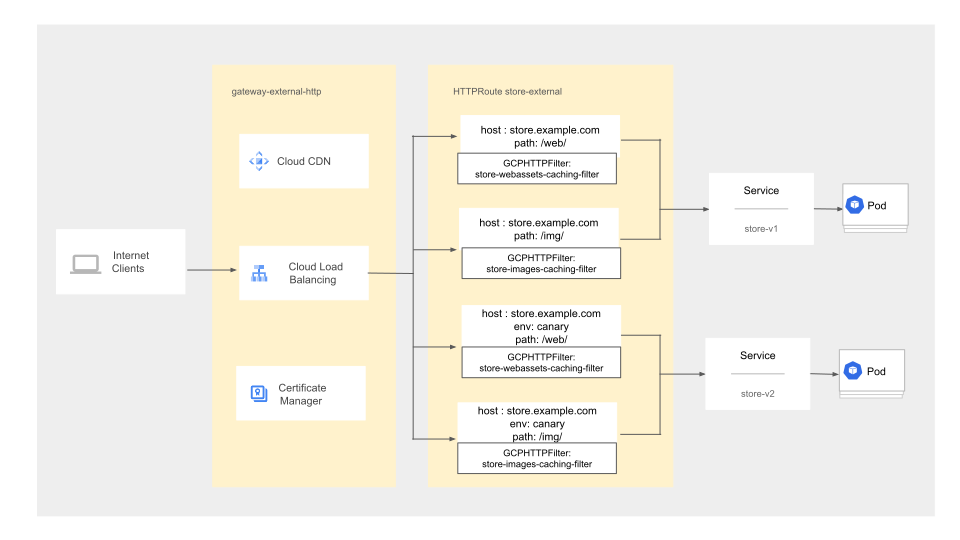
This architecture let you configure granular, automated edge-caching management. An HTTPRoute configures how incoming requests are handled by matching the incoming traffic based on the attributes such as request path. To enable caching for specific routes, GCPHTTPFilters are attached to the rules within the HTTPRoute. Each GCPHTTPFilter can specify a different caching logic for images, web assets, and the other content. This caching logic is then enforced by Cloud CDN, which serves the cached content to the client.
Requirements and limitations
- Your cluster must be on GKE version 1.35.2-gke.1751000 or later.
- You must have configured a global external Gateway
by using the
gke-l7-global-external-managedorgke-l7-global-external-managed-mcGatewayClass. - You must have configured an HTTPRoute resource.
- You can't enable both Identity-Aware Proxy (IAP) and Cloud CDN on the same Gateway. If IAP is required, you must remove the GCPHTTPFilter object before you enable GCPBackendPolicy.
- You can attach only one GCPHTTPFilter object to a specific path rule within an HTTPRoute.
Pricing
Cloud CDN pricing applies when caching is enabled. For more information, see Cloud CDN pricing.
Before you begin
Before you start, make sure that you have performed the following tasks:
- Enable the Google Kubernetes Engine API. Enable Google Kubernetes Engine API
- To use the Google Cloud CLI for this task,
install and then
initialize the
gcloud CLI. If you previously installed the gcloud CLI, get the latest
version by running the
gcloud components updatecommand. Earlier gcloud CLI versions might not support running the commands in this document.
Roles and permissions
To view configured Google Cloud resources, ensure that you have the
roles/compute.networkViewerIAM role.Ensure that you have access to the GKE cluster and are authorized to perform the necessary actions. The following snippet shows the minimal RBAC permissions required:
apiVersion: rbac.authorization.k8s.io/v1
kind: Role
metadata:
  name: gateway-caching-admin
rules:
# 1. Full access to manage HTTPRoutes
- apiGroups: ["gateway.networking.k8s.io"]
  resources: ["httproutes"]
  verbs: ["get", "list", "watch", "create", "update", "patch", "delete"]
# 2. Read-only access to view the Gateway
- apiGroups: ["gateway.networking.k8s.io"]
  resources: ["gateways"]
  verbs: ["get", "list", "watch"]
# 3. Full access to manage caching filters
- apiGroups: ["networking.gke.io"]
  resources: ["gcphttpfilters"]
  verbs: ["get", "list", "watch", "create", "update", "patch", "delete"]
For more information about using RBAC and IAM, see Interaction with Identity and Access Management.
Configure caching with GCPHTTPFilter
To enable and configure Cloud CDN, you create one or more GCPHTTPFilter resources and then reference them in your HTTPRoute object.
Create a GCPHTTPFilter
The GCPHTTPFilter resource defines your caching policy. In the following
example, you create three GCPHTTPFilters:
- The first filter caches static images for faster delivery to end users.
- The second filter caches web assets such as CSS files.
- The third filter serves as a "catch-all" for remaining traffic.
Create the first filter by saving the following manifest as
store-caching-images-filter.yaml:apiVersion: networking.gke.io/v1 kind: GCPHTTPFilter metadata: name: store-caching-images-filter spec: cachePolicy: cacheKeyPolicy: includeQueryString: false cacheMode: CACHE_ALL_STATIC defaultTTL: 12hIn this manifest, the following apply:
includeQueryString: instructs Cloud CDN to ignore query parameters in the cache key. This helps ensure that different user requests for the same image receive identical cached copies.cacheMode: is set toCACHE_ALL_STATIC, which automatically caches static content such as images.defaultTTL: instructs Cloud CDN to cache images for 12 hours. You can specify the time in hours (h), minutes (m), or seconds (s).
Create the second filter. Save the following manifest as
store-caching-webassets-filter.yaml:apiVersion: networking.gke.io/v1 kind: GCPHTTPFilter metadata: name: store-caching-webassets-filter spec: cachePolicy: cacheKeyPolicy: includeQueryString: false serveWhileStale: 24h cacheMode: CACHE_ALL_STATIC defaultTTL: 24hThis manifest has some of the same settings as the first filter except for the following differences:
serveWhileStale: is set to 24 hours. If a web asset (such as a CSS file) expires after itsdefaultTTL, Cloud CDN continues to serve that stale asset from the cache for up to an additional 24 hours and revalidates the content in the background.defaultTTL: is set to a longer duration of 24 hours.
Create a third filter to define a default caching policy without any parameters. Save the following manifest as
store-caching-default-filter.yaml:apiVersion: networking.gke.io/v1 kind: GCPHTTPFilter metadata: name: store-caching-default-filter spec: cachePolicy: {}When you don't specify any parameters in your GCPHTTPFilter resource, GKE uses the default values for caching.
Apply the filters to your cluster:
kubectl apply -f store-caching-images-filter.yaml
kubectl apply -f store-caching-webassets-filter.yaml
kubectl apply -f store-caching-default-filter.yaml
Attach the filter to an HTTPRoute
To apply the caching policies, update your existing HTTPRoute manifest to reference the filters.
You can reference different filters within the same HTTPRoute object to apply consistent caching rules. You can also reuse the same filter across different rules, for example, when you split traffic between different backend versions during a progressive rollout.
Modify your existing HTTPRoute manifest (for example,
store-route-external.yaml) to include thefilterssection in your routing rules:kind: HTTPRoute apiVersion: gateway.networking.k8s.io/v1 metadata: name: store-external spec: parentRefs: - kind: Gateway name: external-http hostnames: - "store.example.com" rules: # RULE 1: Default /img/ traffic to store-v1 - matches: - path: value: /img/ filters: - type: ExtensionRef extensionRef: group: networking.gke.io kind: GCPHTTPFilter name: store-caching-images-filter backendRefs: - name: store-v1 port: 8080 # RULE 2: Default /web/ traffic to store-v1 - matches: - path: value: /web/ filters: - type: ExtensionRef extensionRef: group: networking.gke.io kind: GCPHTTPFilter name: store-caching-webassets-filter backendRefs: - name: store-v1 port: 8080 # RULE 3: Canary /img/ traffic (header + path match) to store-v2 - matches: - headers: - name: env value: canary path: value: /img/ filters: - type: ExtensionRef extensionRef: group: networking.gke.io kind: GCPHTTPFilter name: store-caching-images-filter backendRefs: - name: store-v2 port: 8080 # RULE 4: Canary /web/ traffic (header + path match) to store-v2 - matches: - headers: - name: env value: canary path: value: /web/ filters: - type: ExtensionRef extensionRef: group: networking.gke.io kind: GCPHTTPFilter name: store-caching-webassets-filter backendRefs: - name: store-v2 port: 8080 # RULE 5: Default (catch-all) traffic to store-v1 - backendRefs: - name: store-v1 port: 8080 # If you need caching for default traffic, it can be enabled by placing # filters directly under backendRefs filters: - type: ExtensionRef extensionRef: group: networking.gke.io kind: GCPHTTPFilter name: store-caching-default-filterApply the updated HTTPRoute configuration to your cluster:
kubectl apply -f store-route-external.yamlVerify that the HTTPRoute and Gateway are deployed:
kubectl describe httproute store-external
kubectl describe gateway external-http
The output shows that Cloud CDN is enabled for the HTTPRoute resource. Cloud CDN applies the configured caching policies to your traffic and accelerates the delivery of static images, web assets, and other traffic.
Invalidate cached content
To purge outdated content from the cache, you must submit an invalidation request. For detailed information about how invalidation works, see Invalidate cached content in the Cloud CDN documentation.
Find the URL map associated with your Gateway:
kubectl describe gateway external-httpLook for the
networking.gke.io/url-mapsannotation. For example:Name: external-http Namespace: foo API Version: gateway.networking.k8s.io Kind: Gateway Annotations: networking.gke.io/backend-services: gkegw-service1 networking.gke.io/firewalls: gkegw-l7-fw networking.gke.io/forwarding-rules: gkegw-fr1 networking.gke.io/health-checks: gkegw-hc1 networking.gke.io/ssl-certificates: networking.gke.io/target-proxies: gkegw-tp1 networking.gke.io/url-maps: gkegw-url-map1You can invalidate content by using several invalidation matchers, including host, path, cache tags, response status code, MIME type, and backend. For example, to submit the invalidation request by using the host and status code matchers, run the following command:
gcloud compute url-maps invalidate-cdn-cache URL_MAP_NAME
    --host="store.example.com"
    --status=404
Replace
URL_MAP_NAMEwith the name identified in the preceding step, for example,gkegw-url-map1.
Monitor Cloud CDN performance
You can use Cloud Logging and Cloud Monitoring to track cache hit rates and performance.
Cloud CDN logs are associated with the load balancer provisioned by your GKE Gateway Controller. The logs are indexed by the load balancer's forwarding rule and URL map. To retrieve recent logs, run the following command:
gcloud logging read 'resource.type="http_load_balancer" AND
    resource.labels.url_map_name="URL_MAP_NAME" AND
    logName="projects/PROJECT_ID/logs/cloudcdn_googleapis_com%2Frequests"'
    --project PROJECT_ID --limit 100 --format json
Cloud CDN exports metrics to Cloud Monitoring. You can use the
matched_url_path_rule filter in your monitoring queries to narrow down
metrics to a specific HTTPRoute.
For more information about viewing logs and monitoring for Cloud CDN, see Logs and metrics for caching.
Disable Cloud CDN
To disable caching, remove the GCPHTTPFilter references from your HTTPRoute.
Edit your HTTPRoute manifest and remove the
filtersblock that references the GCPHTTPFilter. The following example shows an HTTPRoute manifest with the filters removed:kind: HTTPRoute apiVersion: gateway.networking.k8s.io/v1 metadata: name: store-external spec: parentRefs: - kind: Gateway name: external-http hostnames: - "store.example.com" rules: # RULE 1: Default /img/ traffic to store-v1 - matches: - path: value: /img/ backendRefs: - name: store-v1 port: 8080 # RULE 2: Canary /img/ traffic (header match) to store-v2 - matches: - headers: - name: env value: canary path: value: /img/ backendRefs: - name: store-v2 port: 8080 # RULE 3: Default (catch-all) traffic to store-v1 - backendRefs: - name: store-v1 port: 8080Apply the updated HTTPRoute manifest to your cluster:
kubectl apply -f store-route-external.yaml
What's next
- Read an overview of Cloud CDN.
- Read the best practices for content delivery.
- Learn how to troubleshoot issues with Cloud CDN.
- Learn about GatewayClass capabilities.