

Invoices include charges for all of the projects linked to a billing account, as well as account-level charges not specific to a project, and invoice-level charges that are added at the time an invoice is generated (such as tax). To view all of the costs on your invoice, you must access your Cloud Billing account using billing-account-level permissions.
In Cloud Billing reports, you can change the report view to display charges by billing period (formerly invoice month), including invoice-level charges (for example, taxes, contractual credits, adjustments, or surcharges). If you receive more than one invoice for a month, the report view aggregates all invoice costs for the invoice month. In Billing Reports, you can't view the report by individual invoice.
If you want to view detailed costs by individual invoice, see the Cost table report. Using the Cost table report, you can view invoice costs by invoice number and download the report to CSV for offline analysis.
To view the cost report for a billing period (formerly invoice month), do the following:
In the Billing section of the Google Cloud console, access the cost report for the Cloud Billing account you want to analyze.
In the Time range setting, select Billing period (formerly Invoice month), then set your From and To month range.
The Invoice level charges section (below the Savings section in the Filters panel) shows Tax and Adjustments by default.
The report summary, above the chart, displays taxes when Billing period is selected.
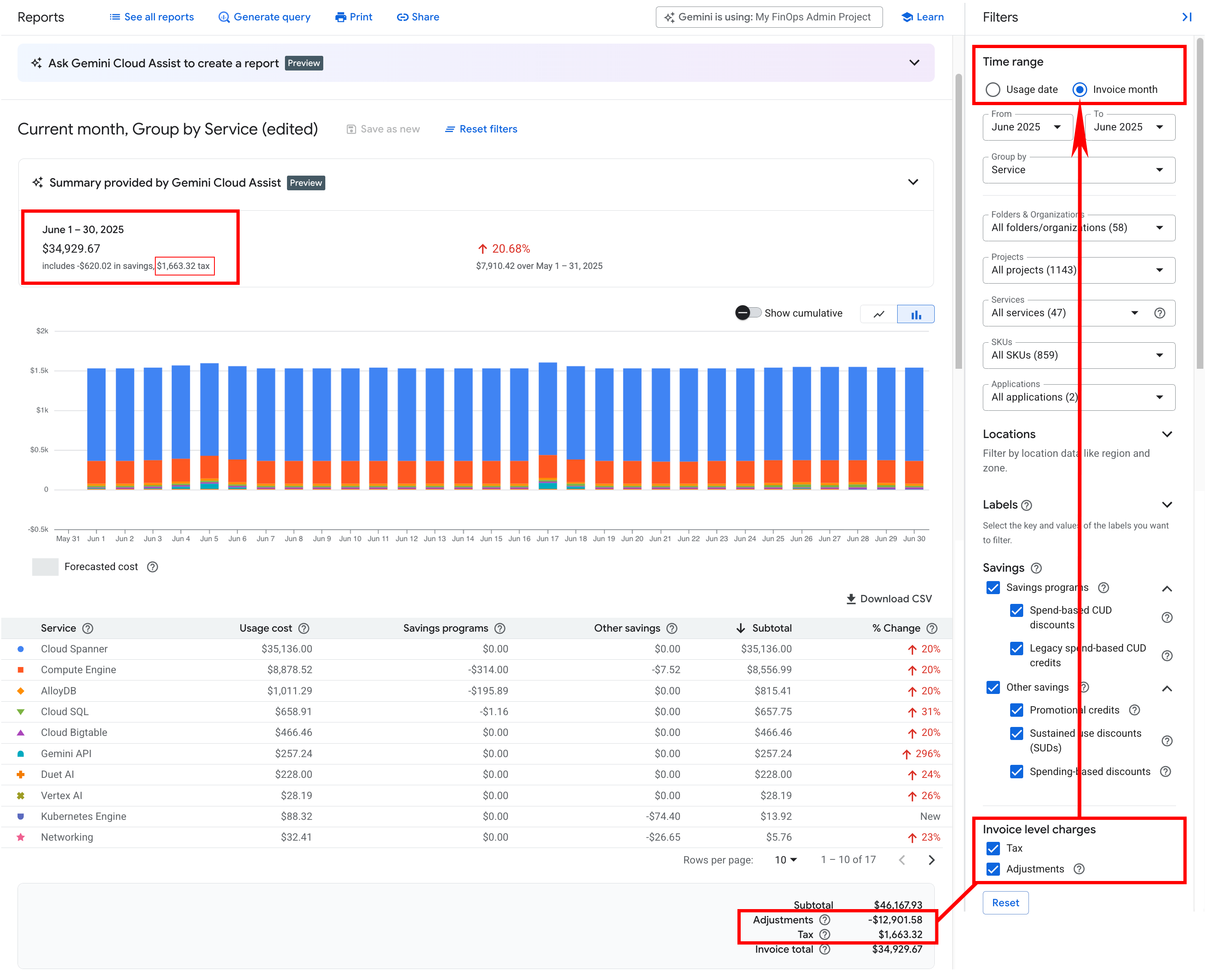
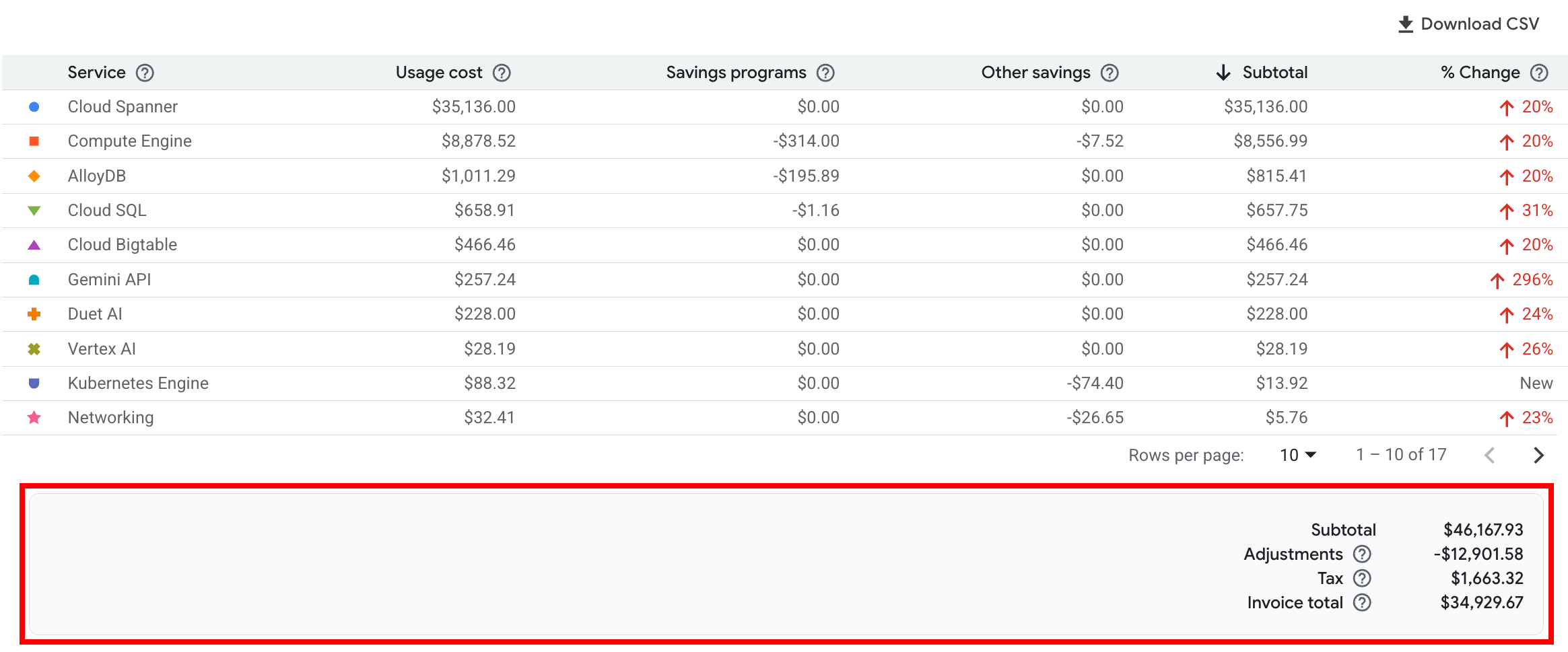
The summary footer, below the table, displays the subtotal, the invoice-level charges (adjustments and tax), and the invoice total.
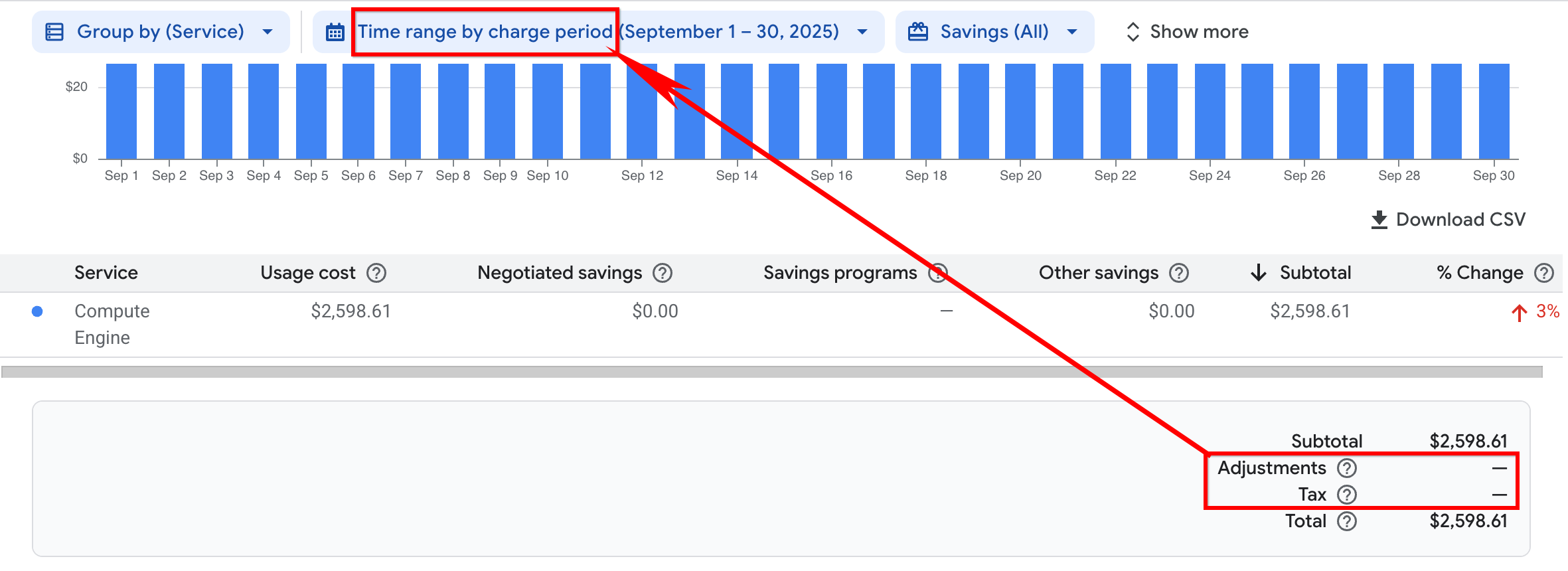
Invoice-level charges (tax and adjustments) are NOT displayed when the Time range setting is by Charge period (formerly Usage date), or when you set other report filters, such as Projects, Services, or SKUs.
View invoice charges for the most recent billing period (formerly invoice month)
To view all invoice charges for the most recent billing period (formerly invoice month), select the preset report: Last invoice by service. This preset report automatically sets the report filters as follows:
- In the Time range setting, Billing period (formerly Invoice month) is selected, and the From and To month range is set for the most recent, complete billing period month (for example, May 2026).
- The Group by filter is set to group costs by Service.
- All other report filters are set to use their default configurations (for example, ALL projects, services, SKUs, and savings options).
Using the Last invoice by service preset report, you can quickly view a report with totals that map to your most recent invoice or statement, showing costs for all services and SKUs, grouped by Service, and including discounts, credits, and invoice-level charges (such as taxes, contractual credits, adjustments, or surcharges).
Billing Reports aggregates all invoice costs for the billing period (formerly invoice month), and NOT by individual invoice. If you receive more than one invoice in a month, your billing period totals might not map to the totals of an individual invoice issued in the same month. If you want to view the detailed costs per individual invoice, see the cost table report.
View invoice charges for a specific billing period
To view all invoice charges for a specific billing period, do the following:
- In the Billing section of the Google Cloud console, access the cost report for the Cloud Billing account you want to analyze.
- In the Time range setting, select Billing period (formerly Invoice month), then set your From and To month range for the same month (for example, January 2026).
- Select your preferred Group by setting (for example, Project, Service, or SKU).
Ensure no other filters are set. That is, you should view the report for ALL filter options (such as projects, services, SKUs, and savings options).
In the summary footer, the cost breakdown displays:
- Subtotal: The sum of the Group by costs, after Savings discounts and credits.
- Adjustments: The sum of credit or debit memos and other adjustments applied to your Cloud Billing account due to billing corrections or contractual requirements, as reported from the invoices issued for the billing period month (formerly invoice month). Adjustments might be issued in a different month than the billing period month to which they are applied. For more details on adjustments, see Understand memos and adjustments. You won't see this line item if you have no adjustments applied to your invoices.
- Tax: Sum of all taxes reported from all of the invoices for the billing period month.
Invoice total: Includes all savings, adjustments, taxes, and rounding errors, aggregated for all invoices issued for the billing period month.
Invoice total versus Filtered total
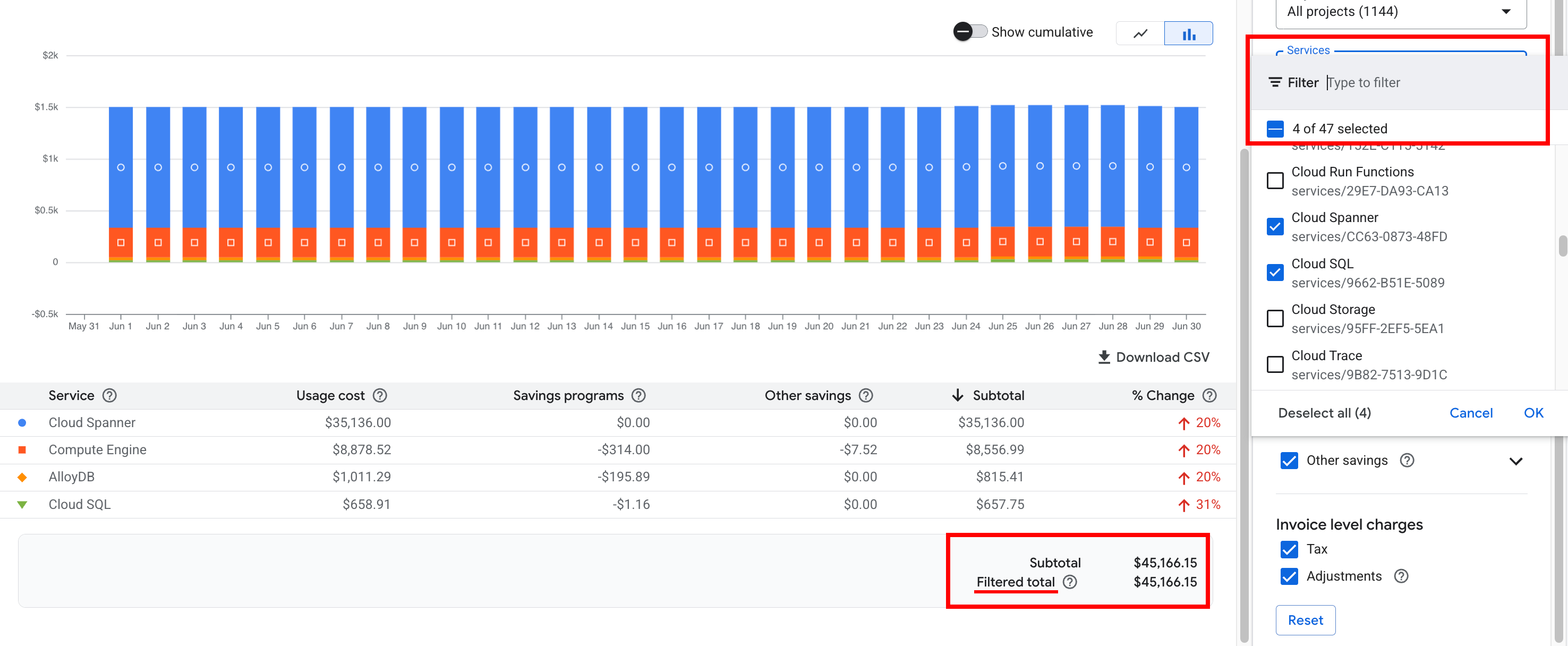
In the summary footer of the report, the display of invoice-level costs and the type of report total depends on how your report filters are configured.
Invoice total: Invoice total includes all costs and savings for the billing period month, as well as invoice-level charges such as taxes, adjustments, and rounding errors, aggregated for all invoices issued during the same billing period month. To view the invoice total, set the Time range to Billing period (formerly Invoice month), and make sure all of the other filters are set to show all options (such as all Projects, Services, SKUs, and Savings).

Filtered total: When your Time range is set to Billing period, the filtered total summarizes your charges based on the filter selections you have chosen (such as filtering on a subset of Projects, Services, or SKUs), excluding tax, adjustments, and rounding errors. When you see a Filtered total in the report, invoice-level charges aren't displayed in the summary footer and aren't included in the calculation of the filtered total. A filtered total doesn't match the total on your monthly invoice or statement.
Related reports
- Cost Table report: A detailed, tabular view of your monthly costs for a given invoice or statement, which can be filtered and downloaded.
- Cost Breakdown report: An at-a-glance waterfall view of your usage costs calculated using the on-demand price for your Google Cloud usage, how discounts and credits saved you money, and any invoice-level charges applied (if you're viewing the cost breakdown for a billing period (formerly invoice month) time range).