

When you create a custom card fulfillment, you can create text responses and custom payloads. Text responses are used for plain text and Markdown agent responses, and custom payloads are used for rich responses. The custom payload format for all response types has the following basic structure:
{
  "richContent": [
    [
      {
        "type": "type-id",
        ...
      },
      {
        "type": "type-id",
        ...
      }
    ],
    [
      {
        "type": "type-id",
        ...
      },
      {
        "type": "type-id",
        ...
      }
    ]
  ]
}
The remaining subsections describe the various types of responses you can configure for a custom payload.
Text response
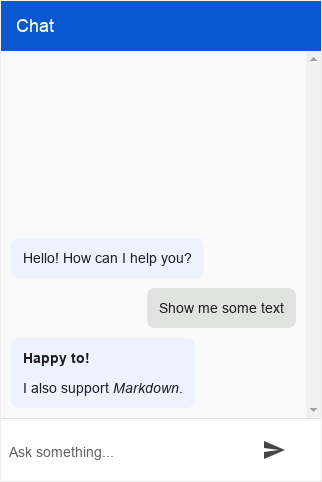
The text response supports plain text and Markdown. Here are a few Markdown examples:
*Italic***Bold**# Title[Link text](Link URL)Tables:
Header 1 | Header 2
-------- | --------
Cell 1   | Cell 2
Info response type
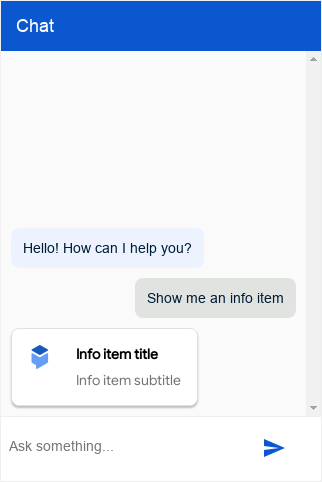
The info response type is an informative title card that users can click or touch.
The following table describes the fields:
| Name | Type | Description |
|---|---|---|
type |
string |
Response type: "info". |
title |
string |
Card title. |
subtitle |
string |
Card subtitle. |
image |
object |
Image. |
image.rawUrl |
string |
Public URL for the image. |
anchor |
object |
Anchor to follow when element is clicked. |
anchor.href |
string |
URL of the anchor. |
anchor.target |
string |
Target of the anchor, defaults to _blank. |
For example:
{
  "richContent": [
    [
      {
        "type": "info",
        "title": "Info item title",
        "subtitle": "Info item subtitle",
        "image": {
          "rawUrl": "https://example.com/images/logo.png"
        },
        "anchor": {
          "href": "https://example.com"
        }
      }
    ]
  ]
}
Description response type
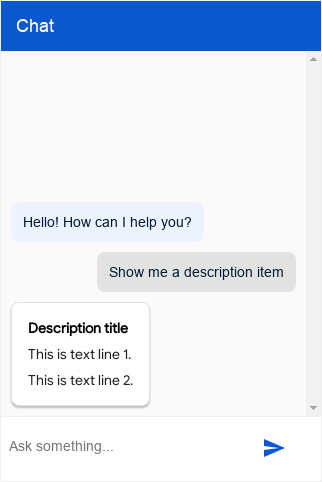
The description response type is an informative card that lets you display multiple lines of text.
The following table describes the fields:
| Name | Type | Description |
|---|---|---|
type |
string |
Response type: "description". |
title |
string |
Card title. |
text |
array<string> |
Array of strings, where each string is rendered on a new line. |
For example:
{
  "richContent": [
    [
      {
        "type": "description",
        "title": "Description title",
        "text": [
          "This is text line 1.",
          "This is text line 2."
        ]
      }
    ]
  ]
}
Image response type
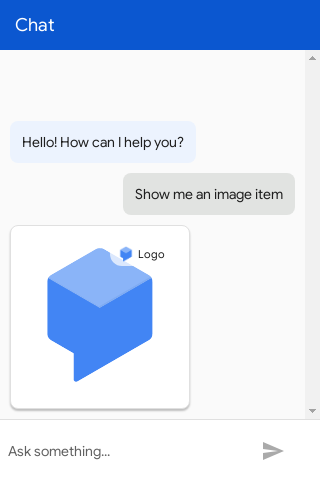
The image response type is an image card that users can click or touch. The response type supports a reference chip that lets you add the image's source as an anchor link together with a short descriptive text and an icon.
The following table describes the fields:
| Name | Type | Description |
|---|---|---|
type |
string |
Response type: "image". |
rawUrl |
string |
Public URL for the image. |
accessibilityText |
string |
Alt text for the image. |
reference.text |
string |
Text to show in reference chip. |
reference.anchor.href |
string |
URL of the reference chip. |
reference.anchor.target |
string |
Target of the anchor in the reference chip, defaults to _blank. |
reference.image.rawUrl |
string |
Image to show in the reference chip. |
For example:
{
  "richContent": [
    [
      {
        "type": "image",
        "rawUrl": "https://example.com/images/logo.png",
        "accessibilityText": "Example logo",
        "reference": {
          "text": "Logo",
          "anchor": {
            "href": "https://example.com/images/logo.png"
          },
          "image": {
            "rawUrl": "https://example.com/images/logo_small.png"
          }
        }
      }
    ]
  ]
}
You can use the following CSS variables:
| Properties | Input Policy | Default Value | Description |
|---|---|---|---|
df-messenger-image-border-radius |
Optional | 8px | Border radius of the image. |
Video response type
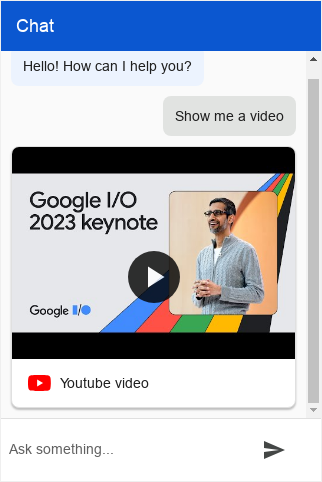
The video response type renders a video element that can be a direct video from a URL, played directly in the messenger, or a link to a video.
The following table describes the fields:
| Name | Type | Description |
|---|---|---|
type |
string |
Response type: "video". |
title |
string |
Optional video title. |
source |
object |
The video's source. |
source.type |
string |
A type of video source, either link or raw. |
source.anchor |
object |
Anchor to follow when element is clicked. |
source.embeddedPlayer |
string |
A link type video may be embedded rather than link to the player's web page. This is only implemented for a known set of players, supports youtube. |
source.thumbnail |
object |
Thumbnail to show for the anchor. |
source.thumbnail.rawUrl |
string |
URL of the thumbnail. |
source.rawUrl |
string |
URL for a raw type video. |
For example:
{
  "richContent": [
    [
      {
        "type": "video",
        "source": {
          "type": "link",
          "anchor": {
            "href": "https://www.youtube.com/watch?v=example"
          }
        }
      }
    ]
  ]
}
You can use the following CSS variables:
| Properties | Input Policy | Default Value | Description |
|---|---|---|---|
df-messenger-video-width |
Optional | auto | Width of a video (limited by max-width\: 100%). |
df-messenger-video-height |
Optional | auto | Height of a video. |
df-messenger-video-embed-width |
Optional | 560px | Width of an embedded video (limited by max-width\: 100%). |
df-messenger-video-embed-height |
Optional | 315px | Height of an embedded video. |
df-messenger-video-border |
Optional | 1px solid #e0e0e0 | Border of the video. |
df-messenger-video-border-radius |
Optional | 8px | Border radius of the video. |
Button response type
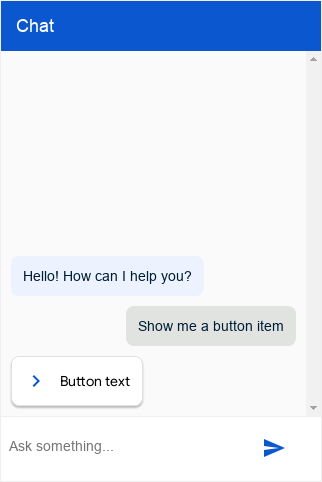
The button response type is a small button with an icon that you can click or touch.
The following table describes the fields:
| Name | Type | Description |
|---|---|---|
type |
string |
Response type: "button". |
icon |
object |
Icon for button. |
icon.type |
string |
Icon from the Material icon library. The default icon is an arrow. |
icon.color |
string |
Color hexcode. |
image |
object |
Image for the button, takes priority over icon. |
image.rawUrl |
string |
Public URL for the button image. |
mode |
string |
Optional, if set to "blocking", user input is disabled until the user clicks the button. |
text |
string |
Button text. |
anchor |
object |
Anchor to follow when element is clicked. |
anchor.href |
string |
URL of the anchor. |
anchor.target |
string |
Target of the anchor, defaults to _blank. |
event |
object |
Dialogflow CX event that is triggered when the button is clicked. |
For example:
{
  "richContent": [
    [
      {
        "type": "button",
        "icon": {
          "type": "chevron_right",
          "color": "#FF9800"
        },
        "mode": "blocking",
        "text": "Button text",
        "anchor": {
          "href": "https://example.com"
        },
        "event": {
          "event": ""
        }
      }
    ]
  ]
}
You can use the following CSS variables:
| Properties | Input Policy | Default Value | Description |
|---|---|---|---|
df-messenger-button-border |
Optional | none | Border of a button. |
df-messenger-button-border-radius |
Optional | 8px | Border radius of a button. |
df-messenger-button-font-color |
Optional | #1f1f1f | Text color of a button. |
df-messenger-button-font-family |
Optional | "Google Sans", "Helvetica Neue", sans-serif | Font family of a button. |
df-messenger-button-font-size |
Optional | 14px | Font size of a button. |
df-messenger-button-padding |
Optional | 12px | Padding of a button. |
df-messenger-button-icon-spacing |
Optional | 12px | Space between button icon and text. |
df-messenger-button-icon-font-size |
Optional | 24px | Size of the button icon. |
df-messenger-button-image-size |
Optional | 24px | Size of the button image. |
df-messenger-button-image-offset |
Optional | 0 | Offset of the button image, allows negative values to offset padding. |
df-messenger-button-text-align |
Optional | center | Text align of a button. |
df-messenger-button-text-wrap |
Optional | normal | Use nowrap to disallow multi-line buttons. |
List response type
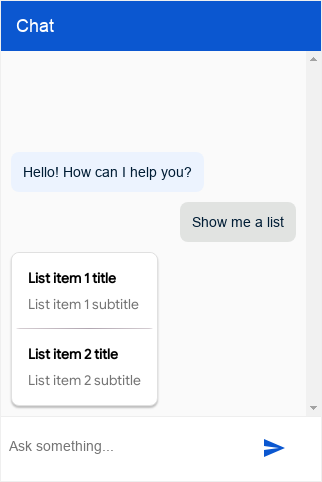
The list response type is a card that lets you select from multiple options. The
response contains an array of list and divider response types.
The following table describes the list type:
| Name | Type | Description |
|---|---|---|
type |
string |
Response type: "list". |
title |
string |
Option title. |
subtitle |
string |
Option subtitle. |
event |
object |
Dialogflow CX event that is triggered when the option is clicked. |
anchor |
object |
Anchor to follow when element is clicked. |
anchor.href |
string |
URL of the anchor. |
anchor.target |
string |
Target of the anchor, defaults to _blank. |
image |
object |
Image. |
image.rawUrl |
string |
Public URL for the reference image. |
event.event |
string |
Name of the event that is triggered when the option is clicked. |
The following table describes the divider type:
| Name | Type | Description |
|---|---|---|
type |
string |
Response type: "divider". |
For example:
{
  "richContent": [
    [
      {
        "type": "list",
        "title": "List item 1 title",
        "subtitle": "List item 1 subtitle",
        "event": {
          "event": ""
        }
      },
      {
        "type": "list",
        "title": "List item 2 title",
        "subtitle": "List item 2 subtitle",
        "event": {
          "event": ""
        }
      }
    ]
  ]
}
You can use the following CSS variables:
| Properties | Input Policy | Default Value | Description |
|---|---|---|---|
df-messenger-list-padding |
Optional | 16px | Padding of a list element. |
df-messenger-list-inset |
Optional | 0 | Additional horizontal "inset" of the list element (in addition to the padding), to control the expansion of the border between elements. |
df-messenger-list-spacing |
Optional | 10px | Vertical space between list elements. |
df-messenger-list-border-bottom |
Optional | 1px solid #e0e0e0 | Border between list elements. |
Accordion response type
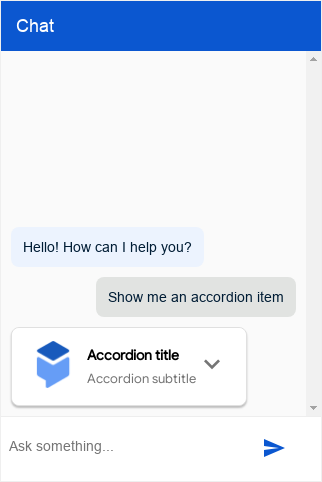
The accordion response type is a small card that you can tap or click to expand and reveal more text.
The following table describes the fields:
| Name | Type | Description |
|---|---|---|
type |
string |
Response type: "accordion". |
title |
string |
Accordion title. |
subtitle |
string |
Accordion subtitle. |
image |
object |
Image. |
image.rawUrl |
string |
Public URL for image. |
text |
string |
Accordion text. |
For example:
{
  "richContent": [
    [
      {
        "type": "accordion",
        "title": "Accordion title",
        "subtitle": "Accordion subtitle",
        "image": {
          "rawUrl": "https://example.com/images/logo.png"
        },
        "text": "Accordion text"
      }
    ]
  ]
}
Suggestion chip response type
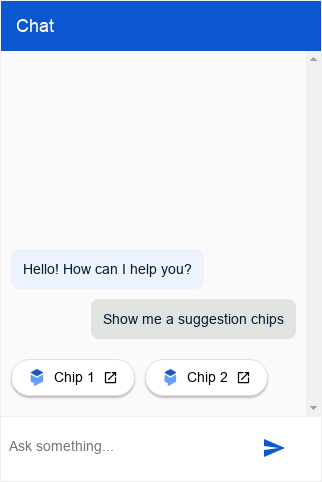
The suggestion chip response type lets you provide a list of clickable suggestion chips.
The following table describes the fields:
| Name | Type | Description |
|---|---|---|
type |
string |
Response type: "chips". |
options |
array<object> |
Array of option objects. |
options[].mode |
string |
Optional. If set to "blocking", user input is disabled until the user clicks the chip. |
options[].text |
string |
Option text. |
options[].image |
object |
Optional. Image. |
options[].image.rawUrl |
string |
Option public URL for the image. |
options[].anchor |
object |
Optional. Anchor to follow when the element is clicked. |
options[].anchor.href |
string |
URL of the anchor. |
options[].anchor.target |
string |
Target of the anchor, defaults to _blank. |
For example:
{
  "richContent": [
    [
      {
        "type": "chips",
        "options": [
          {
            "mode": "blocking",
            "text": "Chip 1",
            "image": {
              "rawUrl": "https://example.com/images/logo.png"
            },
            "anchor": {
              "href": "https://example.com"
            }
          },
          {
            "text": "Chip 2",
            "image": {
              "rawUrl": "https://example.com/images/logo.png"
            },
            "anchor": {
              "href": "https://example.com"
            }
          }
        ]
      }
    ]
  ]
}
You can provide the following CSS variables:
| Properties | Input Policy | Default Value | Description |
|---|---|---|---|
df-messenger-chips-spacing |
Optional | 10px | Space above the chips to the preceding message. |
df-messenger-chips-border-color |
Optional | #e0e0e0 | Border color of a chip. |
df-messenger-chips-border-color-hover |
Optional | #e0e0e0 | Border color of a chip when hovered. |
df-messenger-chips-border-radius |
Optional | 999px | Border radius of a chip. |
df-messenger-chips-background |
Optional | white | Background of a chip. |
df-messenger-chips-background-hover |
Optional | rgba(68, 71, 70, 0.08) |
Background of a chip when hovered. |
df-messenger-chips-padding |
Optional | 6px 16px | Padding of a chip. |
df-messenger-chips-font-color |
Optional | black | Text color of a chip. |
df-messenger-chips-font-family |
Optional | "Google Sans", "Helvetica Neue", sans-serif | Font family of a chip. |
df-messenger-chips-font-size |
Optional | 14px | Text size of a chip. |
df-messenger-chips-font-weight |
Optional | normal | Font weight of a chip. |
df-messenger-chips-font-weight-hover |
Optional | normal | Font weight of a chip when hovered. |
df-messenger-chips-box-shadow |
Optional | 0 2px 2px 0 rgba(0, 0, 0, 0.24) |
Box shadow of a chip. |
df-messenger-chips-content-align |
Optional | flex-start | Vertical alignment of the content (for example, the image) in a chip. |
df-messenger-chips-text-wrap |
Optional | nowrap | Use normal to allow multi-line chips. |
Citations response type
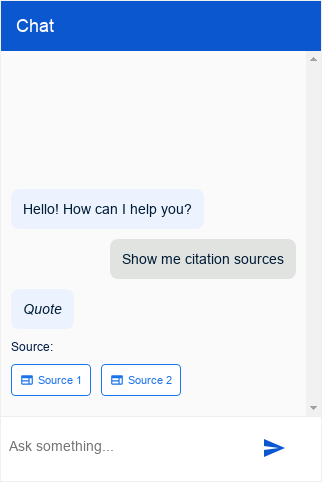
The citations response type provides the end-user with a list of clickable citation links.
The following table describes the fields:
| Name | Type | Description |
|---|---|---|
type |
string |
Response type: "match_citations". |
citations |
array<object> |
Array of Citation objects. |
citations[].title |
string |
Citation title. |
citations[].subtitle |
string |
Citation subtitle (ignored). |
citations[].anchor |
object |
Anchor to follow when element is clicked. |
citations[].anchor.href |
string |
URL of the anchor. |
citations[].anchor.target |
string |
Target of the anchor, defaults to _blank. |
For example:
{
  "richContent": [
    [
      {
        "type": "match_citations",
        "citations": [
          {
            "title": "Source 1",
            "subtitle": "",
            "anchor": {
              "href": "https://example.com/1"
            }
          },
          {
            "title": "Source 2",
            "subtitle": "",
            "anchor": {
              "href": "https://example.com/2"
            }
          }
        ]
      }
    ]
  ]
}
You can use the following CSS variables:
| Properties | Input Policy | Default Value | Description |
|---|---|---|---|
df-messenger-citations-spacing |
Optional | 10px | Space above the citations to the preceding message. |
df-messenger-citations-message-display |
Optional | block | Defines display of the note above citations, allowed values are block or none. |
df-messenger-citations-message-font-color |
Optional | #041e49 | Text color of the note above citations. |
df-messenger-citations-message-font-size |
Optional | 12px | Text size of the note above citations. |
df-messenger-citations-flex-direction |
Optional | row | Flex direction property of the citations, recommended to use row (horizontal with line breaks) or column (vertical). |
df-messenger-citations-border-color |
Optional | #3279f9 | Border color of a citation. |
df-messeenger-citations-border-color-hover |
Optional | #3279f9 | Border color of a citation when hovered. |
df-messenger-citations-border-radius |
Optional | 4px | Border radius of a citation. |
df-messenger-citations-padding |
Optional | 8px | Padding of a citation. |
df-messenger-citations-background |
Optional | white | Background of a citation. |
df-messenger-citations-background-hover |
Optional | rgba(68, 71, 70, 0.08) |
Background of a citation when hovered. |
df-messenger-citations-font-color |
Optional | #3279f9 | Text color of a citation. |
df-messenger-citations-font-family |
Optional | "Google Sans", "Helvetica Neue", sans-serif | Font family of a citation. |
df-messenger-citations-font-size |
Optional | 11px | Text size of a citation. |
df-messenger-citations-icon-font-size |
Optional | 14px | Text size of the icon of a citation. |
df-messenger-citations-font-weight |
Optional | normal | Font weight of a citation. |
df-messenger-citations-font-weight-hover |
Optional | normal | Font weight of a citation when hovered. |
df-messenger-citations-icon-spacing |
Optional | 4px | Space between icon and text in a citation. |
df-messenger-citations-box-shadow |
Optional | none | Box shadow of a citation. |
Files response type
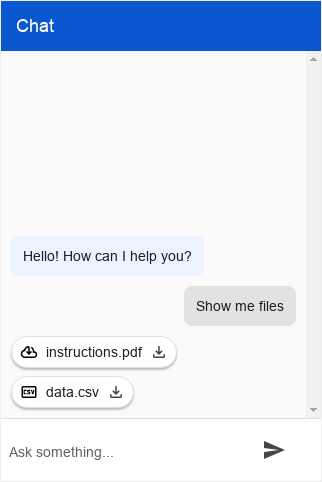
The files response type renders a list of file elements that you can download. The user can download the file by clicking on the anchor element.
The following table describes the fields:
| Name | Type | Description |
|---|---|---|
type |
string |
Response type: "files". |
files |
array<object> |
Array of file objects. |
files[].name |
string |
File name. |
files[].image |
object |
File image. |
files[].image.rawUrl |
string |
File public URL for image. |
files[].anchor |
object |
Anchor to download the file. |
files[].anchor.href |
string |
URL of the anchor. |
files[].anchor.target |
string |
Target of the anchor, defaults to _blank. |
For example:
{
  "richContent": [
    [
      {
        "type": "files",
        "files": [
          {
            "name": "instructions.pdf",
            "image": {
              "rawUrl":
                  "https://fonts.gstatic.com/s/i/short-term/release/googlesymbols/cloud_download/default/24px.svg"
            },
            "anchor": {
              "href": "https://example.com/instructions.pdf"
            }
          },
          {
            "name": "data.csv",
            "image": {
              "rawUrl":
                  "https://fonts.gstatic.com/s/i/short-term/release/googlesymbols/csv/default/24px.svg"
            },
            "anchor": {
              "href": "https://example.com/data.csv"
            }
          }
        ]
      }
    ]
  ]
}
The following CSS variables can be provided:
| Properties | Input Policy | Default Value | Description |
|---|---|---|---|
df-messenger-files-spacing |
Optional | 10px | Space above the file to the preceding message. |
df-messenger-files-distance |
Optional | 8px | Distance between files in the list. |
df-messenger-files-flex-direction |
Optional | row | Flex direction property of the files, recommended to use row (horizontal with line breaks) or column (vertical). |
df-messenger-files-background |
Optional | white | Background of a file. |
df-messenger-files-border |
Optional | 1px solid #e0e0e0 | Border of a file. |
df-messenger-files-border-radius |
Optional | 999px | Border radius of a file. |
df-messenger-files-box-shadow |
Optional | 0 2px 2px 0 rgba(0, 0, 0, 0.24) |
Box shadow of a file. |
df-messenger-files-padding |
Optional | 6px 16px | Padding of a file. |
df-messenger-files-font-color |
Optional | #1f1f1f | Text color of a file. |
df-messenger-files-font-family |
Optional | "Google Sans", "Helvetica Neue", sans-serif | Font family of a file. |
df-messenger-files-font-size |
Optional | 14px | Text size of a file. |
df-messenger-files-font-weight |
Optional | normal | Font weight of a file. |
df-messenger-files-background-hover |
Optional | white | Background of a file when hovered. |
df-messenger-files-border-hover |
Optional | 1px solid #e0e0e0 | Border of a file when hovered. |
df-messenger-files-font-weight-hover |
Optional | normal | Font weight of a file when hovered. |
df-messenger-files-image-offset |
Optional | 0 0 0 -8px | Offset of the image on the left. |
df-messenger-files-image-size |
Optional | 18px | Size of the image on the left. |
df-messenger-files-text-spacing |
Optional | 8px | Distance between image-text on the left and text-icon on the right. |
df-messenger-files-icon-offset |
Optional | 0 -8px 0 0 | Offset of the download icon on the right. |
df-messenger-files-icon-size |
Optional | 18px | Size of the download icon on the right. |
df-messenger-files-icon-font-color |
Optional | #444746 | Color of the download icon on the right. |
HTML response type
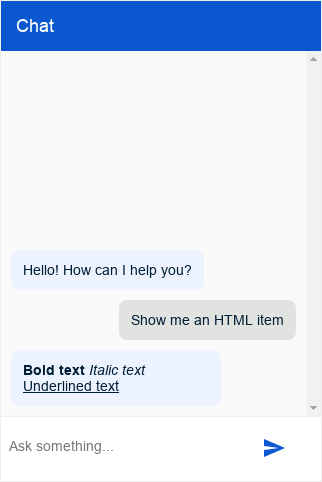
The HTML response type provides the user with an HTML message.
The following table describes the fields:
| Name | Type | Description |
|---|---|---|
type |
string |
Response type: "html". |
html |
string |
Text content of the message, supports HTML. |
Supported HTML tags:
a- Anchor element (used for creating hyperlinks).b- Bold element (used for bolding text).i- Italic element (used for italicizing text).u- Underline element (used for underlining text).h1- Heading 1 element (used for the main heading of a page).h2- Heading 2 element (used for subheadings).h3- Heading 3 element (used for sub-subheadings).p- Paragraph element (used for creating paragraphs of text).br- Line break element (used for creating line breaks within a paragraph).table- Table element (used for creating tables).tr- Table row element (used for creating rows within a table).thead- Table header element (used for creating a header within a table).th- Table header data or cell element (used for creating cells within a table header row).tbody- Table body element (used for creating a body within a table).td- Table data or cell element (used for creating cells within a table row).ul- Unordered list element (used for creating bulleted lists).ol- Ordered list element (used for creating numbered lists).li- List item element (used for creating items within a list).img- Image element (used for showing an image, see alsourl-allowlistHTML customization).div- Container element.span- Inline container element.
For example:
{
  "richContent": [
    [
      {
        "type": "html",
        "html": "<b>Bold text</b> <i>Italic text</i> <u>Underlined text</u>"
      }
    ]
  ]
}
Styling HTML and Markdown
For anchor elements, including HTML a elements and Markdown links, you can
provide the following CSS variables:
| Properties | Input Policy | Default Value | Description |
|---|---|---|---|
df-messenger-link-decoration |
Optional | underline | Decoration of a link element. |
df-messenger-link-font-color |
Optional | #0b57d0 | Font color of an unvisited link element. |
df-messenger-link-visited-font-color |
Optional | #0b57d0 | Font color of a visited link element. |
df-messenger-link-hover-font-color |
Optional | #0b57d0 | Font color when hovering a link element. |
df-messenger-link-background |
Optional | transparent | Background of a link element. |
df-messenger-link-padding |
Optional | 0 | Padding of a link element. |
df-messenger-link-border |
Optional | none | Border of a link element. |
df-messenger-link-border-radius |
Optional | 0 | Border radius of a link element. |
You can use the following CSS variables for table elements (HTML table element
and Markdown tables):
| Properties | Input Policy | Default Value | Description |
|---|---|---|---|
df-messenger-table-font-size |
Optional | 14px | Text size in a table element. |
df-messenger-table-font-color |
Optional | #1f1f1f | Text color in a table element. |
df-messenger-table-align |
Optional | left | Alignment of text in a table cell. |
df-messenger-table-padding |
Optional | 0 | Padding in a table cell. |
df-messenger-table-border-collapse |
Optional | separate | Border collapse mode of a table, use separate to enable border-radius. |
df-messenger-table-border-radius |
Optional | 0 | Border radius of a table. |
df-messenger-table-header-border-radius |
Optional | 0 | Border radius of the table header. |
df-messenger-table-border-top |
Optional | none | Border top of a table row. |
df-messenger-table-border-top-first |
Optional | none | Border top of the first table row. |
df-messenger-table-border-bottom |
Optional | none | Border bottom of a table row. |
df-messenger-table-border-bottom-last |
Optional | none | Border bottom of the last table row. |
df-messenger-table-border-left |
Optional | none | Border left of a table cell. |
df-messenger-table-border-left-first |
Optional | none | Border left of the first table cell in a row. |
df-messenger-table-border-right |
Optional | none | Border right of a table cell. |
df-messenger-table-border-right-last |
Optional | none | Border right of the last table cell in a row. |
df-messenger-table-background |
Optional | transparent | Background of a table row. |
df-messenger-table-even-background |
Optional | transparent | Background of even numbered table rows. |
df-messenger-table-odd-background |
Optional | transparent | Background of odd numbered table rows. |
df-messenger-table-header-font-size |
Optional | 14px | Text size in a table header element. |
df-messenger-table-header-font-weight |
Optional | bold | Font weight in a table header element. |
df-messenger-table-header-font-color |
Optional | #1f1f1f | Text color in a table header element. |
df-messenger-table-header-align |
Optional | left | Alignment of text in a table header cell. |
df-messenger-table-header-padding |
Optional | 0 | Padding in a table header cell. |
df-messenger-table-header-border-top |
Optional | none | Border top of the table header row. |
df-messenger-table-header-border-bottom |
Optional | none | Border bottom of the table header row. |
df-messenger-table-header-border-left |
Optional | none | Border left of a cell in the table header row. |
df-messenger-table-header-border-left-first |
Optional | none | Border left of the first cell in the table header row. |
df-messenger-table-header-border-right |
Optional | none | Border right of a cell in the table header row. |
df-messenger-table-header-border-right-last |
Optional | none | Border right of the last cell in a table header row. |
df-messenger-table-header-background |
Optional | transparent | Background of the table header row. |
Custom template response type
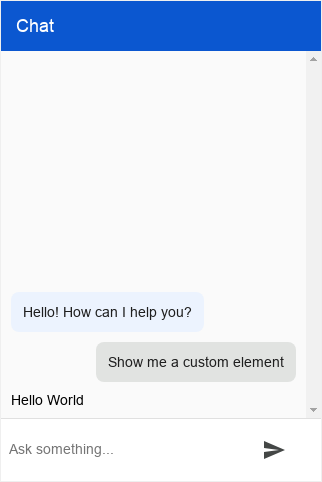
The custom template response type renders a custom element defined on your website. The element isn't placed inside a card and always stands on its own.
The following table describes the fields:
| Name | Type | Description |
|---|---|---|
type |
string |
Response type: "custom_template". |
name |
string |
Name of the custom element. |
payload |
Object |
Payload to pass to the custom element. |
For example:
{
  "richContent": [
    [
      {
        "type": "custom_template",
        "name": "custom-element-example",
        "payload": {
          "text": "Hello World"
        }
      }
    ]
  ]
}
On your website, the custom element needs to be registered under the exact
name from the name field of the response. The payload field is passed to
the custom element as dfPayload after construction (but before
connectedCallback). The field may
contain arbitrary JSON. In addition, dfResponseId is passed to the element.
Using the response from the example, here is an example implementation of a custom element:
class CustomElementExample extends HTMLElement {
  constructor() {
    super();
    // The `dfPayload` field will be provided before `connectedCallback` is
    // being called.
    this.dfPayload = null;
    // The `dfResponseId` field will be provided before `connectedCallback` is
    // being called.
    this.dfResponseId = null;
    // It is not strictly required but recommended to contain the custom
    // element in a shadow root.
    // https://developer.mozilla.org/en-US/docs/Web/API/ShadowRoot
    this.renderRoot = this.attachShadow({mode: 'open'});
  }

  /** Web component Lifecycle method. */
  connectedCallback() {
    const div = document.createElement('div');

    // The `.text` must match the payload's structure in `richContent.payload`.
    div.innerText = this.dfPayload.text;

    this.renderRoot.appendChild(div);
  }
}

(function() {
  // Registers the element. This name must match the name in
  // `richContent.payload`.
  customElements.define('custom-element-example', CustomElementExample);
})();
Combining response types
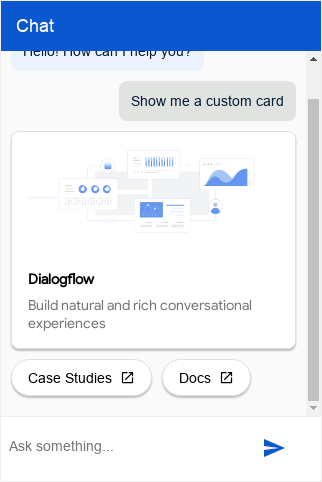
You can use the individual rich message elements for Dialogflow CX Messenger to construct a custom card to fit your needs.
Here's an example that uses some of the elements listed in the fulfillment section:
{
  "richContent": [
    [
      {
        "type": "image",
        "rawUrl": "https://example.com/images/logo.png",
        "accessibilityText": "Dialogflow CX across platforms"
      },
      {
        "type": "info",
        "title": "Dialogflow CX",
        "subtitle": "Build natural and rich conversational experiences",
        "anchor": {
          "href": "https://cloud.google.com/dialogflow/docs"
        }
      },
      {
        "type": "chips",
        "options": [
          {
            "text": "Case Studies",
            "anchor": {
              "href": "https://cloud.google.com/dialogflow/case-studies"
            }
          },
          {
            "text": "Docs",
            "anchor": {
              "href": "https://cloud.google.com/dialogflow/docs"
            }
          }
        ]
      }
    ]
  ]
}
You can use the following CSS variables:
| Properties | Input Policy | Default Value | Description |
|---|---|---|---|
df-messenger-card-background |
Optional | white | Background of a custom card. |
df-messenger-card-padding |
Optional | 16px | Padding of elements in a custom card. |
df-messenger-card-border |
Optional | 1px solid #e0e0e0 | Border of a custom card. |
df-messenger-card-border-radius |
Optional | 8px | Border radius of a custom card. |
df-messenger-card-border-top-left-radius |
Optional | 8px | Border radius top left of a custom card. |
df-messenger-card-border-top-right-radius |
Optional | 8px | Border radius top right of a custom card. |
df-messenger-card-border-bottom-left-radius |
Optional | 8px | Border radius bottom left of a custom card. |
df-messenger-card-border-bottom-right-radius |
Optional | 8px | Border radius bottom right of a custom card. |
df-messenger-card-stack-border-top-left-radius |
Optional | 8px | Border radius top left for consecutive custom cards overrides top left radius. |
df-messenger-card-stack-border-top-right-radius |
Optional | 8px | Border radius top right for consecutive custom cards overrides top right radius. |
df-messenger-card-stack-border-bottom-left-radius |
Optional | 8px | Border radius bottom left for consecutive custom cards overrides bottom left radius. |
df-messenger-card-stack-border-bottom-right-radius |
Optional | 8px | Border radius bottom right for consecutive custom cards overrides bottom right radius. |
df-messenger-card-box-shadow |
Optional | 0 2px 2px 0 rgba(0, 0, 0, 0.24) |
Box shadow of a custom card. |
Rich content from a playbook tool
Use playbook tools to send rich content to Dialogflow CX Messenger.
Step 1: Create an addRichContent tool in your agent
To create a function tool called addRichContent, use the following data:
Tool input:
properties: {}
type: object
Tool output:
properties:
  status:
    type: string
  reason:
    type: string
type: object
Step 2: Tell your agent how to use this tool
Tell your agent how to use the tool in instructions and examples.
For example, add something like the following to your instructions:
-  Greet  the  user
-  Ask  the  user  what  their  favorite  color  is.
   At  the  same  time  run  ${TOOL:  addRichContent}  to  display  buttons
   for  blue,  red,  yellow,  and  green.
-  Thank  the  user
For instance, create an example like the following:
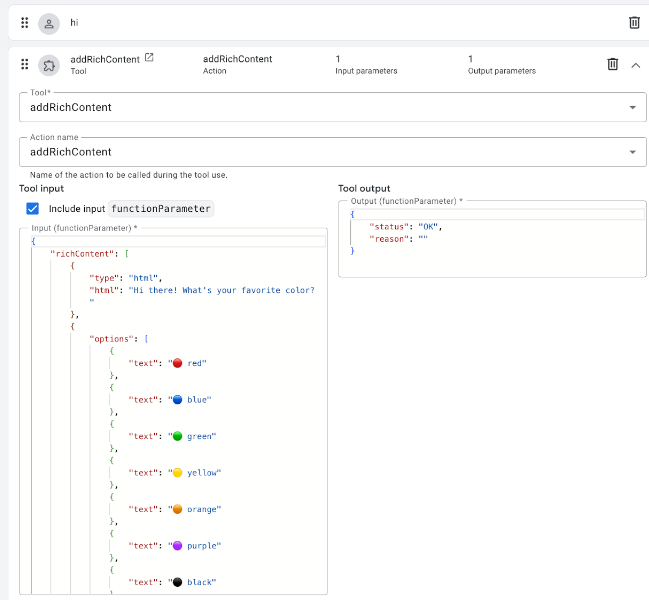
Step 3: Define the JavaScript
In the code for the page that hosts df-messenger, create JavaScript code that
defines a function that tells df-messenger to render the rich content.
Register this function with df-messenger so that it executes the function when
the virtual agent needs it.
Make sure the variable dfMessenger is declared and points to your instance of
df-messenger.
Here's some example code you can use for this purpose:
const dfMessenger = document.querySelector('df-messenger');

function  addRichContent(customPayload)  {
  dfMessenger.renderCustomCard(customPayload.richContent);

  // add error handling

  return  Promise.resolve({  status:  "OK",  reason:  null  });
}

// substitute your own tool id

const  toolId  =  'projects/PROJECT_ID/locations/LOCATION/agents/AGENT_ID/tools/TOOL_ID'
dfMessenger.registerClientSideFunction(toolId,  addRichContent.name,  addRichContent);