

Resolve and close cases
This document describes how to close cases in Google Security Operations using various interface options, including the case details page, the case queue (side-by-side and list views), and the Search page. It also explains how to view the contents of closed cases. You can close a case once it's resolved. For information on what details to enter when closing a case, see Use custom fields.
Ways to close a case
You can close a case once it's resolved. You can do this from the following locations:
- For a single case, use the case details page (top menu).
- For multiple cases, use bulk actions from one of the following
locations:
- Side-by-Side or List views on the Cases page
- The Search page
- The Tools integration job
Close a single case from the case details page
-
Open the case you want to close, then click
 Close Case.
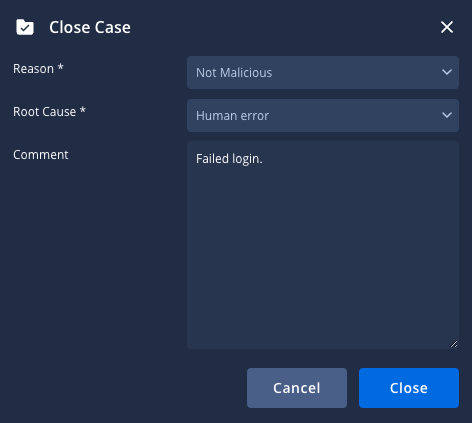
 - In the Close Case dialog, select a valid reason and a root cause for closing the case, and enter any additional comments. You must select a reason before you can select a root cause. These comments will be posted on the Case Wall. If you create a custom Siemplify - Close Case action in the IDE, you must select one of the parameter types to be Close case reason.
- Click Close.

Close multiple cases at once
When you manage a high volume of cases, choose a method that matches your workflow and the number of cases you want to close.
The following guidelines are based on the approximate number of open cases in your case queue.
For 1-50 cases
If you have 1-50 cases to close, you can use these methods directly within the platform from the Cases page views or the Search page.
From the cases queue (side-by-side view)
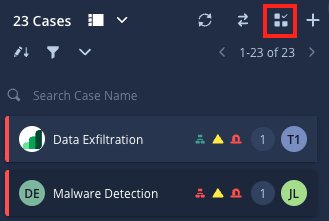
- In the cases queue, click
 Select multiple cases.
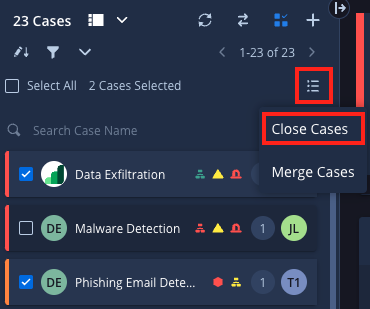
 - Select the relevant cases you want to close in the cases queue.
- Click format_list_bulleted Close Cases/Merge Cases and select Close Cases.
- In the Close Case dialog, select a valid reason and a root cause. Optionally, enter comments to post on the Case Wall.
- Click Close.
From the cases queue (list view)
- Select the checkboxes for the cases you want to close in the case list grid.
- In the top right toolbar, click Actions and select Close cases (or click the Close cases icon in the legacy experience toolbar).
- In the Close Case dialog, select a valid reason and a root cause for closing the case and enter any additional comments. These comments will be posted on the Case Wall.
- Click Close.

From the Search page
- Go to the Search page.
- Apply filters to find the relevant cases you want to close.
- From the search results, select the cases you want to close (up to 50 cases).
- Click Menu and select Close case.
- In the Close Case dialog, choose a valid reason and a root cause. Optionally, enter comments to post on the Case Wall. Click Close when finished.
For cases higher than 50
For volumes higher than 50 cases, rely on the Close Cases Based On Search job in the Tools integration. For more information, see Jobs - Close Cases Based On Search.
Contact Google Support if the two preceding options fail.
View the contents of a closed case
To view the contents of closed cases, follow these steps:
- Go to the SOAR Search page (or filter by status directly in the Cases queue).
- In the Filter section, select Status > Closed.
- Click Apply.
- In the list of closed cases, click the ID number of the selected case; you're redirected to the original case contents.
Need more help? Get answers from Community members and Google SecOps professionals.